No previous page

 
Click here to go to the next page
Next Page

Microsoft Word


Microsoft Word

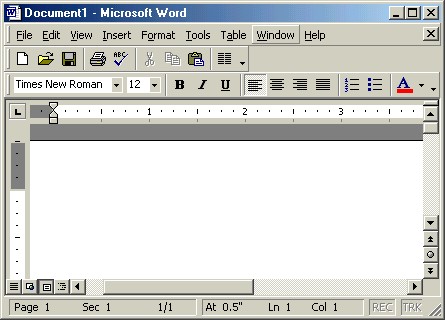
Microsoft Word is an advanced text editor or word processing application used to create, edit, format, save and print text documents. Microsoft Word can be used to create any type of text documents: Letters, agendas, books, reports, brochures, envelopes...the list goes on and on!


Microsoft Word Versions

If your Start Menu button looks like this, you probably have an older version of Word. Follow the instructions in the lessons where it says older versions of Word.

  If your Start Menu button looks like this, you probably have a newer version of Word (Microsoft Office XP or Word 2003). Follow the instructions in the lessons where it says Word 2003.

Where there is no reference to older versions of Word or Word 2003, the instructions will be for all versions of Word.

If in doubt, follow the instructions where the pictures match what you see on your screen.


RECOMMENDATION: It is recommended that new users of Word start with the first lesson and continue in order until the end. Experienced users of Word can choose which lessons they want to cover. Click on a link to begin.


Lessons

Click on a lesson name to begin.

Lesson 1: Microsoft Word: Document Windows and Document Views

Lesson 2: Creating a Letter to Learn about Microsoft Word:

Step 1: Open Microsoft Word
Step 2: Save the Document
Step 3: Change the Page Setup/Margins
Step 4: Set the Tabs
Step 5: Set the Line Spacing
Step 6: Set the Page Alignment
Step 7: Automatically Insert the Date
Step 8: Insert AutoText
Step 9: Type the Text
Step 10: Undo & Redo
Step 11: Copy & Paste
Step 12: Insert the Closing Line
Step 13: Type the Signature Line
Step 14: Check the Spelling
Step 15: Use Print Preview
Step 16: Print the Letter
Step 17: Save and Close the Document

Lesson 3: Creating a Newsletter to Learn More about Microsoft Word:

Step 1: Open Microsoft Word (Also: Open a Pre-Existing Document, Open More than One Document, Switch Between Documents, and Create a New Document)
Step 2: Save the Document
Step 3: Change the Page Setup
Step 4: Add a Text Box & Change the Background Color
Step 5: Move, Resize and Delete a Text Box
Step 6: Change the Font Style/Size/Color and Align the Text
Step 7: Format the Text Box: Text Wrapping Layout
Step 8: Create Columns
Step 9: Create a Headline
Step 10: Copy & Paste Text
Step 11: Add Bullets to Lists
Step 12: Insert a Column, Section or Page Break
Step 13: Insert a Picture or Clip Art
Step 14: Enter More Text
Step 15: Align Text: Justification
Step 16: Create Drop Caps
Step 17: Create a Page Border
Step 18: Spell Check the Newsletter
Step 19: Use Zoom/Magnify Tools
Step 20: Use Print Preview
Step 21: Print the Newsletter
Step 22: Save and Close the Document and Word

Lesson 4: Special Features:

Lesson 5: Display/Hide Toolbars and Add/Remove Toolbar Buttons

Lesson 6: Using Word Help

Lesson 7: Headers & Footers

Lesson 8: Templates & Wizards

Lesson 9: Working with Tables

Lesson 10: Mail Merge

Lesson 11: Using Drawing Tools

Lesson 12: Using AutoCorrect, AutoComplete and AutoFormat

Lesson 13: Macros

Lesson 14: Links & Bookmarks

Lesson 15: Saving as Other File Types

Lesson 16: Indenting, Spacing, and the Format Painter

Lesson 17: Using the Thesaurus

Lesson 18: Adding Comments & Tracking Changes

Lesson 19: Working with Format Styles

Lesson 20: Compare and Merge Documents

Lesson 21: AutoSummarize

Lesson 22: Protecting Documents with Read-Only and Passwords


No previous page
 
Click here to go to the next page
Next Page
Hosted by www.Geocities.ws

1