 Previous Page |
 Next Page | |
 | ||
Previous Page |
Next Page | |
| ||
Lesson 19: Working with Format Styles
Font style, size, and color; paragraph alignment and line spacing; list bullets and other characteristics; and table borders and shading are examples of formatting styles. When you format a paragraph of text, for example, you may change the font style, size and color, indent the first line, and change from double-spacing in the rest of the document to single-spacing within this paragraph. Whenever you want a paragraph in a document to have these same formatting characteristics, you can either make the changes manually or use a Format Style. A Format Style is a pre-set group of characteristics for paragraphs, text, tables and lists. Instead of making changes manually, you can select the text, paragraph, table or list and then apply the Format Style. Here is more information about each Format Style type:
Paragraph Style
Applies text alignment, tab stops, line spacing, borders, etc., and can include a Character Style (see below).
Character Style
Applies font style, size and color, bold, italic and underline, etc., to highlighted text within a paragraph.
Table Style
Applies table border and shading, alignment on the page, and can include a Character Style (see above) for text used in the table.
List Style
Applies bullet or numbering characters, alignment, and line spacing, and can include a Character Style (see above).
Since Format Styles are a little different in older versions of Word than in Word 2003, the instructions will be separate. Click here to go to the instructions for Word 2003.
Instructions for Older Versions of Word:
To use a Format Style, first select the text you want to change. Next, open the Format menu and select Style....
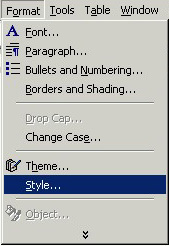
The Style dialog box will open.
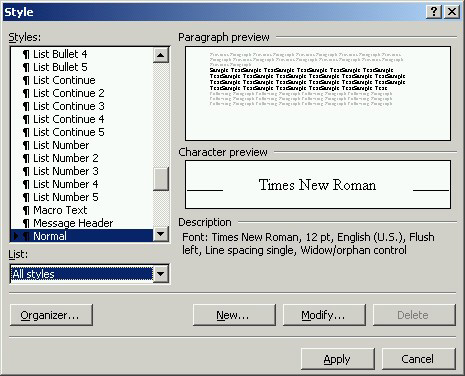
In the "List" drop-down box toward the bottom left of the dialog box, select All Styles. Scroll through the list to find the style you want to use. Click on the style name to see it in the Preview boxes. To change a style, click on the style name first, then click on the Modify button. To delete a style, click on the style name first and then click the Delete button. To create a new style, click on the New button. The New Style dialog box will open.
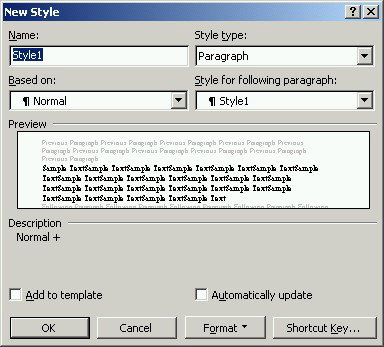
Change the style name and then make the changes you want to create the new Format Style. Click the Format button to make additional changes. When you are finished, click the OK button. To use your new style, select the name from the list on the Style dialog box and then click the Apply button.
In older versions of Word, you can also use Themes. Themes are a set group of characteristics for an entire document that include background colors and Format Styles. To choose a theme for your document, open the format menu and select Theme....
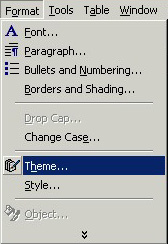
The Theme dialog box will appear.
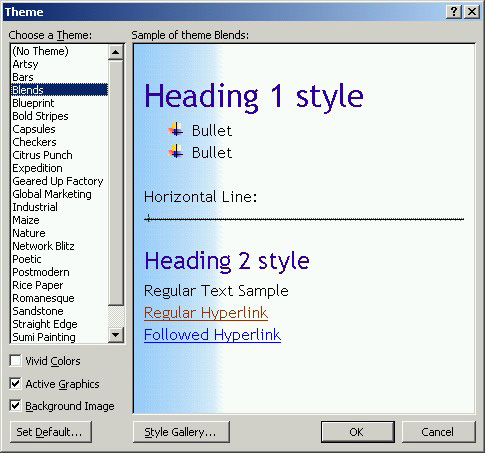
Click on a style name to view it in the Preview box. To choose a theme style, click on the style name and then on the OK button.
Once the theme has been set, you can use the Format Styles pre-selected for that theme. Select the text you want to apply a Format Style to first, then open the Style dialog box (open the Format menu and select Style...). In the "List" drop-down box toward the bottom left of the dialog box, select Styles in use. Scroll through the list to see the different styles, select one and click the Apply button.
Practice: To practice what was learned in this lesson, open Word (create a new document). Type a sentence or two of text, select the text, then use the Styles and Formatting task pane to change the formatting style. Change the style several times, using different style names from the list. If you wish, create a new style, then apply it to your text. Next, use the Theme dialog box to choose a theme. Use the Style dialog box again to change to the styles recommended by your Theme style. When you are finished, close Word, with or without saving the document.
To use Format Styles, the Styles and Formatting task pane must be open. Open the Format menu and select Styles and Formatting.
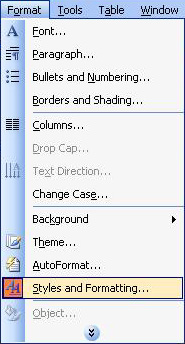
The Styles and Formatting task pane will have suggested Format Styles (different level of headings, for example), styles you have created and saved, and styles that you have applied manually to different sections of the document.
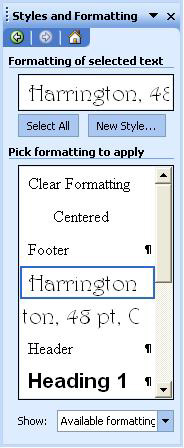
To use a Format Style, select the text (word, paragraph, list or table) and then the style you want to use from the list. Alternatively, place the cursor in the document where you want a Format Style to begin, click the Format Style name on the list and then begin typing.
If you want to create a new style and add it to the list, click the New Style button on the task pane. The New Style dialog box will appear.
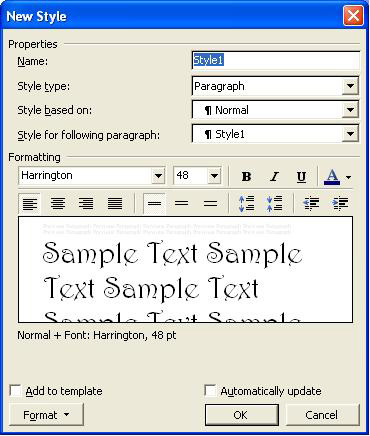
Name the style and make the changes as you wish. Click the Format button to make additional changes. Click the OK button when you have finished. Your new style will be on the list, alphabetically by the name you gave it.
NOTE: For additional information about Format Styles, use Word Help (see Lesson 6, "Using Word Help").
Practice: To practice what was learned in this lesson, open Word (create a new document). Type a sentence or two of text, then use the Styles and Formatting task pane to change the formatting style (select the text first). Change the style several times, using different style names from the list. If you wish, create a new style, then apply it to your text. When you are finished, close Word, with or without saving the document.
Previous Page |
Next Page |