 Previous Page |
 Next Page | |
 | ||
Previous Page |
Next Page | |
| ||
A link is underlined and colored text, or a picture, that you click on to go to another page or location. Usually the mouse pointer turns into a hand when the pointer moves over a link. A link is also known as a hyperlink.
For example, consider the arrows at the top and bottom of these lesson pages, with the words "Previous Page" and "Next Page." They are links to those pages. On the left side of this lesson program, the lesson names in the index are links to the first pages of those lessons. When you move the mouse over any of these, the pointer changes to become a hand and when you click on the link, you "jump" to that page.
A bookmark is a link within a document. Clicking on a link to a bookmark will move you from your current location to the bookmarked location in the document. For example, in the Definitions pages included in this program (see index), each letter of the alphabet is listed at the top of the page. Clicking on one of the letters will jump you to the place in the Definitions where those words begin (e.g. clicking on L will take you to the words that begin with the letter "L.") Those letters are bookmarks.
This lesson will not go into the details of web pages and the Internet. Instead, it will cover how to create links to other documents and bookmarks.
Links
To create a link to another document, first type the text or insert a picture and then highlight it. For our example, we are going to use a document about International Women's Day 2007 and create a link to a document explaining the United Nations General Assembly resolution mentioned in our document. We will use the word resolution as our link, so first we select it to highlight it. The next step is to open the Insert menu and select Hyperlink.
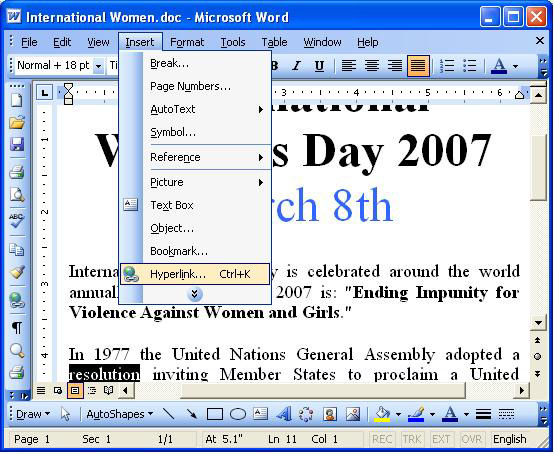
The Insert Hyperlink dialog box will open.
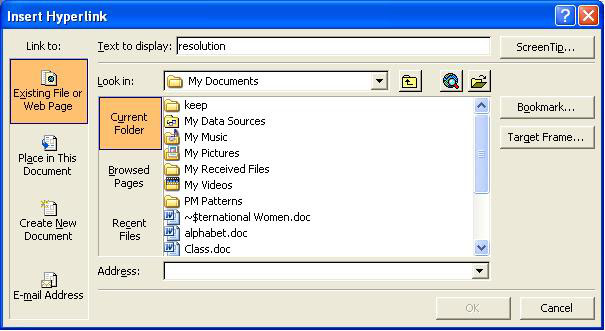
At the top of the dialog box, in the text box marked "Text to display" will be the word or words you have selected in your document (if you have selected an image instead, "Selection in Document" may appear there instead). On the left side of the dialog box is the section marked "Link to" and there are icons for "Existing File or Web Page," "Place in This Document," "Create New Document" and "E-Mail Address." We are going to use "Existing File or Web Page," so we will click there. "Place in This Document" would place a bookmark link, which will be discussed below. If we wanted to create a new document to link this document to, we would click on "Create New Document." If we wanted to link our document to an email address (so that clicking on the link would open an email application and allow the user to write an email), we would click on "E-Mail Address."
A screen tip is what appears when the mouse hovers (rests) over a link. Screen tips can help the user by offering an explanation of what the link is. We want to add a screen tip to our link, so we will click on the Screen Tip button. The Set Hyperlink Screen Tip dialog box appears.
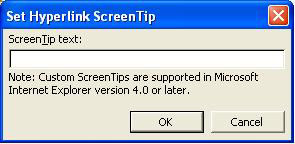
In the Screen Tip Text box, type in the words you want to appear when someone moves the mouse over your link. We will type "United Nations General Assembly Resolution" and click the OK button.
In the "Look in" section of the Insert Hyperlink dialog box, we navigate to the existing document that we want to link to. When we find it, we click on it and then on the OK button.
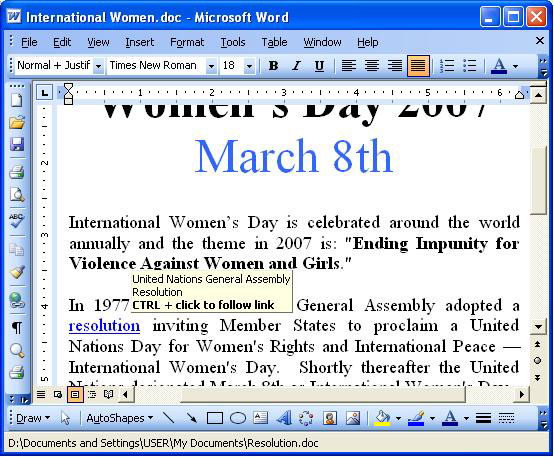
When the dialog box closes, the word(s) or image(s) that was selected to be the link has changed colors to blue and has been underlined. When the mouse is held over the link, the screen tip text appears and instructions on how to go to that linked page are shown. If you were to hold down the Ctrl key on the keyboard and click while the mouse pointer is over the link, that linked document would open.
You can also link to web pages on the Internet by typing in the full path name in the Insert Hyperlink dialog box, but that will not be covered in this lesson.
Bookmarks
Bookmarks are places within a document that links can point to. For instance, in the Definitions in this lesson program, each letter of the alphabet above the list of words starting with that letter is a bookmark. The letters listed at the top of the Definitions page are linked to each bookmarked letter. Clicking on a letter at the top of the page will jump the user to that bookmarked letter within the document.
Before you can create a link to a bookmark, you must create the bookmark itself. In our example, the letter of the alphabet above the list of words starting with that letter is our bookmark (each letter will be a separate bookmark). In our document, we first highlight the letter that will be our bookmark, then open the Insert menu and select Bookmark. (NOTE: You do not need to use a word or letter as a bookmark - you can use a blank space instead. Just highlight the space and then continue with the rest of the instructions.)
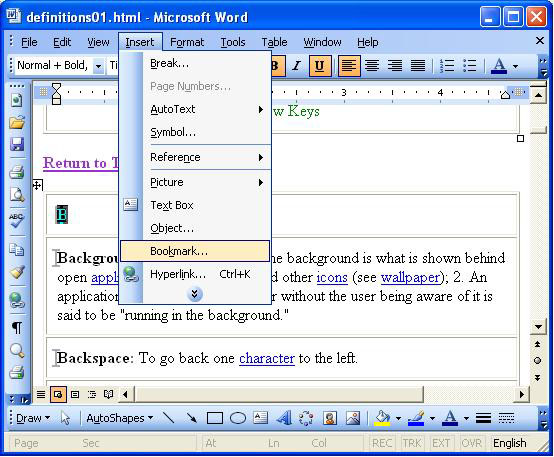
The Bookmark dialog box will open.
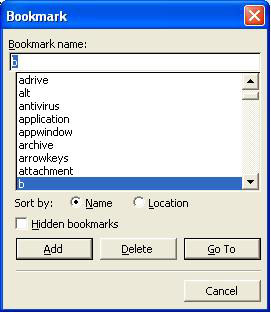
Type the name of the bookmark in the text box under "Bookmark name." It doesn't matter what the name of the bookmark is, but it must be unique - no two bookmarks in a document can have the same name. Click the Add button.
Of note, you can also use this dialog box to delete bookmarks. Simply open the dialog box, click on the bookmark name, and then click Delete. If you want to find a certain bookmark on the list, you can select the option to sort by name (alphabetically) or location (in order of appearance in the document). You can also type the first few letters of the bookmark name in the text box at the top and click on the Go To button.
When you are finished, click the Close button to close the Bookmark dialog box.
The next step is to create the link that will take the user to the bookmarked location in the document. Find the word(s) in the document you want to use as a link (in our case, the letter "B" in the list of letters at the top of the page) and highlight it. Next, open the Insert menu and select Hyperlink. When the Insert Hyperlink dialog box opens, click on "Place in This Document" on the left side (in the "Link to" section).
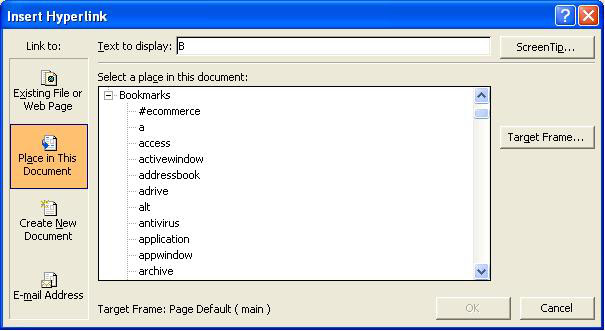
Scroll down to where it says Bookmarks and, if there are no bookmarks listed and there is a plus (+) sign to the left of the word Bookmarks, click on that plus (+) sign to open the list. Click on the bookmark on the list that you want this link to go to. In our case, we want it to go to the bookmark we called "b." You can add a screen tip if you wish (see Links lesson, above). When you are finished, click the OK button to apply your changes and close the dialog box.
Now when the user clicks on this link, they will jump to the place in the document where the bookmark was placed. In our example, clicking on the letter "B" at the top of the page will move the user down to where the words starting with the letter "B" begin.
Practice: To practice what was learned in this lesson, open Word (create a new document). Type any word in the document, press Enter a few times, then type a different word. Highlight the second word, open the Insert menu and select Bookmark. Follow along with the lesson on Bookmarks to make this word a bookmark. When you have finished, go back and highlight the first word in your document. Open the Insert menu and select Hyperlink. Follow along with the lesson on Bookmarks to link this word to your bookmarked second word, making sure to add some kind of screen tip. When you have finished creating the link, move the mouse over the first word to view the screen tip, then follow the link by holding down the Ctrl key on the keyboard and left-clicking once. Notice how you are "jumped" to the bookmarked word. When you have finished with this practice, close Word and the document. Do not save the changes.
Previous Page |
Next Page |