 Previous Page |
 Next Page | |
 | ||
Previous Page |
Next Page | |
| ||
Lesson 15: Saving as Other File Types
When saved for the first time, the default file type for Word documents is "Word Document," with a file name extension of .doc. (For more information on file name extensions, see the Definitions in this program and/or "I Can Teach Myself! Learning the Computer" Intermediate lesson number 3, "File Name Extensions.") Documents can be saved as different file types, however. This lesson will explain some of the different file types available. Please note that not all file types are available for all versions of Word.
When you choose Save or Save As from the File menu, the Save As dialog box opens.
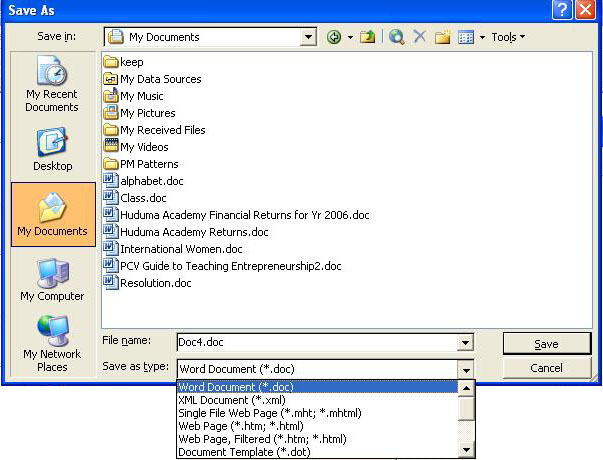
At the bottom of the dialog box, in the middle, is the "Save as Type" drop-down box with the available file types. Again, not all versions of Word offer the same file types, and not all file types will be covered here. The following is a list of the most common file types.
Word Document (.doc):
This is the default file type for new documents, and is the most commonly used. Documents with the .doc file extension can generally only be opened by the Microsoft Word application.
Web Page (.htm or .html):
Word documents can be saved in web page format, which is the format used on the Internet.
Document Template (.dot):
As you know from the Microsoft Word lesson on Templates & Wizards, there are many design templates available for your use, with different background colors, graphics, etc. You, too, can create templates to be used in the future. When you save a document as a document template file type, it will be saved with the .dot file name extension and in the Templates folder, along with all of the other Word document templates (unless you change the location). When you next want to use a template, the template you created will be shown alongside the other available document templates.
Rich Text Format (.rtf):
RTF stands for Rich Text Format, which is a file format that saves the text features such as bold, italic, underline, different font types, sizes and colors, etc. Files saved with the .rtf file name extension can be opened by applications such as Word and WordPad, but not by plain text (.txt) file type applications like Notepad.
Plain Text (.txt):
The Plain Text format is the most simple of document templates. Only the text is saved - no special features such as bold, underline, italic, bullets, pictures, font colors, tables, etc. If you save a Word document in this format, all of the special features you might have used in the document will be lost. Any text editor, including WordPad and Notepad, can open a Plain Text document.
Word 97-2003 & 6.0-95 - RTF (.doc):
Each new version of Word has special features that the older versions do not have. If you save a document created in Word 2003 as the default Word Document, an older version of Word (Word 6.0, for example) may not be able to open it correctly and any special features that Word 2003 has that the older versions do not, will be lost. However, if you save your document in the "Word 97-2003 & 6.0-95 - RTF" format (which has the same .doc file name extension as the Word Document format), information will be stored along with the document that will allow older versions of Word to correctly open the file. Some newer features may be lost, but the older versions of Word will still be able to open the file so that you can read and/or edit it.
Works 6.0 & 7.0 (.wps):
There are many other text editors/word processing software applications besides Microsoft Word and Works is one of them. Normally, documents created and saved in Word cannot be opened by other applications. However, you do have the option of saving your document as a Works document (version 6.0 or 7.0 in this example) if you know you or someone else will be using that application to open your document. If the document will be opened by another application that cannot read Word or Works documents, saving the document in Rich Text Format (.rtf) may be a better idea.
Practice: To practice what was learned in this lesson, open Word and either open a pre-existing document or start a new one. Open the File menu, select Save As, go to the drop-down box labeled "Save as Type," and click on the drop-down arrow on the right side of the box. Scroll through the list and look at the different file types available. When you have finished looking at the list, click the Cancel button. Close the document and Word without saving any changes.
Previous Page |
Next Page |