 Previous Page |
 Next Page | |
 | ||
Previous Page |
Next Page | |
| ||
Lesson 1: Microsoft Word: Document Windows and Document Views
Document Windows:
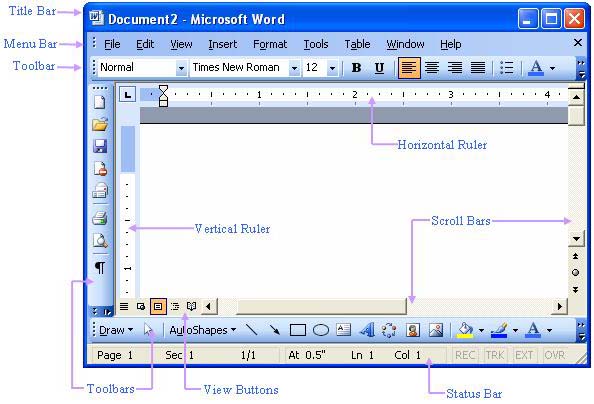
Like most other application windows (especially Microsoft Office applications), Microsoft Word document windows have a title bar, a menu bar, a status bar, scroll bars, and toolbars. Word, however, also has a horizontal ruler and a vertical ruler available for use.
Word 2003 also has a task pane which appears on the right side of the screen.
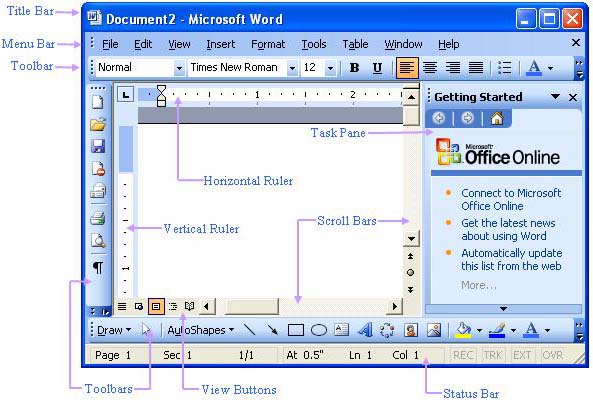
Word document windows also have view buttons which allow you to quickly switch between the different views in Word (Normal view, Web Layout, Print Layout, Outline View, and Reading Layout, although not all views are available in all versions of Word). We will cover the different views next.
Document Views:
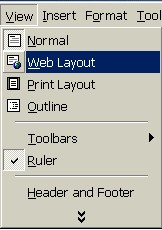
Depending on which version of Microsoft Word you are using, there are different ways to view your documents. These document views are listed in the View menu on the menu bar, and there are view buttons on the document window (see lesson above).
Normal View
Normal view can be used when typing and editing text. In Normal View, the page edges, backgrounds, headers and footers, and pictures are not shown.
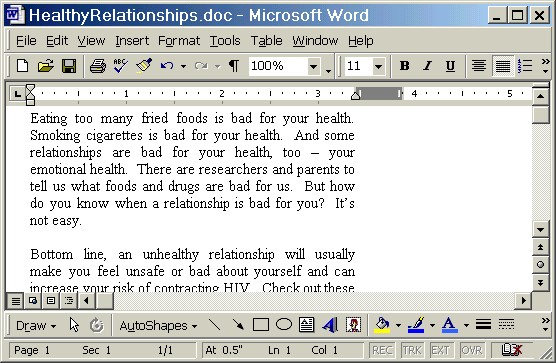
Web Layout View
Web Layout View is used when making web pages with Microsoft Word. In this view, the background is shown, text is wrapped to fit the window and pictures are shown like they would be in a web browser application.
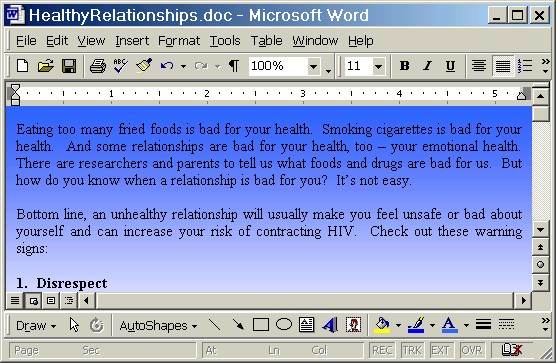
Print Layout View
In Print Layout View, you can see how the pages will be aligned when they are printed. This view can be used when working with columns, changing margins, or editing headers and footers.
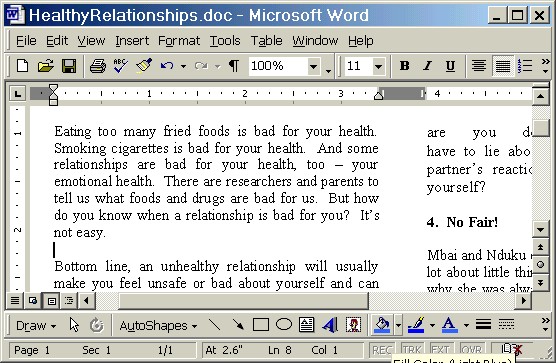
Outline View
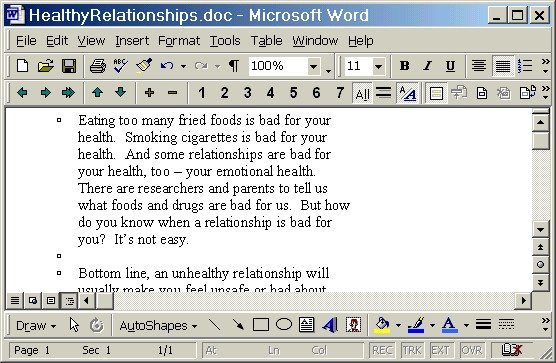
In Outline View, text can be moved, copied and reorganized easily. Backgrounds, page margins, pictures, and headers and footers are not seen. In addition, the document can be "collapsed" to show only main headers, or "expanded" to show all of the headings and text.
Reading Layout
Newer versions of Microsoft Word may have a Reading Layout View as well. This view lays the pages out like a book, making the document easier to read.
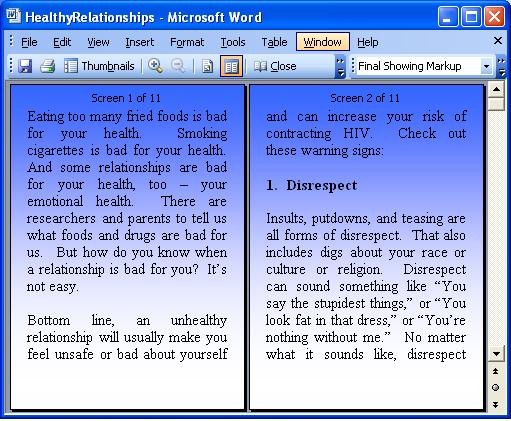
You can change the document views by opening the View menu and selecting the document view name.
Practice:
Read all instructions before beginning!
| 1. | Open Word: Open the Start Menu, go to the Programs submenu (All Programs on Windows XP) and select Microsoft Word. If Microsoft Word is not listed, look for a Microsoft Office submenu and select Microsoft Word from that submenu. If you still can't find Word, either let your teacher know or search for it using the Windows Search feature (located on the Start Menu). |
| 2. | Take a look at the Word document window. Identify the title bar, menu bar, toolbars, status bar, view buttons, rulers and scroll bars. |
| 3. | Type your first name in the document. |
| 4. | Open the View menu and select a document view such as Normal, Web Layout, Print Layout, Outline or Reading Layout (if available). Notice how the window changes. |
| 5. | Go back to the View menu and select another document view and watch how the window changes. Continue selecting document views until you have seen them all. |
| 6. | Delete your name from the document (highlight your name and press the Delete key on the keyboard, for example). |
| 7. | Close the Word application by clicking on the Close ("X") button in the upper right-hand corner of the window (on the title bar). A dialog box will appear, asking if you want to save your changes. Click on the No button. Return to this lesson window by clicking on the "Learning the Computer" taskbar button. |
Previous Page |
Next Page |