 Previous Page |
 Next Page | |
 | ||
Previous Page |
Next Page | |
| ||
Lesson 6: Using Word Help
All Microsoft Office applications (Word, Access, Excel, PowerPoint and the others) have a Help feature. Using the Help feature can help you learn more about the tasks Word can perform. If you have a question about something in Microsoft Word, use the Help feature! Help can be opened from the Help menu, which is usually the farthest menu on the right on the menu bar.
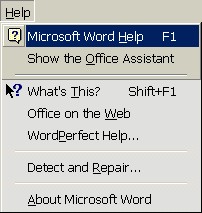
Most application Help features can also be opened by pressing the F1 function key on the keyboard.
Office Assistants:
Most Microsoft Office applications such as Word, Excel, Access and PowerPoint also have Office Assistants. These Office Assistants can make it easier to use the application's Help feature.

In some cases, the Office Assistant will automatically appear when the application opens. In other instances, the Office Assistant appears after opening the Help menu and selecting a Help command. For example, the picture below shows the Help menu for Microsoft Word. The Office Assistant will appear after either Microsoft Word Help or Show the Office Assistant is selected. The Office Assistant will also appear if the F1 function key on the keyboard is pressed.
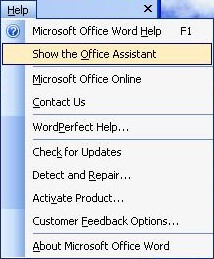
Once the Office Assistant appears on the screen, it will remain available for your use whenever you need help. To use it, left-click on it once. A dialog box will open where you can enter your information.
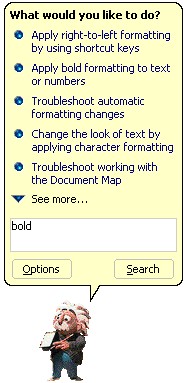
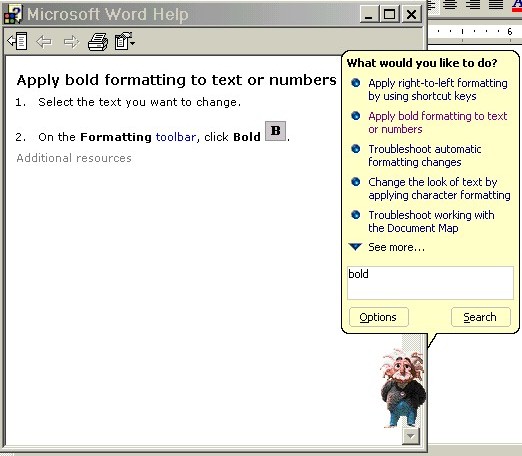
Simply type the information in the white box and click Search. When the topics related to your keyword appear, left-click once on the one you want to read more information about. A Help window will appear with that information.
Help in Older Versions of Word:
If the Help window appears with only one window pane and the button in the upper left-hand corner is the Show button, you can click on the Show button to open the window to two panes.

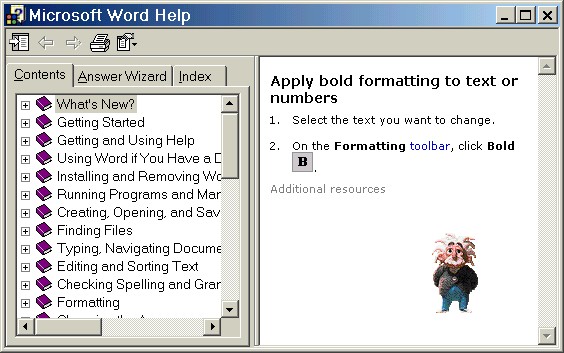
When the left pane is open in the Help window, it should have at least two tabs: Contents and Index (see picture above). There may also be an Answer Wizard tab. Click on a tab name to open that tab section.
Contents Tab:
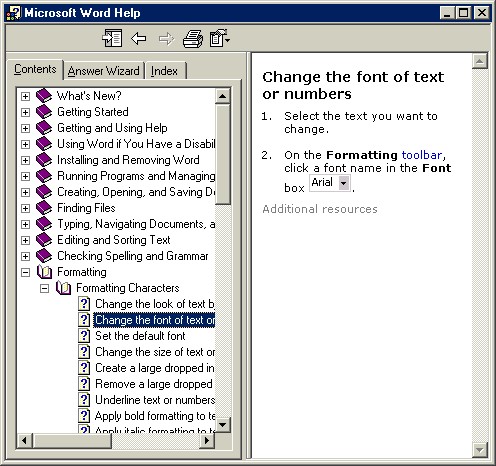
The Contents tab section puts all of the Microsoft Word information in a format much like chapters of a book. Click on the Contents tab to open it, then double-click on a "book" related to the information you need. The book will open and "chapters" will appear. Click on one and the information related to that topic will appear in the window pane on the right.
Index Tab:
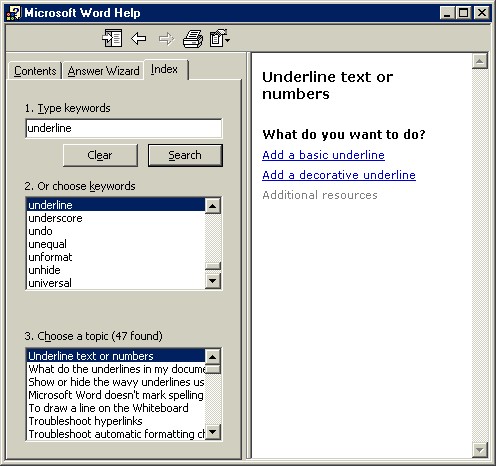
Keywords can also be used to look up a Help topic in the index. Just click on the Index tab and type the keyword in the box. As you start typing, the index will scroll to that part of the list. For example, typing und will bring you to the Underline topic in the index. Select a topic by double-clicking on it in the bottom, "Choose a topic" box. The Help information about this topic will appear in the right window pane. If there is an underlined word, phrase or sentence in the Help information window, left-click on it once to jump to that page of information (see the information window in the picture above). Words appearing in a different color can be clicked for their definition to appear.
Answer Wizard Tab:
If there is an Answer Wizard tab in the application's Help window, you can use it to search for an answer to a question you may have.
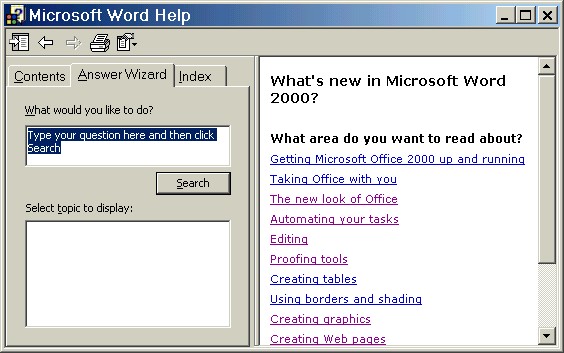
Type your question in the box and then click the Search button or press Enter.
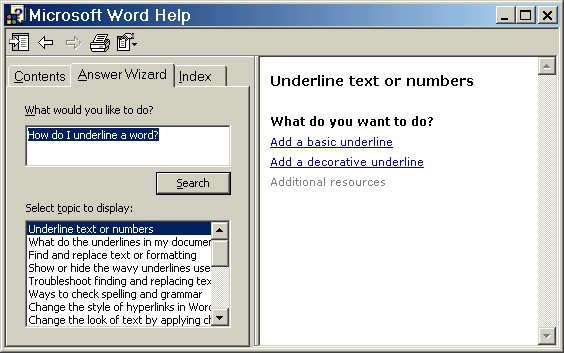
Follow the links by clicking (or double-clicking, if necessary) on the items until you have found the information you need.
Help in Word 2003:
The Help feature in Microsoft Office 2003 applications (Word, Excel, Access, PowerPoint, etc.) opens in a task pane on the right side of the document window.
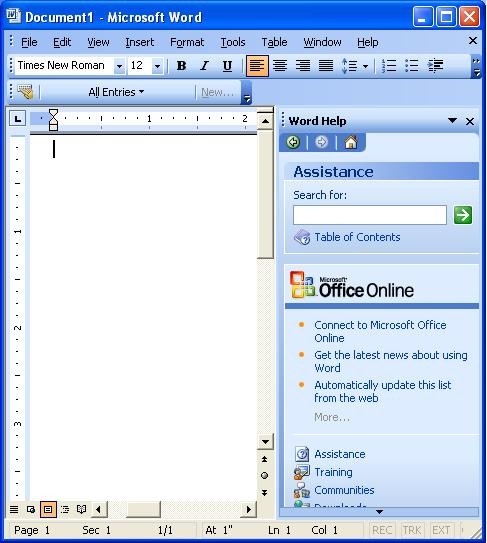
To use this Help, simply type the keyword(s) of the topic you want help with into the "Search for:" box and click on the green arrow.
The search results will appear in the list box. Left-click once on the topic that matches the help you are seeking.
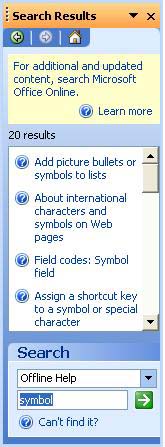
A new window will open with the search results in it.
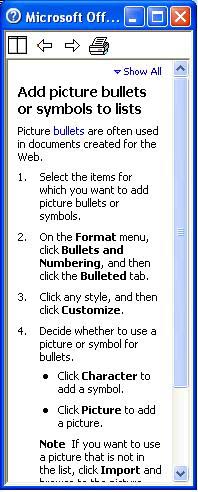
Alternatively, you can click on "Table of Contents" under the keyword search box.
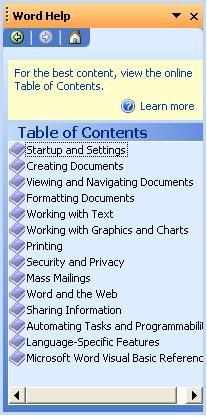
Left-click once on a subject and again on the topic to view the Help information.
Changing the Office Assistant
Some Microsoft applications let you change the design of the Office Assistant. To do this, left-click once on the Office Assistant to make the dialog box appear, then click on the Options button.
Next, click on the Gallery tab if it is not already open.
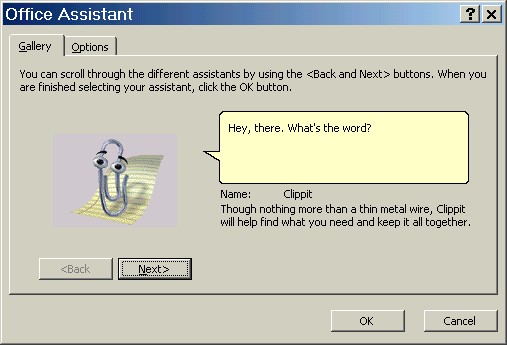
Click on the Next button underneath the Office Assistant's picture to view the different assistants that are available. Click on the OK button when you have found one you like.
Practice: From within a Word document (new or pre-existing), follow along with this lesson to open and use Help. (Use the instructions for either "Older Versions of Word" or "Word 2003," depending on which version of Word you are using.) Search for different keywords and look at different topics until you feel comfortable using Help.
Previous Page |
Next Page |