 Previous Page |
 Next Page | |
 | ||
Previous Page |
Next Page | |
| ||
Lesson 17: Using the Thesaurus
Microsoft Word has a Thesaurus feature which provides synonyms (different words that have the same or similar meanings) to help you in creating documents. The Thesaurus works differently in older versions of Word than it does in Word 2003, so instructions for Word 2003 will be given separately. Click here to go to the instructions for Word 2003.
Instructions for Older Versions of Word:
First, select the word you want to find a synonym for. Next, open the Tools menu and go to the Language submenu, then select Thesaurus.
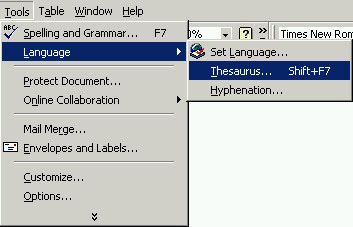
(Note that you can use the thesaurus without selecting a word first. You can also open the Thesaurus without using the menus by holding down the shift key and pressing the F7 function key on the keyboard.)
The Thesaurus will open and, if you selected a word before opening it, that word will appear in the box under "Looked Up." Otherwise, type a word you want to find a synonym for in the Insert text box and then click the Look Up button.
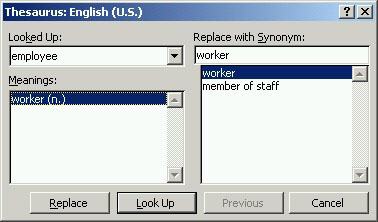
A list of synonyms will appear, if there are any synonyms for the word you have chosen. Click on a word in the list that you want to use and then click on the Insert or Replace button to insert that word into your document (if you selected a word before opening the Thesaurus, that word will be replaced by the synonym). If you want to see synonyms for a word in the list, click on the word and then on the Look Up button. Click the Previous button if you want to go back to the previous list of synonyms. The dialog box will close after you click Insert, otherwise click Cancel to close the Thesaurus without making any changes.
First, select the word you want to find a synonym for. Next, open the Tools menu and go to the Language submenu, then select Thesaurus.
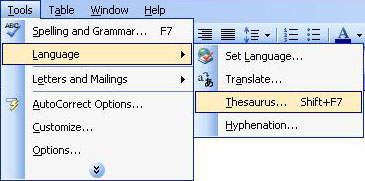
(Note that you can use the thesaurus without selecting a word first. You can also open the Thesaurus without using the menus by holding down the shift key and pressing the F7 function key on the keyboard.)
The Research task pane will open on the right side of the document window.
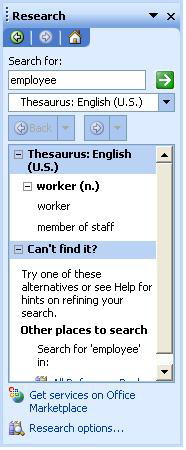
If you selected a word before opening the Thesaurus, that word will appear in the text box at the top of the Research task pane. If you did not select a word first, type a word to search for and then click on the arrow button to the right of the text box. A list of synonyms will appear, if there are any synonyms for the word you have chosen.
To use one of the synonyms, hold the mouse pointer over the word until an arrow appears to the right of the word, click on the arrow and select Insert from the menu. The word will be inserted where the cursor is in your document, replacing the highlighted word (if any).
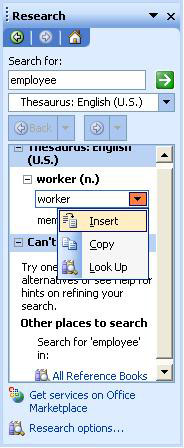
You can also copy the word to paste it into your document elsewhere (other than where the cursor is currently located). In addition, you can look up synonyms for that word by selecting Look Up on the menu.
To close the Research task pane, click on the "X" located on the right of where it says "Research" at the top of the task pane.
Practice: To practice what was learned in this lesson, open Word (create a new document). Type a word (such as "employee"), highlight it, then open the Tools menu, go to the Language submenu and select Thesaurus. Follow the instructions in this lesson related to which version of Word you are using (Word 2003 or older versions) to find a synonym for your word and insert it into your document. When you have finished, close Word and the document without saving the changes.
Previous Page |
Next Page |