 Previous Page |
 | |
 | ||
Previous Page |
| |
| ||
Lesson 22: Protecting Documents with Read-Only and Passwords
There may be times when you do not want others to be able to open and read your documents, or when you want others to be able to read your documents but not change them. There are two main methods to protect your documents: Using the read-only document property and using passwords. Since older versions of Word perform these methods differently than Word 2003, the instructions will be separate. Click here to go to the instructions for Word 2003.
Instructions for Older Versions of Word:
Read-Only Document Property
Document properties determine whether a document can be changed or not. To keep a document from being changed, you can recommend that the document be opened as Read-Only. If the document is opened as a Read-Only document, a person will be able to edit the document but not save it under the same name; they will have to save any changes under a different file name. The Read-Only property is only a suggestion, however - it is possible for a person to change this property so that changes can be made and saved to your original document. However, inexperienced computer users will not be able to change the Read-Only property.
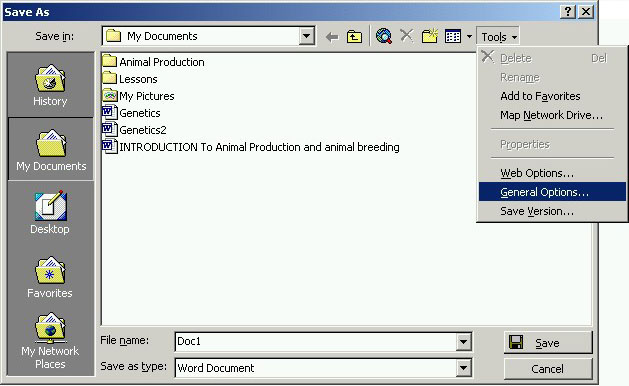
To recommend that a document be opened as Read-Only, open the File menu and select Save As. In the Save As dialog box is a Tools menu - open it and select General Options.
The Save dialog box will open.
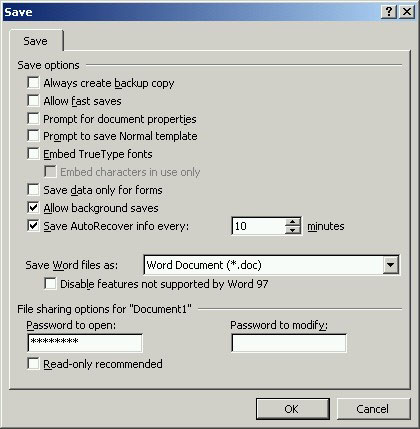
Place a checkmark in the box next to Read-only recommended toward the bottom of the dialog box (in the "File sharing options" section, below the password text boxes) and then click the OK button. Back in the Save As dialog box, enter the file name and then click the Save button.
Passwords
You can require users to enter passwords for the following:
It is very important that the passwords are remembered, and perhaps recorded somewhere (recording passwords may or may not be safe; make sure passwords are recorded in a secure place). If you forget the password, you will probably not be able to open that document again.
To require a password to open the document, a password to modify the document, or both, open the File menu and select Save As. In the Save As dialog box, open the Tools menu and select General Options.
The Save dialog box will open.
If you want to require people to enter a password to open the document, type it in the text box under "Password to open." As you type the passwords, the passwords themselves will not appear - the characters in the password (letters or numbers) will appear as asterisks (*) to protect your password from people who may be able to see your screen from behind you. After you type the password, press the Enter key on the keyboard. Another dialog box will appear, prompting you to confirm the password by reentering it. Click the OK button when you have finished reentering it.
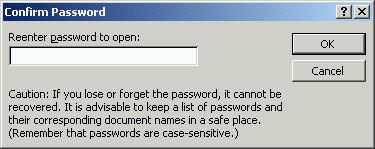
When you enter and reenter the password, if they do not match, another dialog box will appear to tell you the passwords do not match and you will have to enter the passwords again from the beginning.
If you want to require a password for people to make changes to your document, type it in the text box under "Password to modify" and press Enter. Retype the password when prompted to do so.
If you want to require people to enter passwords to both open and change the document, enter passwords in both places, pressing Enter after each one is entered and retyping them when prompted to do so.
When you have finished entering the passwords, click the OK button. Back in the Save As dialog box, enter the file name and click Save.
Read-Only Document Property
Document properties determine whether a document can be changed or not. To keep a document from being changed, you can recommend that the document be opened as Read-Only. If the document is opened as a Read-Only document, a person will be able to edit the document but not save it under the same name; they will have to save any changes under a different file name. The Read-Only property is only a suggestion, however - it is possible for a person to change this property so that changes can be made and saved to your original document. However, inexperienced computer users will not be able to change the Read-Only property.
To recommend that a document be opened as Read-Only, open the Tools menu and select Options.
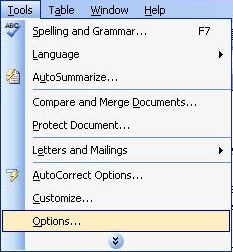
The Options dialog box will open. Click the Security tab to open that tab section.
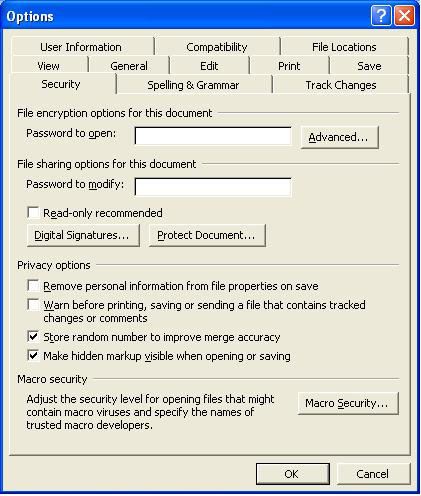
In the section of the dialog box under the words "File sharing options for this document," place a checkmark in the box next to Read-only recommended. Click the OK button to close the dialog box.
Passwords
You can require users to enter passwords for the following:
It is very important that the passwords are remembered, and perhaps recorded somewhere (recording passwords may or may not be safe; make sure you record passwords in a secure place). If you forget the password, you will probably not be able to open that document again.
To add passwords, open the Tools menu and select Options.
The Options dialog box will open. Click on the Security tab to open that tab section.
To add a password so that users must enter it to open the document, type it in the text box next to "Password to open." To add a password so that users must enter it to modify (change) and save the document, type it in the text box next to "Password to modify." To require users to enter passwords to both open and modify the document, type the passwords in both text boxes. Make sure the passwords are spelled correctly and remembered/recorded. When you have finished entering the password(s), click the OK button. Users will prompted to enter the password(s) when they open and/or modify the document.
You can also protect your document by only allowing users to add comments, or limit the formatting of the document, among other options. For more information on this and other security topics, see Word Help.
Practice: To practice what was learned in this lesson, open Word (create a new document). Type your name on the first line. Follow the instructions above (depending on your version of Word) to set passwords to open and modify the document. Use your first name as the password for opening the document and your last name (surname) for the password to modify the document. When you have finished, save the document and close it. Re-open the document and enter the passwords when prompted. When you are finished practicing, close the document and Word.
Previous Page |
|
END OF LESSONMicrosoft Word |