Introduction to Animation |
|
||||||||||||||||||||||||||||||||||||||||||||||||||
1 |
Basic Animation |
In This Section:
Summary of the Animation Interface |
|||||||||||||||||||||||||||||||||||||||||||||||||
|
| |||||||||||||||||||||||||||||||||||||||||||||||||||
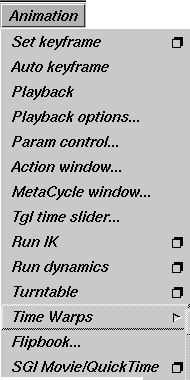
The Animation menu on the main Alias menu bar provides the basic tools for creating and working with animation. | |||||||||||||||||||||||||||||||||||||||||||||||||||
|
|
You can find additional tools on the Anim menu in the Tool Palette:
Introduction to Animation Basics | ||||||||||||||||||||||||||||||||||||||||||||||||||
|
| |||||||||||||||||||||||||||||||||||||||||||||||||||
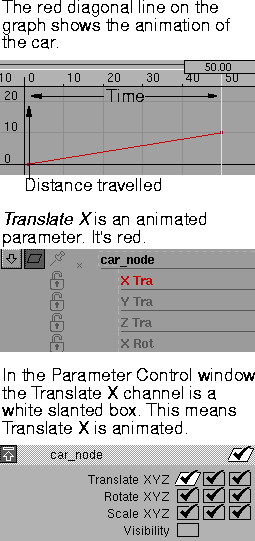
What does it mean to animate an object?Animating an object means that one or more characteristics or attributes of the object change over time. For example, if you have designed a car and want to see it drive down a road, you must animate its position over time. At time 1, the car may be in front of a house, and at time 50, at a street corner, 10 blocks down the street. In the animation system, you might say that at time 1 the car has an X translation of 0 units, and at time 50 it has an X translation of 10 units (that is, it has moved to a position of 10 units in the X direction). The X translation, in this example, is an attribute of the car that can be animated: we call it an animation parameter. | |||||||||||||||||||||||||||||||||||||||||||||||||||
|
|
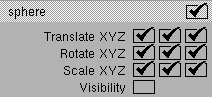
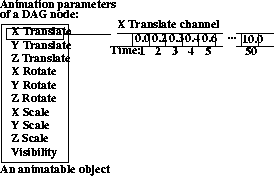
What can you animate?An object generally has many attributes, or animation parameters, that can be animated. In Alias, a DAG node has ten attributes that can be animated: the X, Y, and Z translation, rotation and scale attributes, and also the visibility. Other types of objects have different animation parameters. For example, a camera's angle of view can be animated, and a light can have its color or intensity animated. An object or other item that has at least one animation parameter or attribute that can be animated is called an animatable item. What is a channel and what does it do?When an animation parameter of an item is animated, a channel is created which belongs solely to that animation parameter. The channel describes how its animation parameter changes values over time. When you view a model at different times, the channel is responsible for telling the animation parameter that it now has a different value. | ||||||||||||||||||||||||||||||||||||||||||||||||||
|
|
To illustrate: in the car example above, at time 1 the channel tells the animation parameter it has a value of 0. At time 50, the channel tells the animation parameter to assume a value of 10.
An object is animated if at least one of its animation parameters has a channel associated with it. In Alias, a channel is created for an animation parameter by using one of the many animation tools, such as Animation > Set keyframe. If you later decide to get rid of the animation, you can use Delete > Del channels to remove the channel of animation. How can I tell if something is animated?To see if an animation parameter has a channel associated with it, look at the LOCAL parameters for the animated item in the parameter control window (see Animation > Animation > Param control). An animated parameter has a white slanted box next to its name in the LOCAL parameters. How does the channel know which values the animation parameter should assume at different times? | ||||||||||||||||||||||||||||||||||||||||||||||||||
|
|
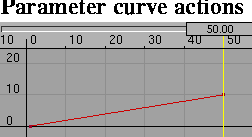
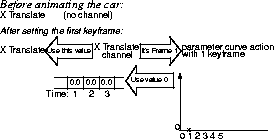
In the simplest case, a channel may evaluate a two-dimensional curve, which plots time against value. These two-dimensional curves are called parameter curve actions. The channel tells the action at what time it would like to be evaluated, and the action gives an evaluation value. ExampleActions are often created when a channel is created. What the action looks like depends on the animation tool that was used to create the channel. Using the car example, you can describe the car's animation using Animation > Set keyframe. When you begin, the X Translate animation parameter has no associated channel. Position the car at 0 units on the X-axis, and set a keyframe at time 1.
Since the X Translate animation parameter was not previously animated, a channel is created for it. The channel needs an action to tell it what values to use, and so a parameter curve action is created that has only one keyframe at time 1. Now move the car into position at 10 units on the X-axis, and set a keyframe at time 50.
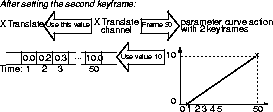
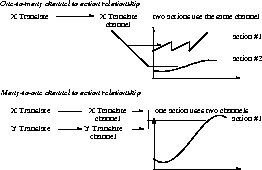
Since the X Translate animation parameter is already animated, you do not have to create its channel. The channel tells the action to insert a second keyframe at time 50. The action is now a curve defined between the times 1 and 50. What is an action and a motion path?There are two types of actions in Alias: parameter curve action and motion path action. The parameter curve action is explained above. It is a two-dimensional plot of time versus value. A motion path action is simply a reference to a 3D NURBS curve. It is evaluated in the following way: the channel gives a percentage value to the motion path action. The motion path action uses this percentage to determine the 3D point that corresponds to that percentage along the curve. This 3D coordinate (X, Y, Z) is returned to the channel. The channel then extracts one of these components (X, Y, or Z), and uses this value as the value for the channel. Usually a channel is not animated by a single motion path action, but also has a parameter curve action to specify the animation's timing along the motion path action (see Anim > Anim > Set motion). In this case, there is no longer a simple relationship of one channel to one action. The channel uses two actions to determine what values to tell its animation parameter to assume. As another example, a channel can cause a segment of an action to be reused by having a timewarp cycle applied to it (see Animation > Time Warps > New cycles warp). | ||||||||||||||||||||||||||||||||||||||||||||||||||
|
For an explanation of how a channel is evaluated when it has more than one action, see Animation > Time Warps > New time warp. |
In both these cases, the channel is animated by a base action, and each additional action applied to the channel is called a timewarp. This ability for a channel to use many actions is called a one-to-many relationship, because one channel uses many actions to determine what values its animation parameter should assume. Can I place animation from one thing onto another?The Action Window also has tools to make an action reusable by more than one channel. This means that the actions are not owned by a particular channel. They can be renamed to any name, independent of any channel with which they may currently be associated. Actions can also be shared by more than one channel (see Curve Tools > Paste Instance in the Action Window). In the example above, imagine you want to use the car's motion for a bicycle going down the road next to the car. You can use Curve Tools > Paste instance in the Action Window to associate the same action used by the X Translate channel for the car to be used by the X Translate channel of the bicycle as well. Now the car and the bicycle animate together. The advantage of using the same action for both channels is that if you edit the action, then the motion for both vehicles changes. ExampleIf you want the car and the bicycle to stop at a house along the way at time 20, and then start moving to the street corner at time 30, you can add two keyframes to the single action, and the animation is modified for both bicycle and car. What is a many-to-one relationship?Having many channels use the same action is a many-to-one relationship. Since there is both a one-to-many (for example, one channel using several actions) and a many-to-one (for example, several channels using one action) relationship between channels and actions, the combined relationship is actually many-to-many. That is, any number of actions can be associated with any number of channels. The many-to-many relationship between channels and actions provides a greater degree of flexibility in creating your animations. | ||||||||||||||||||||||||||||||||||||||||||||||||||
|
|
If a channel uses more than one action, then the channel has an expand channel button next to its name in the Action Window. If you press this button, you see the list of actions that a channel uses. | ||||||||||||||||||||||||||||||||||||||||||||||||||
|
|
To see which channels use a particular action, you can select the action and invoke Curve Tools > Show instance in the Action Window.
SummaryThe three concepts in the animation system are:
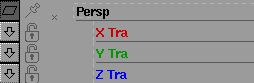
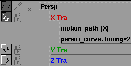
In the Action Window, the relationship between an animation parameter and its channel is made implicitly by using the same name for both. ExampleThe animation parameter named X Translate is animated by a channel named X Translate. In the Action Window, if an animation parameter is not animated by a channel, the animation parameter name is listed in light grey. If on the other hand, the animation parameter is animated by a channel, then the animation parameter is listed in red (X parameters), green (Y parameters), blue (Z parameters), or black (all others). | ||||||||||||||||||||||||||||||||||||||||||||||||||
|
See Animation > Action window, Edit > Edit expression for information on Expressions. |
Instead of using actions, an animation parameter may be animated by an expression channel. Expressions can be entered by double-clicking next to the animation parameter name in the Timeview Window, or by selecting an animation parameter and selecting Edit > Edit expression from the Action Window. Quick Tips | ||||||||||||||||||||||||||||||||||||||||||||||||||
|
| |||||||||||||||||||||||||||||||||||||||||||||||||||
|
Animation > Action window |
for the Action WindowExpanding a DAG node in the action lister | ||||||||||||||||||||||||||||||||||||||||||||||||||
|
|
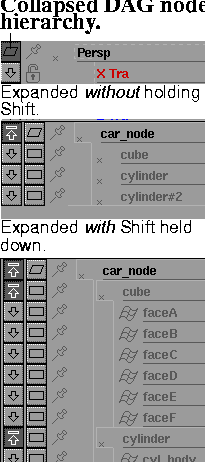
If you have a DAG node in the action lister that is grouped above a hierarchy of DAG nodes, you can expand the DAG node to its descendant DAG nodes by clicking on the expand item button next to the DAG node. If you want to expand the complete DAG node hierarchy down to the leaf level DAG nodes all at once, hold Shift and click on the expand item button. Repeating the same operation on many items You can perform the same operation on many items in the lister at once by selecting all the items, then performing the action to one of the selected items. For example, you can select several items in the list, then click on the Expand channels button of one of the items to expand the channels of all the selected items. To change the name of a DAG node, camera, shader, or other item in the lister, double-click on the item. Use theEsc key to clear the field of its existing name, and type the new name. Names of actions can also be changed in this way. Switching to a Pick function while in the Action window When you are in any function in the Action window, you can temporarily enter the Pick > function by holding down the Shift key. For example, if you are in Xform > Move in the Action Window, hold down the Shift key and click on some keyframes to select or deselect them, then release the Shift key and continue with your Xform > Move operation. You can also use a box to pick Action Window elements. For example, if you are in Xform > Randomize in the Action Window, and you want to change the selection of keyframes to be randomized, hold down the Shift key and drag a box around picked keyframes to unpick them, or new keyframes to pick, then randomize. when using the Character BuilderFor Windows > Deformation cntrl, if you select CHARACTER BUILDER from the Frame Type menu and toggle Bulging ON, you can edit the bulge definitions in the Bulge Section Editor. When editing in either the Bulge Selection Editor or Section Editor, you can add new sections or key points by holding the Shift key and clicking and dragging to a new position. You can delete sections or key points by holding down the Alt key and clicking and dragging to the section or key point you want to delete. | ||||||||||||||||||||||||||||||||||||||||||||||||||
| Copyright © 1998, Alias|Wavefront, a division of Silicon Graphics Limited. All rights reserved. | Please send questions or comments regarding the documentation to: [email protected] |