|
Anim > Set key shape 
|
Metamorphosing Same Topology Items | ||
|
| |||
Set key shape lets you transform one object into another object by transforming the CVs. There are two types of interpolations that can be created: Keyshape
ShapeShifter
How to Use
How to Use Key Shape Interpolations
| |||
|
If you want to keep the original geometry shapes, make a copy of the original objects before invoking the function, or make sure you set a keyframe time for the original shape of the objects. This way, you can return the objects to their original shapes by viewing that keyframe time. |
The key shape animation is created by animating each of the CVs of the original objects. The interpolation between the CVs (the process that transforms one key shape into another) is, by default, a smooth interpolation. You can adjust this interpolation by modifying the tangents of the animation curves of the CVs in the Action Window . | ||
|
For more information on using the Action Window, see Animation > The Action Window on page 138. |
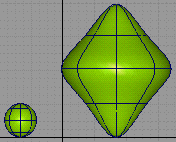
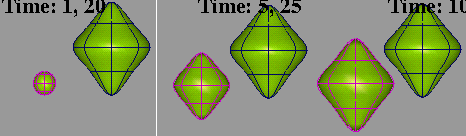
When you complete the key shape animation, you can delete the animation and start again if you are not satisfied with the results. However, before deleting the animation, you may want to restore the original shape of the transforming object. If you typed a keyframe time for the original shape, this is easily done by selecting Anim > View frame and typing the time of that keyframe. When satisfied with the animation, you can delete the intermediate objects as their shapes are now recorded as keyframes. How Set Key Shape WorksYou can use any number of interpolation shapes. Each shape must have identical topology. It is recommended that you copy the original geometry (the geometry shape for the first keyframe), then manipulate the copied geometry into the desired shape for subsequent keyframes. If you are interpolating curve shapes, you can use Curves > New curve and set Knot Spacing to Uniform in the option window to ensure that you create curves with identical topology. The objects that are used to transform the original object must have the same topology as the original object. Surfaces with same topologies have the same number of CVs in the U and V parametric directions. Curves must have the same number of CVs. The corresponding CVs of each object should have the same multiplicity. CV multiplicity can be changed using Curve Edit > Modify > Multiplicity. ExampleIn this example, a sphere is used to create an interpolation animation where the sphere takes on a diamond shape through 10 keyframes, then reverts to its original shape through another 10 keyframes, and back to the diamond in another 10 keyframes. Place two spheres Scale and move the spheres
| ||
|
|
Set a keyshape
| ||
|
If you were including other geometry animation, you would continue to select geometry in response to the prompt. |
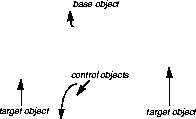
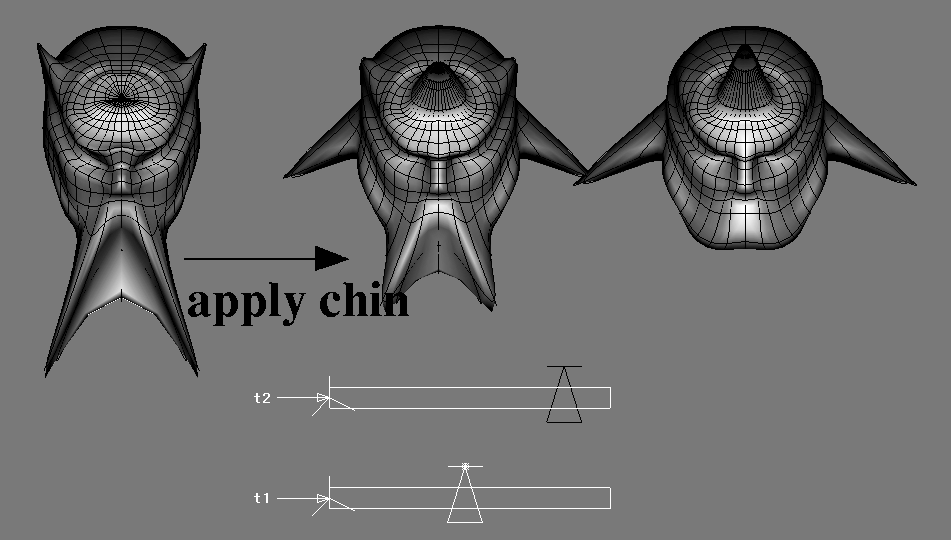
How to Create ShapeShifter InterpolationsWith ShapeShifter, an unlimited number of expressions and forms can be combined to transform objects into a variety of shapes, as well as mixing facial expressions together. ShapeShifter transforms (or "morphs") one shape into another by transforming CVs using clusters and expressions. This lets you select how much of the interpolation should be applied at any particular time, as well as mix several different target shapes together. Because clusters are used, the underlying geometry can be polygonal or NURBS. Source and target objects can also be hierarchical, as long as the hierarchies match. ShapeShifter greatly simplifies complex facial animation. For example, given a base (or neutral) face, and other faces that represent a smile and frown, you can create a face which is 75% smiling and 50% frowning and control the timing of the interpolation between the various targets. Since the interpolation is done by determining the translation which will make a CV in the source object move to the corresponding CV in the destination object, the two objects must share the same topology (that is, they must have the same number of CVs in both u and v). The interaction is simple - for each target, a "control" object is created. The X translation of this object determines the amount of transition from the base to the target object and, of course, can be animated. For example, to have the neutral face "ease-in" to a smiling face over two seconds, you simply move the control object to the left of the slider, set a keyframe at 0, then move the control object to the far right and set another keyframe at 60. Set the appropriate animation interpolation in the Action Window on the control object's X_translation channel (or use an expression) and you're ready to go. ExampleThe following example shows how ShapeShifter is used to combine features from two separate head expressions. | ||
|
The middle head combines the features from the other two heads. The head on the left has been manipulated to exaggerate the chin and horns of the little devil. The head on the right has a pointier head, as well as some devilishly handsome ears. |
| ||
|
Moving the control object of the top slider causes the middle head to acquire some of the features of the head on the right. Notice how the middle head is also pointier, and has begun to sprout its own pair of ears. The amount of the shape shifting can be controlled by the position of the slider. |
| ||
|
As you start to move the control object of the bottom slider, notice how the middle head begins to acquire some of the characteristics of the left head as well as retaining the effects of the right head. |
| ||
|
Notes: |
To set the options:
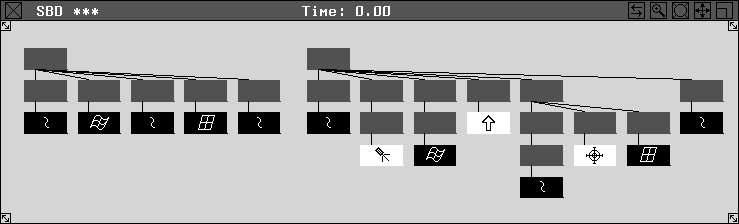
Hierarchical ShapeShifter InterpolationsShapeShifter interpolations can also be created between objects consisting of many grouped geometry nodes.
For grouped objects, the Shape Center is created as follows:
The following is an example of the SBD view with two diverse hierarchies, which can still be used for ShapeShifter interpolations. Geometry nodes are matched up going from left to right through each object. | ||
| |||
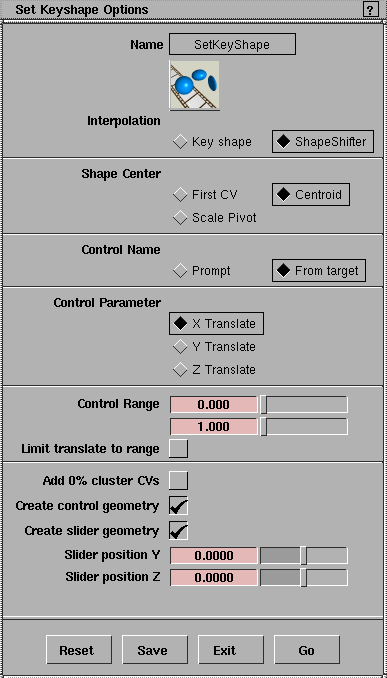
Set Keyshape Options
Select Set key shape-
InterpolationThe Interpolation options determine the type of shape interpolation that is performed. Key shape
ShapeShifter
Shape CenterThe Shape Center options determine the placement of the new shape with respect to the current shape of the object. First CV | |||
|
The first CV on a NURBS curve or surface is represented as a small square. |
Centroid
Scale Pivot
ShapeShifter OptionsWhen ShapeShifter Interpolation is selected, several additional options are displayed in the Set Keyshape Options window. Control nameThe Control name options determine how the name of the control object is displayed. The control object is the object which when transformed using Xform > Move will cause the original object to change shape. Prompt
From target
Control parameterThe Control parameter options determine which translation direction of the control object will affect the ShapeShifter interpolation. Moving the control object in either of the other two axes has no effect on the ShapeShifter interpolation. X,Y,Z Translate
Control rangeThe Control range settings determine the range of translation of the control object that affects the ShapeShifter interpolation. These settings also control the placement of translation of the control object on the axis.
Limit translate to rangeWhen checked ON, the control object cannot be moved outside of this Control Range and has no effect on the ShapeShifter interpolation. The default setting is OFF, which allows "undershooting" and "overshooting" of the interpolation. Add 0% cluster CVsWhen checked ON, all CVs are added in the original object as a cluster, whether or not the CV will ever be affected by the ShapeShifter interpolation. When checked OFF, only the CVs that need to be transformed are added to the clusters, reducing the number of CVs being affected by the cluster. The default setting is OFF. Create control geometryWhen checked ON, geometry is created (a small triangle) and is attached to the control object so that it can be more easily manipulated. The default setting is ON. When checked OFF, the control object becomes a NULL DAG node, which can be picked from the SBD window. Create slider geometryWhen checked ON, geometry is created (a slider bar with the control's name) and is attached to the control object so that the control range can be more easily identified. The default setting is ON. Slider positionThe location, in world space, of the slider geometry can be set here. This lets you position the object anywhere that is convenient. >
| ||
| Copyright © 1998, Alias|Wavefront, a division of Silicon Graphics Limited. All rights reserved. | Please send questions or comments regarding the documentation to: [email protected] |
 and make sure the CVs is toggled ON (indicated by a check mark). Press GO.