|
|
Windows >
Deformation cntrl
|
Creating Clusters with Properties for Deformation
|
|
|
|
|
This feature is available in Alias AutoStudio and is a purchasable Advanced Animation for PowerAnimator and Advanced Animation for Studio option
Overview
When an object is required to change shape, the CVs controlling the surface shape can be modified, usually one CV at a time. This gives you flexibility when changing the shape of an object, but it quickly becomes tedious and time consuming when a surface or object is constructed from many CVs.
Deformation cntrl provides a higher level of manipulating CVs by letting you create groups (or clusters) of CVs. It's like pushing and pulling on the surface, similar to clay modeling.
The Deformation Control window lets you set a number of parameters for a deformation frame, then attach that deformation frame to an object. For a Curve, Axis, Skeleton, or Character Builder deformation, once the deformation frame has been attached to the object, the surface of the object can be modified interactively by manipulating the deformation frame.
|
|
To attach a deformation
frame to a model, the
Deformation Control
window should be
displayed on the screen.
Once a deformation frame
has been attached to the
model, the window can be
closed.
|
There are four types of deformation frames that can be used:
>
|
Note:
|
Deformation cntrl tools do not work on instanced objects.
This is because deformations are achieved through clusters,
and clusters apply to the CVs of objects. Instances share the
same CVs as the object they instance, and so the
deformation can not be distributed across instances.
|
|
|
Deformation cntrl tools do not work on objects with
construction history. This is because construction history
already controls the shape of the object.
|
Deformation Control Window
|
|
To open the Deformation
Control window, select
Windows > Deformation
cntrl.
|
The Deformation Control window updates to reflect the parameters that apply to any of the four types of deformations. The following shows the Deformation Control window with the default settings.
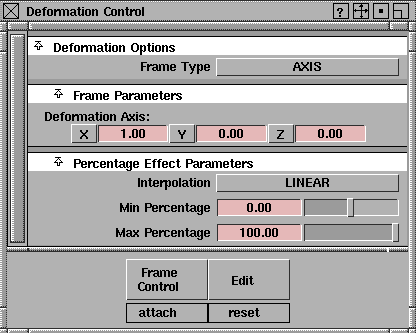
All the parameters that are set in the window are applied to the frame that will be attached to the model. Once the frame is attached, altering the parameters does not affect any changes to a frame already attached to a model.
If you want to change parameters to vary the deformation effect, the window for the SKELETON and CHARACTER BUILDER Frame Types contain a Modify option. Otherwise, the frame currently attached to the object must be detached first, the new parameters set, and then the new frame attached to the model. In some cases you may want to leave the original frame attached to a model, set new parameters and then also attach the new frame to the model.
Deformation Control Window Buttons
|
|
|
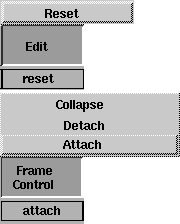
The Frame Control and Edit buttons are located at the bottom of the Deformation Control window. Click and hold on a button to display the associated menu.
Edit Button
- Reset - resets all deformation parameters for the current frame type back to the system defaults.
Frame Control
-
- A frame's type defines the kind of deformation clusters created. For some frame types, you need to create a frame object to attach the clusters to.
-
- For example, for a curve frame type, the frame is a curve. For a skeleton or character builder frame type, the frame is a skeleton. The axis frame type requires no explicit frame.
-
- The menu items that are displayed depend on the frame type you specify. The following are applicable to all frame types:
- Attach - attaches a frame deformation of the specified frame type.
-
- If no objects are active at the time the Attach function is invoked, the system prompts you to select the objects you want to attach a frame to.
- Detach - detaches a frame from a model and cancels any deformations applied to the objects that the frame was attached to.
-
- When a frame is detached from a model, the frame is retained, but all associated deformation clusters are deleted, including any bulging clusters for CHARACTER BUILDER frames.
>
|
Note:
|
The detach function for an AXIS deformation is essentially
the same as selecting or picking the associated cluster and
deleting it with Delete > Del active.
|
- Collapse - detaches a deformation frame from a model and collapses all the transformations defined by the frame to the attached model.
-
- This way, if the frame is deleted, the deformation effects on the model are retained. The SKELETON, CURVE, or CHARACTER BUILDER frame is retained, but all associated clusters are deleted.
-
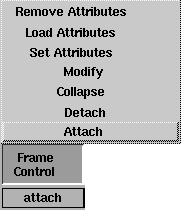
- If you select the SKELETON frame type, the Frame Control menu includes the Modify option. For CHARACTER BUILDER frame types, the Frame Control menu includes the following options:
|
|
|
- Modify - modifies the way CVs on a frame are currently attached.
-
- This is convenient when you change some of the options in the Deformation Control window and want the attach you already performed to reflect the new settings. This operation is essentially identical to doing a Detach followed by an Attach.
- Set Attributes - stores the currently displayed character joint and bulging attributes on a picked joint.
-
- If Hierarchy Depth is set to BELOW or PARTIAL BELOW, attributes are also stored on all the joints below the picked joint according to the Hierarchy Depth setting.
- Load Attributes - updates the Deformation Control window with the values previously set
on a picked joint.
- Remove Attributes - removes any previously set attributes from the selected joints.
Deformation Options
Frame Type
-
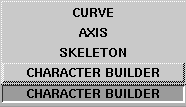
- Lets you specify the frame type you will use for the deformation. Click to the right of the Frame Type heading to display a menu of avilable frame types.
|
|
|
-
- When the type of frame is selected, the Deformation Control window automatically updates to reflect the parameters applicable to that type of frame.
-
- The following describes the different parameters that are displayed for each selected Frame Type.
Axis Deformation Frame Type
An AXIS
deformation is the simplest of the deformations to use. It creates a single cluster to achieve the deformation effect. The most obvious use of AXIS deformation is for bend, twist, or tapering operations.
- Twist and taper effects are achieved by rotating and/or scaling the cluster with respect to the deformation axis.
- Bend effects are achieved by rotating the cluster with respect to a perpendicular axis.
The system computes the percentage effects to be used on the CV members of the cluster based on their distance from a plane. The position of this plane is defined by the deformation AXIS parameters.
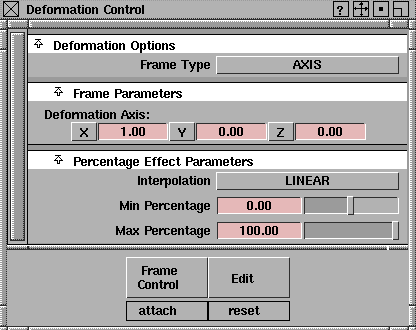
When Frame Type is set to AXIS, the Deformation Control window updates as shown in the following.
Frame Parameters
Deformation Axis
-
- The Deformation Axis parameters are used to specify the direction in which the percentage effects will change.
-
- Click and drag at the bottom of these sliders to select a value, or click to type a new value then press Enter.
-
- The interpolation distance is computed as the world space distance between the object's CV and a plane that is normal to the deformation axis. The origin of this plane is computed by projecting a bounding box in the axis direction and finding the point at which there will be 0% effect. The easiest way to picture this is to imagine a cylinder as the deforming object. The deformation axis lies in the direction of the long axis of the cylinder. The origin will be at the center of the bottom of the cylinder when the percentage range is 0.00 to 100.00. Each of the Deformation Axis parameters are editable and any deformation axis can be specified.
Percentage Effect Parameters
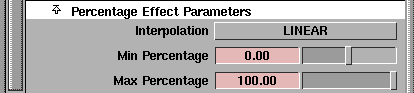
The Percentage Effect Parameters for Interpolation and the Min/Max Percentage values are the same for the AXIS and CURVE frame types.
Interpolation
-
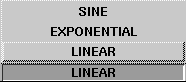
- Determines how the percentage effect will be distributed among members of CV clusters. Click to the right of the Interpolation heading to display the following menu.
|
|
|
- LINEAR - the percentage effect on members of the clusters is distributed based on a linear interpolation between the Min and Max Percentage values.
- EXPONENTIAL - the percentage effect on members of the clusters is distributed exponentially between the Min and Max Percentage values.
- SINE - the percentage effect on members of the clusters is distributed according to a sine curve interpolation between the Min and Max Percentage values.
-
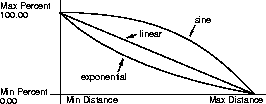
- The following diagram shows these three interpolation types.
Min/ Max Percentage
-
- Determines the range of percentage effects that the CVs in the clusters can have. These values can be positive or negative, including a value of 0.00. Although the slider controls have a range of -100.00 through 100.00, values outside of this range can be typed directly into the parameter fields. Reversing the values so the Min Percentage is greater than Max Percentage effectively reverses the direction of the curves shown in the previous illustration.
Using the Percentage Effect Parameters for the AXIS Frame Type
-
1
-
Create a cylinder primitive and place it at 0,0,0.
>
|
Note:
|
This positioning is for illustrative purposes only. The actual
geometry can be located anywhere in space and an
applicable deformation axis specified.
|
-
2
-
Select Xform > Nonp scale to non-proportionally scale the cylinder to approximately eight units in height.
-
3
-
Select Pick > Nothing to ensure that no geometry is active.
-
4
-
Select Windows > Deformation cntrl
to display the Deformation Control window and make sure that the Frame Type parameter is set to AXIS. All other default settings should be in effect.
-
5
-
Click the Frame Control button at the bottom of the window and select Attach
from the menu. A Go icon is displayed and the system prompts:
-
Pick uninstanced surface(s) to deform, then
GO.
-
6
-
Click on the surfaces you want to deform. Once selected, the surfaces are highlighted.
-
7
-
When all the surfaces you want to deform are selected, click GO. The system responds with a prompt indicating that it is creating an axis deformation.
-
Once the prompt clears, the axis deformation frame has
been attached to the active objects (the cylinder in this
example).
Transforming the Cluster
-
1
-
Select Xform > Rotate and use the middle mouse button to rotate along the y-axis. Take note of the effect on the surface. Try other axis rotations and scale functions to experiment.
-
2
-
Select Pick > Nothing to ensure that no geometry is active.
|
|
Clusters can also be selected
directly in the SBD window
using either Pick > Object or
Pick > Point Types > Cluster.
|
-
3
-
Select Pick > Point Types > Cluster and click on any CV on the surface of the model to select the cluster.
-
4
-
Select Delete > Del active to delete the active cluster, returning the model to its original state.
More to Try
- With the axis frame detached, repeat the steps and vary the Min and Max Percentage values as shown in the following.

- With the previous axis frame detached, repeat the steps again, varying the Min and Max Percentage values as shown in the following.

-
You can also try a Min Percentage value of 100 and a Max
Percentage value of 100.
Using Y-axis Twisting
-
1
-
Click the Edit button and select Reset to reset the
Deformation cntrl parameters.
-
2
-
Change the Deformation Axis parameters to 0,1,0 and attach the new deformation frame to a cylinder.
-
3
-
Click and drag with the middle mouse button to apply a rotational deformation around the y-axis. The cylinder now twists around the y-axis.
Using Y-axis Tapering
-
1
-
Click the Edit button and select Reset to reset the Deformation cntrl parameters.
-
2
-
Change the Deformation Axis parameters to 0,1,0 and attach the new deformation frame to a cylinder.
-
3
-
Non-proportionally scale the cylinder along the X- or Z-axes using Xform > Nonp scale and the cylinder will taper in the respective direction.
Curve Deformation
In a CURVE Frame Type
application, a normal NURBS curve is used as a CURVE frame that influences the deformation. Once the CURVE frame curve is attached to the object, manipulating the CURVE frame deforms the object in the same manner. In a complex deformation, a number of CURVE frames can be attached to an object, each controlling a layer of the deformation. After the initial shape is "roughed in," it can be easily fine-tuned and applied to the larger model.
When a CURVE frame is attached to an object, a deformation cluster is created for each of the CVs on the frame curve. The frame's CVs then become handles which can be used to manipulate the frame.
If the Effect Range of a curve deformation is set to MULTIPLE CLUSTER then every handle on the frame affects every CV on the surface, with the handles closets to each CV having more effect than those further away.
If the Effect Range is SINGLE CLUSTER then each CV on the surface is only affected by the handle closest to it.
Examples
|
|
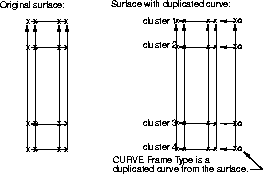
This example shows the
original surface, and then
the duplicated curve from
the surface generated by the
CURVE Frame Type. To
create the clusters, each
handle on the Curve frame is
matched with one CV or
several CVs on the surface.
When the Effect Range
option is set to
SINGLE
CLUSTER, the match is
determined by matching the
surface CVs with the closest
frame CV in world space.
|
|
|
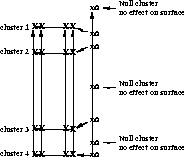
In this example, the CURVE
Frame Type
is a freeform
curve with seven CVs. Three
of these are not as close to a
CV than the other four. As a
result, three null clusters are
created. They are displayed
in the SBD window, but have
no effect on the surface.
|
When clusters are created, the handle CV of the CURVE frame curve is included in the cluster. In this way, any cluster can be selected easily using Pick > Point Types > Cluster and clicking on the handle CV that affects the cluster you want to manipulate.
>
|
Note:
|
Deformation of the object varies depending on the position
of the CURVE frame in relation to the object at the time it is
attached. This is because the pivot point of individual
clusters are located at the CV location of the handle that
affects the cluster.
|
|
|
As you experiment to get a feel for CURVE frame
deformations, try aligning the CURVE frame with the center
of the object initially, then experiment by attaching the
CURVE frame to the object from other locations. Alternately,
the pivot point for any cluster can also be repositioned, by
picking the handle of the cluster you want to affect and
using Xform > Local > Set pivot.
|
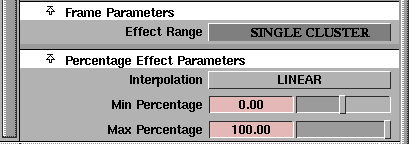
When a CURVE Frame Type is selected, the Deformation Control window updates as shown in the following.
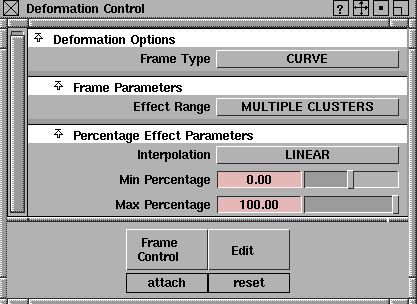
Frame Parameters
Effect Range
-
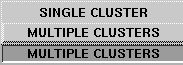
- Click to the right of the heading to display the Effect Range menu.
|
|
|
- MULTIPLE CLUSTERS - each handle affects all CVs on the object's surface.
-
- The handle closest to a CV has the most effect, with a diminishing effect from handles that are farther away from the CV.
- SINGLE CLUSTER - ensures that the CVs on the object's surface are only affected by the one handle which is closest to them.
Percentage Effect Parameters
Interpolation
-
- Determines how the percentage effect is distributed among members of CV clusters.
|
|
See Using the Percentage Effect
Parameters for the AXIS Frame
Type on page 388 for details.
|
-
- The Interpolation options are the same as for the AXIS
Frame Type.
-
- The CV closest to the frame CV gets the maximum percentage. The CV furthest from the frame CV gets the minimum percentage. If the minimum is 0, the furthest CV is not clustered.
Using the Percentage Effect Parameters for the CURVE Frame Type
-
1
-
Create a cylinder primitive and place it at 0,0,0.
-
2
-
Select Xform > Nonp scale to non-proportionally scale the cylinder so that it is approximately eight units in height.
-
3
-
Select Curve Edit > Create > Duplicate curve to duplicate the vertical isoparm on the cylinder surface that is aligned with the vertical axis at 0,0,0. (Any other vertical isoparm could be duplicated, then moved to 0,0,0 in world space).
-
4
-
Select Pick > Nothing to ensure that no geometry is active.
-
5
-
Select Windows > Deformation cntrl to display the Deformation Control window and make sure the Frame Type is set to CURVE
in the menu. All other default settings should be in effect:
-
6
-
Click the Frame Control
button at the bottom of the window and select Attach
from the menu. A Go icon is displayed and the system prompts:
-
Pick uninstanced surface(s) to deform, then
GO.
-
7
-
Click on the surfaces you want to deform. Once selected, the surfaces are highlighted.
-
8
-
When all the surfaces you want to deform are selected, click Go. The system prompts:
-
Select curve(s) to use as frame, then GO
-
Click on the curves you want to use as the frames, (the
duplicated isoparm in this case). Once selected, the curves
are highlighted.
-
9
-
Click Go, then select Pick > Nothing to ensure that no geometry is active.
-
10
-
Select Pick > Object and drag a pick box over at least part of the cylinder surface and the CURVE frame curve to make both objects active, then click directly on an edge of the cylinder surface to deselect it to make only the CURVE frame curve active.
Transforming the Cluster
|
|
The CURVE frame can be
moved anywhere once it has
been attached to the object,
and the pivot points for the
clusters remain in the
location where the CURVE
frame was originally created.
Although the pivot points
for any individual cluster
can be set anywhere at any
time, this is an easy way to
align them at the center of a
cluster. To always maintain
the frame and object in their
relative positions, simply
group them together.
|
-
1
-
Select Xform > Move and use the middle mouse button to move the CURVE frame curve off to the right side of the cylinder surface, where it will be easier to manipulate.
-
2
-
Select Pick > Nothing to ensure that no geometry is active.
-
3
-
Select Pick > Point Types > Cluster and click on the CV attached to the second handle from the top of the CURVE frame curve.
-
Once the cluster is selected, the handle is highlighted as
well as all CVs that this handle controls.
-
4
-
Select Xform > Scale
and use the left mouse button to scale the cluster up to deform the surface.
-
Observe the effect of the deformation in the other
modeling windows. All CVs in the clusters are an equal
distance from the frame, therefore there is no percentage
effect difference between the CVs.
Detaching the Curve Frame
-
1
-
Select Pick > Nothing to ensure that no geometry is active.
-
2
-
Click the Frame Control button at the bottom of the Deformation Control
window and select Detach from the menu.
-
The system prompts:
-
Pick frame(s) to detach, the GO
-
3
-
Click on the CURVE frames to be detached from their respective objects. As a CURVE frame is selected, it is highlighted.
-
4
-
When the frames you want to detach are selected, click Go to proceed with the Detach operation.
-
5
-
Once Go is clicked, the selected frames are detached from the objects to which they were attached and the objects themselves return to their original shape. The original CURVE Frame curve is retained.
More to Try
-
1
-
Leave the CURVE frame curve in its current location off to the side of the cylinder surface and reattach it to the cylinder again.
-
2
-
Make sure that no geometry is active, select Pick > Point Types > Cluster and click on a CV attached to the second handle from the top of the CURVE frame curve.
-
Once the cluster is selected, the handle is highlighted as
well as all CVs that this handle controls.
-
3
-
Select Xform > Scale
and use the left mouse button to scale the cluster up to deform the surface.
-
Notice how the percentage effect of the scale ranges from a
Min Percentage of 0 to 100 around the periphery of the
cylinder because all CVs are no longer an equal distance
from the frame curve.
-
4
-
Detach the CURVE frame from the cylinder, returning the cylinder to its original shape.
-
5
-
Attach the CURVE frame to the cylinder again.
-
6
-
Select individual handles and use Xform > Move to deform the surface. Experiment with Xform > Rotate and Xform > Nonp scale.
>
|
Note:
|
Keep in mind that if you achieve an effect that you want to
retain and no longer need the clusters, the CURVE frame
can be detached from the object without the object losing its
deformation transformations by selecting Collapse from the
Frame Control menu.
|
Additional Tips
- Interaction with the system can be sped up significantly when using CURVE frames, by toggling the original geometry to which the CURVE frame is attached to an invisible state.
- If the same CURVE frame curve is attached to more than one object, the frame handles do not change appearance in any way to indicate that the frame is attached to multiple objects. Therefore, take care that the proper clusters are being selected when you select the handle.
- If any objects are active at the time the Deformation cntrl function is invoked, the system interprets these surfaces to be the surfaces which you want to attach a frame to. If this happens, you will not be prompted to select the surfaces to attach a frame to.
- If a handle CV is removed from the cluster it controls, the cluster remains but that handle is no longer selectable and has no effect on the cluster.
Creating Shearing Effects
A shearing effect can be simulated using either of the following deformation techniques.
- Create an AXIS deformation along the desired shearing axis using a linear Interpolation value and then use Xform > Move to manipulate the resulting cluster.
- Create a CURVE frame deformation along the desired shearing axis using a two point polyline as the curve and MULTIPLE CLUSTERS and LINEAR parameter settings. Use Xform > Move to manipulate the resulting frame to create the shear.
Skeleton Deformation
A SKELETON frame deformation lets you attach an existing skeleton to an object, effectively creating a flexible body. The body can then be manipulated by modifying only the skeleton, resulting in much faster feedback. One cluster is created for each joint or bone on the SKELETON frame. These clusters consist of all the CVs that surround the joint or bone.
>
When a SKELETON Frame Type is specified, the Deformation Control window is updated:
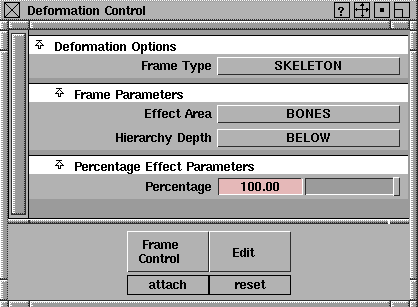
Frame Parameters
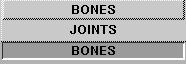
Effect Area
-
- Click to the right of the heading to display the Effect Area menu.
|
|
|
-
- These options let you select whether CVs are grouped by JOINTS or by BONES.
- BONES - the CVs nearest to each bone are assembled into a cluster that will be grouped under the upper joint DAG node of that bone. BONES is the default option and is most commonly used.
- JOINTS - the CVs in the region surrounding the joint are assembled into a cluster which is grouped under that joint DAG node.
Hierarchy Depth
-
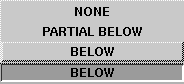
- Click to the right of the heading to display the Hierarchy Depth menu.
|
|
|
-
- These options let you specify how many joint levels to consider during an attach.
- NONE - considers only the current, picked joint as a deformation frame.
|
|
Because you are specifying
how geometry behaves
around each joint or bone of
the skeleton, it is often useful
to limit the number of joints
in the hierarchy that will be
affected by the current
deformation operation.
|
- BELOW - includes the picked joint and all joints below it in the skeleton hierarchy.
- PARTIAL BELOW - includes the picked joint and a user-specified number of joint levels below it.
-
- For instance, picking a joint and specifying a depth of PARTIAL BELOW with two levels will affect a maximum of three joints.
Percentage Effect Parameters
Percentage
-
- Determines the percentage of effect that all CVs in the clusters will have. This value can be positive or negative. A value of 0.00 will result in the deformation frame having no effect at all.
CHARACTER BUILDER Deformation
The CHARACTER BUILDER Frame Type extends the SKELETON deformation and lets you specify how the geometry attached to a skeleton bends around a joint and how it bulges between two joints. For example, bending around a joint provides smooth deformation of arm geometry at an elbow (complete with bending and tucking), and bulging between two joints simulates the biceps as it flexes and unflexes due to arm bending.
When the CHARACTER BUILDER Frame Type is specified, the Deformation Control window updates as shown in the following.
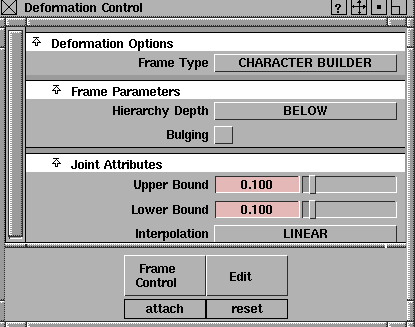
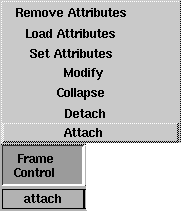
If the CHARACTER BUILDER
Frame Type
is selected, when you click the Frame Control
button, the menu contains the following additional items.
|
|
|
- Modify - modifies the way CVs on a frame are currently attached.
-
- This is convenient when you change some of the options in the Deformation Control window and want the attach you already performed to reflect the new settings. This operation is essentially identical to doing a Detach followed by an Attach.
- Set Attributes - stores the currently displayed character joint and bulging attributes on a picked joint.
-
- If Hierarchy Depth is set to BELOW or PARTIAL BELOW, attributes are also stored on the joints below the picked joint according to the Hierarchy Depth setting.
- Load Attributes - updates the Deformation Control window with the values previously set
on a picked joint.
- Remove Attributes - removes any previously set attributes from the selected joints.
Frame Parameters
Hierarchy Depth
-
- These options are the same as for the SKELETON Frame Type and let you specify how many joint levels to consider during an attach. See Skeleton Deformation for details.
Bulging
-
- This toggle indicates whether bulging effects should be applied to the joints in the selected hierarchy. Bulging on a joint means that bulging clusters will be created for the geometry between that joint and the next lower joint.
-
- When Bulging is toggled ON (indicated by a check mark), the Deformation Control window expands to include the following.
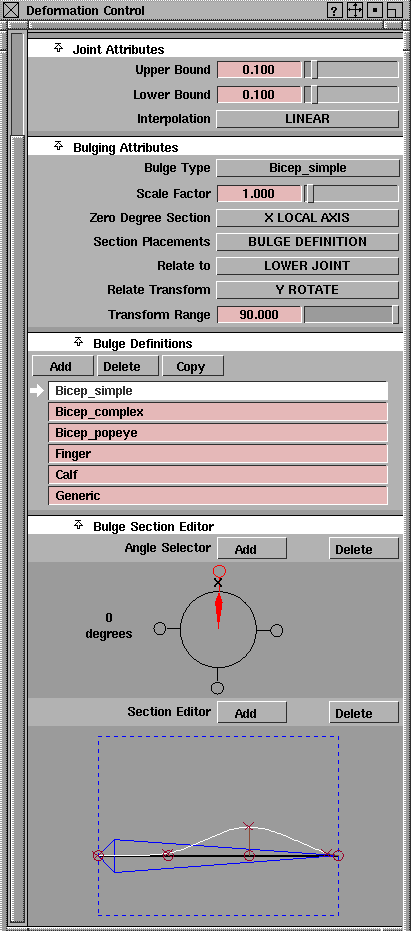
Joint Attributes
These options let you control how smoothly geometry CVs around a joint will bend and tuck at that joint.
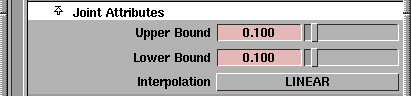
Upper and Lower Bounds
-
- The Upper Bound and Lower Bound
values provide a way of specifying how much the transformations at the joint will affect the CVs within those bounds. In other words, these bounds define the region around the skeleton joint where the bending and tucking will occur.
-
- The Upper Bound defines a percentage along the bone from the current joint to its parent joint.
-
- The Lower Bound defines a percentage along each of the bones from the current joint to each child joint.
-
- CVs at the upper bound receive 0% of the transformation (full effects of the upper bone) and CVs at the lower bound receive 100% (full effects of the lower bone). The percentages of the CVs in between are ramped according to the chosen interpolation. It is this ramping of percentages that produces the smooth bending and tucking of geometry as joints are rotated.
-
- Values range from 0.0 to 1.0 and represent percentages of the lengths of the upper and lower bones. For example, if the upper and lower bounds for a joint are 0.25 and 0.333, respectively, all CVs from the bottom quarter of the joint's upper bone joint to the upper third of the joint's lower bone are assigned ramped percentages.
|
|
See Axis Deformation and
Curve Deformation for details.
|
Interpolation
-
- Interpolation between the Upper and Lower bounds of the joint refers to how the percentage effects are ramped among the CVs clustered under the joint. The interpolation options are the same as the Percentage Effect Parameters for the AXIS and CURVE deformation Frame Types.
Bulging Attributes
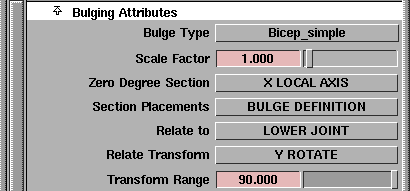
Bulge definitions are maintained on a project-by-project basis and are stored in the bulge_types file in the current project's misc_data directory. All wire files in a project access the same bulges. If this file does not exist when the Deformation Control
window is opened, it is created with default bulge types.
Since bulges basically define the way geometry behaves at different locations around a bone, they are comprised of degree sections. Each section represents a profile curve of what the bulge effect will be at a given angle around the bone.
|
|
|
Bulge Type
-
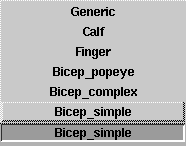
- Click to the right of the heading to display the Bulge Type menu.
-
- The menu displays the current bulge from the bulges defined in the bulge_types file. Click on the bulge name to select it.
Scale Factor
-
- This slider is used to intensify or diminish the effects of a given bulge.
Zero Degree Section
-
- Tells you which direction around the bone represents zero degrees. This is a way for you to specify which slice along a bone will receive the bulge profile that is drawn in the Bulge Section Editor
in the Zero Degree Section
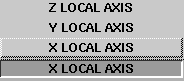
. Click to the right of the heading to display the Zero Degree Section menu.
|
|
|
-
- The X, Y, and Z LOCAL AXES choices refer to the local axes of the next lower joint (see Xform > Local > Set local axes in Basic Tools
for more information).
Section Placements
-
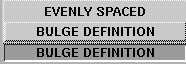
- Determines the location of the clusters that get created during an Attach with Bulging. Click to the right of the heading to display a menu from which you can select the following:
|
|
|
- BULGE DEFINITION - creates clusters just as they are defined in the Bulge Section Editor,
one cluster for every keypoint in each section.

- EVENLY SPACED -the bulge's cluster positions are equally distributed around and along the bone, according to the values specified in the Sections Around and Sections Along sliders.
-
When you select EVENLY SPACED from the popup menu,
the Bulging Attributes section of the window expands to
include the Sections Around and Sections Along parameters.
Relate to
-
- Click to the right of the
heading to display the
Relate to menu.
|
|
|
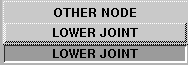
- LOWER JOINT - relates the bulge to transformations on the lower joint on the bone. This is the default and would be used for upper arm or thigh muscle bulges.
- OTHER NODE - relates the bulge to transformations on any other existing DAG node, the name of which is entered in the OTHER NODE
text box, which only appears when Relate to OTHER NODE is selected. This allows you to create bulging effects when an arbitrary DAG node in your scene is transformed.
|
|
|
Relate Transform
-
- Click to the right of the heading to display the Relate Transform menu.
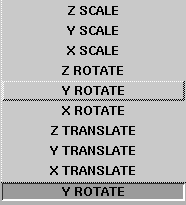
-
- The menu displays the X, Y, and Z ROTATE, TRANSLATE, and SCALE options from which you can choose to specify which transformation of the chosen DAG node causes bulging.
Transform Range
-
- This slider is used to specify a valid range of transformation values from the initial state (at Attach time) that result in bulging. For example, a value of 75 degrees for an upper arm bulge (with Relate
set to
LOWER JOINT and Relate Transform
to Y ROTATE) means that bulging occurs when the y-rotation of the lower joint has values between its current value at the time of attach and that current value plus 75.
Bulge Definitions Lister
The Bulge Definitions lister is another way of specifying which bulge should be applied on a joint.
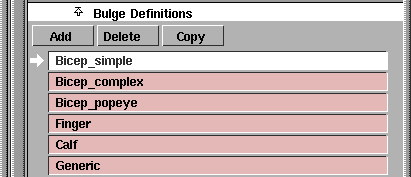
Clicking on an entry in the bulge lister selects that bulge and displays it in the Bulge Section Editor. To change the name of a bulge, double click in the field, type a name, then press Enter.
Bulge Definitions Buttons
- Add - creates a new generic bulge with two sections of three keypoints each.
- Delete - deletes the currently selected bulge type.
- Copy - copies the currently selected bulge.
Caution! Bulge definitions are stored by code in the
bulge_types file and referred to by code in the wire files. If a joint in the current or any other wire file refers to a bulge code that no longer exists, you will not be able to do an Attach.
Bulge Section Editor
Angle Selector
-
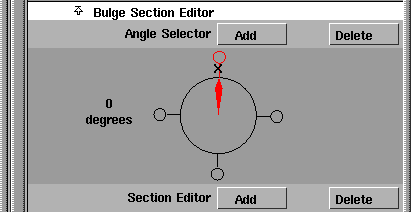
- The Angle Selector shows the positions of the sections of a bulge (looking at the Angle Selector is like looking down the bone).
-
- The red pointer indicates which section around the bone is being viewed in the Section Editor. The pointer can be moved around to view different sections of the bone's bulge definition in five degree increments by clicking and dragging with the mouse. If a section has a curve defined for it, a white "handle" is drawn at that section. This handle can be dragged around and repositioned.
-
- When
Add is selected (or Shift is pressed), clicking in the Angle Selector adds new sections. A new section curve will be created as an interpolation of the two curves on either side of it.
-
- When Delete is selected (or Alt is pressed), clicking in the Angle Selector removes sections.
-
- When neither one is active, clicking in the Angle Selector repositions the pointer.
Section Editor
The Section Editor
shows the bone with a profile curve.
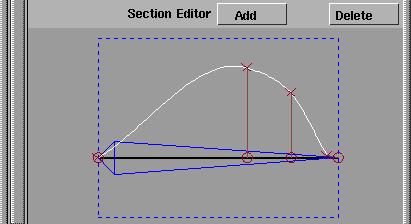
The profile curve's position around the bone is shown in the Angle Selector. This suggests what the bulge effects look like at different places around the bone. When the Angle Selector points to one of the bulge's defined sections, the profile curve in the Section Editor turns white and can be modified. Otherwise, the curve is dark and represents an interpolation of the bulge's effects at that position.
Section Editor Buttons
- Add - adds new keypoints to the curve
- Delete - removes existing keypoints.
-
- When neither button is selected, keypoints can be dragged around with the mouse.
Example
There are two kinds of keypoints in the Section Editor, those represented by x
and those by
o. Repositioning the
x keypoints changes the overall shape of the bulge section. The o's also represent the positions of the bulge clusters for this section. In most cases, you will probably want the bulge direction to be perpendicular to the bone. If the line between o and x is not perpendicular to the bone, the bulge deformation will slide along the bone as well as move away from the bone.
In the following example, this is represented in the Section Editor by keypoint A having a perpendicular dropped to the bone. If you grab the
o's along the bone and drag them with the mouse, you change the direction of the bulge. Keypoint B, for instance, will bulge somewhat along the bone axis, toward the lower end of the joint.
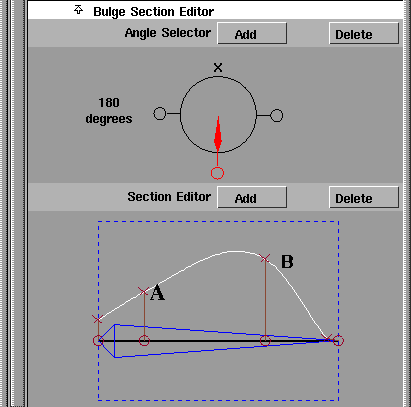
For example, a simple biceps bulge could contain two sections: one above the bone-at zero degrees- with the profile curve resembling a flexed biceps, and the other at 180 degrees with a flat profile curve signifying no bulge below the bone.
Restrictions
The following are restrictions on keypoints in the Section Editor.
- A profile curve must have at least two keypoints, one at the upper (left) end of the bone, and one at the lower (right) end.
- A keypoint's position is bounded by the positions of the keypoints on either side of it.
Bending and Bulging
The following basic steps show you how to create an arm with smooth bending at the elbow and bulging at the biceps.
-
1
-
Select Objects > Draw skeleton to create a joint hierarchy of three joints. The top joint will be the shoulder, the middle the elbow, and the lower the wrist.
-
2
-
Create arm geometry that surrounds the bones and the joints, and select Pick > Nothing to ensure that no geometry is active.
-
3
-
Select Windows > Deformation cntrl to display the Deformation Control window, then select the CHARACTER BUILDER Frame Type. The default settings should be in effect at this time. To be sure, click the Edit > Reset button at the bottom of the window.
Follow these steps to specify bulging on the upper arm. Assume that you have already defined a bulge that has the effects you want, and that you've called it "biceps."
-
1
-
Since you only want to apply bulging to one joint, select Hierarchy Depth NONE (in this example, joint attributes are only being set for the shoulder joint).
-
2
-
Click the Bulging toggle to turn bulging on.
-
3
-
Select Pick > Object and then pick the entire skeleton. This selects the shoulder joint of the skeleton.
|
|
Some attributes are very
important, since they
determine how a given
bulge will be applied to the
skeleton. Zero Degree
Section,
Relate Transform,
and Transform Range must
all take into account the way
your skeleton was defined:
its orientation in space,
which rotation bends the
elbow, and which values of
that rotation should result in
bulging.
|
-
4
-
Select Set Attributes from the Frame Control menu. The system prompts:
-
Modify joint attributes, then press GO
-
A Go icon is displayed at the bottom right of the current
window.
-
Because you are in Set Attributes mode, any modifications
you make in the Bulging Attributes or Joint Attributes sections
of the window are stored on the selected joint hierarchy
and will be reflected in the representation of the bulge
effects displayed in the modeling windows.
-
5
-
Select your "biceps" bulge from either the Bulge Type menu or the Bulge Definitions lister.
|
|
Notice that even though
Bulging has been turned off
in the window, bulging
attributes on the shoulder
joint have already been Set.
The state of the options in
the window when Attach is
selected shows what
attributes are used on joints
in the hierarchy that don't
have attributes explicitly
stored on them already.
|
-
6
-
Change the options in the Deformation Control window until you're happy with the way the bulge looks in the modeling windows.
-
7
-
Click Go to exit the Set Attributes mode.
-
8
-
With the skeleton hierarchy still picked, pick the arm geometry as well.
-
9
-
Toggle Bulging off and set Hierarchy Depth to BELOW.
|
|
In this way, you are still
getting smooth bending
around the elbow, even
though you didn't set Upper
and Lower Bound attributes
on the elbow joint; those
attributes are coming from
the current values displayed
in the window. (Naturally,
the arm should have enough
CVs around the elbow to
permit smooth bending, and
the displayed Bound values
should sufficiently bracket
those CVs.)
|
-
10
-
Select Attach from the Frame Control menu.
-
When the Attach operation is completed, apply the desired
rotation to the elbow joint and watch the upper arm bulge.
Additional Notes
The CHARACTER BUILDER Attach operation basically automates two tedious tasks: creating all the bending and bulging clusters, and generating the expressions linking bulging clusters to transformations on a DAG node. As such, it is important to touch on a couple of issues.
|
|
To see the effects of the bulge
as you rotate the elbow joint
(instead of when you release
the mouse button), turn on
Expression Updates: During
Xform in the Preferences >
Performance options
window.
|
- Bending clusters are grouped under joint nodes in the SBD. There is one bending cluster created for each joint in the hierarchy selected during the Attach.
- Bulging clusters are created outside the joint hierarchy. Complex bulges can generate numerous bulge clusters; these clusters are created compressed in the SBD-they can be uncompressed as needed.
|


