|
|
11
|
Working with Sets
|
|
In This Section:
|
Edit > New set
|
Creating Sets
|
|
|
|
|
Overview
A set is a collection of arbitrary selectable objects (DAG nodes, CVs, or cameras). Sets can be used to assemble "related" objects so that they can be picked and manipulated together more easily.
>
|
Note:
|
If an object has construction history, its CVs cannot become
members of a set. However, the object itself can be placed in
the set.
|
Creating a Set
-
1
-
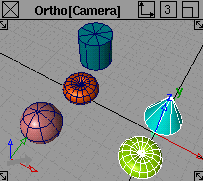
To create a set, pick a collection of DAG nodes, CVs and/or cameras. The following example displays five primitive objects. From these objects, two sets are created.
|
|
|
-
2
-
Pick only two of the objects first (for example, the objects on the right of the screen), then select Edit > New set.
-
A new set is created whose members consist of all
currently picked items. The set of objects is highlighted in
white in the Set Lister window. To access the Set Lister
,
select Windows > Sets > Set lister. (See Windows > Sets > Set
lister for details). Or select Sets > Lister from the layers bar.
-
3
-
Unpick the first two objects and pick the remaining three objects (the objects on the left of the screen).
|
|
You can also create a set
from the Set Lister by
selecting Modify > Create
Set.
|
-
4
-
Now, select Edit > New set again and another set is created.
Deleting Sets
-
1
-
Open the Set Lister.
-
2
-
Select the set(s) you want to delete.
|
|
If you're deleting a set with
many members, you may
wish to turn off Picklist Auto-
update before selecting the
set, to avoid doing a
needless pick of the
members.
|
-
3
-
Select Modify > Delete Set to delete the set(s).
New Set Options
Select Edit > New set - to display the New Set Options window. to display the New Set Options window.
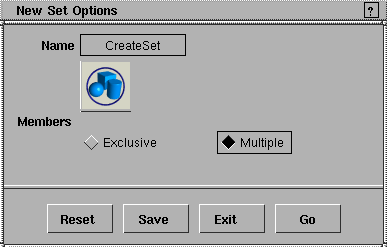
Members
Exclusive
-
- Members of the new set are not allowed to be in any other set.
Multiple
-
- The picked elements are allowed to be in other sets.
|
|
See Windows > Sets > Edit
set for details.
|
>
|
Note:
|
After a set has been created, you can change its members'
state using the Set Editor window.
|
|


