|
Windows > Sets > Edit set |
Editing Sets in the Set Editor | ||||||||
|
| |||||||||
How to UseCreate a set by picking a collection of DAG nodes, CVs and/or cameras and then selecting Edit > New set. To open the Set Editor, either:
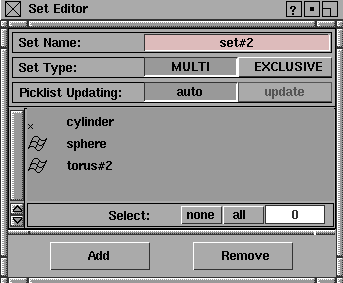
Set Editor WindowThe Set Editor lets you add or remove members of sets, rename sets, and change the MULTI or EXCLUSIVE type of a set. One set editor is opened for each set. You can open many Set Editor windows, each window serving one set. In the following example, the Set Editor contains three members: a sphere, a cylinder, and a torus.
Set NameThe set name in this example is set. The set name can be changed by clicking on the name field and typing a new name. Set Type
The default set type is MULTI. You define the Set Type using the Edit > New set - EXCLUSIVE
MULTI | |||||||||
|
You can change a set type or a set name in Set Lister if you do not want to see members of the set. |
Picklist UpdatingControls whether or not set members are automatically selected and deselected when they are picked and unpicked in the modeling window. If set to auto, a set member is highlighted in the Set Editor when picked in the modeling window. Similarly, if a set member is selected in the Set Editor, it is picked in the modeling window. Select - none/all
Set Editor ButtonsAdd
Remove
|
| Copyright © 1998, Alias|Wavefront, a division of Silicon Graphics Limited. All rights reserved. | Please send questions or comments regarding the documentation to: [email protected] |
 on the list of layers bar > Sets to open the Set Editor for this set.