|
Overview
Lets you list, add, or remove members from sets created using the Edit > New set tool and create a new set or delete existing sets.
How to Use
-
1
-
From the Window > Sets cascading menu, select
Set lister. A list of the existing sets is displayed. To open the Set Editor, select Edit set.

-
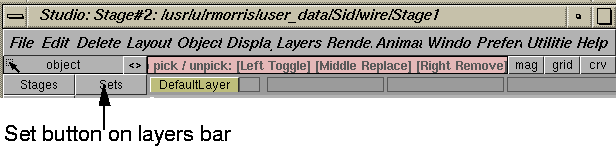
If there is a set contained in the current stage, a Sets
button
is listed on the layers bar.
-
2
-
Click the Sets button to display a list of all the set names.
-
This Sets item provides easy access to the sets contained in
the current stage.
-
3
-
Select Sets > Lister to open the Set Lister.
-
4
-
Select a set name to pick or unpick the related set members. A check mark 3 in front of a set item indicates that all members of this set are picked.
-
5
-
Select the option box of a set item to open its Set Editor.
|


