Introduction to Inverse Kinematics | |||||
|
| |||||
Inverse Kinematics behavior is controlled by IK handles, which manipulate a user-selected part of a skeleton. You can create an IK handle on any part of a skeleton-on an arm, for example-and use the IK handle to affect only that part of the skeleton without disturbing the rest of the skeleton. | |||||
|
As of Version 7.5, there was no longer a separate IK drag operation for skeletons. Also, because you create the handle for only the part of the skeleton you want to move, there was no longer a need for "anchors". |
To move an arm, for example, pick the handle and use the Move tool. The Single-Chain SolverWith the single-chain solver, you can set up character motion very quickly, and adjust this motion in a highly visual way. Unique / no Run IK | ||||
|
For more information on multi-chain solvers, see Using Multi-Chain IK Handles on page 254 |
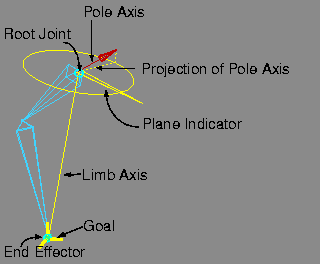
With the multi-chain IK solver, skeletons have a non-unique behavior; that is, the motion of joints can change unpredictably, depending on whether you play back the animation, do a viewframe, move a constraint, or undo on a transformation. The solution to this problem is to do a separate, non-interactive operation to "bake" the skeleton motion using the Run IK tool. (To render a Multi-Chain Solution, you must use Run IK before writing out the SDL file.) With the single-chain solver, the solution is unique, which means that the behavior of the skeleton is the same whether the animation is played forward or backward, whether a constraint/handle is moved away and back, and so on. Therefore, you can interactively move and play back your skeleton motion, and render, without needing to use Run IK. Rest PoseThe rest pose is a reference position for the skeleton, generally a "neutral" pose for the chain. By setting a rest pose for a skeleton (in the menu, select Edit > Rest pose > Set rest pose), you can return to this pose at any time (by selecting Edit > Rest pose > Assume rest pose). There is no need to set a keyframe for this pose; the single-chain IK solver uses the rest pose as a seed position to solve for the skeleton position when a handle/constraint is moved or animated. The behavior of a skeleton chain, therefore, is highly dependent on the rest pose you choose for it. Non-Overlapping HandlesWith the single-chain solver, you can put only one handle on each part of a skeleton. For example, one handle for each arm (shoulder to wrist), one handle on each finger (first knuckle to fingertip), etc. This is very different than the multi-chain IK, in which handles can share joints, and generally overlap considerably. IK TerminologyWhen you apply a single-chain handle to a skeleton chain, a number of new visual icons and terms come into play.
| ||||
|
This figure shows an IK chain with a single-chain IK handle. |
Using Single-Chain IK HandlesObjects > Add IK handle | ||||
|
For more information about this tool, see Objects > Add IK handle on page 284. |
This is a continuous-action tool in which you add IK handles one at a time to a skeleton. To add single-chain handles, select Single-chain in the option box for this tool. Then, select the root joint, and finally the end effector joint. The tool is still active after this operation, so you can continue to select other parts of the skeleton to put other IK handles on. >
Information Window (Single-chain IK handles) | ||||
|
To access the Information window, use Windows > Information Window. |
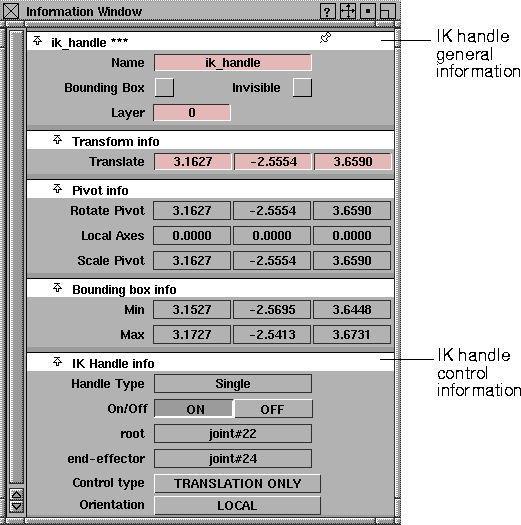
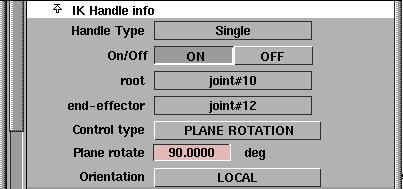
When an IK handle is picked, the information about that handle is shown in the IK Handle section of the Information window.
Name
Bounding Box
Invisible
Layer
Translate
Rotate Pivot
Local Axes
Scale Pivot
Bounding Box Min/Max
Handle Type
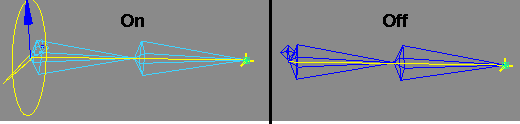
On/Off
root
end-effector
| ||||
|
|
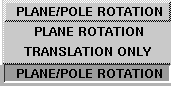
Control type
| ||||
|
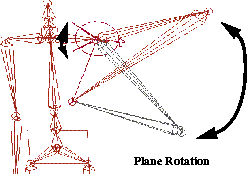
You can also control the rotation of the plane axis by picking the IK handle and using the left mouse button with the Rotate tool (Xform > Rotate). |
| ||||
|
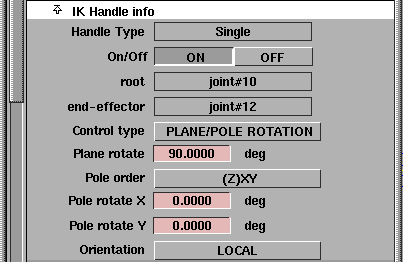
A new set of options appear when you pick the PLANE/ POLE ROTATION control type. |
| ||||
|
Use the middle and right mouse buttons to rotate the IK solution's Pole Axis and its projection. |
| ||||
|
|
| ||||
|
|
Orientation
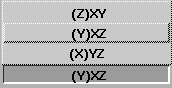
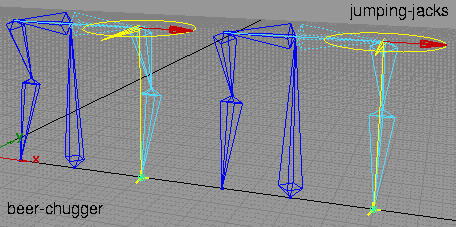
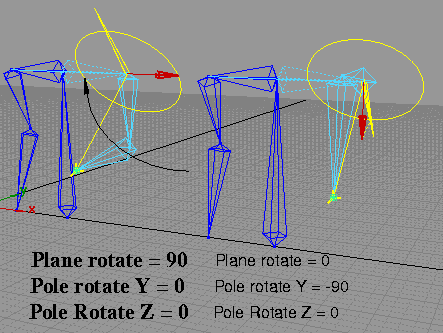
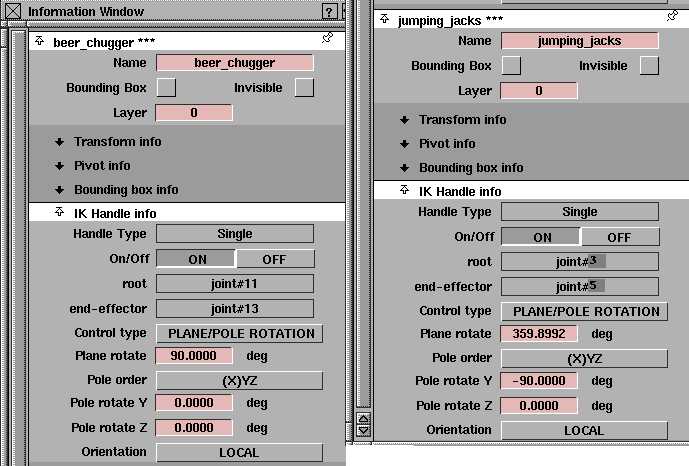
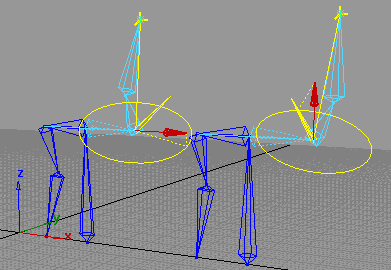
When to Use the Plane Rotation SettingIf the IK chain never needs to change orientation from its rest position, the default Translation Only setting will be all you need to animate the skeleton. For example, if the legs of a simple biped character in a walk cycle are oriented in a constant direction (that is, the knees always point forward), the IK handles for the legs will only need translation. However, if that same biped character needs to have a "bow-legged" or "knock-kneed" appearance, or if the character is dancing the Charleston, you will want to rotate the skeleton plane of both legs to achieve this effect. In this case, choose the Plane Rotation setting for those handles in the Information Window, and adjust the Plane Rotate fields accordingly. Using the Plane/Pole Rotation SettingYou will need to adjust the rotation of the Pole Axis, through the "Plane/Pole Rotation" setting, only if the skeleton chain is to be animated through an extremely wide range of motion in the scene. Specifically, if the limb axis of the chain comes near the Pole Axis, an undesirable "flipping" of the chain may occur; generally, you will want to move/animate the Pole Axis so that the handle's limb axis does not come too close to it during a given scene. When you create a single-chain IK handle on a chain, a Pole Axis is automatically created and placed perpendicular to the skeleton plane in its rest position. As long as the chain is not contorted very far from this position, and the limb axis of the chain doesn't approach the Pole Axis, this default position of the Pole Axis is suitable for animating the skeleton. Otherwise, adjusting or animating the Pole Axis may be necessary to avoid flipping behavior in the chain. Complex Single-Chain Examplethe following example of two torsos, and how different types of arm movements are achieved through the use of POLE/PLANE ROTATION. In this example, the two torsos are identical and both have IK handles on the left arms. The default value for Plane rotate is 90 degrees. The default value for Pole rotate Y and Z is zero degrees. The left torso requires a beer-chugging motion, while the right torso will perform a jumping-jack kind of motion.
Using Multi-Chain IK Handles | ||||
|
The multi-chain solver is backward-compatible with the inverse kinematics provided in Version 7.0. Version 7.0 files with skeleton animation have the equivalent multi-chain IK handles added to them when read into Version 9. |
Although the single-chain IK solver is suitable for most inverse kinematics needs, you can also use multi-chain IK handles to manipulate skeletons. For example, if you need a tail that wags back and forth and bends in opposite directions on each side of the swing, you need a multi-chain solver. With the multi-chain solver, skeletons have a non-unique behavior and you need to bake the skeleton motion using the Run IK tool. For more information on how it differs from single-chain solver, see The Single-Chain Solver on page 244. In some cases, the multi-chain solver can be used to create specialized animations on your skeleton which the single-chain solver may not be able to achieve. For example, if you need a tail that wags back and forth and bends in opposite directions on each side of the swing, you need multi-chain IK handles.
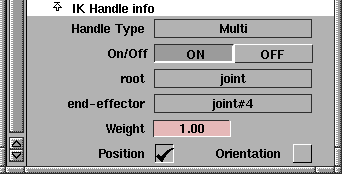
When a multi-chain IK handle is picked, the IK Handle info section in the Information Window has three items not seen with single-chain IK handles:
| ||||
|
For information about the other controls, see Information Window (Single- chain IK handles) on page 248 |
Weight
Position
Orientation
Position Versus Orientation IK Handles | ||||
|
|
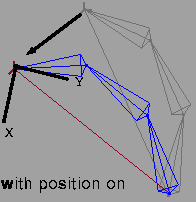
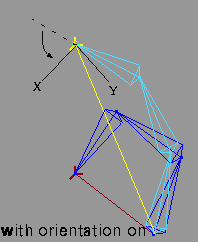
When an IK handle is specified with Position on, moving the IK handle in turn moves the skeleton's end effector, as with single-chain IK behavior. When an IK handle has been specified with Orientation on, rotating the handle affects the rotation of the parent joint of the end effector. As a result, the bone that points to the end effector has the orientation of the IK handle. See the diagrams in the margin for an illustration of Position on versus Orientation on. | ||||
|
|
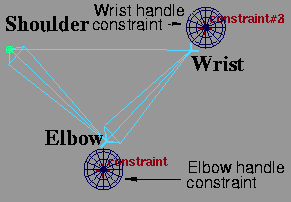
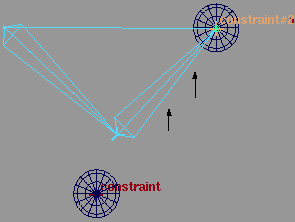
If both Position and Orientation are specified for a multi-chain IK handle, their behaviors are combined. The end effector moves with the IK handle, and the bone pointing to the end-effector is rotated to match the handle's orientation. Overlapping HandlesWith the multi-chain IK solver, you can overlap IK handles. For example, on an arm, you can place an IK handle from the shoulder to the wrist, and a second handle from the shoulder to the elbow. By default, overlapping IK handles will have equal influence on the IK chain. In the following example, if the shoulder-elbow handle is pulled downward at the same time the shoulder-wrist handle is pulled upward, the arm assumes a position that tries to meet both handles equally:
If you prefer one handle's influence to be greater than the other's, you can adjust the handle's weight in the Information window. In this example, if you want the shoulder-elbow IK handle to have only a small influence, you would set the IK handle weight to a small value (for example, 0.1). As a result, the arm skeleton tends to favor the shoulder-wrist handle, as shown below:
Run IK and the Multi-Chain SolverWhen you use the multi-chain solver, you need to perform an extra operation to `bake' the IK handle behavior onto the rotations of the skeleton joints (use Animation > RunIK). The effect of this operation is to create keyframe animation directly on the skeleton joints so that the scene can be rendered, or the skeleton's animation can be further refined by editing the keyframes on the joints. RunIK is optional with single-chain skeletons, but is required when using multi-chain IK handles. The Spline-Handle SolverYou can use the spline handle to control a piece of skeleton chain. Using the spline handle, the skeleton chain matches a target spline curve. The spline handle makes tail, neck, or snake animation easier. There are four primary purposes of the spline solver:
Baking Animation and Using Motion Blur Compensation | ||||
|
You can have all the constraints deleted after you've baked your animation by selecting the Delete Constraints option on the Bake options window. |
There are times when you will want to generate animation curves in place of constraint or expression animation. The Bake plugin provides the equivalent of Run IK for these cases. Bake creates animation curves for them with keyframes at regularly specified intervals that can be seen and edited by hand. | ||||
|
The compensation only applies to animations translated from single-chain or spline IK handles. |
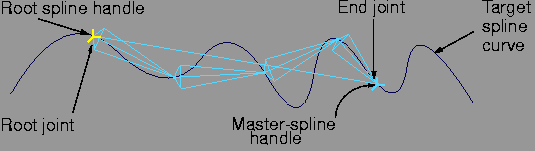
If you are going to render an animation with Motion Blur (see Render > Globals for details), you may want to use Motion Blur compensation. The renderer evaluates the animation at a motion blur sample point, interpolating between these values. Constraint animation is limited to a -180/+180 degree range. If the constraint jumps from -180 to +180, the object doesn't actually move. But, the motion blur sampling reads a value between those degree ranges, and the object appears to flip, even though it shouldn't. With the Motion Blur compensation, extra keyframes are created at the motion blur sample times wherever a flipping problem is detected. Spline IK OverviewA spline handle is defined on a skeleton chain by a root joint, an end joint, and a target spline curve.
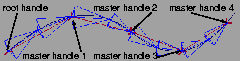
Like single-chain IK handles, spline handles are constraints affecting skeletons. They do not overlap. When a curve is transformed or animated, the skeleton chain tries to match it. You can also transform or animate the root handle's position or rotation to change the chain's position, rolling it along the curve. Rotating the master handle twists each joint on the chain. If you point-constrain the root joint to an object, the start position of the chain is constrained. Master and Root HandlesThere are two kinds of spline handles.
If a master spline handle controls a skeleton chain without a root handle (the root handle may not be created or may have been deleted), the root joint remains fixed, and only the reachable part of the chain follows the spline curve. A tail is a good example; it stays attached to a body, while its end is free to be dragged along a curve. A root handle cannot exist without a master handle. Note that:
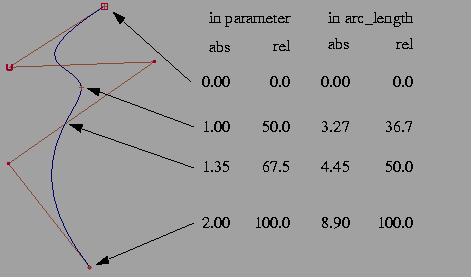
Parameters and Arc LengthsSpline handles can define positions on a curve either by parameters or by arc-lengths. Both types of measurements use relative percentage values. The following figure shows points on a spline curve defined by parameters and by arc-lengths. Notice that each point in this figure is represented by four values: an absolute parameter value, a relative percentage parameter value, an absolute arc-length value and a relative percentage arc-length value.
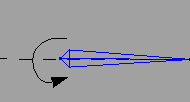
For each spline handle, we can only use relative parameter values and relative arc-length values to define the points or positions.Rolling the chainTo roll the chain means to rotate the root joint using a lower bone as the rotation axis. Since all lower joints inherit their rotations from upper joints, the rotation on the root joint makes the whole chain roll. | ||||
|
|
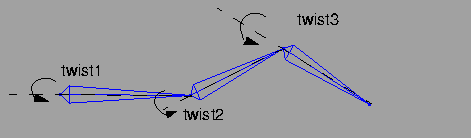
Twisting the chainTo twist the chain means to rotate each joint (except the end) on the chain using each joint's lower bone as the rotation axis. If the master handle has its Twist Root attribute set ON, the twist starts from the root joint; otherwise it starts from the second joint.
| ||||
|
See Twist Type in the Information Window section for more information. |
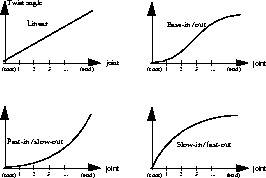
There are four different twist-types that you can use to control the spline handle:
Getting Information on Spline Handles | ||||
|
For information on the Information window, see Basic Tools in Alias. |
When an IK handle is picked, you can see information about that handle by selecting Windows > Information Window. Root Handle Information
| ||||
|
For information on the other controls, see Information Window (Single-chain IK handles) on page 248. |
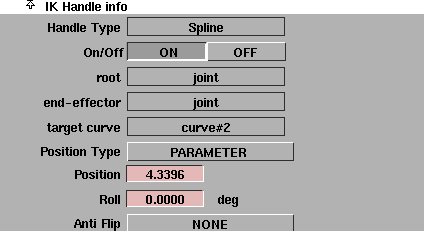
For root handles, the following additional controls appear in the IK handle section of the Information window: Target curve
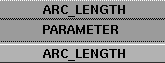
Position Type
| ||||
|
|
Position
Roll
| ||||
|
|
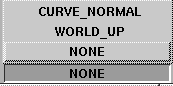
Anti Flip
Master Handle Information | ||||
|
For information on the other controls, see Information Window (Single-chain IK handles) on page 248. |
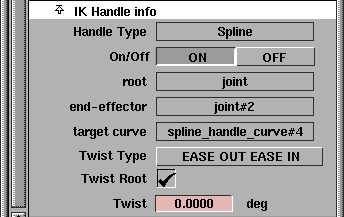
For a master handle, you can change the twist type and the twist angle from the Information window.
Target curve
Twist Type
| ||||
|
|
Twist Root
| ||||
|
|
Twist
| ||||
| Copyright © 1998, Alias|Wavefront, a division of Silicon Graphics Limited. All rights reserved. | Please send questions or comments regarding the documentation to: [email protected] |