Skeletons and IK |
|
||
7 |
Skeletons and Inverse Kinematics |
In This Section:
|
|
|
Objects palette > Draw skeleton |
Drawing a Skeleton with Pivots or Joints | ||
|
| |||
This feature is available in Alias AutoStudio and PowerAnimator and is a purchasable Advanced Animation for Studio option. | |||
|
|
Draw skeleton creates a skeleton by defining pivot point or joint positions. OverviewTo use the Draw skeleton tool, select it from the Objects menu, or click its icon. | ||
|
|
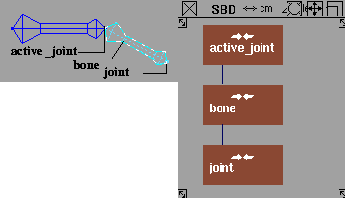
As you create each joint, a DAG node is added to the Scene Block Diagram (SBD) and a bone is drawn in the modeling windows connecting this joint to the previous joint. >
Skeleton Terms
Creating Joint Nodes | ||
|
|
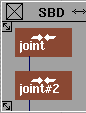
A joint node is a DAG node that is marked as a joint. You can see it in the SBD window, where its DAG node has a joint icon. | ||
|
See Windows > Edit > Skeletons on page 272 for details. |
You can also turn existing DAG nodes into joint nodes, or make joint nodes regular DAG nodes by toggling their joint state in the skeleton editor. Each time you click in the modeling window when using Draw skeleton, a new joint node that is a child of the active joint node is created, and a bone is drawn between the two joints.
| ||
|
You can also create a new joint DAG node by entering the pivot position on the keyboard. |
Each time you create a joint DAG node in this way, the pivot position of the joint DAG node is placed where you last clicked in the window.
Using Bones
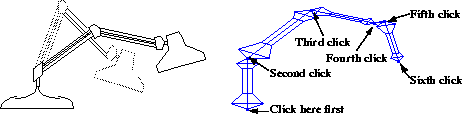
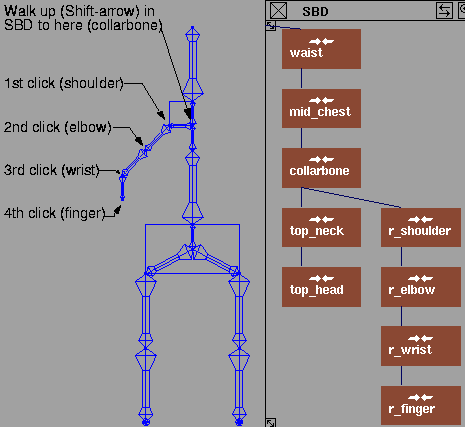
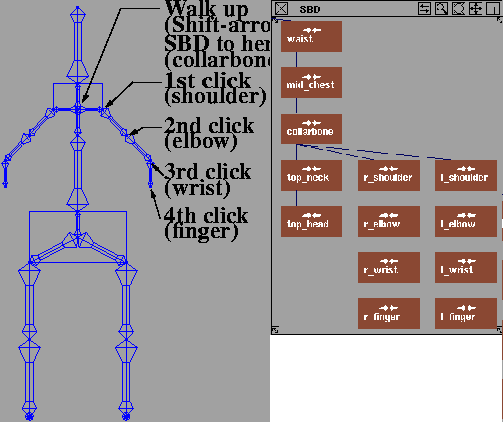
Bones are drawn between joint nodes and their nearest ancestor joint node by connecting the rotation pivot points of the two nodes. You can change the bone shape (see Object Display > Line style - The actual size of a 3D bone is defined by the distance between pivot points. The larger end of the bone shows the location of the rotation pivot point for the joint DAG node above the bone - the smaller end of the bone points to the rotation pivot point for the joint DAG node below the bone. Because the bone is defined by the pivot points, you can use Xform > Local > Set pivot to change the length of a bone. You can create a chain of joints by clicking several times in an application window. If you want to create a hierarchy interactively, use the Shift key with one of the four arrow keys on the keypad to move around the joint node hierarchy. Creating a simple spine chainBone chains are not limited to living creatures - a desk lamp is a simple bone chain. Using a chain of bones, you can easily create a lamp by clicking and forming sections from the base of the lamp to the shade.
| ||
|
|
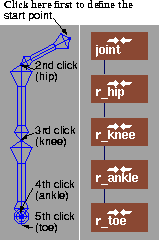
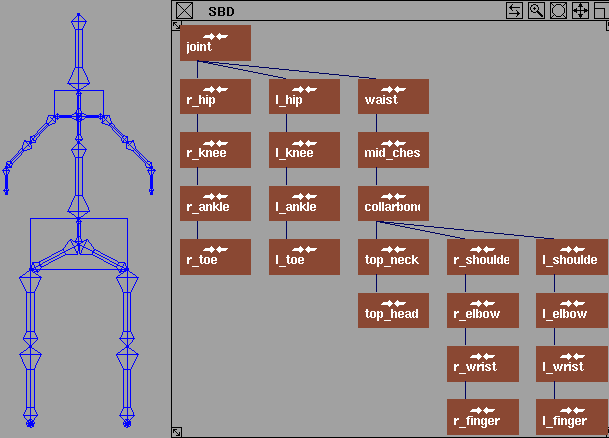
Creating a human-like characterThe default DAG node names have been replaced by more meaningful names for the purpose of these examples.
| ||
|
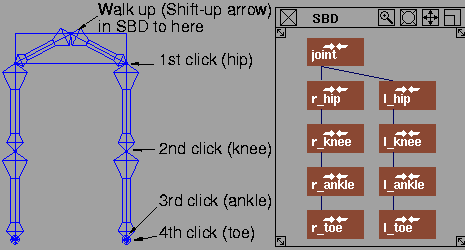
If you keep clicking now, you'll keep adding joints to the end of the right toe. |
To make the left leg, you want the next joint DAG node you create to be a child of the pelvis node.
| ||
|
You can also create the left leg by using Edit > Mirror. (See Basic Tools in Alias.) |
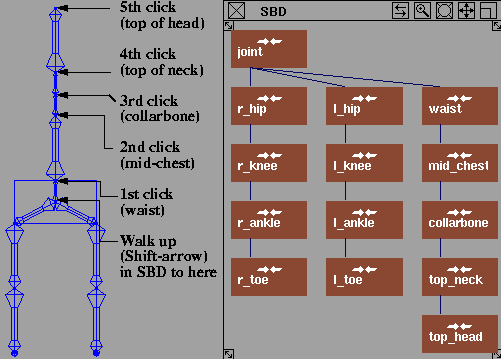
III. Draw the spine and the head:
| ||
|
For more information about skeletons, see Windows > Edit > Skeletons on page 272. |
| ||
| Copyright © 1998, Alias|Wavefront, a division of Silicon Graphics Limited. All rights reserved. | Please send questions or comments regarding the documentation to: [email protected] |



 ) or turn off the display of the bones completely (see DisplayTgls > Object Toggles > Skeletons -