Edit > Overlay skeleton

Copying and Pasting Skeletal Animation and Attributes


This feature is available in Alias AutoStudio and is an Advanced Animation purchasable option.

Overview

Skeletons enable you to create complete character animation sequences before having to create any of the geometry for the character. Use Objects > Draw skeleton to create the skeleton, then Object > Add IK handle, Object Edit > Add constraint, and Animation > Set keyframe or Auto keyframe to animate your character in its rotation and translation parameters.

You can create the hierarchical geometry for the character independently from the animation, and you can use Windows > Edit > Skeletons to turn DAG nodes in this hierarchy into joint DAG nodes. You can then use Edit > Overlay skeleton to overlay the animation and other skeleton attributes onto the corresponding joint nodes in the model.

How to Use

1
Create a skeleton using Objects > Draw skeleton. Animate the skeleton using inverse kinematics (use Object > Add IK handle) or any of the standard animation tools.

See Topological Skeleton Matching for details on skeleton topology.

2
Create another skeleton with Objects > Draw skeleton, or use the Skeleton editor (Windows > Skeleton editor) on an existing model that has the same skeleton topology as the first skeleton.
3
Select Edit > Overlay skeleton. The system prompts:
Select the root of the skeleton that is to be copied.
4
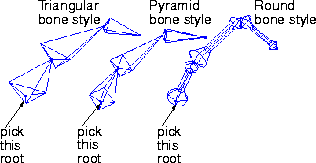
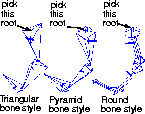
Pick the skeleton that is being copied by selecting the joint node that defines the root of the skeleton. You can either pick this joint from the SBD window, or click on the appropriate joint in the modeling window.

To specify the bone style, select Object Display > Line style -.

The following illustrations demonstrate the various bone styles.

5
Once the joint node is picked, the system prompts:
Select the root of the skeleton to be copied to.
Pick the root node of the destination skeleton that is to receive the same animation and skeleton attributes as the source skeleton.

After you select the destination skeleton, the translation and rotation animation of each of the joint nodes in the source skeleton are copied to the corresponding joint nodes in the destination skeleton.

See Windows > Edit > Skeletons on page 272 for a complete description of the joint information.

In addition, the joint limits as well as other joint information is copied to the corresponding joint nodes in the destination skeleton.

Topological Skeleton Matching

For more information, see: Drawing a Skeleton with Pivots or Joints on page 238,
Windows > Edit > Skeletons on page 272,
Animation > Set keyframe on page 52,
Animation > Auto keyframe on page 75, and
Objects > Add IK handle
on page 284.

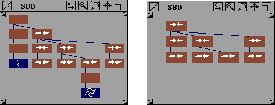
Two skeletons have the same topology if each joint node of Skeleton 1 has the same number of direct descendants joint nodes as Skeleton 2. In the following SBD window diagrams, Skeleton 1 and Skeleton 2 are topologically equivalent.

These diagrams show that skeletons with the same topology can have non-joint DAG nodes grouped anywhere above, below, or as siblings to joint nodes. In determining the skeleton from the DAG node hierarchy, the non-joint DAG nodes are ignored.

Sometimes two skeletons can have the same topology, but differ in the significance of their topology. For instance, two skeletons could have two branches of three grouped joint nodes, each branch representing the hip, knee, and ankle joint of a leg. The difference is that in one skeleton, the first branch represents the right leg, and in another, the first branch represents the left leg.

If Overlay skeleton is used to copy animation from one skeleton to the other, the animation of the left leg is copied to the right leg, and vice versa. To make sure that the animation is copied to the appropriate respective branches, use the SBD swap icon (located in the SBD window title bar) or an Alt-arrow combination to swap the positions of the branches in the SBD window.

Overlay Skeleton Options

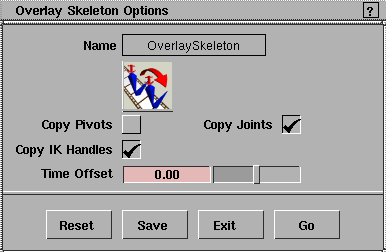
Select Edit > Overlay skeleton- to display the Overlay Skeleton Options window.

Copy Pivots

If toggled ON (indicated by a check mark), the pivot point positions of the joint nodes in the skeleton are also copied. This changes the dimension of the bones in the skeleton so that they match those of the skeleton being copied. The target skeleton will end up on top of the source skeleton, so you will have to move it back to where it is supposed to be.
For example, if an arm is animated to make contact with an object, then the positioning of the length of the arm and the tips of the fingers on the hand are important. If the animation of the arm is copied to a different length arm, then the arm cannot make contact with the object or it may pass through it.
If Copy Pivots is set ON, the second skeleton not only receives the first skeleton's animation, but also its bone dimensions.
Toggle Copy Pivots OFF if you don't want to copy the pivot points. For example, if an animation of a man walking is copied to the skeleton of a small boy and Copy Pivots is OFF, both the man and the boy will walk with the same animation, but the sizes of their skeletons will remain different.

Copy Joints

See Windows > Edit > Skeletons on page 272.

If toggled ON, the information about the joints at each of the joint nodes is also copied. Joint information for the target skeleton is overlaid with this new information.
The joint information includes which translate and rotate joints are used, their joint limits and joint rest pose, and the style in which the bone is drawn (see Object Display > Line Style).

Copy IK Handles

If toggled ON, any IK handles on any of the joints in the skeleton that is being copied are copied to the corresponding joints in the target skeleton. If any of these handles are animated, the new handles on the target skeleton are also animated.

Time Offset

The value you set with this slider indicates by how much the animation should be offset in time when it is copied. If set to 0.00 (the default), the animation of the original and copied skeleton will occur at the same time. A Time Offset of 5.0 means that the copied skeleton's animation occurs five frames after the original skeleton's animation.


Copyright © 1998, Alias|Wavefront, a division of Silicon Graphics Limited. All rights reserved. Please send questions or comments regarding the documentation to:
[email protected]