|
|
Objects > Add IK
handle
|
Adding IK Handles to Skeletons
|
|
|
|
|
|
|

|
IK handles are constraints affecting IK skeletons.
How To Use
When you use Objects > Add IK handle, you must first pick a root joint and then an end-effector. If you add a spline handle, you may need to then pick a curve.
>
|
Note:
|
IK handles, constraints, rest pose, limits, animation and
selection handles can all be mirrored onto a skeleton using
Edit > Mirror.
|
-
1
-
Select Add IK handle from the Objects tool palette or click its icon.
-
2
-
The system prompts:
-
Pick a joint as the root of a single-chain
(multi-chain or spline) handle.
|
|
You can drag a pick box
around a joint to select it.
|
-
Pick a root joint to start the handle.
-
3
-
The system prompts:
-
Pick a descendant joint as the end-effector
of the single chain (multi-chain or spline)
handle.
-
Pick an end joint.
-
4
-
If you created a spline handle, and you did not select Create Curve to create a new curve, the system prompts:
-
Pick a curve node as the target of the
spline handle.
-
Click on the curve.
-
5
-
After you successfully create a handle, the system prompts you to create another handle.
-
6
-
To view, change, or turn off the parameters of a handle, open the Information window and select the handle.
|
|
See the Introduction to Inverse
Kinematics on page 244 for
more information on the
Information window.
|
-
7
-
Limits and joint information about a handle can be edited in the Skeleton Editor. To see handle information, select Handles
from the
List Type
pop-up menu in the Skeleton Editor (Windows > Edit > Skeletons).
Notes
- If you select Single-Chain solver or Spline-handle solver from the Add IK Handles Options box, the handle is not created if it will overlap any existing handle. However, it is acceptable for a Single-Chain handle to share its root/end-effector with a Multi-Chain handle end-effector/root.
- Joints can be the end-effector for a maximum of one handle. This restriction prevents handles from overlapping in the modeling windows, thereby allowing you to pick a particular handle. If you need two handles at the same point in the skeleton, you can add additional joints rooted at the same parent.
- Joints with handles are represented in the SBD window by a handle icon.
- A handle is always drawn from the joint it controls as the end-effector. If you transform the skeleton chain, the handle snaps to maintain its position at the joint.
- If a handle is animated, has an expression, or is constrained, then it will still be drawn at the end-effector joint, but its "goal" position for inverse kinematics purposes is the animated/expressioned/constrained position.
- Although handles are not displayed in the SBD window, you can still select handles. Handle names appear in the Information Window, Action Window, or any other lister that displays names.
- Multi-chain or single-chain handles can be both position goals and orientation goals. A position goal handle will position the end-effector joint at the handle's rotate pivot point position. An orientation goal handle orients the end-effector joint to match the orientation of the handle.
Tips For Using the Spline Handle
You can interactively control the spline handles in the Modeling window in several ways:
If you pick a root handle, either:
- Use Xform > Move and the left mouse button to move the chain along the curve.
- Select Xform > Rotate and the left mouse button to roll the chain.
If you pick a master handle, use Xform > Rotate and the left mouse button to twist the chain.
|
|
This is useful if you want
one curve to control the
shape of a number of similar
objects in different locations.
|
If you wish to use spline IK to control the shape of the skeleton, but not its position in space, do the following:
-
1
-
Constrain the root joint of the skeleton to the desired object.
-
2
-
Create the spline handle.
Add IK Handle Options
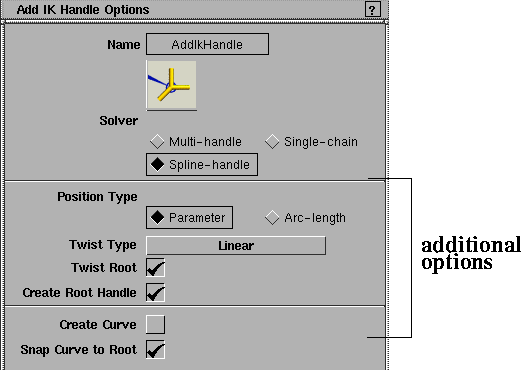
Select Objects > Add IK handle - to display the Add IK Handle Options window. to display the Add IK Handle Options window.
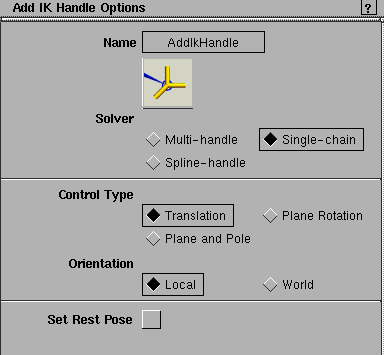
Solver
These are the types of IK solvers you can use. Pick one of the following:
|
|
See Single-Chain Options on
page 287 for information on
the additional options for
solver type.
|
Single-chain
-
- Click to use the default Single-Chain solver. This option creates an IK handle that controls a non-overlapping IK skeleton chain.
|
|
See Multi-Handle Options on
page 289 for information on
the additional options for
solver type.
|
Multi-handle
-
- Click to use the Multi-handle solver. This option creates an IK handle that controls a skeleton chain, but allows overlapping with other IK chains.
|
|
See Spline Handle Options on
page 290 for information on
the additional options for
solver type.
|
Spline-handle
-
- Click to use the Spline-handle solver. This option creates a Spline handle that controls a skeleton chain along a spline curve.
Single-Chain Options
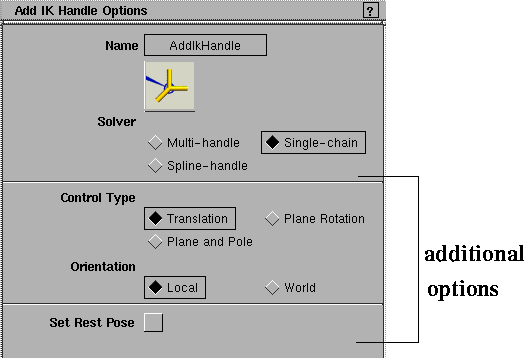
Control Type
Translation
-
- This is the default control setting, suitable for most basic IK use. Translation means that you can move or animate the IK handle's translation channels.
|
|
The rotation of the plane axis
can also be controlled by
picking the IK handle and
using the left mouse button
with the Rotate tool (Xform
> Rotate).
|
Plane Rotation
-
- This setting gives you more in-depth control of the IK handle. It lets you rotate the skeleton plane, the plane in which the joints contained in the IK handle lie. If all the joints of the IK handle do not lie in one plane, a "best" fit plane is chosen.
|
|
|
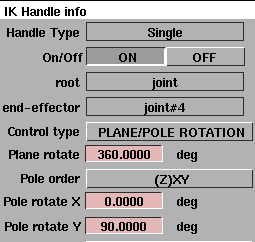
Plane and Pole
-
- In some cases, the combination of translation and plane rotation might cause the IK solution to flip uncontrollably. This setting provides advanced, specialized control of the IK handle to avoid this situation. Set the Pole rotate X and Pole rotate Y values (found in the IK Handle info section of the Information Window) to alter the plane of the skeleton while keeping the pole in the same orientation relative to the skeleton plane.
Orientation
Local
-
- This option lets you control the handle's orientation relative to the root joint.
World
-
- This option lets you control the handle's orientation in world space. This means that the rotation plane is controlled by an IK handle that can be fixed in world space instead of relative to the root joint. You can also set this attribute from the Information Window after the IK handle is created.
|
|
This option is the same as if
you selected Edit > Rest
pose > Set rest pose and
then Objects > Add IK
handle.
|
Set Rest Pose
When this option is ON, the current pose becomes the rest pose for the joints in the chain controlled by the IK handle.
Multi-Handle Options
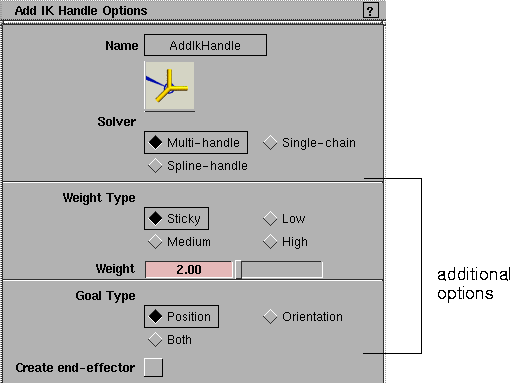
Weight Type
Weights are useful if you have constrained an object to more than one other object. This way you can weight the different constraints, so that a constrained object tends to meet one constraint more than another.
Weight value
You can change the weight value either by using a preset weight (Sticky, Low, Medium, High); by clicking in the field, typing a value and pressing Enter; or by dragging the slider bar. Weights are animatable.
>
|
Note:
|
In general, if you know you won't have conflicting
constraints, or if you want all constraints to be weighted
equally, it is best to use the Sticky weight (2.00) or some
other low value for the weight. Higher weight values make
the IK stiff, and harder to solve.
|
Goal Type
Position
-
- Selects the rotate pivot position of the joint.
Orientation
-
- Selects the same orientation as the object.
Both
-
- Selects both the position and orientation.
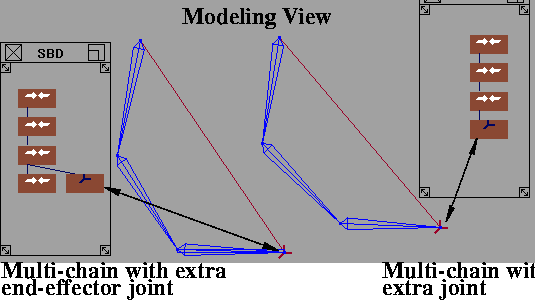
Create end-effector
As shown in the following diagram, this option creates an extra joint node beside the IK handle.
Spline Handle Options
Position Type
|
|
See the Introduction to Inverse
Kinematics on page 244 for
more information.
|
Spline handles can define positions on a curve either by parameters or by arc-lengths. Both types of measurement use relative percentage values.
Twist Type
|
|
See the Introduction to Inverse
Kinematics on page 244 for
details.
|
The Twist Type menu allows you to choose one of four ways to distribute the twist angle defined on a handle to its joints.
Linear
-
- The joints twist equally at each joint.
Ease-in/out
-
- The joints in the middle twist more than the joints at the two ends.
Fast-in/slow-out
-
- The joints near the root twist less than the joints near the end.
Slow-in/fast-out
-
- The joints near the root twist more than the joints near the end.
Twist Root
Set this option ON to define the twist starting from the root joint. If set to OFF, the twist starts from the second joint.
Create Root handle
|
|
See the Introduction to Inverse
Kinematics on page 244 for
details.
|
Set this option ON to create a root spline handle at the root of the chain controlled by the master spline handle. If set to OFF, only a master spline handle is created.
Create Curve
You do not have to pick an existing curve if you select this option. Instead, a new curve is automatically created. This new curve will match the chain defined by the new handle. The curve will be grouped as a sibling of the root joint.
Snap Curve to Root
If you do not want to create a new curve, pick an existing curve. If you select Snap Curve to Root, the picked curve is snapped so that the first CV matches the root joint of the new handle. Otherwise, the curve does not move. Instead, the root and the chain move to the curve.
|


