|
Windows > Edit > Skeletons |
Creating and Setting Joint Information | ||
|
| |||
This feature is available in Alias PowerAnimator and AutoStudio, and is a purchasable Advanced Animation for Studio option. | |||
|
As of Version 7.5, the Skeleton editor no longer lists constraints. Instead, it supports handles and joints (which can be chosen from the List Types pop-up). To see constraint information, use the I nformation window. |
The Skeleton editor lets you creates joints and set joint information, such as limits, rest position, and stiffness, that affect how a skeleton moves when using inverse kinematics. How to Use
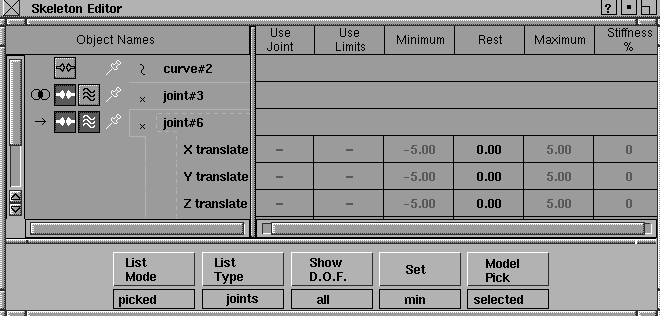
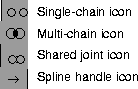
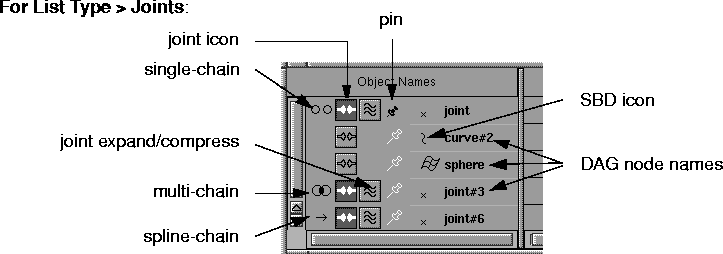
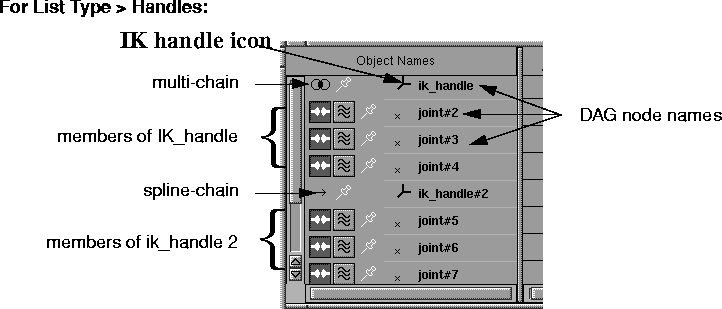
Use the Skeleton Editor to create and modify joint DAG nodes and skeleton hierarchies, and to tailor joint limits, rest pose, and other properties of an IK chain. The Skeleton Editor has two sections. On its left side is a lister containing the names of DAG nodes; on the right is a spreadsheet listing the properties of each joint. Skeleton Editor ListerThe contents of the lister depend on the selection made in List Mode. Each element in the list has up to four icons, plus a DAG node icon and DAG node name. Lister Icons | ||
| |||
| |||
|
|
joint node icon
| ||
|
|
joint expansion icon
| ||
|
|
pin icon
| ||
|
Double click the DAG node name area to change its name. |
IK type icons
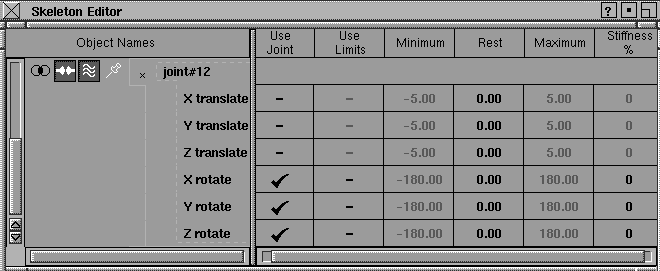
Skeleton Editor SpreadsheetThe right side of the Skeleton Editor is a spreadsheet of values that you can edit for different joint node components. (You can edit values only for joints. Before you can edit other objects displayed in this window, you must change them to joints.) Click on the joint expansion icon for one of the joint nodes to see the values for these joints in the spreadsheet. The values for each of the joints in the spreadsheet are used by single-chain or multi-chain IK handles. | ||
|
This screen shows the Skeleton Editor with the Show D.O.F. menu set to All. |
Click on Use Joint and Use Limits column entries in the spreadsheet to set them ON (shown by a check mark) or OFF (shown by a dash). Use JointIf set to OFF, the parameter does not change during a transformation. This is useful for restricting the motion of a joint. For example, in a skeleton hierarchy of a leg, you may restrict the knee joint so that it can only bend along the x-axis. Therefore, the Y and Z rotations for Use Joint should be OFF. Use LimitsIf set to ON, the joint uses the limits defined in the next two columns, Minimum and Maximum, during transformations. This is useful if you want a joint component to move within a specified joint range. For example, a joint node representing an elbow may have a desired range of 0 to 170 degrees. If Use Limits is ON, and these range limits are set, the elbow joint does not take a value outside that range during a transformation. If set to OFF, any joint limits set for that joint are ignored. To show this, the Minimum and Maximum cells are grayed out and non-editable. To define limits, see the description of the Set Button on page 280.
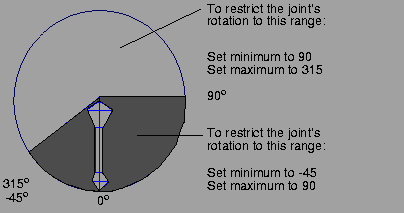
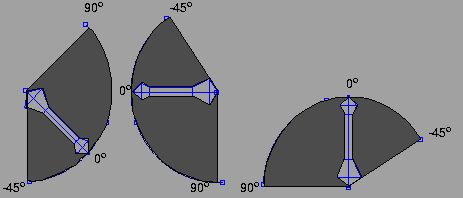
0º is determined with respect to the direction in which you drew the bone originally. If you drew the bone at a slant, the minimum and maximum ranges in the previous example would appear as shown in the following.
Minimum/MaximumThese two columns can take any values. The values represent the minimum and maximum values for a joint parameter. For rotation parameters, the values are angles in degrees. For translation parameters, the values are in the same unit as the model. Click in the column on the row of the joint you want to change, and set the minimum or maximum joint value. | ||
|
You can also set the minimum and maximum joint values using the Minimum and Maximum Set menu. See the description of the Set Button for details. |
Restrictions are that the minimum value must be less than the maximum value, and the rest position must be between the minimum and maximum values. If you enter a minimum value that is greater than the maximum, or if you enter a maximum value that is less than the minimum, the minimum and maximum values are exchanged. If Use Limits is on, these minimum and maximum values restrict the range that a joint parameter can assume. Rest PoseThe skeleton's rest position for a single-chain IK. Stiffness PercentageThis column contains values between 0 and 100, which represent the percentage stiffness for each joint parameter. When dragging a chain with a multi-chain handle, there are usually many possible solutions for the chain to reach its goal. Applying stiffness to some joints provides greater control over how the chain reaches its goal. For example, if you are animating an arm reaching for an object, making the shoulder joint really stiff makes the arm bend at the elbow to reach the object. However, making the elbow joint really stiff keeps the arm straight, and forces the whole arm to reach for the object. A value of 0% means that there is no stiffness applied to that joint, and it will move as quickly as it can to help the chain's effector reach its goal. A stiffness of 100% constrains the joint completely, and produces the same effect as not using the joint at all (that is, as if Use Joint is OFF). Skeleton Editor Button MenusList Mode Menu | ||
|
|
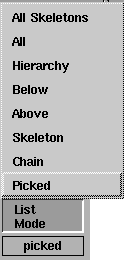
The List Mode menu controls which DAG nodes are shown in the lister section of the Skeleton Editor. Picked
Chain
Skeleton
Above
Below
Hierarchy
All
All Skeleton
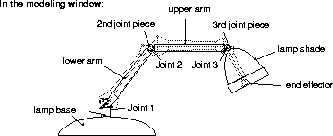
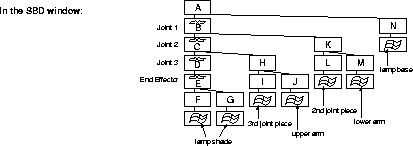
Example of Hierarchy, Below, and AboveThe Hierarchy, Below, and Above modes are useful if you have already created a hierarchical model and want to use inverse kinematics to move or animate it. Any DAG node in the lister can then be interactively toggled to a joint by clicking on the joint button in the lister. These modes can also be used to limit the information in a hierarchical list to parts of the skeleton you are working on. The following example shows a desk lamp and its skeletal hierarchy: | ||
| |||
| |||
List Type Menu | |||
|
|
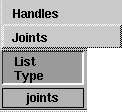
Joints
Handles
For more information on the contents of the spreadsheet for the two List Type modes, see Skeleton Editor Spreadsheet on page 274. Show D.O.F. Menu | ||
|
|
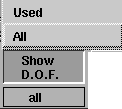
The Show D.O.F. pop-up menu controls the rotation and translation parameters displayed when you click the joint expansion button for a joint node. The D.O.F. stands for degrees of freedom viewed from the point of IK control. All
Used
Set Menu | ||
|
|
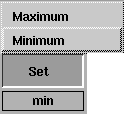
The Set menu lets you set the Minimum and Maximum columns in the currently selected rows to the current values of the corresponding joint parameters. Select the appropriate joints in the Skeleton Editor lister, and then one of the following settings from the Set menu: Minimum
Maximum
For example, suppose a joint's Y Rotation value is set to 60 degrees: >
| ||
|
|
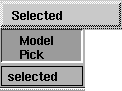
Model Pick MenuSelected
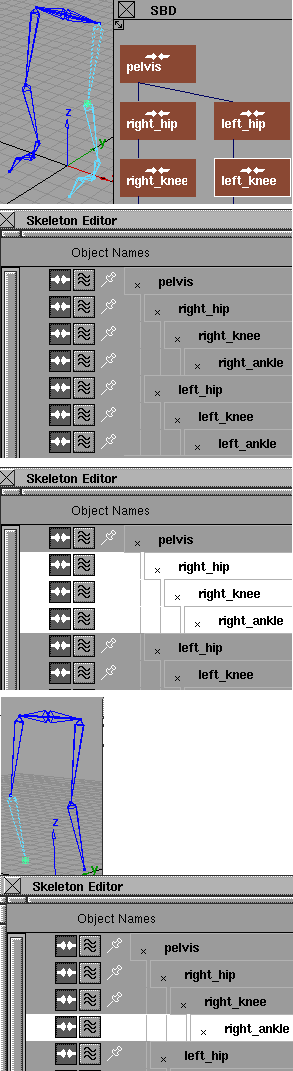
Sometimes it is not possible to pick all DAG nodes that are selected in the Skeleton Editor. This is because the Skeleton Editor is designed to display hierarchies of DAG nodes. These hierarchies can be selected in the Skeleton Editor lister window. However, DAG nodes that are ancestors or descendants of each other cannot be picked at the same time in the modeling world (this is known as a pick conflict). To resolve this pick conflict, if ancestor and descendant DAG nodes are selected in the Skeleton Editor lister, the lowest descendant DAG nodes that are selected are picked in the modeling world. The DAG nodes that could not be picked in the modeling world are deselected in the Skeleton Editor lister. | ||
|
|
An example best demonstrates how this works. Suppose you have created a two-legged figure:
Selecting and Global EditingThe Skeleton Editor is a spreadsheet that lets you edit several selected elements from a column at once. You can use the lister section of the Skeleton Editor to select one or more elements from the list. Simply click on the first element to select, and drag your cursor up or down to the last element of the list to be selected. The selected items are highlighted. You can hold down the Shift key while selecting to add or remove elements of a selected list. For example, to select the second, third, seventh, eighth, and ninth elements of the list, click the second element and drag to the third element. Then hold Shift, click the seventh element and drag to the ninth element. Now all five elements are selected. Once you have selected more than one item on the list, you can globally edit all the selected items. Global editing works both in the lister and spreadsheet sections. For example, if you have five elements that you want to be joint nodes, select the five elements and click on the joint icon for any one of the five elements. All five elements are now joints. List the joints for one joint DAG node by clicking on the joint expansion button, and select all the joint properties. Click under the Use Limits column of one of the selected rows, and all the joints now have the same Use Limits value (ON or OFF). Caution! Clicking several selected elements to toggle the joint icon off also deletes all the associated joint information, such as joint limits and joint stiffness, and all joint constraints, or IK handles attached on the joints. | ||
| Copyright © 1998, Alias|Wavefront, a division of Silicon Graphics Limited. All rights reserved. | Please send questions or comments regarding the documentation to: [email protected] |