|
Animation > Auto keyframe |
Setting Animation Automatically for Changing Parameters |
|
| |
Auto keyframe automatically sets keyframes in channels for animation parameters that have changed value since the last time a keyframe was set. No keyframes are created for any animation parameters that were not previously animated. How to Use
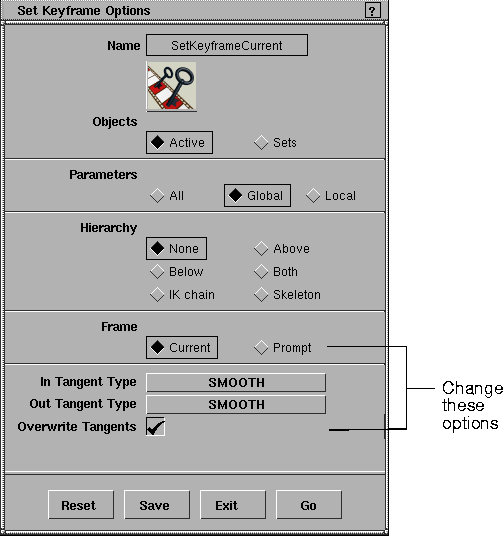
This function operates on a per-channel basis, and not on the picklist or hierarchy. This means that you can transform an object, pick another object, transform that object, and repeat this process for as many objects, shaders or any other animatable objects as you like. When Auto keyframe is invoked, it looks at all channels that have changed, regardless of which object is currently picked, and sets keyframes for those channels. If the current time changes (for instance, if you select Anim > View frame, Animation > Playback, or change the current time in the Action Window or Time slider), and the channel is evaluated, then a keyframe is not created for that channel the next time you invoke Auto keyframe. OptionsThis function does not have its own option box; it uses the Frame and In and Out Tangent Type option values from the Set Keyframe Options window.
To change the values to use with Auto keyframe, select Animation > Set keyframe - | |
|
For more information about this option box, see Animation > Set keyframe on page 52. |
When you click Save, Auto keyframe uses these new values. Example |
| Copyright © 1998, Alias|Wavefront, a division of Silicon Graphics Limited. All rights reserved. | Please send questions or comments regarding the documentation to: [email protected] |
 to open the Set Keyframes Options window, then change the Frame and In-Out Tangent Type options to the desired values.