|
|
Keyframe Animation
|
|
|
2
|
Keyframe Animation
|
|
In This Section:
|
Animation > Set
keyframe
|
Setting Keyframe Animation
|
|
|
|
|
The Skeleton and Constraints options are available in Alias PowerAnimator and Advanced Animation for Studio. The Cluster Percentages feature is available in Alias AutoStudio and is a purchasable Advanced Animation option
Set keyframe lets you put down keyframe animation for objects, lights, shaders, textures, cameras, and other objects. For a complete list of all animatable objects, see Animation > Animation > Param control on page 19.
How to Use
-
1
-
Select Animation > Tgl time slider to display the time slider.(You will be using it to change the current time.)
-
2
-
Create an object and select Set keyframe.
-
3
-
Click in the time slider and drag the slider to a different time.
-
4
-
Transform the object, then select Set keyframe again.
-
5
-
To see the created animation, select Animation > Playback.
Hints and Tips
|
|
|
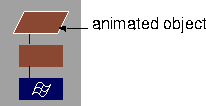
- You can quickly see which objects are animated by looking at the SBD window. If a DAG node, camera, image plane or CV of some geometry is animated, its box in the SBD window is slanted (a parallelogram).
- If constraint parameters are animated, a smaller parallelogram appears in the upper right of the DAG node in the SBD window. If it has no animation, the box is a rectangle.
|
|
To see which animation
parameters of an object are
animated, open the
Parameter Control Window,
and select the objects whose
animation parameters you
want to check. See Animation
> Param control on page 19.
|
- Animated shaders, textures, and lights have a slanted box icon next to their name in the Multi-lister (Windows > Multi-lister). This box icon is also a button that you can click to play back the animation of that shader, light, texture, or environment.
- A perspective window with animated camera cuts will have a slanted box icon next to its name in the window's title bar.
Animating an Object, CV, Polyset Vertex, or Camera
To animate an object, complete the following steps.
-
1
-
Place it in an initial position and select Set keyframe.
-
2
-
Change the current time (Animation > Tgl time slider)
-
3
-
Use Xform to change its position, orientation, and/or scale values,
-
4
-
Select Set keyframe again. Repeat this operation a few times.
To view the animation you have created, select Animation > Playback.
Another Way to Animate a Camera
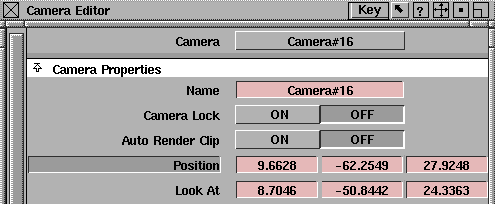
Camera attributes may also be animated using the Key button in the Camera Editor.
-
1
-
Go to the correct time on the time slider, then open the Camera Editor (Windows > Edit > Cameras).
|
|
See Animating a Shader,
Texture, or Light on page 54
for the method for setting
keys.
|
-
2
-
Change the value of the attribute you wish to animate, then Shift-click on its name. The attribute name will now appear to be pressed in.
|
|

|
-
3
-
Click the Key button, in the Camera Editor's title bar, to set a keyframe.
Animating a Shader, Texture, or Light
|
|
To animate the position of a
light, select any of the DAG
nodes above the light and
animate them as you would
animate an object.
|
Follow the steps listed below to animate a shader.
-
1
-
Open the Multi-lister (Windows > Multi-lister) and pick a shader, texture, or light in the lister.
|
|
Shader, texture, and light
parameters may also be
keyframed by opening the
Shader Editor from the Multi-
lister. Hold down Shift, select
the names of parameters to
be keyframed, and use the
Key button at the top of the
Shader Editor.
|
-
2
-
Open the Param Control window (Animation > Param control), and turn on all shader, texture, or light parameters, or select specific parameters.
-
3
-
Open the Multi-lister, set the initial values in the item's control window, and then set a keyframe.
-
4
-
Change the current time, then change the shader, texture, or light values again and set another keyframe.
>
|
Note:
|
To avoid animating models accidentally, select Pick >
Nothing before setting keyframes on shaders, or turn all
object parameters off in the Param control window
(Animation > Param control).
|
Previewing Shader, Texture, or Light Animation
To play back the animation of a shader, texture, or light, click and hold the animation button (a slanted box) beside the shader, texture, or light's name in the Multi-lister.
Shader, texture, and light animation are also visible in the Play Blast window (Animation > Playback options) if Quick Render is toggled on. For best results, increase the shading level of Quick Render and turn all optimization options on in the Optimization Options window (Animation > Playback options).
Animating a Skeleton
The individual joints of a skeleton may be animated in the same way as any other object. Alternatively, you may animate all of the joints in a skeleton's hierarchy by setting the Skeleton option in the Set keyframe option box.
-
1
-
Pick a node in the hierarchy of joints you want to set keyframes for.
-
2
-
Select Set keyframe -
 and set the Hierarchy option to Skeleton and press Go. Keyframes will be set for all of the joints in the hierarchy. Non-joint nodes will be unaffected. and set the Hierarchy option to Skeleton and press Go. Keyframes will be set for all of the joints in the hierarchy. Non-joint nodes will be unaffected.
|
|
See also Animation > Playback
options on page 81 and
Animation > Auto keyframe on
page 75.
|
After setting initial keyframes, you can use Animation > Auto keyframe, to set keyframes only for those parameters that have changed value.
Animating a Skeleton by IK Chain
Using the IK Chain option, you can set keyframes directly on those joints of a skeleton controlled by inverse kinematics (IK).
-
1
-
Pick an IK handle.
-
2
-
Select Set keyframe -, set the Hierarchy option to IK Chain and press Go. All of the joints in the IK chain will have keyframes set for them. Non-joint nodes in the chain will be unaffected.
-
3
-
Optional: When you turn on the IK Chain option, another option called And IK Handles will appear. Turning on this option, as well, will set keyframes for the picked IK handles. Without this option, keyframes are only set for the skeleton chain.
Animating a Constraint
Follow the steps listed below to animate a constraint.
|
|
To add a constraint, see
Object Edit > Constrain >
Constrain to on page 316.
|
-
1
-
Select the node or IK handle that has a constraint.
-
2
-
Open the Param Control window, toggle the constraint parameters on, and set a keyframe.
-
3
-
Open the Information Window, and change the Weight or Use Constraint or U,V values.
-
4
-
Change the current time in the time slider, set a keyframe again, and continue changing the values in the Information Window and setting keyframes to create a constraint animation.
Animating Cluster Percentages
You can animate the percentage effect on a CV in a cluster.
-
1
-
Open the Cluster Editor (Windows > Edit > Clusters) and select the CV whose percentage you want to animate.
-
2
-
Open the Parameter Control
window (Animation > Param control) and you will see the following entry under the LOCAL parameters:
-
cluster.CVname
-
This will have one parameter called Percent. Ensure that
this is checked on.
-
3
-
Set a keyframe.
-
4
-
Change the current time in the time slider, and then change the percentage effect by changing the percentage value in the cluster editor.
-
5
-
Set another keyframe, and repeat.
Animating Camera Cuts
A perspective window can use different cameras using the camera switcher icon (see Layouts > Perspective and Layouts > New camera, in Basic Tools in Alias).By animating which camera is used at a given frame, you can produce the effect of camera cuts.
-
1
-
Select the perspective window by clicking in its title bar.
-
2
-
Open the Parameter Control window (Animation > Param control) and ensure that the Camera parameter of the window is ON.
-
3
-
Open the Set Keyframe options box and set the Out-tangent type to STEP.
>
|
Note:
|
It is important to use the STEP tangent when animating a
window's camera since you are really animating an integer
number, which is the ID of the camera.
|
-
4
-
Change the current time in the time slider, use the camera switcher to change cameras in the window, and set a keyframe again.
Animating at Key Poses
|
|
For details on creating pose
animation, see Anim > Pose
on page 52.
|
Normally, the time on the time slider and the frames in your animation move in lockstep. Thus, at time 1 on the time slider frame 1 of your animation will be displayed. At time 2 frame 2 will be displayed, and so on. However, you can also create animation, in which a single frame, or pose, is displayed continuously for several frames, followed by the next pose, etc.
Animating an Image Plane
Follow the steps listed below to animate an image plane.
-
1
-
Create an image plane in a window using File > Import > Image plane.
-
2
-
Open the Parameter Control
window (Animation > Param control) and ensure that the image plane parameters you want to animate are checked on.
-
3
-
Open the Camera Editor (Windows > Edit > Cameras) and change the parameter values of the image plane.
-
4
-
Set a keyframe, change the current time in the time slider, and repeat the steps above for image plane animation.
>
|
Note:
|
Image plane parameters may be keyframed using the
Camera Editor Key button.
|
Set Keyframe Options
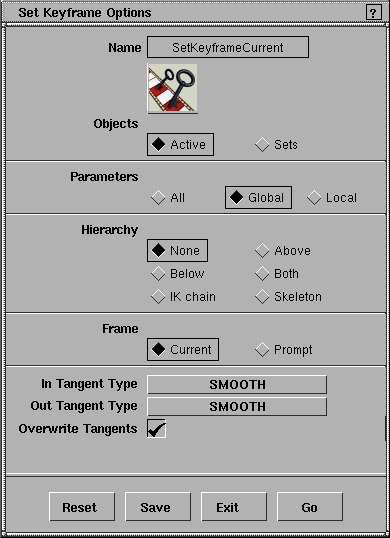
Select Set keyframe - to display the Set Keyframe Options box.
Objects
Active
-
- A keyframe is set for all picked objects. A DAG node, CV, polyset vertex, image plane, or camera can be picked using the Pick popup menu items. A cluster percent on a CV is picked when the CV is picked.
-
- A light, shader, texture, or environment map is considered active if it is picked in the Multi-lister
(see the section on the Multi-lister in Rendering in Alias for details). Note that there is always at least one active element in the Multi-lister.
-
- A window is considered active if it is current. The universe is considered active if Pose Animation is on (see Animation > Playback on page 81). A constraint is considered active if the constrained node is picked.
Set
-
- A keyframe is set for all objects in the selected sets in the Set Lister. To display the Set Lister, select Windows > Sets > Set lister.
Parameters
All
-
- A keyframe is set for every animated parameter of the object.
Global/Local
|
|
To select different global or
local animation parameters,
see Animation > Param control
on page 19.
|
-
- A keyframe is set only for the parameters that are selected in the GLOBAL or LOCAL parameter control windows.
Hierarchy
None
-
- Keyframes are set only for the selected objects.
Above
-
- Keyframes are set for the selected objects and all objects in the hierarchies above them.
Below
-
- Keyframes are set for the selected objects and all objects in the hierarchies below them.
-
- If Hierarchy is set to Below, and if there is geometry somewhere below a picked DAG node, keyframes are set for all the DAG nodes below the picked DAG node, but not for any of the CVs. To set keyframes for CVs, select the CVs of the geometry you want to animate and set keyframes for them separately.
Both
-
- Includes both Above and Below.
>
|
Note:
|
In the case of DAG nodes, CVs, polyset vertices, image
planes, and cameras, the hierarchy refers to the hierarchy as
represented in the SBD window. For shaders, textures, and
lights, it refers to the implicit hierarchy in the Multi-lister
window.
|
IK Chain
-
- Keyframes are set for all joints between the root handle and end-effector of the picked IK handle(s). (This includes the joints which are at the root handle and end-effector.)
-
- Another option, And IK Handles, appears when IK Chain is selected. Turn ON the And IK Handles option to set keyframes for the picked IK handles.
Skeleton
-
- Keyframes are set for all joints belonging to skeletons which have one or more picked nodes.
Frame
Current
-
- Keyframes are set at the current time. The current time is always displayed in the active modeling window, the time slider (Animation > Tgl time slider), and the Action Window (Animation > Action window).
Prompt
-
- Makes the system prompt you to enter the times at which to set a keyframe when you invoke Set keyframe.
In Tangent Type/Out Tangent Type
Click the items to the right of the In Tangent Type and Out Tangent Type headings to display menus from which you can select In and Out tangent types that control how the tangents of the new keyframe are computed when the keyframe is created.
|
|
To fine-tune tangents, use
the Tangent Type menu in
the Action Window, see
page 170.
|
Tangents describe how an action is interpreted between the keyframes that you have set. Each keyframe has two tangents, an in-tangent and an out-tangent. These tangents describe the behavior of the action on the left (in-tangent) and right (out-tangent) sides of a keyframe.
The following tangent types are available:
SMOOTH
-
- Creates a smooth transition between the keyframe before and the keyframe after the new keyframe.
|
|

|
-
- The tangents are co-linear (both at the same angle). This ensures that there is no jerkiness at the keyframe. The angle of the tangents is a weighted average of the slopes between the two keyframes on either side of the new keyframe.
LINEAR
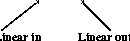
-
- Creates a straight line between two keyframes.
|
|
|
-
- If the in-tangent type is LINEAR, the curve segment before the new keyframe is a straight line.
-
- If the out-tangent type is LINEAR, the curve segment after the new keyframe is a straight line.
IN/OUT
-
- Eases out of one keyframe and into the next keyframe.
|
|

|
-
- If the in-tangent type is IN/OUT, the curve segment before the new keyframe will ease in and out.
-
- If the out-tangent type is IN/OUT, the curve segment after the new keyframe will ease in and out.
FLAT
|
|

|
-
- Causes the in and out-tangents of the new keyframe to be horizontal (with a slope of 0 degrees).
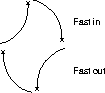
FAST
|
|
|
-
- If the in-tangent type is FAST, it makes the movement slow out of the previous keyframe and faster going into the new keyframe. For example, a car that is accelerating.
-
- If the out-tangent type is FAST, it makes the movement faster going out of the new keyframe. For example, a car that is slowing to a stop.
SLOW
|
|
|
-
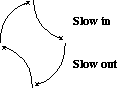
- If the in-tangent type is SLOW, it slows the movement down as it enters the new keyframe.
-
- If the out-tangent type is SLOW, it makes the movement slower at the beginning of the curve segment that follows the new keyframe.
STEP
|
|

|
-
- Specifies that the out-tangent of the new keyframe is flat. The curve segment is also flat (horizontal) until the next keyframe, at which point it jumps up or down to the value of that keyframe.
-
- This is useful for animating Boolean (ON/OFF) values such as the DAG node visibility, or the presence or absence of a light's shadows. A value greater than 0.5 turns it ON, and less than 0.5 turns it OFF.
|


