|
|
Animation > Paste
keyframes
|
Pasting Keyframe Animation
|
|
|
|
|
Paste keyframes lets you copy a range of keyframes from the clipboard and paste them onto an object. The keyframes can be pasted into different animatable channels and on objects other than the source.
Overview
When working with animated sequences it is often useful to be able to copy a sequence from one object to another, or to repeat a sequence. Paste keyframes, as well as Cut keyframes and Copy keyframes, provide a simple way to do this.
Paste keyframes lets you paste an animated sequence that has been previously copied to the keyframe clipboard (using either Cut keyframes or Copy keyframes) to an object (or groups of objects). You can specify that the sequence is repeated any number of times, and specify what should be done to any existing animation (for example, you may choose to write the new sequence over an existing sequence, or insert the new sequence into an existing sequence).
How to Use
|
|
See Animation > Cut
keyframes on page 66 and
Animation > Copy keyframes
on page 63.
|
-
1
-
Pick an animated object and select Edit > Cut keyframes or Copy keyframes.
-
2
-
Pick another object (or the same object) and select Edit > Paste keyframes.
|
Tip:
|
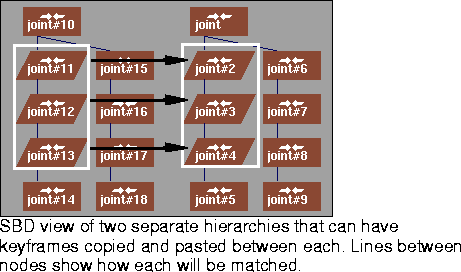
It is possible to copy a range of keyframes from one
hierarchical object to another, even if the two objects do not
share the exact same topology. The ordering of the nodes in
the SBD window is used to match up nodes from the source
object with those of the destination object(s). Only nodes
that have the same relative SBD position and node type will
be matched together.
|
-
3
-
The system prompts:
-
Enter the frame range to paste (start,
[repeats], [gap], [end]):
|
|
If Range fit is set to None
and an ending frame is
specified, Scale paste is
performed.
|
-
Paste the animation by typing in the prompted values. The
following examples illustrate various situations.
- To paste the animation sequence at frame 30, type at the prompt: 30
- To paste the animation sequence to fit between frames 30 and 75, type at the prompt: 30 1 1 75
- To paste the animation sequence 3 times, starting at frame 30, type at the prompt: 30 3
- To paste the animation sequence 3 times, and make it fit between frames 30 and 75, type at the prompt: 30 3 1 75
- To paste the animation sequence 3 times, starting at frame 30 type, with a space of 5 frames between each sequence, type at the prompt: 30 3 5
Paste Keyframes Options
Select Paste keyframes - to display the Paste Keyframes Options window. to display the Paste Keyframes Options window.
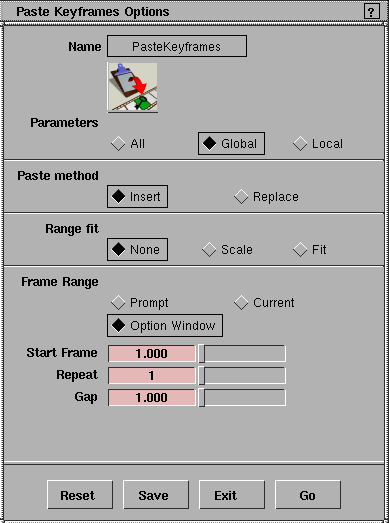
Parameters
- All - matching keyframes from the keyframe clipboard are pasted to every animatable parameter of the object.
|
|
To select different global and
local animation parameters,
see Animation > Param
control on page 19.
|
- Global - matching keyframes from the keyframe clipboard are pasted to the parameters that are selected in the GLOBAL
parameter control window.
- Local - matching keyframes from the keyframe clipboard are pasted to the parameters that are selected in the LOCAL parameter control window.
Paste method
- Insert - if the object has an existing animation curve, the keyframes that are pasted from the keyframe clipboard are inserted into the curve, pushing any existing keyframes forward.
- Replace - if the object has an existing animation curve, the keyframes that are pasted from the keyframe clipboard overwrite any existing keyframes between the start and end range.
Range fit
- None - no range fitting is done. All the keyframes on the keyframe clipboard are pasted into the object.
- Scale - all the keyframes to be pasted from the keyframe clipboard are scaled to fit within the start and end times.
- Fit - all the keyframes on the keyframe clipboard are pasted into the object, as long as they are within the start and end times.
Integer
-
- Determines whether a scaled Range fit should have the keyframe times altered so that they are integer values.
Frame range
- Prompt - the system prompts you to type the start and end time for when the keyframes should be pasted.
- Option window- the start and end times for when the keyframes should be pasted are read from the current values set in the option window.
- Current - the start time for when the keyframes should be pasted is the current frame.
Start frame
-
- Defines the start time for when the keyframes should be pasted. This option is required only if Option Window is selected in the Frame Range option.
End frame
-
- Defines the end time before which the keyframes should be pasted. This option is used when either Scale or Fit are selected as the Range Fit option, and is required only when Option Window is selected as the Frame Range option.
Repeat
-
- Specifies the number of times the animation sequence on the clipboard is pasted.
Gap
-
- Defines the amount of time to leave between each repeated pasting of the animation sequence.
|


