|
|
Animation > Cut
keyframes
|
Cutting Keyframe Animation
|
|
|
|
|
Cut keyframes lets you remove a range of keyframes from a selected object and copy them to the keyframe clipboard for pasting somewhere else.
Overview
When working with animated sequences it is often necessary to change the order in which events occur, or to remove sequences altogether. Cut keyframes, as well as Copy keyframes and Paste keyframes, provide a simple way to do this.
Cut keyframes lets you select an object (or group of objects) and remove a range of keyframes from their animations. You can also specify whether the remaining animation is to be compressed (pulled back in time) or to be left alone. Additionally, if only a single object is selected, the keyframes that are removed are copied to a keyframe clipboard, which lets you paste those keyframes onto another object (or even back onto itself).
Note that:
- If more than one object is picked, all of their keyframes will be removed; however, none of the keyframes will be copied to the keyframe clipboard.
- If a single object is picked, its keyframes will overwrite any other keyframes that may already have been placed on the keyframe clipboard.
How to Use
-
1
-
Pick an animated object and select Edit > Cut keyframes.
-
The system prompts:
-
Enter the frame range to cut (start, end):
|
|
To remove just one frame,
type the same frame number
for both the start and end
frame.
|
-
2
-
To cut the animation between frame 30 and 60, for example, type:
-
30 60
|
|
See Animation > Paste
keyframes on page 70 for
information on how to paste
keyframes.
|
-
3
-
To paste the animation somewhere else, use Edit > Paste keyframes.
>
|
Note:
|
If you wish to use this technique on channels that are
animated by constraints, IK, or expressions, you must
convert them to keyframed animation first. Use the Bake
plugin for constraints and expressions, and Run IK for IK
animation.
|
Cut Keyframes Options
Select Edit > Cut keyframes - to display the Cut Keyframes Options box. to display the Cut Keyframes Options box.
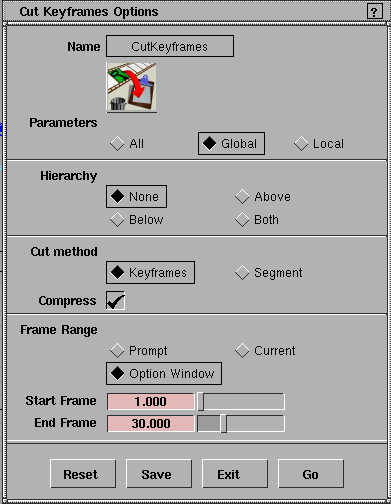
Parameters
- All - keyframes are removed from every animatable parameter of the object.
|
|
To select different global and
local animation parameters
use Animation > Param
control, see Animation >
Param control on page 19.
|
- Global - keyframes are removed only from the parameters that are selected in the GLOBAL parameter control window.
- Local - keyframes are removed only from the parameters that are selected in the LOCAL parameter control window.
Hierarchy
- None - keyframes are removed from only the selected objects.
- Above - keyframes are removed from the selected objects and all objects above them.
- Below - keyframes are removed from the selected objects and all objects below them. Keyframes are removed from all geometry below the picked DAG node, including any CVs.
- Both - includes both Above and Below.
|
|
|
Cut method
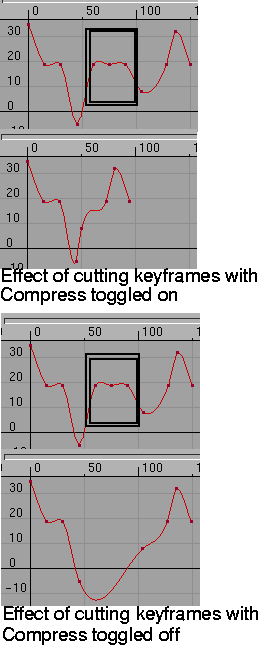
- Keyframes - only existing keyframes between the start and end frames are removed.
-
- Any remaining animation is treated as follows:
-
- If Compress is toggled on (indicated by a check mark), keyframes following the last keyframe that was cut are moved to the start frame.
-
- If Compress is toggled off, the out tangent of the keyframe immediately preceding the first keyframe that was cut, and the in tangent of the first keyframe following the last keyframe that was cut is set to Linear.
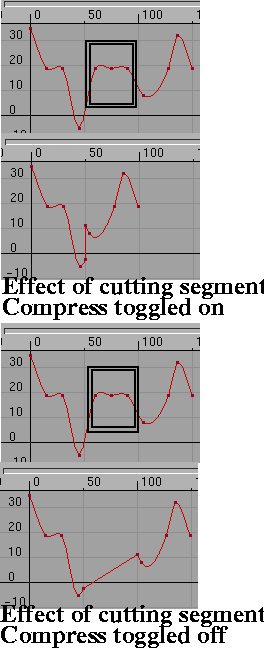
- Segment - if there are keyframes to be cut at the start and end frames, then the cut with the Segment option behaves the same as the Keyframes option.
-
- If there are no keyframes at either the start or the end frames, then keyframe(s) will be inserted at those frames, and then all the keyframes between the start and end frames will be removed. Any remaining animation is treated as follows:
-
If Compress is toggled on, keyframes are inserted at
the start and end frame that are being cut (if these
keyframes don't already exist).
-
- If the two keyframes share the same value, then the end keyframe is removed. If the two keyframes do not share the same value, a small time gap (0.001 frames) is set between them. In either case, any subsequent keyframes are moved back in time by the length of the frame range.
|
|
|
-
- If Compress is toggled off, a keyframe is inserted at the start and end frames that are being cut (if keyframes don't already exist). The out tangent of the start keyframe, as well as the in tangent of the end keyframe, are set to Linear.
Compress
-
- Determines whether animation between the start and end frames should be removed completely, or just the keyframes removed. See the description of Cut method
on
page 68 for more details.
Frame range
- Prompt - the system prompts you to enter the start and end frame range to be removed.
- Option window - the start and end frame range to be removed are read from the current values set in the option window.
- Current - the system cuts keyframes at the current frame.
Start frame/End frame
-
- These values define the frame range from which to remove the keyframes if Option Window is selected in the Frame Range option.
|


