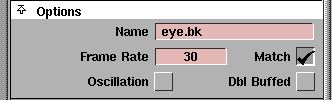
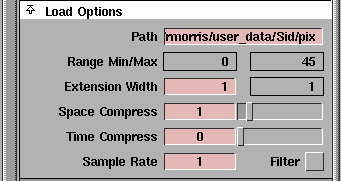
The Image Crop options let you specify that only a region of each component file of an animation should be loaded, as opposed to the entire file. This is useful when concentrating on one portion of an image, and may enable you to load a longer sequence into memory.
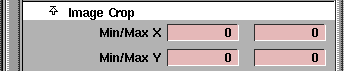
Min/Max X
-
- The horizontal range of pixels to be loaded from each file in the animation sequence.
Min/Max Y
-
- The vertical range of pixels to be loaded from each file in the animation sequence.
Compression View Parameters
These toggles let you view the amount of compression you are achieving graphically with the Load Options specified for any FlipBook.

You can use this information to optimize the amount of memory each flipbook uses, while maintaining the best possible visual quality.
Color
-
- Toggle on or off to view spatial runspans in blue with the start of a span displayed in red. The more red, the less spatial compression is being attained.
Time
-
- Toggle on or off to view time spans in green with yellow starts. The more yellow, the less time compression is being attained.
Advanced Options Parameters
Background Sequencer Parameters
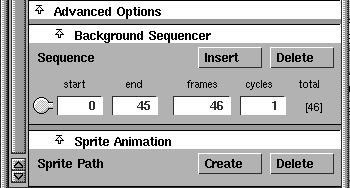
The sequencer lets you play back the pages of a background book in any order by specifying a series of sequences. Each sequence tells the FlipBook to play a certain interval of pages at a given speed, and repeat the playback a given number of times.
There are four editable fields for each sequence:
start
-
- The starting page number of the segment.
end
-
- The ending page number of the segment.
frames
-
- The number of frames over which the segment is to be played.
cycles
-
- The number of cycles to repeat the segment.
-
- Note that:
- If the ending page number is less than the starting page number, the segment is played backwards.
- The number of frames affects the speed of playback- pages are skipped or held (uniformly, in a linear fashion) to occupy the specified number of frames. In the Background Sequencer, a small number is displayed to the right of each sequence indicating the running total of the number of frames allocated so far.
- The entire list of sequences constitutes a mapping of pages onto frame numbers. Page means pages in a sprite or background book, and frame means one of the images you see (after sequencing and compositing).
Insert/Delete
-
- Click the Insert button to add a sequence, or the Delete button to delete a sequence.
Sprite Animation Parameters
The Sprite Animation options are used to composite sprite books onto background books in real-time (during book playback), using the system's alpha-blending abilities. Also provided is a simple facility for interactively editing 2D keyframe animation. See the next section for more information on sprites.
Using Sprites
The following diagram shows the Sprite Animation section of the FlipBook control window.
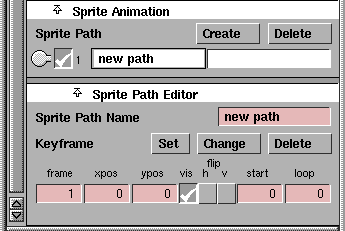
The FlipBook is designed to associate keyframe animation information with the background book, because it makes sense for animation to be relative to a sequenced background, and because it lets you easily try different sprites on the same motion path.
Each background book contains a list of sprite paths. You can assign a sprite to any particular sprite path: type in the name of the sprite next to the desired path.
Just as with other editor lists, you can select items in the Sprite Path list, or create and delete them with the Create and Delete buttons.
Sprite Path Editor Parameters
You can set behavior for a sprite path with the following parameters:
Sprite Path Name
-
- This field displays the name of the current sprite path.
Keyframe
-
- Each spritepath consists of a list of keyframes. Each keyframe has eight components:
- frame number of the sequenced background
- X coordinate of the sprite's hot spot
- Y coordinate of the sprite's hot spot
Using the Keyframe Lister

The keyframe lister in the Sprite Path Editor includes a single temporary Keyframe edit area above the actual list. In this area, you can make changes to the various editable fields before committing to your changes. When you are finished, click the Set button.
If there are any keyframes in the list, and if there is a loaded sprite's name assigned to the spritepath, you should see the sprite on top of the background book, and the temporary editable fields will change to reflect the sprite's position as you change frames in the book.
You can edit the temporary keyframe either by typing in the editable fields, or by clicking on the sprite in the book and dragging it to a new location. To pick the sprite, you must click on a pixel that is part of the mask (that is, has a non-zero alpha).
As soon as you click on the sprite and modify its position or other qualities, the sprite shows up as a negative mask on the background to reflect the fact that it is not part of the current animation (as determined by the currently set keyframes). To make your change permanent, either click the Set button or press Enter, and a new keyframe will be set.
You can also pick from the list of keyframes. This causes the book to jump to the appropriate frame, and the keyframe is copied into the temporary fields. To change the keyframe, edit the fields again or manipulate the sprite, and then click Change.
If you click Set to set a keyframe when another keyframe exists at the same frame number, FlipBook asks for your confirmation before replacing the old frame. Likewise, if you click Change
to change a keyframe so that its frame number now matches that of another keyframe, a confirmation box is displayed before deleting the old keyframe. You can delete the keyframe you picked with the Delete button.
Using the Keyframe Buttons
The three flags correspond to the three checkboxes in each keyframe list entry.

If the Loop page is -1, it shows up as none in the keyframe list and the page number of the sprite is linearly interpolated (just like a sequence interval) until it reaches the page number of the next keyframe. Otherwise, the sprite cycles through the frames from the starting number to the loop page number until the next keyframe is reached (like the sequencer, cycling backwards if the loop page number is less than the starting page number).
The -1 is never actually visible, but this means that you can set the loop to none by dragging all the way to the left over the Loop cell.
More on Using Sprites
FlipBook can load its own book files or can load a series of.pix images and convert them into a book file. When you want to load a sprite, click the Load as Sprite check box in the load confirmation window (the one that asks: Load foo as a series of images?
).
FlipBook assumes that the mask files have the same names as the corresponding pix files, but in the mask directory of the project rather than the pix directory. If you don't specify a path, FlipBook looks for the../mask
sibling path from the location of your pix files (this is usually correct under the user_data tree).
Using the Mouse
Clicking and/or dragging on a displayed book can have a number of effects on the sprite and on the background:
If your click lands on a visible sprite :
- to decrement the sprite page, click the left button.
- to increment the sprite page, click the right button.
- to flip the sprite (cycling through the four possible directions), click the middle button.
- to move the sprite, drag the left or right button.
- to slide to a sprite page, drag the middle button.
If your click misses all visible sprites:
- to decrement the frame number, click the left button.
- to increment the frame number, click the right button.
- to restore the current frame, click the middle button.
- to slide to a new frame number, drag any button.
- to begin forward or reverse playback, drag and release in either direction.
All of these operations, combined with the ability to set keyframes using the Enter key, makes it possible to set up entire animation paths while working entirely in a book frame.The only exception is that you cannot enter a loop page number anywhere but in the temporary editable fields.
>
|
Note:
|
Using the mouse in an open sprite book has the same
behavior as using the mouse in an open background.
|
Additional Information on Sprites
Sprites cannot be compressed. Also, the master book only plays backgrounds, and does not play sprites. Your freshly loaded sprite can be saved, in which case it turns into a book file, retaining information about its options and window geometry like any other book.
In the editor under Sprite Options, there is an extra attribute. These two editable fields let you specify the hot spot on the sprite that you want the rest of the coordinates in the animation to refer to. In addition, clicking and dragging the middle mouse button in an open Sprite window will drag the hot spot around the sprite.
|