|
SGI Movie/QuickTime lets you display, edit, or create animations (movie files) in SGI MoviePlayer format or Apple QuickTime format from a series of images. This is useful when sending movie files to different platforms.
How to Use
When you select this function, the Alias File Browser is displayed.

If you know the name of the movie file or image files to be converted, type the name in the File field and click Input pix files or movie to load the movie. If you don't know the name, click Show List
to select a file from the File Lister.
|
|
This Movie Player control
window is displayed along
with a window that contains
your animated image.
|
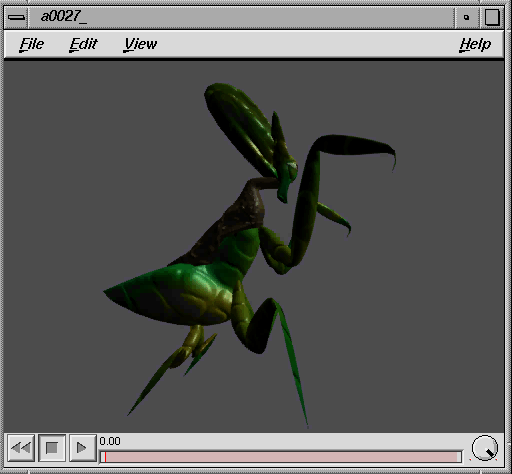
Click and hold Help to display the Help menu, where you can find out more about SGI Movie/Quick Time.
SGI Movie/Apple Quick Time Options
Select
Animation > SGI Movie/Quick Time - to display the following option window. to display the following option window.
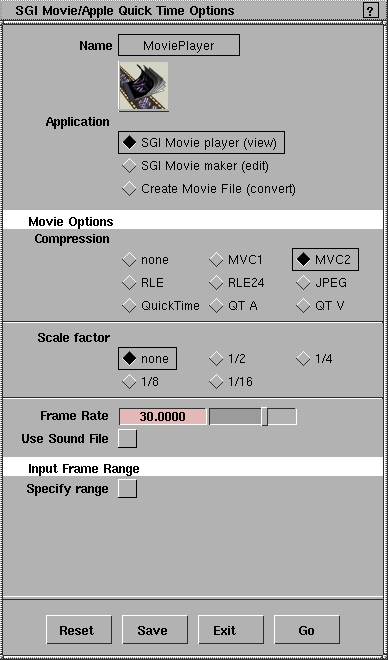
Application
Use the Application controls to select which application to launch when the image files have been formatted as a movie, or the specified file is identified as a valid movie file.
SGI Movie player (view)
-
- If this option is selected, the sequence of images or specified movie file are displayed using the SGI Movie Player application.
SGI Movie maker (edit)
-
- If this option is selected, the sequence of images or a specified movie file are loaded into the SGI Movie maker application. The Movie maker application allows you to perform simple edits of the movie for later presentation.
Create Movie File (convert)
-
- If this option is selected, the specified sequence of images is converted to a movie file and no application will be launched.
Movie Options Parameters
The Movie Options Parameters are used to specify the characteristics of the movie file to be created. Many compression algorithms are available, and you can request the creation of either an SGI format movie file or an Apple QuickTime format movie file. You can also scale the source images, add an audio track, and change the ideal frame display rate.
Compression
-
- Compression options let you specify what type of movie compression and format should be created. The options are:
- none - an uncompressed SGI MoviePlayer format movie will be created.
- MVC1 - a compressed SGI MoviePlayer format movie will be created using the MVC1 compression method. This should be used only if compatibility with older versions of SGI movieplayer is required.
- MVC2 - a compressed SGI MoviePlayer format movie will be created using the MVC2 compression method. This is the recommended compression choice.
- RLE - a compressed SGI MoviePlayer format movie using a simple run length encoding scheme will be created.
- RLE24
- a compressed SGI MoviePlayer format movie using a 24-bit run length encoding scheme will be created.
- JPEG - a compressed SGI MoviePlayer format movie using the industry standard JPEG compression scheme will be created.
- QuickTime - an uncompressed Apple QuickTime movie will be created.
- QT A - an Apple QuickTime movie using the Quick Time Animation compression scheme will be created.
- QT V - an Apple QuickTime movie using the Quick Time Video compression scheme will be created.
Scale Factor
-
- Use the
Scale Factor options to select an amount to scale down the sequence of images used to create the MoviePlayer or Quick Time file.
Frame Rate
-
- Use the Frame Rate slider to specify the optimum frame rate (for instance, 30 frames per second for NTSC television) to be used when displaying the movie. The specified frame rate is stored in the movie file.
Use Sound File
-
- This option lets you toggle to specify an AIFF or AIFC sound file to be used as the audio track for your movie. If you have no sound file specified in the Sound Options section of the Playback Options window (Animation > Playback options), you will be prompted for a sound file using the Alias
File Browser and File Lister.
Input Frame Range Parameters
These options are used to specify the range of frames in your input image sequence to be used in creating the movie.
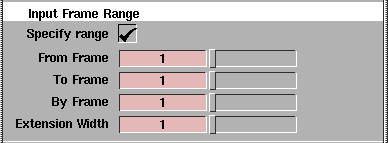
Specify range
-
- If toggled on, the frame range controls (From/To/By Frame, and Extension Width) are displayed. Use these sliders to control which frames are used. If toggled off, the system automatically determines the appropriate range from the specified file.
From/To/By Frame
-
- These fields determine the frame range to be used.
Extension Width
-
- This field determines how much padding is used in a frame number. For example, the following file name has an extension width of 3:
-
imagefile.001
|


