|
|
Animation >
Playback options
|
Changing and Optimizing Animation Playback Options
|
|
|
|
|
Playback options let you control the animation during playback and when using the time slider, thereby allowing you to optimize playback performance.
For example, you can choose to play back only the active items, not display CVs or lights during a playback, or to play back rendered images.
How to Use
-
1
-
Create an animation using any combination of the animation tools (for example, Anim > Set motion, or Animation > Set keyframe, Auto keyframe, or Action window).
-
2
-
Select Animation > Playback options to open the Playback Options window.
-
3
-
Change the parameters to suit your needs and then perform the playback again.
Playback Options Window
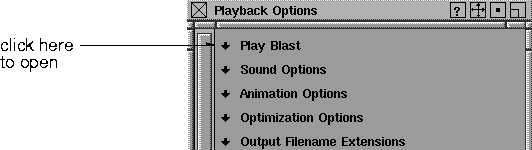
The Playback Options window contains several parameter sections to let you view your animation in different ways. To open a section, click the black down arrow to the left of the heading.
Play Blast Parameters
|
|
See Using the Play Blast
window on page 83.
|
|
|
Toggling off the time slider
during playback may
improve the playblast rate by
up to 200%. See Optimization
Options Parameters on
page 88.
|
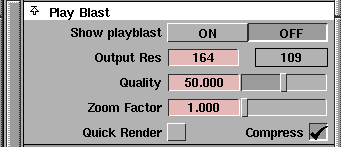
Show Play Blast
-
- If toggled ON, all animation previews occur in a Play Blast window, and only in this window. To play the animation in the application windows, toggle this option OFF.
Output Res
-
- Represents the actual screen resolution for the Play Blast window.
>
|
Note:
|
You can only change the X resolution because the Y
resolution is computed so that the aspect ratio of the Play
Blast window is the same as the active modeling window.
|
Quality
-
- If you change the Quality percentage, the Output Res updates to reflect the new resolution of the Play Blast window. If set to 100%, the resolution of the Play Blast window is the same as the active modeling window.
Zoom Factor
-
- The default for Zoom Factor is 1. If you change it to a large number, the Play Blast window becomes that many times larger than the specified resolution by repeating pixels from the original resolution. For example, if the
Zoom Factor is 2, each pixel from the original image is repeated twice (in each direction) to create a larger image.
|
|
Quick Render may be slow
at the first pass because each
frame has to render;
however, the second and
subsequent passes play back
very fast rendered images.
|
Quick Render
-
- If toggled
ON
(indicated by a check mark), the playback in the Play Blast window is in quick render mode.
-
- The options that are set in the Render > Globals window and the Render > Quick render-
 option box are used by the quick render. option box are used by the quick render.
|
|
The advantage of
compressing images in
memory is that more frames
of Play Blast animation can
be stored because they take
up less memory. However,
the playback may be slightly
slower with compressed
images since before
displaying each frame in the
Play Blast window the
image for that frame must be
decompressed.
|
Compress
-
- Determines how the Play Blast images are stored in memory. If the Compress option is toggled ON
(indicated by a check mark), the images in memory are compressed. As a general rule, if a large number of frames are being played back, it is a good idea to use this option.
Using the Play Blast window
The Play Blast window provides very fast playback and can be helpful when performing motion testing, or previewing shader and light animation.
|
|
|
When you use the Play Blast window, the first time each frame in the animation is viewed in the playback, the animation is computed and displayed in a Play Blast window, and the image that is displayed in the window is retained in memory.
On the second and subsequent times that a frame of animation is viewed, the frame is viewed simply by displaying the image that is stored in memory for the current frame. This is generally much faster than an ordinary playback, where all the animation has to be recomputed for each frame.
To invoke the Play Blast window, ensure that the Show playblast option is ON.While a playback is in progress in the Play Blast window, you can pause it by pressing the stop icon in the Time Slider. This icon changes to three vertical bars, indicating that you are in pause mode.
While the playback is in pause mode, you can use any of the buttons on the time slider to change the current time. As long as you are in pause mode, the new frame is displayed using the images stored in memory. If the stop icon is pressed a second time, the Play Blast is completely stopped, and the Play Blast images are removed from memory. (If you want to view another frame, or start another playback, the Play Blast images must be re-computed for that new frame.)
|
|

|
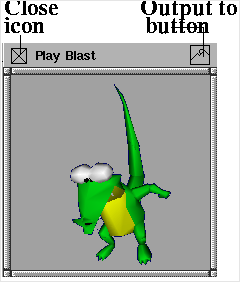
The playblast window has two icons on its titlebar. On the left is the standard close icon, which you can use to close the playblast window and stop playback. On the right is the Output to Pix icon which you can use to turn .pix file output on and off.
The camera view is the same view as the current application window. For example, to do a Play Blast preview of the perspective window, click in the perspective window to make it current, and then invoke the playback. The aspect ratio of the current window is maintained in the Play Blast window. This means that if your current window is long and narrow, the image in the Play Blast window is long and narrow.
Sound Options Parameters
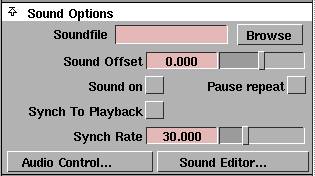
If you have a sound track available for the animation you are creating, you may want to synchronize your animation with the sound track. The Sound Options let you preview an animation synchronized with a digital audio track.
>
|
Note:
|
You must have a non-zero synch rate for the sound to play
back.
|
Soundfile
-
- You can read in a digital audio track by either typing a file name into the Soundfile name box, or using the Data Browser by clicking Browse. The audio file can be in AIFF or AIFC format.
Sound Offset
-
- Lets you specify the frame at which the sound track is to start playing.
Sound on
-
- If toggled ON, sound is played during an animation playback. Turn sound OFF by clicking it again.
Pause Repeat
-
- Specifies whether the current frame of sound is repeated continuously while in pause mode during Play Blast.
Synch To Playback
-
- When this option is turned on, the sound will play back at the same rate as the animation. For example, if the animation's playback rate is 30 frames per second, one second of sound will take 30 frames to play back.
-
- Turning this option off allows you to specify a separate playback frame for the sound. Giving a sound rate which is higher than the playback rate will result in the sound playing back more slowly (because it is playing back at the animation's slower rate). Conversely, a slower sound rate will result in the sound playing back more quickly.
Synch Rate
-
- If Synch to Playback is OFF, then you can set a separate synch rate for the sound.
Audio Control
-
- Opens the standard SGI audio control panel, allowing you to change the volume of the SGI's internal speaker.
Sound Editor
-
- Opens the standard SGI sound editor program.
>
|
Note:
|
Another application can be substituted for the SGI audio
and sound panels using the Alias Preferences editor (see
Edit Alias Preferences in Basic Tools in Alias.)
|
Animation Options Parameters
|
|
|
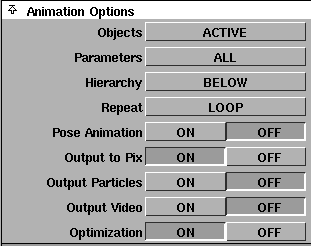
Objects
-
- Click to the right of the heading to display the Objects menu.
- ALL - every animated object is animated during a playback.
- ACTIVE - only picked objects are animated during a playback.
-
A DAG node, CV, or camera can be picked using the
Pick menu items. A shader, texture, or environment
map is active if it is picked in the Multi-lister.
|
|
To display the Set Lister,
select Windows > Sets > Set
lister.
|
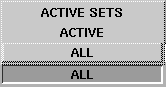
- ACTIVE SETS - only the items in the selected sets in the Set Lister are animated during a playback.
|
|
|
Parameters
-
- Click to the right of the heading to display the Parameters
menu.
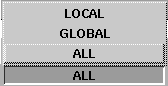
- ALL - all channels of objects are animated during a playback.
|
|
To turn animation
parameters on or off, use the
Animation > Param control
window, see page 19.
|
- GLOBAL/LOCAL - only channels whose parameters are turned on in the GLOBAL or LOCAL parameter control windows are animated during a playback.
|
|
|
Hierarchy
-
- Click to the right of the heading to display the Hierarchy
menu.
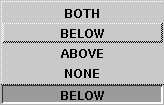
- NONE - only the selected objects are animated during a playback.
- ABOVE/BELOW - all selected objects, and all animated objects above or below the selected objects are animated during a playback.
- BOTH - includes both ABOVE and BELOW.
>
|
Note:
|
If Objects is set to ALL, the Hierarchy option is not
displayed, since all animated objects will animate during
playback.
|
|
|
For DAG nodes, CVs, and cameras, the hierarchy refers to
the hierarchy as represented in the SBD window. For
shaders, textures, and lights, it refers to the hierarchy in the
Multi-lister.
|
|
|
|
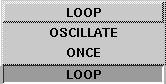
Repeat
-
- Click to the right of the heading to display the Repeat
menu.
- ONCE - the range of animation plays back once, then stops.
- OSCILLATE - the animation alternates between playing in a forward and reverse direction until you stop the animation.
- LOOP - the animation plays over and over in the same direction (in whichever direction the playback was initiated).
|
|
To create a pose animation
sequence, see Anim > Pose
animation on page 208.
|
Pose Animation
-
- If set to ON, playback only displays the frames in the pose animation sequence.
|
|
These images can be
previewed quickly using the
Animation > Flipbook menu
item.
|
Output to Pix
-
- If set to ON, then the next time a playback is invoked, the animation will be saved to .pix files in the .pix directory of your current project.
>
|
Note:
|
During a Play Blast, you can turn pix output on and off by
clicking on the Output to Pix button on the Play Blast
window's titlebar.
|
The camera view that is used for the images is the same view as the current application window. To specify the window to be used for creating pix files, click in it before starting a playback.
|
|
The pix files created are
snapshots of the screen. For
best results, make sure no
other windows are covering
the current application
window.
|
After you have entered the name of a file, the playback starts. The first time through the playback, a pix file is saved for each frame. After the playback has run once through all the animation in the given range, the Output to Pix option automatically turns OFF, and playback continues without saving pix files.
|
|
It is recommended that you
set the Sync Rate (fps) in the
Time Slider
to 0.0 when
using the Output to Pix
option. If you use a non-zero
frame rate, the resulting pix
file animation could be very
jerky.
|
Output Particles
-
- If set to ON when starting playback, you're asked for the psys directory, where the particles are saved out for one cycle of playback. You can also turn this option on during playback.
>
|
Note:
|
You must not have the sync rate set while saving particles,
or the start frame less than 0; otherwise, the particles will not
be saved correctly.
|
Output Video
|
|
Output to Pix is also used by
Alias Raycaster and
Raytracer.
|
-
- If set to ON, the next time a playback is invoked it is recorded to an external device. You can configure which device is used.
Optimization
-
- If Optimization is OFF, the playback is not optimized. In this case, the Optimization Options heading is not displayed since it does not apply.
-
- If Optimization is ON, any playback (invoked from the control panel, from Animation > Playback, or from the Time Slider) uses optimization options to increase the speed of the playback. Expand the Optimization Options section to set these options.
Optimization Options Parameters
|
|
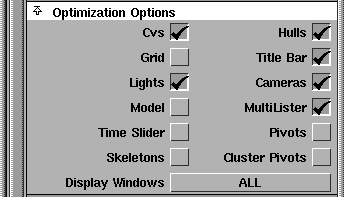
If a check mark is displayed
next to an option it means
that an item is optimized
(not displayed) during a
playback.
|
If the Optimization option in the Animation Options window is set to ON, all animation playbacks are optimized using the following optimization options.
CVs
-
- If checked, no CVs are displayed during playback.
Hulls
-
- If checked, no hulls are displayed during playback.
Grid
-
- If checked, the grids in the application windows are not displayed during playback.
Title Bar
-
- If checked, the title bar and window icons of the application windows are not displayed during playback.
Lights
-
- If checked, no lights are displayed during playback.
Cameras
-
- If checked, no cameras are displayed during playback.
|
|
This is useful if a window is
in toggle shade mode (see
Display > Tgl shade).
|
Model
-
- If checked, no geometry is displayed during playback.
|
|
See the Multi-lister section in
Rendering in Alias.
|
MultiLister
-
- If checked, shader animation does not occur in the Multi-lister.
-
- If not checked, the animated shader balls are updated at each frame. For a faster playback of just one shader ball, use the animated shader icon next to the shader ball name.
Time Slider
-
- If checked, the time slider and frame counter in the Alias window will not be updated during playback, but will update once playback is over. This optimization alone can double the speed of many Play Blasts, but has minimal effect on most normal playbacks. Note that the frame marker can still be dragged and all of the frame control buttons still operate normally.
Pivots
-
- If checked, no pivots are rendered during playback.
Skeletons
-
- If checked, skeleton bones are not displayed during playback.
Cluster Pivots
-
- If checked, cluster pivots are not rendered during playback.
>
|
Note:
|
Display >Tgl pivots overrides the pivot settings in the
Playback Options Optimization window. If you have selected
Display >Tgl pivots, no pivots will be rendered during
playback even if you uncheck Pivots or Cluster Pivots in the
Playback Options Optimization window.
|
|
|
|
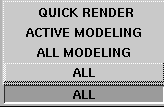
Display Windows
-
- Specifies which windows should remain open during playback. (The more windows that are open, the slower the playback.)
-
- Click to the right of the heading to display the Display Windows menu.
- ALL - any window that is currently open remains open, including any opened editor.
- ALL MODELING - only the modeling windows remain open and all editors are closed.
- ACTIVE MODELING - only the current modeling window remains open.
- QUICK RENDER - only the current quick render window remains open. If one is not currently open, a quick render window is created.
-
- After the playback is finished, all windows that were closed during the playback are reopened.
>
|
Note:
|
SBD windows that are open will always close during a
playback no matter what the Display Windows option is set
to.
|
Output Filename Extensions Parameters
The Output Filename Extensions options are used when the Output to Pix option is set to ON in the Animation Options window, or when rendering an animation sequence with Animation turned ON in Render > Globals.
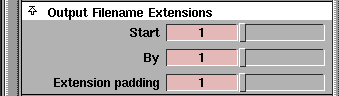
The names of the pix files that will be saved consist of a base name, which the system prompts you for, a period ("."), and then a numbered extension indicating the place in the sequence of pix files that this file represents (for example: filename.1, filename.2, filename.3, etc.) This number, does not necessarily correspond to the frame number. It is computed using the three options in this window.
Start
-
- This is the number that will be used as the file name extension for the first frame of animation saved to a pix file.
By
-
- This is the amount by which the file name extension number is incremented.
Extension padding.
-
- This is the minimum number of digits in the file extension. If the file name extension number has fewer digits than specified by this option, the number is padded with 0's to the left.
For example, assume:
- the Min, Max, and By values in the Time Slider panel are currently 90, 120, and 3
- the Start, By, and Num of Digits options in this window are set to 1, 1, and 2
- when you invoke a playback with Output to Pix set to ON and are prompted for a base name, you type anim
The pix files that are generated have the names anim.01, anim.02, anim.03, etc. up to anim.11.
|


