|
Animation > Playback |
Viewing Running Animation | ||
|
| |||
Playback lets you play back animation that was previously created. How to Use
While the playback is in progress, the current time changes accordingly. The current time is displayed in the current application window, as well as in the time slider (Animation > Tgl time slider) and the Action Window (Animation > Action window). When the animation stops, the current time is the last frame that was viewed during the playback. >
| |||
|
Toggling off the time slider during playback may improve the playblast rate by up to 200%. |
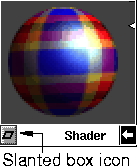
OptionsAlthough this function does not have an option box, it is affected by the options from the Playback Options window. All of the options under Animation Options, Optimization Options, and Output Filename Extensions in the Playback Options window affect how this function plays back the animation. Using Playback in the Multi-listerIf shader, texture or light parameters are animated, you can play back the animation in the Multi-lister (Windows > Multi-lister). For instance, if you set keyframes on a light's global parameters, a slanted box icon appears next to the light's name in the Multi-lister. Clicking this slanted box icon plays back the animation of the shader, light, or texture.
Once you click the icon
For information on setting options, see Animation > Playback on page 81. |
| Copyright © 1998, Alias|Wavefront, a division of Silicon Graphics Limited. All rights reserved. | Please send questions or comments regarding the documentation to: [email protected] |