|
For example, if you want to
set poses for frames 5, 23,
and 40, you'd type: 5 23 40
|
-
3
-
Type the frame times at which you want to view the poses.
-
4
-
To start the pose animation sequence, open the Playback Options window (Animation > Playback options) and under the Animation Options heading, set Pose Animation to ON. Close the window.
-
5
-
Select Animation > Playback to view the pose animation.
-
6
-
Change the pose animation by reapplying the Anim > Pose animation
function, or temporarily disable the pose animation in the Playback Options window by setting Pose Animation to OFF.
Pose Animation Options
To view or change Pose Animation
options, select from the palette Anim > Pose animation - or double-click its icon. The Pose Animation Options window is displayed. or double-click its icon. The Pose Animation Options window is displayed.
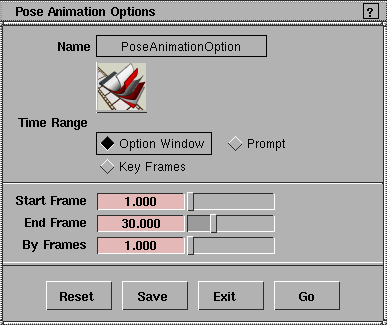
Time Range
-
- The method by which the pose animation keyframe times are chosen.
- Option Window - click to display the following sliders:

-
- The Start Frame,
End Frame, and By Frames values you specify are used to create an evenly spaced time sequence (For example: Start = 1.0, End = 10.0, By = 2.0; creates Pose sequence = 1.0, 3.0, 5.0, 7.0, 9.0)
|
|
See page 52 for information
on the Set keyframe tool.
|
- Prompt - you are prompted to type in a sequence of frame numbers to use as the pose animation (similar to the input in the Animation > Set keyframe tool).
- Key Frames - searches the currently enabled playback channels and sets a pose sequence frame at every defined keyframe in those channels. This is useful for showing the defined animation poses. To set playback channels, use the Animation Options section of the Playback Options window (see page 81).
Example
-
1
-
Create an animation sequence using any of the Alias animation tools.
-
2
-
Select Pose animation - to open the option box, select Key Frames, and then click Go. The whole animation is scanned for keyframes and a new pose sequence is created.
|
|
Keyframes in the pose
sequence animation should
have STEP tangents; see
Animation > Set keyframe on
page 52.
|
-
3
-
To set new keyframes on the pose animation sequence, open the Parameter Control window (Animation > Param control) and open its Global animation section. Open its Universe
section and toggle the
Frame parameter of the object to ON.
-
4
-
Now any Set keyframe operation you perform also adds a keyframe to the pose sequence.
-
5
-
Open the Animation Options section in the Playback Options window and toggle Pose Animation to ON.
-
6
-
Select
Animation > Playback. The animation plays, displaying only the frames for which keyframes are defined.
|


