|
|
Delete > Del static
actions
|
Deleting Static Animation and Flat Tangent Curves
|
|
|
|
|
|
|
For information on deleting
non-static animation, see
Delete > Del channels on
page 202 and The Action
Window on page 138.
|
A static animation curve is one that has the same value at all times, and therefore contributes no motion to the animation.
How to Use
-
1
-
Select Delete > Del static actions.
-
2
-
A confirmation box is displayed asking if you want to delete all static activons from all objects.
-
3
-
To delete all static actions, click YES or type the letter y. (No action is taken if you click NO or type the letter n.)
Examples
-
1
-
Create a sphere and animate its movement through space using Xform > Move and Animation > Set keyframe.
-
Not only does the sphere have channels for X, Y, and Z
translate, but also X, Y, and Z rotate and scale. However,
because the object does not rotate or scale, the animation
curves for the rotation and scaling parameters of the object
contribute nothing to the animation.
-
2
-
Select Delete > Del static actions. All static actions are removed, including the channels for rotation and scaling.
Delete Static Actions Options
Select Delete > Del static actions - to display the Delete Static Actions Options window. to display the Delete Static Actions Options window.
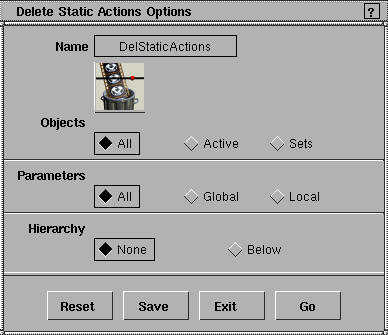
Objects
- All - deletes static actions from all objects.
- Active - deletes static actions from active objects only.
- Sets - deletes static actions from sets only.
|
|
For information about the
multi-lister, see Rendering in
Alias.
|
-
Notes
- A shader, texture, light, or the background is considered active if it is picked in the Multi-lister.
- There is always at least one active shader, texture, light or background.
Parameters
- All - deletes static actions from All parameters.
|
|
Use the Animation > Param
control on page 19 to set
different global or local
parameters.
|
- Global - deletes static actions only from those parameters specified in the Global Parameter Control window.
- Local - deletes static actions only from those parameters specified in the Local Parameter Control window.
Hierarchy
- None - deletes static actions only from the picked objects themselves.
- Below - deletes static actions from the picked objects and their descendants in the hierarchy.
|
|
For information on
hierarchies, see The Action
Window on page 138. For
information on the multi-
lister, see Rending in Alias.
|
>
|
Note:
|
For DAG nodes, CVs and cameras, the hierarchy refers to
the hierarchy as represented in the SBD window. For
shaders, textures, and lights, it refers to the implicit
hierarchy in the Multi-lister.
|
|


