|
|
Delete > Del
channels
|
Deleting Animation Channels
|
|
|
|
|
Overview
|
|
For more information on
actions as entities separate
from channels, see The Action
Window on page 138
|
This function deletes the channels from an object. If the actions being used by the channels are not referenced by any other channel, then the actions are also deleted.
How to Use
-
1
-
Pick the objects from which you want to delete animation.
-
2
-
Select Delete > Del channels.
-
3
-
A confirmation box appears asking if you want to delete all animation from all objects. To delete the selected animation, click YES, or type the letter y. (No action is taken if you click NO or type the letter n.)
Delete Channels Options
Select Delete > Del channels - to display the Delete Channels Options window. to display the Delete Channels Options window.
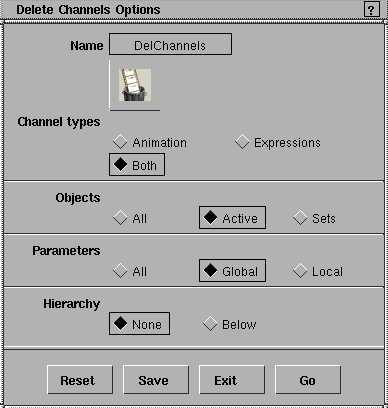
From this option box you can select to delete channel types, objects, parameters or hierarchy. When you are finished, click the Go button.
Channel Types
-
- You can choose to delete Animation, Expressions, or Both animation and expressions of the selected object.
|
|
Active is the default Object
setting.
|
Objects
- All - animation is deleted from every animated object in the universe.
- Active - animation is deleted only from picked objects. You can pick a DAG node, CV or camera using the Pick menu items.
- Sets - animation is deleted from all objects in the selected sets in the Set Lister. To display the Set Lister, select Windows > Sets > Set lister.
>
- A shader, texture, light or the background is considered active if it is picked in the Multi-lister. See Rendering in Alias.
- There is always at least one active shader, texture, light or background.
- If you have keyed channels on shaders, lights, etc. directly with the Key button, these channels may not correspond with the objects' Local or Global parameter settings, and you will have to use All to delete them.
Parameters
- All - all channels of the object are deleted.
|
|
To select different global or
local animation parameters,
see
Animation > Param
control.
|
- Global/Local - animation channels are deleted only from objects whose animation parameters are selected in the Global or Local parameter control windows.
Hierarchy
- None - animation is deleted only from the selected objects.
- Below - animation is deleted from the selected objects and all objects below them.
|
|
For more information, see
Animation > Action window
on page 138.
|
>
|
Note:
|
For DAG nodes, CVs and cameras, the hierarchy refers to
the hierarchy as represented in the SBD window. For
shaders, textures, and lights, it refers to the implicit
hierarchy in the Multi-lister (see Windows > Multi-lister). If a
light DAG node is picked and hierarchy is set at Below,
then
animation on the light parameters is deleted as well.
|
|


