|
If you are picking
hierarchical objects, it may
be easier to open the SBD
window and select objects
from there.
|
-
2
-
Pick the item you want to copy. The system prompts:
-
Select the destination item
-
3
-
Pick the item that you want the source item's animation copied to. Select an item that has no animation (or that has animation that can be overwritten).
Duplicate Channels Options
|
|
To copy channels on several
CVs, pick the geometry node
of a surface as the source,
and the geometry node of an
identical surface as the
destination.
|
Select Edit >Duplicate channels - to display the Duplicate Channels Options window. to display the Duplicate Channels Options window.
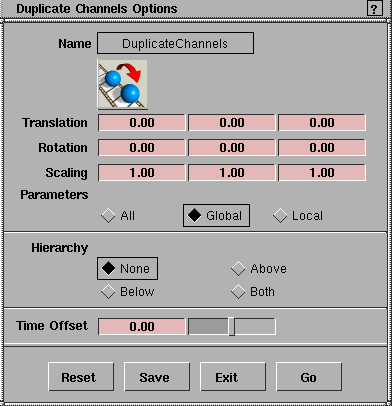
Translation/Rotation/Scaling
Use these sliders to specify how much to offset the animation on the destination object from the current values of the animation on the source object.
Translation/Rotation
-
- Adds values to the channels of the destination object while preserving the shape of the channel.
Scaling
-
- Multiplies values to the scale channels of the destination object. This does not necessarily preserve the shape of the scale channels.
Notes:
- If the source object does not have any animation for one of the X, Y, or Z transformations, the animation offset for that transformation is ignored.
- If the source object has expressions attached to any of the X, Y, or Z transformations, the animation offset for that transformation is ignored.
- If a hierarchical animation is being copied, the transformation offsets are applied only to the destination node in the hierarchy that you have picked.
>
|
Note:
|
There are no units associated with the values entered for
offsets - the offsets are applied in the units of the animation
curve being copied.
|
Warning! If copying an expression creates a circular reference, then that particular expression is not copied.
Other Parameters
Parameters
-
- You can choose to copy curves for All, Global, or Local parameters. Local parameters are applied on the target object. All animated channels from the source object are considered.
-
- To find out how to turn animation parameter controls ON or OFF, see Animation > Param control on page 19.
Hierarchy
-
- Use these choices to select which parts of a hierarchical animation are to be copied.
- None - only the animation at the picked object is copied.
- Above - only the animation from the nodes above and including the picked nodes are copied.
- Below - only the animation from the nodes below and including the picked nodes are copied.
- Both - selects both Above and Below.
Time Offset
-
- This slider lets you change the start time of the animation of the object being copied. Time Offset is applied to all nodes of the destination hierarchy, not just the picked destination.
Notes
- If the source object has timewarps applied to its animation parameters, all the timewarps associated with each parameter are also copied. In this case, time offsets are achieved by adding a time shift warp, not by moving the animation curves' CVs.
- Time offsets are ignored for any expressions which are copied.
|


