|
|
Window >
Expression controls
|
Editing Expression Controls
|
|
|
|
|
Expression controls let you interact with and control expressions through an edit cell or slider, instead of by picking and transforming objects.
How to Use
|
|
See The Action Window on
page 138 for details on
creating expressions.
|
Create an expression in the Action window. In the main Alias window, select Windows > Expression controls to display the Expression Control window.
Expression Control Window
The Expression Control window lists the DAG node channels that are referenced in an expression. Their values can be edited and keyframed directly from the window. You won't need to use the param control when setting keyframes this way.
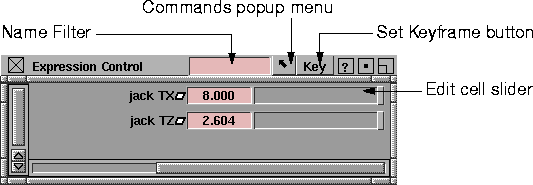
Expression Control Buttons
Name Filter
-
- The total list of items may be narrowed down by typing in a filter string at the top of the window. Through careful design you can create several different control panels that can be invoked using different filters. For example, "/H" could bring up a hand control panel or "/F" a face control panel. "/H /F" would then bring up both sets of controls.
-
- You can specify several search strings using spaces as separators. Items whose names contain any of the search strings will be displayed. For example:
- "ac" will display "face" or "action"
- "ip ac" will display "hip", "face" or "action"
-
If a string begins with "/", it looks for a match in any
parent nodes. Any following strings refine the search
within that parent node. For example:
- "/ac" will display all children nodes of object "Face"
- "/ac ip" will display child nodes of "Face" that have "ip" in their name.
- "/ac /Le" will display all child nodes of objects "Face" and "Leg"
-
If "@" occurs as its own string or at the beginning of a
string, then only animated parameters will be shown. For
example:
- "@" shows all animated parameters
- "@ /Fa" shows all animated parameters in object "Face"
-
If "%" occurs as its own string or at the beginning of a
string, then only non-zero parameters will be shown. For
example:
- "%" shows all non-zero parameters
- "% @" shows non-zero animated parameters
|
|

|
Set Keyframe button
-
- Lets you set a keyframe for a selected channel. To select a channel in the expression control window, click on the name field.
|
|

|
Commands popup menu
|
|
|
-
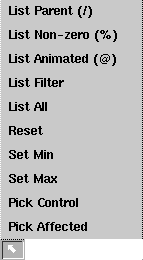
- When you click on this button, a popup menu appears. Select one of the following menu options:
- List Parent (/) -as determined by what's typed in the filter field, it looks for any match in the parent nodes. Any strings typed in the field refine the search within that parent node. For example, if you type "ac" in the filter field and use this button, it is the same as using "/ac" as the filter.
- List Non_zero (%) - as determined by what's typed in the filter field, it lists all those parameters with non-zero values.
- List Animated (@) - as determined by what's typed in the filter field, it lists all those parameters that are animated.
|
|
The first three commands
work the same as putting the
relative character (/,% or @)
in the front of the filter field
string. It is helpful to
remember what each of
these control symbols is
used for.
|
- List Filter - lists the parameters as determined by what's typed in the filter. This is the same as clicking the filter field and hitting the Enter key.
- List All - lists all parameters.
- Reset - sets all selected parameters to the value 0.0.
- Set Min - sets the minimum value of each selected parameter's slider to that parameter's current value.
- Set Max - sets the maximum value of each selected parameter's slider to that parameter's current value.
|
|
Use Pick Control to edit the
animations of selected
expression nodes. To display
these nodes, open the Action
window. To edit the
expressions that reference
these nodes, select
Pick
Affected
from the
Commands menu before
opening the Action window
.
|
- Pick Control - any objects which have parameters selected in the list are made active in the modeling window.
- Pick Affected - any objects which reference any of the selected parameters are made active in the modeling window. Affected shaders and lights are selected in the multi-lister.
Edit cell/slider
By default, the slider range is set to [0, 1] for a translation parameter, and to [-180, 180] for a rotation parameter. You can change this default.
|
|
You can also use Expressions
to map useful values into the
0
-1
range.
|
To change the default to a custom setting:
-
1
-
Enter a value in the editcell, and select the item you want to change,
-
2
-
Choose Commands > Set Max to change the upper boundary, or Set Min to change the lower boundary of the slider range.
-
The new range value is saved with the wire file.
|


