|
|
Object Edit >
Constrain >
Constrain to
|
Constraining An Object to Another Object
|
|
|
|
|
|
|

|
This feature is available in Alias PowerAnimator and AutoStudio and is a purchasable Advanced Animation for Studio option.
Constrain to creates constraints which translate or rotate the constrained objects to the position or orientation of the constraining objects or UV points on the constraining object. You can create any combination and number of point, orientation, or aiming constraints on an object.
How To Use
-
1
-
Select an object using Pick > Object, or pick an object DAG node in the SBD window.
-
2
-
Select Object Edit > Constrain > Constrain to or click on its icon.
-
The system prompts that are displayed depend on the
Constraint Type you have set in the Constrain to Options
window.
- If the Constraint Type is Point (the default), the system prompts:
-
Pick the DAG node whose rotate pivot
will be a POINT constraint for the
selected node.
- If the Constraint Type is Aim, the system prompts:
-
Pick the DAG node which the node's local
x axis will AIM at.
- If the Constraint Type is Orientation, the system prompts:
-
Pick the DAG node whose local axis will
be an ORIENTATION constraint for the
selected node.
-
3
-
Pick an object in the modeling or SBD window that meets the criteria outlined in the prompt.
>
|
Note:
|
In the modeling view, a line may be shown to indicate the
constraint. This line is only shown if the constraint is not
met.
|
Point Example
-
1
-
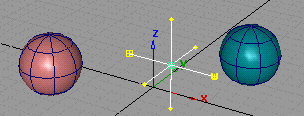
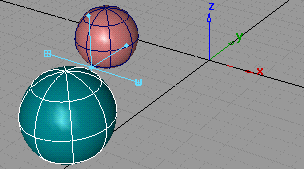
Create two primitive spheres and a jack using Objects > Primitives.
-
2
-
In the Constrain To Options window (Object Edit > Constrain > Constrain to -
 ), make sure the Point option is clicked ON. ), make sure the Point option is clicked ON.
-
3
-
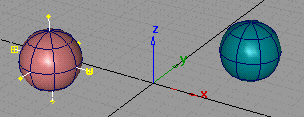
With the jack active, select Object Edit > Constrain > Constrain to
and pick the sphere at the left.
-
Notice how the jack moves to the sphere it is constrained
to:
-
4
-
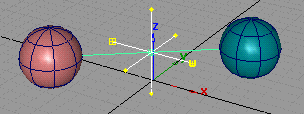
With the jack still active, select Constrain to
and pick the sphere at the right.
-
Notice that the jack moves between the two spheres.
|
|
To change the weight, use
Windows > Information >
Information window.
|
>
|
Note:
|
The jack is equidistant from the spheres because the weight
of the constraints is equal. If the weight of one constraint
was greater, the jack would be closer to the sphere with the
greater weighted constraint.
|
-
5
-
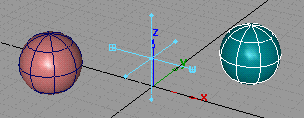
Select Pick > Nothing, then pick the sphere at the right.
-
The jack changes color to show it is constrained to the
selected sphere:
-
6
-
Move the active sphere and then pick and move the sphere to the left.
-
The jack moves in relation to the two objects it is
constrained to:
Orientation Example
-
1
-
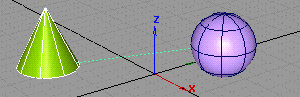
Create a sphere and a cone with Objects > Primitives.
-
2
-
With the cone picked, select Object Edit > Constrain > Constrain to -
and make sure Orientation is ON. Click Go then click the sphere.
-
3
-
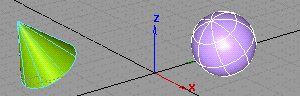
With nothing picked, pick the sphere, select Xform > Rotate
and rotate the sphere.
-
Notice that the cone rotates along with the sphere.
>
|
Note:
|
You can see the orientation of an object by turning the local
axes of the object on. To do this, select Display > Tgl pivots -
and in the option box turn the Local Axes Display setting
ON.
|
|
|
This example illustrates how
to make an object always
aim toward another object.
|
Aim Example
-
1
-
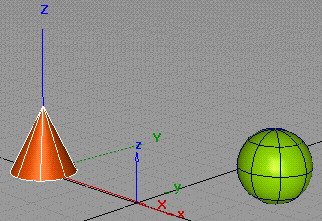
Create a primitive sphere and a cone with Objects > Primitives.
-
2
-
Pick the cone and select Xform > Local > Set local axes to view its local axes.
>
|
Note:
|
The point of the cone, which is the part you want to aim, is
pointed up toward Z. Note also, that to get from the cone to
the ball, you have to move along the X axis.
|
-
3
-
With the cone picked, select Object Edit > Constrain > Constrain to -.
-
4
-
In the option box that appears, make sure the Aim option is ON.
-
Additional controls appear: set the Aim axis to Z and the Up
axis to X.
-
5
-
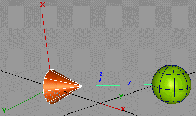
Click Go, then click the sphere. The cone now points toward the sphere.
-
6
-
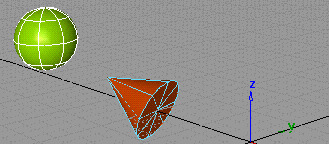
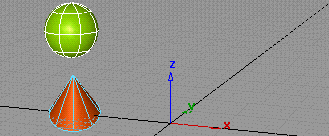
With nothing picked, pick the sphere, select Xform > Move and move the sphere.
-
Notice that the cone continues to point at the sphere.
>
|
Note:
|
In general, it is not useful to apply a constraint directly to a
skeleton joint. For example, if a point constraint is applied to
a joint, moving the constraint object would cause the bone to
stretch.
|
|
|
Normally, you should create IK handles for a skeleton joint
(using Object > Add IK handle) and then constrain the IK
handle to an object. To make this easier, if Object Edit >
Constrain > Constrain to is applied to a skeleton joint, an IK
handle is automatically created, and it is constrained to the
selected object.
|
Constrain to Options
Select Object Edit > Constrain > Constrain to - to display the Constrain To Options window.
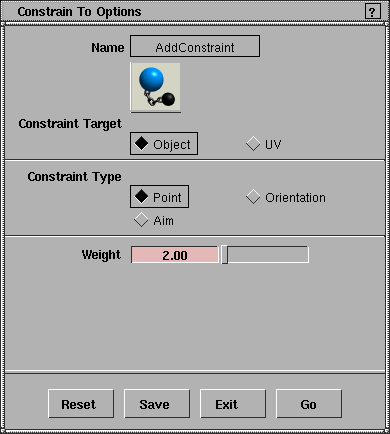
Constraint Target
The following constraint targets are available:
Object
-
- Takes an object as the target of a constraint. For a point/aim constraint, the destination is the pivot of the constraining object. For an orientation constraint, the destination is the local axes of the constraining object. The constraining object can be any object having a node, including lights and cameras.
|
|
The constraint position is the
first keyframe coordinate
and time is the second. For
example, a curve defined as
(2,0) and (6,10) starts at time
0 and goes to 10. The
constraint moves from
position 2 to 6 during the
animation.
|
UV
-
- Takes a UV point on a surface or curve as the target of a constraint. (The constraining object must be a geometric surface or curve.) For a point/aim constraint, the destination is the 3D position defined by the UV coordinate on the constraining surface or curve. For an orientation constraint, the destination is the normal at the coordinate UV point.
To animate the U and V values of a constraint target:
-
1
-
Pick the constrained object and open the Action window.
-
2
-
Open the UV constraint node and expand the option.
-
3
-
Pick the U or V channel.
-
4
-
Click CurveTools > Append keyframes, and enter your start point position.
-
5
-
Repeat step 4 for end point position on the grid.
Constraint Type
The following types of constraints can be added:
Point
-
- Constrains an object (by modifying translation values) so that its rotate pivot position is at the same position in space as the rotate pivot position of the object to which it is constrained.
Orientation
-
- Constrains an object (by modifying rotation values) to assume the same orientation as the object to which it is constrained. To define the orientation of an object, use Xform > Local > Set local axes.
Aim
-
- Constrains the orientation of one of an object's local axes to point at the object to which it is constrained (by modifying its rotation values).
-
- When Aim is selected, the following additional options appear:
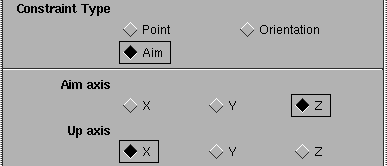
Aim axis
-
- The Aim axis specifies which local axis of the object being constrained will be used to aim at the constraint object.
Up Axis
-
- The Up axis
defines which of the object's local axes should attempt to point in the up direction. In Y-up, the chosen axis will try to match the world's Y-axis. In Z-up, the chosen axis will try to match the world's Z-axis.
-
- The Aim and the Up axes cannot be the same. If the object is trying to aim at an object directly above it, then one of the object's other local axes will arbitrarily be chosen as the Up direction.
Weight
Weights are useful if you have constrained an object to more than one object and you want to weight the different constraints so that the constrained object will tend to meet one constraint more than another.
You can change the weight value by either clicking in the field, typing a value and pressing Enter, or dragging the slider bar. Weights are animatable.
|
Object Edit >
Constrain > Edit uv
constraint
|
Editing UV Constraints
|
|
|
|
|
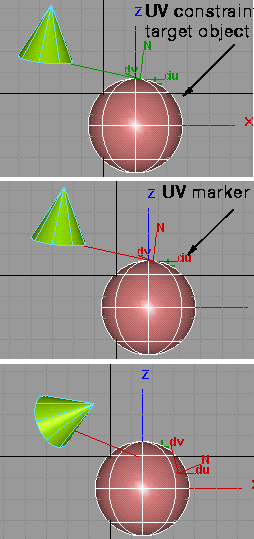
Edit uv constraint lets you pick and modify any UV constraint assigned to a constraint target object.
To create a UV constraint, see Constraining An Object to Another Object on page 316.
|
|
|
How To Use
-
1
-
Click Object Edit > Constrain > Edit uv constraint.
-
2
-
Pick the UV constraint target object or constrained object.
-
All of the UV constraints related to the picked object will
be displayed as markers.
-
3
-
Pick a UV marker or Shift-select an object. The marker is picked when it turns red.
-
4
-
Click the UV marker and move it or enter the UV coordinates in the prompt line.
>
|
Note:
|
You can also edit a UV constraint from the Information
window by opening the Constraint Info section.
|
|


