|
|
8
|
Working with Constraints
|
|
In This Section:
|
Object Edit >
Constrain > Create
constraint
|
Creating a New Constraint Object
|
|
|
|
|
|
|

|
Overview
The term constraint describes a generalized constraint that can apply to any DAG node. A point constraint modifies the translations of an object to match the position of the object it is constrained to. Orientation and aim constraints modify the rotations of the constrained object so that its local axes match those of the constraint object (orientation), or the selected aim axis points at the constraint object (aim).
Create constraint translates or rotates the object that is being constrained to the position and/or orientation of the constraint. You can create any combination and number of point and orientation constraints on an object. You can also copy and mirror existing constraints onto a skeleton.
How To Use
-
1
-
Select an object using Pick > Object, or pick an object DAG node in the SBD window.
-
2
-
Select Object Edit > Constrain > Create constraint or click on its icon.
-
Depending on the Constraint Type you have set in the Create
Constraint Options window, You are prompted to pick either
a joint or a node.
-
For example, the system prompts:
-
Pick a joint or node to constrain.
-
3
-
Pick an object in the modeling or SBD window. You will see a selection handle or a jack (or both) appear next to the object, allowing you to use the new constraint.
>
|
Note:
|
You can later change the values of a constraint (but not its
type or target) in the Constraint Information section of the
Information window (select Windows > Information >
Information window).
|
Create Constraint Options
Select Object Edit > Constrain > Create constraint - to display the Create Constraint Options window. to display the Create Constraint Options window.
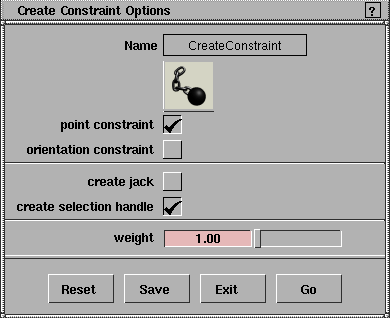
point constraint
-
- Constrains an object to the same position in space as the rotate pivot position of the object to which it is constrained.
orientation constraint
-
- Constrains an object node to the same orientation as the object to which it is constrained. To define the orientation of an object, use Xform > Local > Set local axes.
create jack
-
- Creates a jack primitive at the point of constraint. If this option is not on, a NULL node is created.
create selection handle
-
- Creates a selection handle at the point of constraint.
weight
-
- Weights are useful if you have constrained an object to more than one other object. This way you can weight the different constraints, so that a constrained object will tend to meet one constraint more than another.
-
- You can change the weight value either by clicking in the field, typing a value and pressing Enter, or dragging the slider bar. Weights are animatable.
-
- If two constraints on an object conflict with each other, the system will find a compromise solution between the two constraints. If one constraint has a higher weight than another constraint, then the former constraint will have more influence in the solution.
>
|
Note:
|
In general it is not useful to apply a constraint directly to a
skeleton joint. For example, if a point constraint is applied to
a joint, moving the constraint object would cause the bone to
stretch. Normally, you should create IK handles (using
Object > Add IK handle) and then constrain the IK handle to
an object. To make this easier, if Object Edit > Constrain >
Create constraint is applied to a skeleton joint, an IK handle
is automatically created, and a null node is added in the SBD
window.
|
Simple Orientation Example
|
|
|
-
1
-
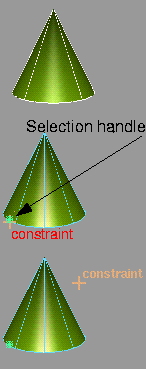
Create a cone using Objects > Primitives.
-
2
-
Select Object Edit > Constrain > Create constraint - and turn on orientation constraint and create selection handle. Click Go.
-
A selection handle is created on the new constraint.
-
3
-
Select Pick > Object Types > Selection handle and click the handle.
-
4
-
Select Xform > Local > Move selection handle.
-
5
-
Drag the handle away from the cone.
-
6
-
With the handle still picked (the cone will also stay active as it is under the influence of the constraint), select Xform > Rotate.
-
7
-
Click-drag the selection handle to change its orientation. As the handle rotates, the cone will follow it.
Grouped IK Manipulation Example
|
|
This example creates
constrained IK handles
through the create constraint
command.
|
-
1
-
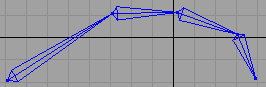
In the Front window, create a finger of a hand with Objects > Draw skeleton.
-
2
-
With the finger picked, select Edit > Duplicate object -. In the option box, enter 1 in the Y Translation field and 4 as the Number of Duplicates. Click Go. You now have five fingers.
-
3
-
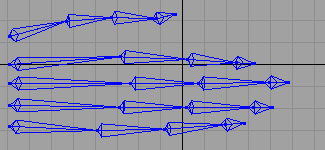
Select Pick > Joint, then select Xform > Local > Set pivot. Now, you can reshape the fingers in the Top
view to look more like a human hand by picking individual joints and click-dragging. In the following example, a left hand is created.
-
4
-
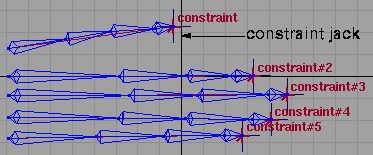
Pick the end-effector of the first
finger (with Pick > Joint) and select Object Edit > Constrain > Create constraint -. Make sure only point constraint is on (orientation should be off) and that create jack
is turned on. Press Go.
-
An IK handle is created from the root to the end effector,
and a constraint, with jack, is created on the handle.
-
5
-
Add constraints to the rest of the fingers by picking each end-effector.
-
6
-
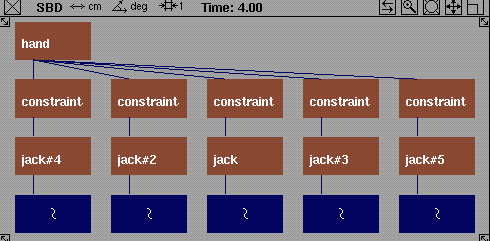
Select Pick > Nothing, then Pick > Object. In the SBD window, with Shift pressed, pick the top nodes of the five constraints.
-
7
-
From the Edit menu, select Group -. Click Beside, then Go. A new node is created at the origin.
-
8
-
In the SBD window, pick the new top node and name it hand.
-
9
-
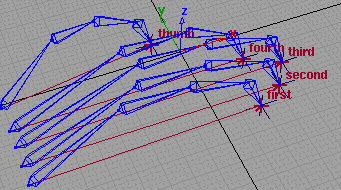
With the hand node picked, select Xform > Move
and click-drag with the left mouse button.
-
Now the hand opens and closes with a single motion,
within constraints. See the following diagram:
Baking animation and using Motion Blur compensation
There will be times when you will want to generate animation curves from the constraint animation. Bake creates animation curves with keyframes at regularly specified intervals. You can view theses curves and edit them by hand.
|
|
For information on Render >
Globals, see Rendering in
Alias.
|
If you are going to render an animation with Motion Blur (from Render > Globals), you may want to use Motion Blur compensation. The renderer evaluates the animation at a motion blur sample point, interpolating between these values.
Constraint animation is limited to a -180/+180 degree range. If the constraint jumps from -180 to +180, the object doesn't actually move. However, the motion blur sampling reads a value between those degree ranges, and the object appears to flip. With Bake, extra keyframes are created with the Motion Blur compensation at the motion blur sample times, wherever this flipping problem is detected.
|


