|
This feature is available in Alias PowerAnimator and AutoStudio and is a purchasable Advanced Animation for Studio option.
How to Use
-
1
-
Create a skeleton using Objects > Draw skeleton, and add one or more constraints to the skeleton's joint nodes using Object Edit > Constrain > Create constraint.
-
2
-
To delete the constraints on one of the joint nodes, select Delete > Del constraints. A confirmation box appears, asking you if you want to delete constraints on selected DAG nodes.
-
3
-
Click YES or type the letter y to remove the constraints on the selected joint. No action is taken if you click NO or type the letter n.
Delete Constraint Options
Select Delete > Del constraints - to display the Delete Constraints Options window. to display the Delete Constraints Options window.
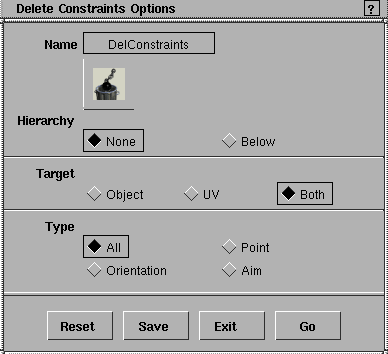
Hierarchy
None
-
- Deletes constraints on selected nodes.
Below
-
- Deletes constraints on selected nodes and the lower nodes below them in the hierarchy.
Target
Object
-
- Deletes constraints whose targets are objects.
UV
-
- Deletes constraints whose targets are UV points.
Both
-
- Deletes constraints for both types of targets.
Type
All
-
- Deletes all types of constraints.
Point
-
- Deletes only point constraints.
Orientation
-
- Deletes only orientation constraints.
Aim
-
- Deletes only aim constraints.
|


