|
Turns constraints on or off so that they become enabled or disabled. When a constraint is OFF, it behaves as if it does not exist.
This function makes it easier to turn on or turn off a group of constraints. For example, you can toggle states of all existing constraints without picking any of them; set constraints of a group of active objects to be the same state; make changes only on the selected types of constraints (say, only change point constraint); or make changes only to the constraints of your picked hierarchies. You can choose to use the constraints either on the constrained side, or the constraining side of the objects.
An individual constraint can be turned ON or OFF from the Information Window when the constrained object is picked.
How to Use
-
1
-
If the Active option is on, pick the objects whose constraints you wish to affect.
-
2
-
Select Edit > Constraints on/off to set their states (ON or OFF according to the options' setup.)
Constraints On/Off Options
Select Edit > Constraints on/off- to open the option box: to open the option box:
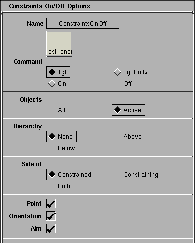
Command
Tgl
-
- The constraints' states will be toggled. That is, if a constraint is ON then it will become OFF, or OFF become ON.
Tgl Unify
-
- If the specified constraints are either all on or all off then this behaves the same as Tgl. If some of the speicified contraints are on and others are off, then the first use of Tgl Unify will set then all to the same state, then subsequent uses will behave the same as Tgl.
On
-
- Forces all constraints to be ON.
Off
-
- Forces all constraints to be OFF.
Objects
Active
-
- Only the active objects are used.
All
-
- All existing objects are used.
Hierarchy
None
-
- Changes states for constraints only on the specified objects. For example, if the object's option is set to Active, only those constraints applied on the active objects will be changed.
Above
-
- Changes states for all constraints on the specified objects and the objects above them in the hierarchy.
Below
-
- Changes states for all constraints on the specified objects and the objects below them in the hierarchy.
Both
-
- Changes states for all constraints on the specified objects and the objects above them and below them in the
hierarchy.
Side of
Constrained
-
- For any used object, if it is constrained by any other objects, all the constraints are changed.
Constraining
-
- For any used object, if it is constraining any other objects, all the constraints are changed.
Both
-
- Any constraints, no matter if constrained by an object or constraining to an object, will be changed.
The following is an example to illustrate the Side of settings:
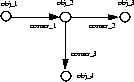
Where both obj_3 and obj_4 are constrained by obj_2 ad obj_2 is constrained by obj_1:
- For obj_1, if Side of is set to Constrained then none of the constraints will be affected. If it is set to Constraining then constr_1 will be affected.
- For obj_2, if Side of is set to Constrained then constr_1 will be affected. If it is set to Constraining then constr_2 and constr_3 will be affected.
- For obj_3, if Side of is set to Constrained then constr_2 will be affected. If it is set to Constraining then no constraints will be affected.
- For obj_4, if Side of is set to Constrained then constr_3 will be affected. If it is set to Constraining then no constraints will be affected.
Point
If this control is turned OFF, no point constraints will be changed.
Orientation
If this control is turned OFF, no orientation constraints will be changed.
Aim
If this control is turned OFF, no aim constraints will be changed.
|


