|
|
Anim > Set motion
|
Animating Along a Path
|
|
|
|
|
|
|

|
The Flow and Cluster options are available in Alias AutoStudio and are purchasable Studio Animation and Advanced Animation options
Set motion lets you create several different kinds of automatically-computed segments of animation.
For example, you can:
- animate an object along a NURBS curve. The curve acts as a motion path for the object assigned to it.
- animate an object so that it always points in the direction in which it is traveling, maintaining its original orientation to the path curve at all times as it travels along the path.
- animate an object so that it banks around curves.
- animate an object so that it flows or deforms through the animation, bending and twisting as necessary to conform to the shape of the path curve.
-
The ability to have an object bend as it travels along the
path solves the problems associated with rigid body
animation, which lacks the squashing and stretching that
characterizes realistic and believable characters.
- automatically compute the animation for the UP point of a camera.
Overview
When you use Set motion, up to four different types of animation are computed, depending on the current option settings:
- Motion Path
animation is computed first, creating animation curves for translating the object.
- Follow and Bank are then computed together to create animation curves for rotating the object.
- Flow is then computed to create animated clusters for the object, which use the object's existing animation.
- Camera Up animation is computed to create a motion path animation for the Up DAG node of all currently active cameras.
Any one or a combination of these different types of motion can be computed at one time.
How to Use
|
|

|
To use Set motion, select it from the Anim palette or click its icon.
Using Motion Path with Bank and Follow
When used with the default option settings, Set motion animates an object along a motion path with both Follow and Bank animation, using a combination of three types of animation. These defaults ensure that the assigned object will rotate as necessary to continually point towards the direction of the path curve throughout the entire motion. The object will also bank appropriately through areas of varying degrees of curvature if the Maximum Bank option is set to a value other then zero.
The following steps show how to create a motion path with Follow:
-
1
-
Create a NURBS curve to define the motion path that you want the object to follow.
-
2
-
Create a cone primitive using Objects > Primitives > Cone.
|
|
If the final position of the
motion curve is not near the
origin, make a copy of the
curve (Edit > Duplicate
object) and place the start of
the copied curve at the
origin. Use this curve to help
you set the orientation of the
object. This curve can be
deleted later.
|
-
3
-
Position the cone so that the point that you want to follow the curve (for example, the tip of the cone) is at the origin. Orient the cone so that it will start at the beginning of the curve to your specifications.
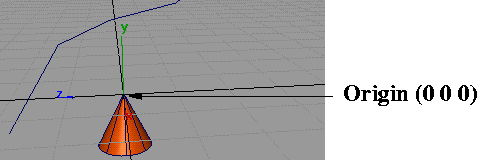
-
4
-
Create a new group for the object in this position (Edit > Group). See the side examples.
|
|
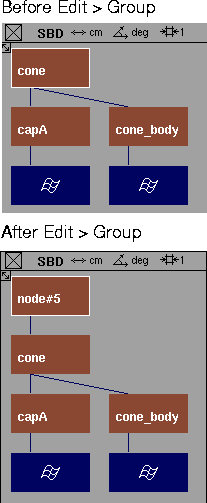
|
|
|
|
-
5
-
Pick the grouped object to which you want to assign a motion path, and then select Anim > Set motion. The system prompts:
-
Pick a curve to be used as a motion path.
-
Click directly on the curve that you want to assign as the
motion path. It is assigned as a motion path for the active
object.
-
6
-
To view the animation, select Animation > Playback.
-
Because Follow was toggled on, notice how the object
rotates to follow the path curve and is continually
pointing straight ahead throughout the entire frame
sequence.
|
|
See The Action Window on
page 138.
|
-
The Action Window displays action curves for the rotation of
the object around all three axes.
-
These curves represent the necessary rotation of the object
to maintain the original orientation to the path curve. You
can edit any of these action curves to fine-tune the
animation of the object.
Using the Flow Option
|
|
Spline IK is another
alternative for creating
flowing motion along a path.
|
The following example describes how to animate a snake slithering along a path.
-
1
-
Create the model of the snake (you can use a simple cylinder primitive if you want).
-
2
-
Create the path that you want the snake to follow.
-
3
-
Select Anim > Set motion-
 . The Set Motion Options window appears. . The Set Motion Options window appears.
-
4
-
Click on Reset to reset default settings.
-
5
-
Toggle Flow on. The default options ensure that the assigned object maintains its original orientation to the path curve throughout the entire motion and that it banks appropriately through areas of varying degrees of curvature. Bank and Follow should be left toggled on.
-
6
-
Set the Maximum Bank option to a positive number (such as 30, for example), and click Save to save the current parameter settings.
Creating smooth and natural movement when using Flow
-
1
-
Position the object (the snake body in this case), so that the tip of its head (the front most point of the object) is at the start point of the path curve.
-
2
-
Use Xform > Local > Set pivot to set the rotation pivot to the tip of the snake's head (the front of the object).
-
3
-
Use Xform > Rotate on the object to orient the snake so that it is pointing in the direction it will travel along the motion path. It should be positioned so that it is aligned tangent to the start of the curve.
-
4
-
Select the model of the snake that you have created to make it active.
-
5
-
Select Set motion. The system prompts:
-
Pick a curve to be used as a motion path
-
6
-
Click directly on the curve that you want to assign as the motion path.
-
A series of messages appear on the prompt line, informing
you of the animation's progress.
-
7
-
To view the animation, select Animation > Playback.
If you don't like the generated animation, you can delete the clusters that were created to animate the snake (ensure that the clusters are the only active geometry and then select Delete > Del active.) Since all the flow animation was on the clusters, the snake will no longer be animated and you can start again. You may want to try increasing the Flow Slices and/or the Maximum Bank values to increase the amount of banking.
Animating the Camera Along a Motion Path
-
1
-
Select Layouts > All windows > All (User Defaults)
to create a default window set.
-
2
-
Create a curve that represents the path you want the camera's eye to follow.
-
3
-
Select Cameras > Reset view
and click in the perspective window that belongs to the camera you want to affect. This forces the Up point of the camera to point straight up above the camera eye.
-
4
-
Select Pick > Object and pick the eye DAG node above the camera, as shown in the following diagram.
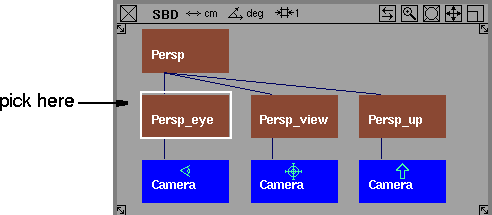
-
5
-
Select Set motion- to display the option window. Ensure that only the Motion Path and Camera Up options are selected, and then click Go to invoke the function.
-
6
-
Click directly on the curve that you want to assign as the motion path. A new motion path is created for the Up DAG node of the camera.
-
7
-
Select Animation > Playback to view the camera animation. The animation may not be satisfactory because, although the camera is moving, its lookat point is still fixed.
Animating the lookat point of the camera
-
1
-
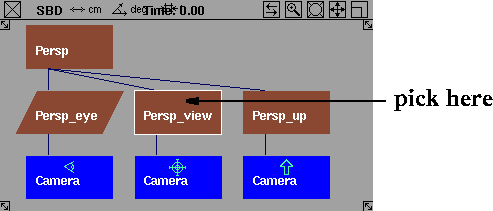
Pick the view DAG node, which is the DAG node directly above the camera view node as shown in the following illustration.
-
2
-
Select Set motion- to display the option window.
-
3
-
Change the Start and End values to 1 or 2 frames less than what they were set for animating the camera up
and eye
nodes. You can use negative frame values if necessary. For example: if the eye and up nodes were animated with frame values of 1 and 30, use -3 and 27.
-
4
-
Ensure that only the Motion Path option is currently selected, and then click Go.
-
5
-
When prompted to select the curve to be used as a motion path, click on the same curve that is being used as the motion path for the eye DAG node.
-
6
-
Select Animation > Playback to view the camera animation. It will be easier to monitor the camera animation if you toggle the camera visible. To do this, select Display > Tgl camera.
Ensure that the camera is also toggled ON in the Optimization Options section of the Animation > Playback options
window.
Set Motion Options
|
|

|
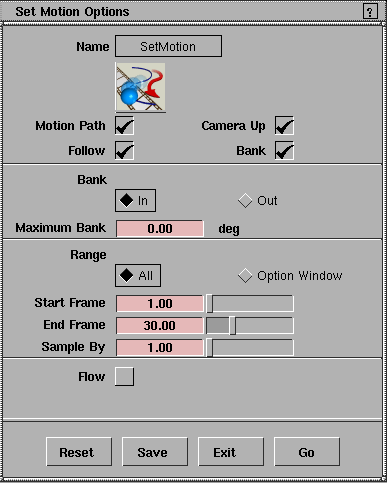
Select Set motion- from the Anim menu, or double-click on its icon
to display the Set Motion Options window.
Motion Path
|
|
If you are not using the Flow
option, then the point on the
object that makes contact
with the motion path curve
during animation is the
point that touches the origin
(0,0,0) when there is no
translation on the DAG node
to be animated by a motion
path.
|
-
- Applies motion path animation to any valid active objects. Motion Path animation means that the objects move along a selected curve. The Motion Path option creates X, Y, and Z axis translation animation for each of the selected objects. If translation animation already exists for the active objects, it is replaced by the Motion Path animation.
-
- The curve you want to use as the motion path must exist before you invoke the function. Curve-on-surface elements are not valid motion paths and must be converted to world space curves using Curve Edit > Create > Duplicate curve.
Follow
|
|
To change the point on the
object that will travel along
the curve, position the object
so that this point touches the
origin, group the object
using Edit > Group, then use
Anim > Set motion on the
grouped DAG node.
|
-
- Ensures that the object assigned to the motion path rotates as necessary to maintain its original orientation to the path curve throughout the entire animation along the path. It points in the direction in which it is traveling (up or down, left or right) at all times. The Follow option animates the rotational parameters of the object in conjunction with the Bank option.
Camera Up
-
- Applies a motion path curve to animate the Up DAG node of an animated camera or above its Eye DAG node. This option lets you control the camera animation, preventing the camera from twisting and turning upside down (as it would if the Up DAG node was not animated with respect to the Eye DAG node).
-
- Camera Up creates X, Y, and Z translation animation for the Up DAG node of a camera. To create the animation on the Up DAG node of the camera, pick the DAG node above the Eye of the camera. If any translation animation already exists for the Up nodes, that animation is deleted.
|
|
Alternately you could use
Cameras > Local Move
camera > Twist to position
the up point. It is easier to
position the up point of the
camera if you display the
camera using Display > Tgl
camera.
|
-
- Before selecting Set motion, pick the Up DAG node for the camera you want to affect and move the Up point to the world space position that describes the sense of up for the eye point. Then select Set motion. A NURBS curve is created that will be assigned as a motion path for the Up DAG node of the camera.
Bank In/Out
- Banking In means the object will lean in towards the center of the curve that it travels along (like a motorcycle going around a corner).
- Banking Out means the object will lean away from the center of the curve. Banking only occurs if Degree is set greater than 0.00.
-
- For Follow and/or Bank animation to be computed, the active DAG node or at least one DAG node above it in the hierarchy must have positional animation.
- If Motion Path is toggled on, these DAG nodes will have positional animation applied.
- If Motion Path
is toggled off, the objects must have positional animation as a result of having previously been animated using Animation > Set keyframe, or another animation tool.
-
- You can also have animation in the DAG node above the picked DAG node that is just rotational animation. In the DAG node below, this appears like a translation in an arc and Follow and Bank animation can then be computed.
>
|
Note:
|
When using either Follow and/or Bank, before invoking Set
motion you must orient the object so the system knows
which way you think is the object's up, and which way you
think is the object's front (or looking ahead point). The object
should be oriented for the first frame of the animation that
will be computed for Follow and/or Bank. If Range is set to
All
, this will be the first frame of the animation. If Range is
set to Option Window, then orient the object for the Start
frame. In either case, use Xform > Rotate to orient the object
and Xform > Local > Set pivot to position the rotation pivot
of the object as the point on the object about which the Bank
animation is to occur.
|
Maximum Bank
-
- The maximum allowable degree of banking. If set to 0.00, the object will not bank even if the Bank option is toggled on. The object will bank the amount specified by the
Maximum Bank option when it is at the point on the curve with the highest curvature. It will bank a proportional number of degrees as the curvature changes. (It will not bank at all where the curvature is a straight line.)
Range
-
- Determines whether the animation is applied to the entire frame range of the animation (All) or only to the frame range specified by the current Start and End Frame values in this option window.
Start/End frame
-
- Defines the start and end frame values for the animation in relation to the entire animation. These settings only apply when Range is set to Option Window.
Sample By
-
- Used by the Follow and Bank options to determine how often to sample the positional animation when computing rotational animation. A keyframe is created for every Sample By frame.
-
- This option is also used by the Camera Up option to determine how often to sample the Eye DAG node's animation of a camera. The motion path curve that is created for the camera will have one CV for each sample of the eye DAG node's animation.
-
- Be careful to select Start, End, and Sample By values that have a sufficient number of sample points along the length of the motion path to avoid sampling errors. As a general rule of thumb, you will encounter sampling errors if the change in tangency between any two adjacent sample points is greater than or equal to 90 degrees.
|
|
For example, animate an
object using a circle
primitive as the motion path,
with Start at 0.0, End at 4.0,
and Sample By at 1.0. The
total sample points is 5.
Since all of these sample
points are 90 degrees apart,
there are several chances for
sample error to creep in and
flip the animated object
when you play back the
animation.
|
-
- Sampling error can be remedied by increasing the number of samples taken, either by increasing the frame range or decreasing the Sample By value.
Flow
-
- When you toggle Flow ON (indicated by a check mark), Flow animation is applied to the geometry below each of the picked DAG nodes.
Flow Slices
-
- When you toggle Flow ON, the Set Motion Options window expands to display the following slider:

-
- This is used by the Flow option to determine the number of slices, or clusters, that the object should be divided into for flowing.
-
- Each cluster is animated independently. Unnecessary slices can be expensive in terms of processing speed. As a rule, the more CVs in the lengthwise direction of the object (from front to back as it travels along the path), the more slices you need. For a simple object such as a cylinder for example, a low number of slices is sufficient.
What is Flow?
Flow animation deforms an object so that it follows the shape of its positional and rotational animation. For example, if Flow animation is applied to an object animated with a motion path, then the object takes on the shape of an assigned motion path as it travels along the length of the path. This allows for bending and twisting of the assigned object as it travels along the path (as opposed to rigid body animation).
Flow creates a hierarchy of animated clusters containing sections of the geometry below the picked DAG node. If Motion Path is toggled OFF, the animation currently carried by the picked DAG node is removed and used to compute the animation for the clusters. Flow does not use the Start and End values in the option window. It simply removes the existing animation on the picked DAG node and applies it to each of the cluster nodes that are created, with an additional time offset curve for each cluster.
Using Flow
|
|
|
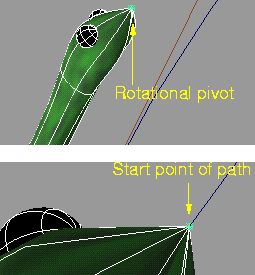
When using the Flow option, before you invoke Set motion, you must move the rotation pivot for the object to the front of the object. You must then position the object so that its front touches the start point of the path.
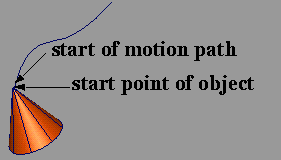
For example, if the object is animated along a motion path, position the object so that the front of the object touches the first point on the motion path curve, as shown in the side illustration. This can be accomplished easily by using the magnet function to snap the object's pivot point to the first CV of the path curve.
Flow Limitations
- Flow does not work on an instance of an object. (Flow deformation is achieved through clusters and clusters, apply to CVs of objects. Instances share the same CVs as the object they instance and so the deformation always applies to the first instance only.)
- Flow depends on having a smooth motion; therefore, unusual results may appear when flowing an object along a jerky motion path or one that has sudden changes of direction. Also, while flowing an object along a path that changes velocity suddenly, the flowed object elongates temporarily. While this can create an interesting effect, if you don't want it, you can manually edit the action curves using the Action Window. See The Action Window on page 138 for details.
|


