|
At least one curve is needed
to use the Autofly function.
If only one curve is used,
that curve must be assigned
as the motion path for the
camera eye. The camera
view then remains directly
in front of the camera at all
times throughout the
animation. In some
applications, this may be
exactly what you want. In
other applications, you may
want to control the camera
view throughout the
animation, which means you
need a minimum of two
motion path curves.
|
Camera eye
-
- The camera eye can be considered the camera unit itself, which travels along the motion path to which it is assigned. The motion path determines the position of the camera at any given time in relation to the scene. For example, the design of the motion path lets you move the camera closer to or further away from an object in the scene. To visualize, think of yourself walking along with a camera taking pictures: the route you follow would be the motion path.
Camera view
-
- The camera view can be considered the focus point of the camera - where the camera is looking at any given time. If the camera view is not assigned to a motion path of its own, then the view is always directly in front of the camera. Think of yourself walking through a scene without ever pivoting your head, your view is always directly ahead of your body. By assigning the view to a motion path of its own, you can change the view point of the camera at any time in relation to the camera position.
Camera up vector
-
- The camera up vector can be considered the current angle of the camera at any given time in relation to the camera eye. The camera up vector is the direction from the camera's eye to the camera's up. If the camera's up is not assigned a motion path of its own, the camera remains parallel to the path that the eye has been assigned to at all times. By assigning the camera up to an independent motion path, the camera can be pivoted to any angle up to 360 degrees. This can be likened to a camera on a tripod except that the tripod could pivot a full 360 degrees.
How to Use
|
|
Objects do not have to be
active when this function is
invoked.
|
-
2
-
Click on the curve you want to assign as the motion path for the camera eye. The curve will change color to indicate that it is now a motion path.
-
Once the camera eye motion path has been selected, the
system prompts:
-
Select the motion path for the VIEW, or
select the GO icon
-
3
-
To use a second curve for the camera view, click on the curve that you want to assign as the motion path of the camera view.
-
If you click the Go icon instead, the system uses a camera
view motion path that is straight ahead along the motion
path chosen for the camera eye.
-
4
-
Once you select the camera view motion path and clicked the Go icon, the system prompts:
-
Select the motion path for the UP, or
select the GO icon
-
To use a third curve for the camera up, click directly on the
curve you want to assign as the camera up path.
-
If you click the Go icon instead, the system generates the
camera up motion path. The camera is oriented in the up
direction, and banks around curves according to the
current Maximum Bank degree values set in the Autofly
Options box.
-
5
-
When you are finished selecting curves, a new perspective window is created and its camera is animated along the curves.
>
|
Note:
|
Motion paths are invisible during the animation.
|
-
6
-
To halt the animation playback, press the Esc key.
Examples
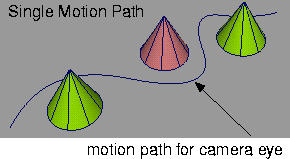
In the following diagram, only one motion path is used. The camera view is always directly in front of the camera eye as the camera travels along the motion path. The camera view loses sight of the objects as it weaves between them.
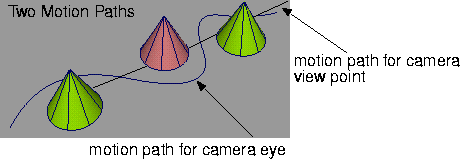
In the next diagram, a second curve has been assigned as the motion path for the camera view. In this case, regardless of the camera position on the eye motion path, the camera's view is always directed to the cones as it weaves between them.
Autofly Options
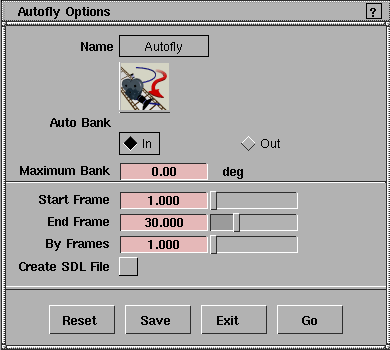
To view or change Autofly options, select Autofly - , or double-click the icon to display the Autofly Options box. , or double-click the icon to display the Autofly Options box.
Auto Bank In/Out
-
- Indicates whether the camera tilts into the curve, or away from the center of the curvature, while traveling along the motion path. The Auto Bank option has no effect if the Maximum Bank value is set to 0 degrees.
Maximum Bank Degrees
-
- Indicates the maximum number of degrees the camera banks at the maximum curvature of the eye motion path.
Start Frame/End Frame/By Frames
-
- Indicate the numbers of the first and last frames of the animation, and the frame increment respectively.
Create SDL File
-
- If toggled ON (indicated by a check mark), the system creates an SDL file to record the animation for rendering. In this case, you are prompted to supply an SDL file name in which to store the animation.
>
|
Note:
|
Although the animation is written to the SDL file, the
rendering of the animation is not automatic. To render the
animation, select Render > Globals to open the Render
Globals window. Under the Miscellaneous parameter
heading, change the Geometry Source option to SDL FILE
and start the rendering process. When the rendering process
has started, the system prompts you for the name of the SDL
file to render.
|
|


