|
Turntable lets you animate an object or group of objects 360 degrees around a pivot point, as though revolving them on a turntable.
>
|
Note:
|
The camera cannot be animated with this function.
|
How to Use
-
1
-
Select any objects in the scene that you want to animate, ensuring they are active before invoking the function.
-
2
-
Select Animation > Turntable. The turntable function is automatic and any active objects at the time the function is invoked are animated.
-
By default, the active objects are animated about the Z-
axis as though on a turntable rotating about the point of
origin at 0, 0, 0.
-
3
-
To stop the animation, press the Esc
key.
Limitations
- Turntable animation cannot be applied to templated geometry. If you have a template picked when the function is invoked, the following error message is displayed:
-
Unable to turn templated objects. Please
remove them from target objects.
- Turntable animation is applied at the root node (the top level in the SBD window). If you attempt to create turntable animation using other than root nodes, the following error message appears:
-
Only root level objects can be turned.
Turntable stopped.
-
- This could happen if you select the objects to animate by picking them directly from the SBD window. Use Pick > Object instead to select the objects you want to turntable.
-
- Turntable animation cannot be applied to IK handles. You must pick the skeleton.
Turntable Options
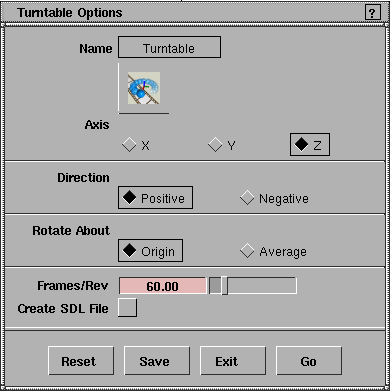
Turntable options let you select the axis about which the active objects will rotate. Select Animation > Turntable- to display the Turntable Options window. to display the Turntable Options window.
Axis
-
- Determines the axis about which the active objects are rotated for animation display. You can rotate the objects about any of the three axes. The default is to rotate about the Z-axis.
Direction
-
- Determines whether the objects rotate in a Positive
(counter-clockwise) or Negative (clockwise) direction.
Rotate About
-
- Determines the point of origin about which the objects will rotate.
- Origin - the active objects rotate about the point of origin 0, 0, 0 (where the three world axes cross).
- Average - the active objects rotate about a center that is the calculated average point of each object's rotation pivot point.
Frames/Rev
-
- Determines the number of frames to be created for each 360º revolution. Increasing this value slows down the animation and decreasing the value speeds up the animation.
Create SDL File
-
- If toggled ON, the system creates an SDL file to record the animation for rendering. In this case, you are prompted for an SDL filename to specify where to store the animation. The recorded SDL file will contain all shader information as well.
>
|
Note:
|
Although the animation is written to the SDL file, the
rendering of the animation is not automatic. To render the
animation, select Render > Globals to open the Render
Globals window. In the Miscellaneous section, change the
Geometry Source option to SDL FILE and start the
rendering process. When the rendering process has started,
the system prompts you for the name of the SDL file to
render.
|
|


