|
This feature is available in Alias PowerAnimator and AutoStudio and is a purchasable Advanced Animation for Studio option.
Skeleton turns the display of skeleton bones and their associated constraints or IK handles in application windows on or off.
How to Use
-
1
-
Create a skeleton using Objects > Draw skeleton or the skeleton editor (Windows > Edit > Skeletons). The skeleton is displayed with bone-like geometry.
-
2
-
To turn off the display of these bones, select DisplayTgls > Object Toggles > Skeleton. All the skeletons in all the windows are not displayed. To turn the display back on, select the function again.
Tgl Skeleton Options
Select DisplayTgls > Object Toggles > Skeleton - to display the Toggle Skeleton Options window. to display the Toggle Skeleton Options window.
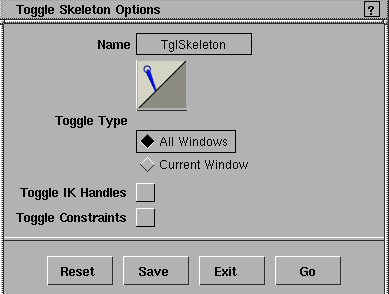
Toggle Type
- All Windows - the display of the skeletons are toggled in all windows.
- Current Window - the display of the skeletons are only toggled in the current window. The current window is the one that has three asterisks (***) in its title bar. To make a window current, click on its title bar or in the window itself.
Toggle IK handles
-
- If this option is toggled ON (indicated by a check mark), no IK handles are displayed in the window(s).
Toggle Constraints
-
- If a joint in a skeleton is constrained to another object, a line is drawn between the skeleton joint and the rotate pivot point of the object to which it is constrained. A skeleton joint's constraints are only displayed if the skeleton joint is active.
-
- Click to toggle ON (indicated by a check mark) or OFF. If toggled OFF, no constraints are displayed in the window(s).
|
|
For more information on
how to create a constraint,
see Object Edit > Constrain >
Create constraint on page 310,
|
>
|
Note:
|
For a point constraint, if the point constraint is satisfied, the
joint and the object's pivot point occupy the same position,
so you don't see any line drawn.
|
|


