This feature and the Skeletons option are available in Alias PowerAnimator and AutoStudio, and are a purchasable Advanced Animation for Studio option
Run IK creates an animation using multi-chain IK handles attached to a skeleton so that the animation may be rendered.
How to Use
-
1
-
Create a skeleton using Objects > Draw skeleton.
-
2
-
Attach IK handles to various joints of the skeleton using Object > Add IK handle.
-
3
-
Animate the IK handles using any of the Alias animation tools.
-
4
-
Set up your skeleton to be in the configuration that you want it to be in for the first frame of animation.
-
5
-
Pick the root of the skeleton, and select Animation > Run IK.
-
You can view the skeleton animation through all the
frames of the constraint animation. At the end of this
operation, the skeleton is animated using its IK handles.
Run IK Options
Select Animation > Run IK - to open the Run IK Options window. to open the Run IK Options window.
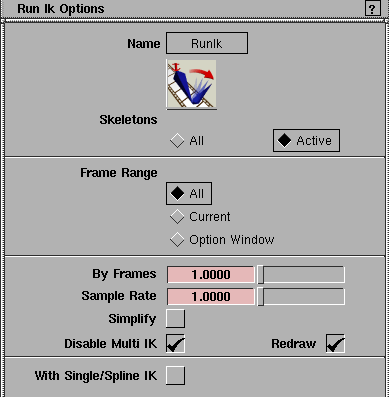
Skeletons
All
-
- The Run IK simulation runs on all root-level skeletons that have multi-chain IK handles, regardless of what is currently picked.
-
- A root-level skeleton is a joint node with no ancestors that are joint nodes. This joint node and all joint nodes below it make up a skeleton.
Active
-
- The Run IK simulation runs on all joint nodes on the skeletons that are currently active.
-
- The skeletons are defined from the picked joint node and all joint nodes below it. Anything that is picked but is not a joint node will be ignored.
Frame Range
All
-
- The default frame range includes the range of animation for all the IK handles attached to the picked skeletons.
Current
-
- The IK simulation starts at the current frame and runs until you press the Esc key.
Option Window
-
- Lets you specify start and end frames. When you click this button, the following controls appear:

-
- You can specify the frame range for the IK simulation by the Start Frame and End Frame values. These values apply for running the IK simulation only if Option Window
is selected.
By Frames
This is the increment at which keyframes will be set for skeleton during the IK simulation. If the Simplify option is ON, some of these keyframes may be removed after the simulation is complete.
Sample Rate
This is the increment at which the Run IK simulation will be run. For example, if the Sample value is 0.2 frames, and the By value is 1.0, then the IK simulation runs for 5 steps for each frame before setting a keyframe in the skeleton.
Since the IK handle animation is sampled at different frame values, the inverse kinematics may cause a jump from one frame to another. Choosing a smaller Sample value ensures that the inverse kinematics solution is smoother, even though generating keyframes are only generated at the By value increments.
Simplify
If the Simplify option is toggled ON (indicated by a check-mark), all the animation curves that were created in the skeleton during the IK simulation are simplified after the simulation to remove as many keyframes as possible within the given tolerance, while still preserving the shape of the original curve.
When it is checked, the following addition controls appear:

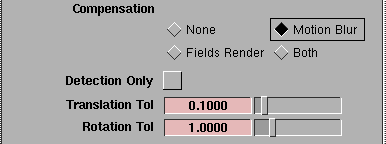
Translation/Rotation Tol
-
- These tolerance values are used for simplifying the curve. A tolerance specifies how much the simplified curve may differ from the unsimplified curve at each keyframe.
-
- These two sliders let you specify different tolerances for curves that are animating joint rotation versus those animating joint translation. For example, the default tolerance for rotation is higher than that of translation because a difference of one degree of rotation is usually less noticeable than a difference of one unit of translation.
Disable Multi IK
If this option is set ON, all multi-chain IK handles are disabled after the Run IK simulation.
Redraw
|