|
If you are having difficulty
seeing the selection handle
you created, you can move it
away from the object or node
using Xform > Local > Move
selection handle or Xform >
Local > Set pivot and
opening its options.
|
-
A pale orange cross and the node name are displayed at
the object's or node's rotate pivot (the cross looks like the
one in the icon). If the selection handle is inactive, the
cross and node name become red.
Example
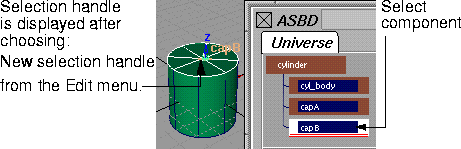
Using a cylinder as an example, you can place selection handles on the component nodes and use them to easily activate the components or the cylinder as a whole. To add a selection handle:
-
1
-
Select the component in the ASBD window.
-
2
-
Select Edit > New selection handle. A new handle is displayed at the rotate pivot.
-
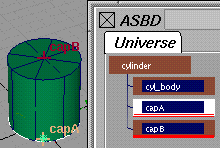
Continue to add new handles as you need them. In the
following examples, two more selection handles are
added to the cylinder.
|
|
Because the Xform tools are
sensitive to the selection
handle pick mode, you can
very easily transform just the
component, like capB or the
whole cylinder.
|
-
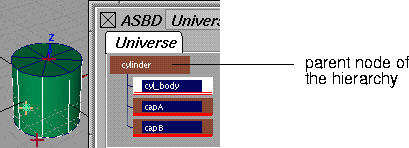
The following shows all three handles.
|


