|
Windows > Edit > Clusters |
Editing Cluster Attributes | ||
|
| |||
The Cluster option is available in Alias AutoStudio and is a purchasable Advanced Animation option. The Cluster Editor lets you add or remove cluster members, move or copy members between clusters, modify percentage effects of members, toggle a cluster's percentage effect type between joint or leaf DAG nodes, or reorder the clusters to set the order in which the cluster transforms will be applied. How to Use | |||
|
See Edit > New cluster on page 356 for details on creating clusters. |
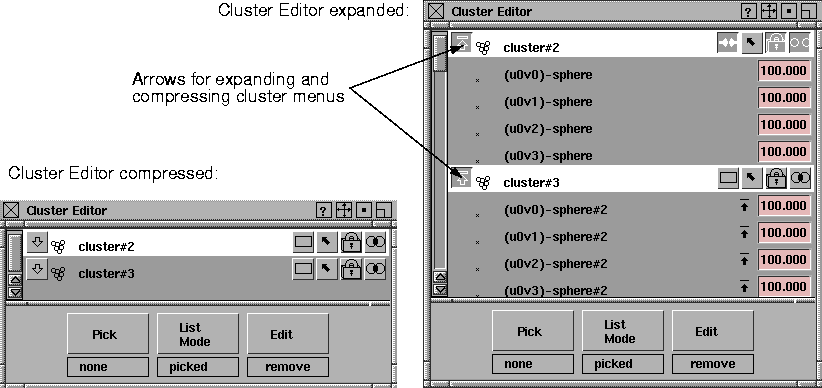
Create a cluster using Edit > New cluster, then select Windows > Edit > Clusters to display the Cluster Editor. Cluster Editor WindowWhen the Cluster Editor is opened, all clusters specified by the list mode (picked by default, or clusters with an active ancestor in the DAG) will be loaded into the Cluster Editor. The clusters are loaded compressed (that is, the members are not visible and are listed according to their global ordering). | ||
| |||
Name fieldThe name of a cluster can be changed by double-clicking on the name field. Cluster Editor Buttons | |||
|
|
The expand/compress cluster buttons let you expand a cluster to view each of its members, or to compress the cluster to show just the name of the cluster. When a cluster is expanded, members are displayed in the following order: first DAG nodes alphabetically by name, then surface CVs, curve CVs and polyset vertices. When a cluster is expanded to show its members, a member may be a DAG node. In this case, the DAG node will contain an expand member arrow to the left of its name. If this arrow is selected, the DAG node will be expanded to show everything below it (for example, other grouped DAG nodes, or geometry CVs). If all the siblings of a cluster member are in the cluster (for example, all the CVs of an object are in the cluster), then the member will have a compress arrow to the right of its name. If this arrow is selected, the parent DAG node will replace the member and its siblings in the cluster. | ||
|
|
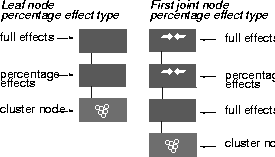
The percentage effect type buttons toggle the percentage effect type of the cluster. The joint percentage effect type tells the cluster to apply its percentage effects to the transformations in the first skeleton joint node that is above the cluster. Leaf node percentage effects tells the cluster to use the transformations in the DAG node directly above it. | ||
|
|
The pick-in-modeler button updates the pick state in the modeler for the cluster and its members. | ||
|
|
The lock-in-list button ensures that this cluster will remain in the Cluster Editor even if the cluster is unpicked in the modeler. | ||
|
|
This is useful in the List Mode > picked mode, where the Cluster Editor will continually update to reflect the currently selected items, and so the cluster would otherwise disappear from the editor if it was unpicked. | ||
|
|
The multi/exclusive button lets you toggle the cluster membership type. An exclusive cluster cannot contain cluster members that are in any other cluster. | ||
|
|
Multi-clusters can contain members that are in other multi-clusters. An exclusive cluster can always be made multi; however, a multi-cluster may only be set to exclusive if none of its members belong to any other cluster. Cluster PercentagesIf a cluster is expanded to its CV members, then the CVs will be displayed with a percentage to the right of them. This number represents the percentage effect the cluster will have on that particular CV.
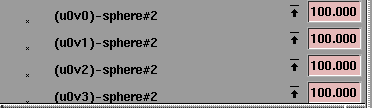
Cluster percentages are a simple extension to clusters that increase their power greatly. Instead of assigning the same transformation to each member of a cluster, the CV cluster members are given a percentage value. When the cluster transformation is applied, each CV in the cluster uses only its given percentage of the cluster transformation. The percentage only applies to one DAG node in the hierarchy, depending on the Percentage Effect type (see below). For instance, if the cluster transformation is a translate of 5.0 in the X direction, a member with a 50% effect will translate only 2.5. A member with a 200% effect will translate 10.0, and a member with 0% effect will remain where it is. Changing Cluster PercentagesYou can change the percentage effect of a CV in the Cluster Editor by clicking on its current percentage and typing a new value, or by using the micro slider by holding down the mouse button and moving left and right. To change the percentage of many CVs all at once, select all the CVs in a cluster to have their percentages changed, click on the value next to one of the CVs, and enter a new value. All the selected CVs will be given this new percentage value. Cluster Percentage Effect TypesBy changing the cluster percentage effect type you control which DAG node in the hierarchy above the cluster will have the percentages applied to its transformations. If the leaf type percentage effects type is chosen, the transformations of the DAG node that is directly above the cluster will be weighted by the cluster percentages of the cluster. All other DAG nodes in the hierarchy will have their full transformations applied. When the joint type of percentage effects is chosen, the percentage effects will be applied only to the first joint DAG node above the cluster. All other DAG nodes in the hierarchy both above and below the first joint node will have their full transformation applied to the cluster members. Joint type percentage effects have an additional feature in that the percentage effects are only applied to the difference between the current transformations in the joint and the transformation that was in the joint node when the joint type cluster was created. If a cluster has its percentage effects type set to joint and there is no joint node above the cluster, it will behave as if its percentage effects type was set to leaf. For example, suppose you had a simple chain skeleton with a leaf type cluster under its bottom joint, and that bottom joint's transformation is a simple rotation of 60 degrees around the Y axis. If you toggle the cluster percentage effect type to joint, the cluster will remember the Y axis rotation. Now, suppose you rotate the joint further around the Y axis to 80 degrees. A member with a percentage effect of 50% will inherit the original transformation of 60 degrees plus half of the difference between 60 and 80 degrees, resulting in a net transformation of 70 degrees. A member with a percentage effect of 25% would rotate by 65% degrees, and a member with a percentage effect of -25% would rotate by 55 degrees. For leaf type percentage effects the original transformation is always assumed to be the identity. That is, 0 for the X,Y, Z translates, 0 for the X,Y, Z rotates, and 1 for the X,Y, Z scales. Continuing the example, if after rotating to 80 degrees you were to toggle the cluster percentage effect type back to leaf node, the members affected by the cluster would shift. A member with a percentage effect of 50% would now take half of 80 degrees giving a net transformation of 40 degrees, a member with 25% would rotate by 20 degrees and a member with -25% would rotate -20 degrees. The following illustration shows what percentages look like in the SBD window.
Multi-cluster transformationsA global ordering of all clusters in the model exists. The global ordering defines the order in which the cluster transformations will be applied to a CV that is in more than one cluster (a multi-cluster). If the multi-clusters contain only translation transformations, the order does not matter. However if the multi-clusters contain rotation or scaling transformations, then the actual position of the CV will depend on the order of the clusters it belongs to. | ||
|
|
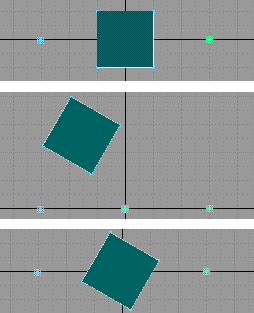
The diagrams to the side illustrate this point. In the first diagram, a plane is created and placed at the origin. The plane is then put into two multi-clusters, one with its pivot to the left of the plane, and the other with its pivot to the right of the plane. The second and third diagrams show two different effects when the clusters are each rotated 60 degrees. In the second diagram, the cluster with its pivot to the left of the plane is applied first, whereas in the right diagram, the cluster with its pivot to the right of the plane is applied first. Global ordering is useful to achieve layered cluster effects. For example, if you animate a slug by flowing it along a motion path (see Anim > Set motion on page 37 with the FLOW option), and then animate the slug's eyeballs on top of his eyestalks using a cluster deformation, then the cluster transformation affecting the eyestalks should occur before the cluster transformation affecting the whole body. If Anim > Set motion was performed before the clusters for the eyestalks were created, then the cluster transformations will be applied in the wrong order, and the animation will appear incorrect. Reordering these clusters so that the deformation cluster for the eye stalks appear before the flow clusters will correct the situation. The order in which clusters are applied to a model can be changed by reordering the clusters in the Cluster Editor. Click and hold the mouse button on a cluster that you want to reorder, then drag it and drop it on top of another cluster. This will reorder the clusters so that the selected cluster (which is being dragged) appears directly before the one on which it was dropped, (independent of any other clusters not visible at the time). The current target cluster will be highlighted in white as the dragged cluster moves over it. The Cluster Editor need not show all the clusters in the model, the ones that are present will be in the correct relative order. If you want to move several clusters at a time, select them all before starting the drag. All the selected clusters will be placed ahead of the "target" cluster. Cluster Editor menus | ||
|
|
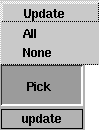
Pick
| ||
|
|
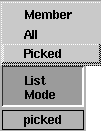
List Mode
| ||
|
|
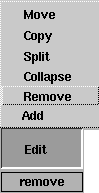
Edit
Other Cluster Editor FunctionalityA single click on a deselected item will select it, and deselect all other items (cluster or member) in the Cluster Editor. To select multiple items, hold Shift down and click on the items you want to select or deselect. Or, you can hold Shift and click on a deselected item, hold down the mouse button and drag-pick to select a group of items. Starting on a selected item results in an unpick. Dragging past the ends of the lister will scroll the lister and continue picking or unpicking. Dragging farther past the ends of the window will accelerate the scrolling. If only members are selected, then dragging them into another cluster will move the members to the target cluster. The percentage effect on the members will be preserved. | ||
| Copyright © 1998, Alias|Wavefront, a division of Silicon Graphics Limited. All rights reserved. | Please send questions or comments regarding the documentation to: [email protected] |