10 |
Animating and Deforming Surfaces |
In This Section:
|
|||||
|
Edit > New cluster |
Creating Clusters | ||||||
|
| |||||||
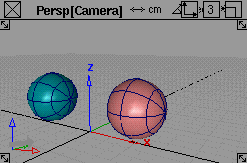
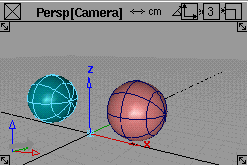
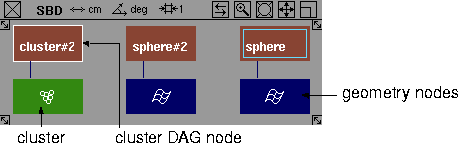
The Clusters option is available in AutoStudio and is a purchasable Advanced Animation option OverviewA cluster is an entity that logically groups an arbitrary list of CVs and DAG nodes so that they can be transformed and manipulated as a single entity. A cluster can be viewed as a type of object that has no geometry of its own, but refers to other geometry. Creating a ClusterTo create a cluster, pick all the objects and/or CVs that you want to put in the cluster and select Edit > New cluster. The CVs do not have to belong to the same piece of geometry. A cluster node is created with a DAG node above it. When this DAG node is transformed, each of the CVs in the cluster are transformed. You can move the pivots of the cluster and then perform an Xform > Rotate or Xform > Scale transformation. The CVs of many objects can be transformed relative to a common pivot. >
Example
The new cluster DAG node will be the only item on the pick list after the operation is complete. >
Picking ClustersYou can select geometry in any modeling window to pick all the cluster DAG nodes whose corresponding cluster contains the geometry. Any cluster that contains a selected CV or DAG node will have its DAG node picked and highlighted. You can pick a cluster DAG node in one of four ways:
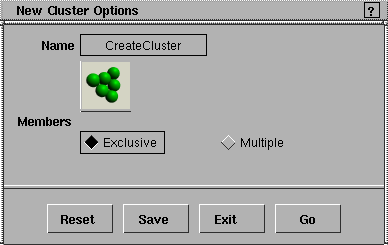
New Cluster Options
Select Edit > New cluster -
| |||||||
|
You can change the Members state once a cluster has been created in the Cluster Editor window. See the section on the Windows > Edit > Clusters on page 360 for details. |
MembersExclusive
Multiple
|
| Copyright © 1998, Alias|Wavefront, a division of Silicon Graphics Limited. All rights reserved. | Please send questions or comments regarding the documentation to: [email protected] |
 to display the New Cluster Options window.