|
|
Animation > Time
Warps > New time
warp
|
Applying a Time Warp
|
|
|
|
|
How to Use
-
1
-
Create an animation on several objects.
|
|
The new time warp curve
does not initially have any
warping effects on the
channels to which it is
applied. You can open the
Action Graph Editor in the
Action window
and edit the
time warp curve to create
different warping effects.
|
-
2
-
Select Animation >Time Warp > New time warp, and a new time warp curve is created. This time warp curve is now applied to all channels of all active items.
New Time Warp Options
Select Animation >Time Warp > New time warp - to display the New Time Warp Options window. to display the New Time Warp Options window.
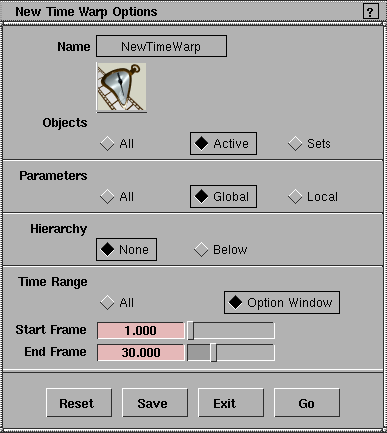
Objects
All
-
- The new time warp curve is applied to all currently animated objects.
Active
-
- The new time warp is applied to all picked objects.
Sets
-
- The new time warp is applied to all objects in the selected sets in the set lister. To display the set lister, select Windows > Sets > Set lister.
Parameters
All
-
- The new time warp is applied to every channel (every animation parameter that is currently animated) of the object.
Global or Local
-
- The new time warp is applied only to the channels whose parameters are selected in the GLOBAL or LOCAL parameter control windows. To set different global or local animation parameters, select Animation > Param control.
Hierarchy
None
-
- The new time warp is applied to only the selected objects.
Below
-
- The new time warp is applied to the selected objects, and all objects below them in the hierarchy.
>
|
Note:
|
For DAG nodes, CVs, and cameras, the hierarchy refers to
the hierarchy as represented in the SBD window. For
shaders, textures, and lights, the hierarchy refers to the
implicit hierarchy in the Multi-lister.
|
Time Range
Defines where the first and last keyframe of the new time warp curve should be placed.
All
-
- The range of all channels to which the time warp curve is applied is found, and the two keyframes at the minimum and maximum time of all the animation for this channel are created.
Option Window
-
- The Start and End options are used to determine at what time to create its new keyframes.
-
- When you select the Option Window option, the New Time Warp Options window expands to display the following:
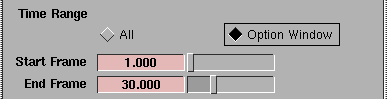
Start Frame/End Frame
-
- Defines in what time range the new time warp curve should be applied. These values are only used if the Time Range option is set to Option Window.
|
Animation > Time
Warps > New cycles
warp
|
Cycling Sections of Animation with a Time Warp
|
|
|
|
|
How to Use
-
1
-
Create an animation on several objects and select
Animation > Time Warp > New cycles warp.
-
A new time warp curve is created that will be applied to
all specified channels of the selected animated items.
These channels now cycle through the animation between
frames 1 and 30 twice before continuing on with the
remainder of the animation.
-
2
-
To change the range of animation to be cycled, or the number of cycles, select New cycles warp - to display the Cycle Options window and change the options.
An alternate way to cycle the complete range of animation on a channel for an infinite (or undetermined) number of times is to use the Cycles or Oscillate out-of-range type on the base action of a channel, instead of applying a timewarp. See the Action Tools menu items in the Action Window. For more information on timewarp curves, see Animation > Time Warps on page 422s.
Cycle Options
Select Animation > Time Warp > New cycles warp - to display the Cycle Options window.
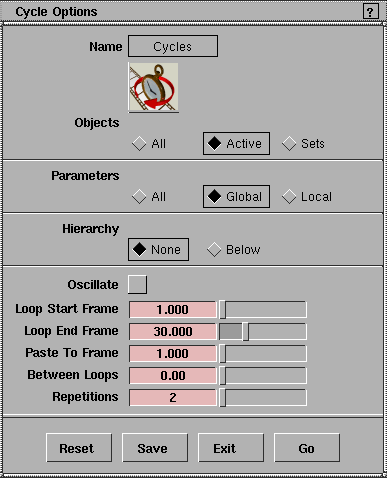
Objects
All
-
- The new timewarp curve is applied to all currently animated objects.
Active
-
- The new timewarp is applied to all picked objects.
Sets
-
- The new timewarp is applied to all objects in the selected sets in the set lister. To display the set lister, select Windows > Sets > Set lister.
Parameters
All
-
- The new timewarp is applied to every channel (every animation parameter that is currently animated) of the object.
Global
or Local
|
|
To set different global or
local animation parameters,
select Animation > Param
control.
|
-
- The new timewarp is applied only to the channels whose parameters are selected in the GLOBAL or LOCAL parameter windows.
Hierarchy
None
-
- The new timewarp is applied to only the selected objects.
Below
-
- The new timewarp is applied to the selected objects, and all objects below them in the hierarchy.
>
|
Note:
|
For DAG nodes, CVs, and cameras, the hierarchy refers to
the hierarchy as represented in the SBD window. For
shaders, textures, and lights, the hierarchy refers to the
implicit hierarchy in the Multi Lister.
|
Oscillate
If toggled ON (indicated by a check mark), the new timewarp cycles the segment of animation in the forward direction followed by the backwards direction. The amount of time the cycled animation occupies is doubled again.
If toggled OFF, the new timewarp repeats the segment of animation in the forward direction only.
Loop Start Frame/Loop End Frame
Defines the range of existing animation (before the timewarp is applied) that is to be affected by the timewarp (cycled).
Paste to Frame
Indicates where the range of animation between Loop Start and Loop End should be inserted on the original animation of the channel.
Between Loops
Indicates the amount of time to wait before beginning the next repetition of the cycle. This value may not be negative.
Repetitions
Indicates the number of times that the range of animation between Loop Start and Loop End of the original animation should be repeated.
|
Animation > Time
Warp > New scale
warp
|
Scaling Animation Timing with a Time Warp
|
|
|
|
|
How to Use
-
1
-
Create an animation on several objects.
|
|
You can also scale the
animation on channels by
selecting the channels in the
Action Window, and using
Xform > Scale
to scale the
channels. See Animation >
Action window
for details.
|
-
2
-
Select Animation > Time Warp > New scale warp - to display the Time Scale Options window.
-
3
-
Set the Time Scale option to 2. A new timewarp curve is created that is applied to all specified channels of the selected animated items.
|
|
For more information on
time warp curves, see
Animation > Time Warps on
page 424.
|
-
These channels are now all scaled by 2, which means that
their animation now takes twice as long to play back.
Time Scale Options
Select Animation > Time Warp > New scale warp - to display the Time Scale Options window.
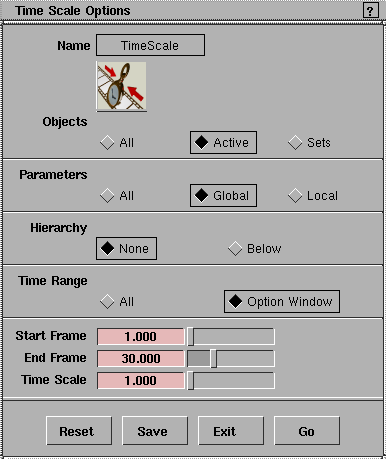
Objects
All
-
- The new timewarp curve is applied to all channels of all currently animated objects.
Active
-
- The new timewarp is applied to all picked objects.
Sets
-
- The new timewarp is applied to all objects in the selected sets in the set lister. To display the set lister, select Windows > Sets > Set lister.
Params
All
-
- The new timewarp is applied to every channel (every animation parameter that is currently animated) of the object.
Global or Local
|
|
To set different global or
local animation parameters,
select Animation > Param
control.
See
Animation >
Animation > Param control on
page 19 for more
information.
|
-
- The new timewarp is applied only to the channels whose parameters are selected in the GLOBAL or LOCAL parameter control windows.
Hierarchy
You can select which parts of a hierarchical animation are to be scaled in time.
None
-
- Only the animation at the picked node is scaled. None is the default.
Below
-
- Only the animation from the nodes at and below the picked nodes are scaled.
>
|
Note:
|
In the case of DAG nodes, CVs, and cameras, the hierarchy
refers to the hierarchy as represented in the SBD. In the case
of shaders, textures, and lights, the hierarchy refers to the
implicit hierarchy in the multi-lister (see Windows > Multi-
lister).
|
Time Range
Defines the range of animation that the time warp curve should scale.
All
-
- The range of all channels to which the time warp curve is applied is found, and two keyframes at the minimum and maximum time of all the animation for this channel are created.
Option Window
-
- The Start and End options are used to determine at what time to create its new keyframes.
When you select the Option Window
option, the following sliders are displayed:
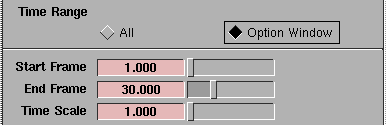
Start Frame/End Frame
Defines in what time range the new timewarp curve should be applied. These values are only used if Time Range is set to Option Window.
Time Scale
Indicates how the new timewarp should scale the animation to which it is applied. For example, a scale of 3 makes the animation take three times as long to play back. A scale of 0.5 makes the animation take half as long to play back.
|


