


24 |
Troubleshooting |
You may encounter problems either during rendering (for example, rendering ends prematurely) or after rendering (for example, image quality is poor). In This Section:Common Rendering Problems |
|
| |
Rendering ends prematurelySome common causes include:
| |
If either of these do not seem to be the cause of the problem, then do one or all of the following:
Images that don't exist take a long time to loadThe interactive package attempts to locate an image file in all directories specified by ALIAS_PIX_SEARCHPATH. Reduce the number of directories in ALIAS_PIX_SEARCHPATH. Rendering takes a long timeCommon Image Problems | |
|
| |
Rendering ends normally, but image has problems. This section contains the following topics: ShadowsShadows produced from shadow casting have jagged shadow boundariesShadow map resolution is low. Do one of the following:
Shadows from light fog may appear incorrect for very thin objects, or
| |
Increase the Fog samples for the spot light. Soft shadows produced by raytracing are noisy or jitteryDo one of the following: | |
| |
A dark moire pattern on a surface when raycasting, or
| |
The renderer incorrectly believes that a surface is behind its shadow map. Do one of the following: | |
| |
Incorrect or jittered shadows for moving objects with motion blurShadows are not motion blurred. The renderer calculates an object's shadow map when the camera shutter is at midpoint. When the object moves, it may move behind its own shadow map. Do one of the following: | |
| |
|
The new shadow map algorithm is not enabled by default because it has problems shadowing particles and light fog. |
|
Glows
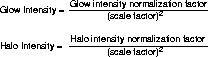
Shader glow brightness changes during an animation, or
| |
| |
Glow is missing from volume lightsLight from a volume light exists only within its volume. If the camera is not within this volume, then glow is not rendered. Do one of the following:
Linear and area lights shine through objects, or
| |
Create a shader glow object with the same shape as the light, and set Hide Source ON. Light glow shines through objects | |
Set Opacity to 0 for the light. Light glow shines through objectsThe radius of the light may be so large that it is never completely occluded by the object that should be shadowing it. | |
Check the Light Radius (under Common Parameters). The default setting is 1 (that is, two grid units in diameter). If Light Radius is large in relation to the geometry in the scene, reduce Light Radius to a value comparable to the size of the geometry. Glows do not renderThere is not enough memory for the renderer to calculate glows. Do one of the following: | |
| |
AliasingJaggies or roping, noisy or jittered images, shimmer or moiré-banding over an animationNot all aliasing artifacts are caused by the same limitations, nor are they resolved in the same manner. For example, increasing the Minimum and Maximum Anti-aliasing Levels will not solve the problem optimally. Types of aliasing include: geometry, textures, shadows, highlights, and motion blur. GeometryGeometry has jagged edges against the backgroundComposite Rendering may be ON. Do one of the following: | |
| |
Textures
File textures are very noisy and not anti-aliased well, or
| |
| |
| |
An in-focus object next to a blurry foreground/background (Depth of Field ON) shows a jaggy artifactRender the blurry foreground/background separately, and composite. Textures are distorted (stretched and/or squashed) | |
The surface may have uneven parameterization. Set Chord Length ON under the texture's Surface Placement parameters. Motion BlurMotion blur noiseInsufficient temporal sampling of shading and/or textures. | |
If the texture looks grainy, increase MB Texture Samples (under Render Stats) for the object. This will marginally increase rendering time. | |
If the specular looks noisy, increase MB Shading Samples (under Render Stats) for the object. This will noticeably increase rendering time; increase MB Shading Samples only when absolutely necessary. Large objects do not motion blur correctlyA large object that stretches way beyond the view is clipped by the renderer. This clipping is done properly when the object is not motion blurred, but may clip incorrectly when the object is motion blurred. | |
Increase the object tessellation by increasing either Minimum Subdiv and Maximum Subdiv (if Adaptive Subdiv is ON), or Uniform U and Uniform V (if Uniform Subdiv is ON) for the object in the Render Stats window. Motion blur does not workThere are two possible causes:
| |
Rendering with motion blur produces grid-like artifacts, or
| |
If the moving object is a patch or a polyset with u,v parameterization, use Convert Solid Tex and apply the pix file as a File texture. | |
If the moving object is a polyset without u,v parameterization (for example, a ViewPoint model), apply the solid texture as a Projection texture, and perform a Project to UV mapping (under the texture's Polyset Surface(U,V) Definition). Warped objects do not motion blur when warp parameters are animatedWhen a warp parameter is animated, the resulting changes in the shape of the warped object are not motion blurred. An object moving through a warp will be motion blurred correctly. Move the object relative to the warp. Chatter in motion blurred textures moving behind transparent surfacesMotion blurred textures moving behind transparent surfaces may show chatter in the texture. | |
Increase MB Shading Samples for the transparent surface. Motion blurred textures appear streaked or jitteryMotion blurred textures may appear streaked or jittery for fast moving objects. Do one of the following: | |
| |
ParticlesParticles do not emit from faces, shells or stitched objectsThis is a known limitation. Particles render inconsistentlyParticles may render inconsistently if Animation is OFF. Do one of the following: | |
| |
|
See Use File on page 290 of this book, and Save Particles in the Animating in Alias book. |
Particles emit incorrectly from convex polysetsThis is a known limitation. Rendering blobby surface particles with light fog produces artifactsType setenv ALIAS_LIGHTFOG_BLOBBY from the console window before launching Alias. Rendering particles takes longer than previous versions of Alias.Previous versions of Alias determined the rate of particle emission based on the amount of machine memory. This resulted in different renderings on machines with different memory configurations. Particles are not generatedParticles are not calculated if the emitter is invisible on the start frame of rendering. Do one of the following: |
| |
|
See Use File on page 290 of this book, and Save Particles in the Animating in Alias book. |
Changing Emission or Behavior parameters, or the Parent Color parameter does not affect particlesChanging any Emission or Behavior parameters, or the Parent Color parameter, does not affect particles that have already been emitted, or particles that have already been generated and saved in a particle file. In order to see the effect of any change in these parameters, you must run the simulation again (or invoke a batch render, which does its own run of the simulation).
Particles that overlap a transparent surface make the surface partly visible, or
|
|
See Setting Keyframes for Isolated Animatable Properties in the Animating in Alias book. |
|
|
See Attenuate Transp. (Attenuate Transparency) on page 410 and Opacity Depth on page 81. |
Particles do not recompute over each odd and even field, only on each frameThis should not produce any clearly visible artifacts. Particle Transparency has no effectParticle Transparency may seem to have no effect when the Render Type is BLOBBY SURFACE, and the particles are either very large or very small. Because transparency is based on the depth of the blobby substance in world units, changing transparency may seem to have no effect, but it actually does. Set particle Density to 1/particle Size. For example, if particle Size is 0.1, set particle Density to 10. Particles with Parent Color ON do not have the correct parent colorIf Parent Color is ON, the particle's actual color is determined by multiplying the emitting object's color by the particle Color parameter. If you want the particles to have the exact same color as the emitting object, then make sure that the particle Color parameter is white. Particles do not emit correctly from a displacement mapped surfaceIf a particle emitting surface is displacement mapped, the particles are emitted from the surface's original, non-displaced position. Particles originating at the camera origin disappearParticles may disappear when Surf Shading is set to a non-zero value and particles originate at the camera origin. A rendering error occurs when particles collide with a surfaceA rendering error may occur when motion blurred particles collide with a NURBS surface that has geometry collisions on. Create a particle file, and then turn collision off for both the NURBS surface and the particle system before rendering. Hair grows longer or lags behind when the emitting object moves |
|
See Simulation substeps on page 418 and Hair Segments on page 301. |
Set Simulation substeps in Render Globals to the same value as Hair Segments in Particle Properties. WarpsUnable to pick a warped objectThe object's bounding box is unwarped. Use a larger marquee pick region. Objects with both warps and displacement maps result in unexpected behaviorThis is a known limitation. Warped objects do not render properly
Warped objects with degree 1 patches along the patch edges may not render properly. Degree 1 patches are often generated from the Surfaces > Set planar- Create a degree 3 plane, project the outline curves onto the geometry and trim the result. Warps do not produce smooth surfacesThe warp may have sudden discontinuities in its field, and these discontinuities overlap the surface. For example, the twist warp preset (Objects > Warps > Twist) pushes a surface the most at the edges of the cylinder, however just beyond the edge of the cylinder, the warp is zero. A surface intersecting the edge will go from no warp to maximum warp across the span of a single triangle. Use the Decay and Dropoff parameters to smooth these transitions. If this is insufficient to smooth the field, smooth the gradients by texturing the light's color (which affects the warp intensity). Shadows on warped objects are incorrect or polygonal |
|
See Warp Objects on page 319 and Object Rendering Parameters on page 422. |
If Warp Objects is set to PIXEL_RES, change it to TRIANGLE_RES and increase the object's Minimum Subdiv and Maximum Subdiv (if Adaptive Subdiv is ON) or Uniform U and Uniform V (if Uniform Subdiv is ON) in the Render stats window. Miscellaneous Object ProblemsRoping artifacts on highlightsThe hard-edged highlights that the standard Phong model produces (many times magnified by a noisy bump map). |
Use the Blinn shading model instead. Also try turning the Post Filter option ON in the Blur Effects section of the Render Globals window.
Transparent objects do not show the background when raytracing, or
| |
| |
Blended surfaces do not renderIf part of a blended surface is visible, and another part is invisible, the surface will not render. The invisible part of the surface is not written to the SDL file, so the blend cannot be regenerated for each frame. Make all parts of a blended surface visible. Displacement mapping does not work for layered shadersOnly the lowest available layered shader can apply a displacement map. Create a single displacement map and apply it to the lowest layered shader. Chord Length texture maps do not display correctly in Shade Wire modeIf a surface with uneven parameterization and a checker texture map with Chord length ON is Quick rendered, the texture looks even, as a result of the chord space conversion. However, if the Quick render window is closed, and the shaded wire icon in the icon of the texture is clicked on, the surface is displayed as though Chord spacing is OFF. Instanced objects with worldspace texture mapping render incorrectlyThis is a known limitation. Copy the geometry rather than instance it. Renderer does not recognize BOT (block oriented texture) files directly applied as texture maps | |
Set Texture Caching ON under Render Globals. Invisible instances of objects are visibleThis is a known limitation. Duplicate the object instead of instancing it. Bump map using a file texture does not render as expectedIf the file has an alpha channel, then the alpha channel is used for bump mapping. If the file does not have an alpha channel, the RGB color channels are converted into a grayscale using a luminance calculation, and then used for bump mapping. Remove the alpha channel from the file texture. Banding appears on low intensity objectsThis is due to the 8-bit per color channel limitation. Do one of the following:
Templated objects rendered in an animated sequence become visibleThis is a known limitation. Overall Image ProblemsBlack borders (letter box) appears in renderThe black borders define the film gate. | |
Set Ignore Film Gate ON under Render Globals. The rendered image does not match the view in the modeling window or cameraThere are several possible causes:
| |
|
See Use result in the Animating in Alias book. |
Color banding in rendered image |
Set Film Grain to 0.01 in the environment control window. Overall image is too sharp | |
Set Post Filter ON under Render Globals, and set the Post Center, Post Adjacent and Post Diagonal parameters to 4,2,1. Common Interface Problems | |
|
| |
Interface problems include any problems you encounter with parts of the Alias interface that relate to Rendering (for example, the Multi-lister) or with specific types of rendering modes (for example, Quick Render). This section contains the following topics: Quick RenderGlows and particles do not Quick render in the perspective magnify windowThis is a known limitation. Partial Quick Rendering Ignores GlowIf Persistence is toggled on (under Global Quick Rendering Parameters), and a partial (subregion) Quick render is done, the partial region ignores shader glow. Click on the Quick render window to render the entire window. Light glows do not quick renderThis is a known limitation. Render light glows using the batch renderers. Shade ModeBlack dots appear on textured objects in toggle shade mode on an Indigo 2XIf Fast Options is OFF and Display textures is ON (under Toggle Shade Options), black dots may appear on the texture when the subdivided triangles are very small. | |
Reduce the subdivision level for the problem surface by reducing either Minimum Subdiv and Maximum Subdiv (if Adaptive Subdiv is ON), or Uniform U and Uniform V (if Uniform Subdiv is ON). Textures do not render correctly in Toggle Shade or Fast Render mode | |
Open the Global Quick Rendering Parameters window, make sure Textures is ON, and perform a quick render. Toggle Shade and Fast Render should now render textures correctly. Volume lights do not render correctly in Toggle Shade modeVolume lights are treated as point lights in Toggle Shade mode. Modeler WirePolysets do not render correctlyThis is a known limitation. Shaded wire only displays NURBS surfaces and faces correctly. Fast RenderFast Render does not load V7.0 RRFR files properly.When updating RRFR from the interactive package, the camera view will also be updated in RRFR. Powercaster/PowertracerMultiple renders on the same multi-processor machine produces the message "/usr/temp/sgi_mp_rt_locks permission denied"Use the command setenv ALIAS_PLACE_LOCKS_IN_SWAP. Multi-listerSuper textures (Studio Paint 3D textures) don't display on shader swatches in the Multi-listerThe Multi-lister does not display actual super textures. Instead, it displays super textures with an icon resembling a layering of a stack of papers. Numeric fields do not allow lateral, slider-like movementPress the Alt key and drag the mouse in the numeric field. Low resolution shader swatches are not displayed in the Multi-listerIncrease the resolution of the shader swatch. Shader swatch color is not accurateThe shader swatch is only a preview of the final result. Colors may not be exactly as shown. Always perform test renders. FlipbookFlipbook does not display mask filesUse the utility fcheck in the common bin/ directory to display sequences of mask files. Flipbook does not support negative file extensionsAlways use positive integers for file extensions. |
| Copyright © 1998, Alias|Wavefront, a division of Silicon Graphics Limited. All rights reserved. | Please send questions or comments regarding the documentation to: [email protected] |
 function when Trim Surface is selected in the option box.