|
|
Camera
-
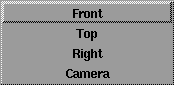
- The camera whose parameters are currently displayed in the Camera Editor: Top, Right, or Front window cameras, or Camera (the perspective window's camera). If you have additional cameras in your scene, they will also be listed in this menu, including cameras that are not used by any windows.
Camera Properties
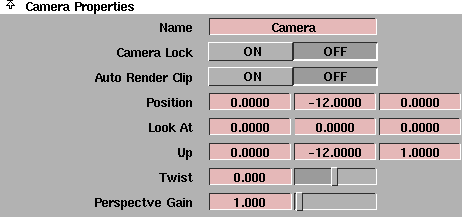
The Camera Properties control the position and orientation of the current camera. The Twist and Perspective Gain parameters are only available for perspective cameras.
Name
-
- The name of the current camera. You can type in this field to change the name of the camera. If you change the name of a camera, the name in the camera's window (in the title bar) also changes.
Camera Lock
-
- Locks the camera in place so that you are not able to dolly, track, or move the camera in any way. This can be useful when working with image planes. The default setting is OFF (the camera is not locked).
Auto Render Clip
-
- Makes the renderer automatically compute the near and far clipping planes (based on the bounding boxes of the objects in your scene) so that they include all visible objects in the current view frame. This parameter has no actual effect on the camera.
-
- You can also produce this auto clipping behavior by editing the SDL file and setting the near clipping plane value to 0.
-
- Clipping planes are ignored during raytracing.
Position, Look At, Up
-
- Determines the camera's view by defining the camera's position (Position), view point or focal point (Look At), and up vector end point (Up). Each parameter has three fields, corresponding to the XYZ coordinates for that parameter.
-
- Positioning a camera by editing these parameters may be difficult, and is not recommended for positioning orthographic cameras. If you do edit these parameters, display the camera in the orthographic windows to help visualize the changes (see Displaying Camera Icons on page 327).
Twist
-
- The tilt of the camera (from side to side) in degrees. The Up and Twist parameters define the same camera property in different ways. Changing one alters the other. For example, if you change the X Up value to 2, the Twist value automatically changes to -63.435. The slider range is -180 to 180. The default value is 0.
Perspective Gain
-
- A scaling factor applied to the camera's tracking control. The valid range is 0 to ·. The slider range is 0 to 25. The default value is 1.
Film Back Properties

The Film Back Properties let you set the film size of the current camera by entering numeric values. You can also select a standard film size from the Predefined Film Backs list.
Film Back (inches)
-
- The horizontal and vertical size of the film format (in inches). The default values are 0.4 and 0.285.
-
- Be careful when setting these values because they are related to the camera's Focal Length and Angle of View values (see Lens Properties on page 338).
Film Offset (inches)
-
- The horizontal and vertical offset of the film center from the lens axis center (in inches). The default values both 0.
Predefined Film Backs
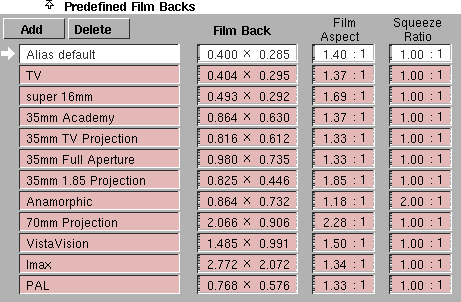
The Predefined Film Backs are standard film sizes that you can select for the current camera. Each predefined film back has a Film Back, Film Aspect, and Squeeze Aspect parameter; however, you can only edit the Film Back value (Alias does not use the Film Aspect and Squeeze Aspect values).
To select a predefined film back, simply click on it. When you select a predefined film back, the Film Back values (under Film Back Properties) automatically change. To add a new predefined film back, click the Add button. To delete a predefined film back, select the film back from the list and click the Delete button.To edit a predefined film back, double click the field you want to edit, type in the new value, and press Enter.
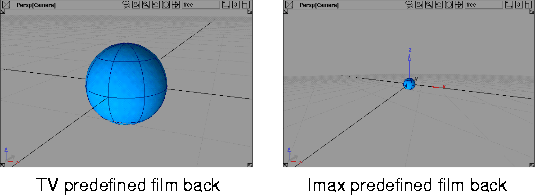
Film Back
-
- The horizontal and vertical size of the film format (in inches).
Film Aspect
-
- The ratio of the horizontal and vertical size of the film format.
Squeeze Ratio
-
- A scaling factor applied to the horizontal and vertical size of the film format (to represent non-symmetric lenses).
To mimic the squeeze ratio for an anamorphic lens:
-
1
-
In the Camera Editor, select the Anamorphic predefined film back, or create your own film back.
-
2
-
In the Image File Output section of the Render Globals window, set the X Resolution and Y Resolution to values appropriate for an anamorphic lens (for example, 500 and 423), and set the Pixel Aspect Ratio to an appropriate value (for example, 2). The Pixel Aspect Ratio (under Render Globals) produces the same effect as the Squeeze Ratio (in the Camera Editor).
-
3
-
Render your scene.
-
4
-
To view the undistorted image, select Render > Filter > Resize to resize the rendered pix file to the correct dimensions. Set Y to the Y Resolution value you used, and X to the X Resolution value you used multiplied by the Pixel Aspect Ratio value you used (for example, 1000 and 423).
-
5
-
View the image file.
Lens Properties
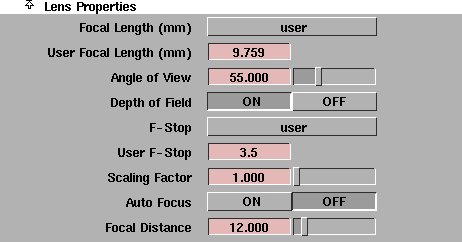
The Lens Properties define the properties of the current camera's lens.
Focal Length and Angle of View
Focal length and angle of view are two different methods of defining the same lens property:
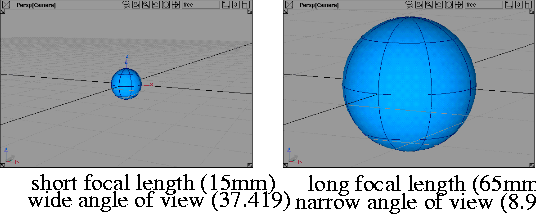
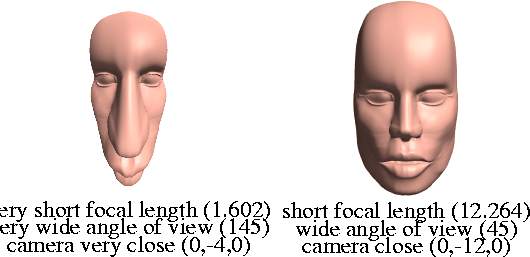
- A long focal length represents a narrow angle of view (for example, a telescope, or a camera zoom lens). Objects that are far from the camera, appear large or close to the camera.
- A short focal length represents a wide angle of view (for example, a camera wide angle lens). Objects that are close to the camera appear small or far away. Objects that are very close to the camera may appear disproportionately large relative to objects that are only slightly farther away from the camera.
|
|
The angle of view is also
known as the lens angle. It
represents the width of the
film back as seen through
the lens, expressed as an
angle.
|
-
- The Angle of View value is related to the focal length value (either the Focal Length setting or the User Focal Length value), and the Film Back value:
- If you change the Angle of View value, the Focal Length value automatically changes (and switches to user defined if it is not already). The Film Back values do not change.
- If you change the Focal Length value, the Angle of View value automatically changes. The Film Back values do not change.
- If you change the Film Back values, the Angle of View value automatically changes. The Focal Length value does not change.
Depth of Field
-
- Makes the renderer perform a depth of field calculation to vary the focus of objects based on their distance from the camera. If Depth of Field is ON, the following parameters become available: F-Stop, User F-Stop, and Scaling Factor. The default setting is OFF (no depth of field calculation is performed; all objects are in focus).
-
- The depth of field calculation is a post-rendering process, and can take from tens of seconds to a few hours, depending on the size of the image, the camera parameters, and the depth values, but not the complexity of the scene.
-
- Because depth of field changes with depth, your scene must reflect its real world size and the Main Units must be set properly in Preferences > Construction options > Units > Linear.
|
|
The Scaling Factor
parameter is the same as the
SDL variable
units_to_feet.
|
Scaling Factor
-
- A scaling factor applied to the Focal Distance value. This parameter lets you define the Focal Distance value in units other than feet (for example, meters) by setting the Scaling Factor value to the number of units in one foot. For example, if you wanted to define the Focal Distance value in meters, you would set the Scaling Factor value to 0.3048 because there are 0.3048 meters in one foot. The slider range is 0 to 100. The default value is 1.
Auto Focus
-
- Automatically focuses the camera on the camera's Look At point. If Auto Focus is OFF, the Focal Distance parameter becomes available, and the camera focuses at the Focal Distance value. The default setting is OFF.
-
- If the Look At point is not between the near and far clipping planes, Auto Focus will focus the camera either at the near clipping plane or at the far clipping plane (whichever is closer to the Look At point). See ClippingNear/Far on page 342.
Focal Distance
-
- The distance from the camera at which the camera focuses. The valid range is 0.001 to ·. The slider range is 0.001 to 100. The default setting is automatically set to the Auto Focus value (based on the Look At point) when you set Auto Focus OFF.
-
- If the Focal Distance value is not between the near and far clipping planes, the Focal Distance value will be automatically set to either the near clipping plane distance or the far clipping plane distance (whichever is closer to the Focal Distance value). See ClippingNear/Far on page 342.
Camera/Window Properties

The Camera/Window Properties control how the camera's view appears in the camera's window.
|
|
|
Aspect Ratio Fit
-
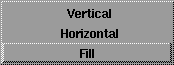
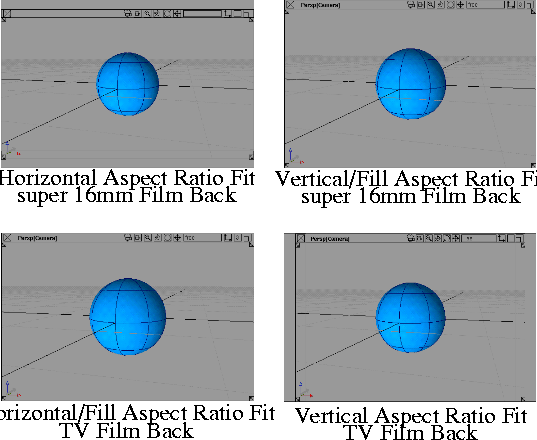
- Controls how the camera's window displays the camera's view. If the shape of the camera's window is not the same as the shape of the camera's Film Back, then the window's display can fit the camera's view in one dimension only (Horizontal or Vertical). The default setting is Fill which automatically fits the camera view in the camera window (in either the horizontal or vertical direction) so that the camera view fills the window
Offset
-
- Offsets the camera view in the camera window. The direction of the offset is determined by the padding created by the Aspect Ratio Fit setting, either horizontally (if Aspect Ratio Fit is Vertical or Fill), or vertically (if Aspect Ratio Fit is Horizontal or Fill). The valid/slider range is -1 to 1. The default setting is 0 (no offset).
Digital Properties
ClippingNear/Far
-
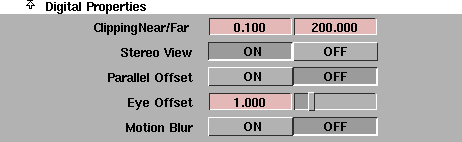
- The distance to the camera's near and far clipping planes. The default values are 0.1 and 200.
-
- For orthographic windows, the ClippingNear/Far values are distances along the axis that points into the screen. For example, if the Top window shows the XZ plane, then the ClippingNear/Far values are distances along the Y axis.
-
- For perspective cameras, the Clipping Near/Far values are distances from the camera.
-
- You cannot enter a ClippingNear/Far value less than 0.1 within Alias. However, you can enter a value less than 0.1 by editing the SDL file.
Stereo View
-
- Creates a stereo pair of images of your scene during rendering. The two image files are named <filename>_left and <filename>_right. If Stereo View is OFF, only a single image of your scene is created during rendering. If Stereo View is ON, the Parallel Offset and Eye Offset parameters become available. The default setting is OFF.
Parallel Offset
-
- Offsets the Look At points of the two cameras used to generate a stereo pair of images so that the two cameras point in parallel directions. The default setting is OFF (the two cameras share the same, non-offset, Look At point).
Eye Offset
-
- The distance between the two cameras used to generate a stereo pair of images (when Stereo View is ON). Eye offset is also known as ocular separation, and represents the distance between the viewer's two eyes. The two cameras are offset perpendicular to the Look At vector and the Up vector.
-
- Objects that are closer to the camera than the focal point will appear to protrude from the screen when the stereo pair of images is viewed. Objects that are further from the camera than the focal point will appear to recede into the screen.
-
- The greater the Eye Offset value, the greater the stereo effect, but the narrower the effective depth of the scene. If the Eye Offset value is too large, or the focal point is too close to the camera, your eyes will not be able to converge the two images into a stereo pair.
-
- The Eye Offset value is measured in the same units that your scene uses. The slider range is 0 to 5. The default value is 1.
Motion Blur
-
- Blurs the entire rendered image when the camera is moving (as opposed to blurring an object when the object is moving), for example, when you are performing a flyby. The default setting is OFF.
|