|
|
19
|
Rendering Parameters
|
|
Rendering parameters control how a scene will render. There are two types of rendering parameters: global rendering parameters and object rendering parameters. Global rendering parameters are contained in the Render Globals window, and control how the overall scene will render. Object rendering parameters are contained in the Render Stats window, and control how individual objects will render.
In This Section:
|
Render > Globals
|
Render Globals Window
|
|
|
|
|
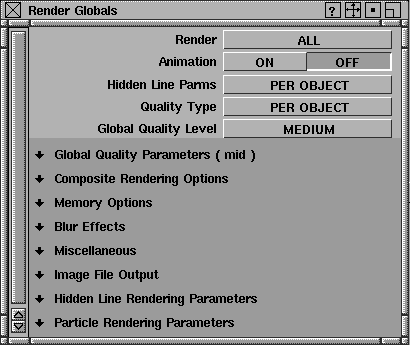
The Render Globals window contains the global rendering parameters which control how the overall scene will render.
To open the Render Globals window:
Global Rendering Parameters
|
|
The global rendering
parameters behave similarly
to the Control Window
parameters (see Parameters
on page 35).
|
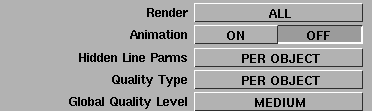
The global rendering parameters control how the overall scene will render.
|
|
|
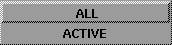
Render
-
- Determines whether all objects in your scene are rendered (ALL), or only active (picked) objects are rendered (ACTIVE). The default setting is ALL.
|
Note:
|
The ACTIVE option has nothing to do with active animation.
|
Animation
-
- Determines if several frames of an animation are rendered (ON), or only the current (single) frame is rendered (OFF). The Animation setting determines if animation is included in the SDL file. If Animation is ON, the Animation Range From parameter and the Animation Output Filename Extensions parameters become available. The default setting is OFF.

|
|
|
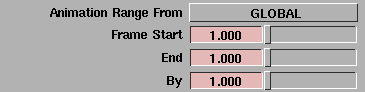
Animation Range From
-
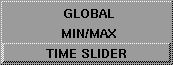
- Determines which frames of an animation are rendered when Animation is ON. The default setting is TIME SLIDER.
| TIME SLIDER
| The Start and End values set in the Time Slider.
|
| MIN/MAX
| The minimum and maximum frames of the animation. If an animation exists, these non-editable values are displayed below the Animation Range From parameter.

|
| GLOBAL
| Displays the following parameters which let you set the animation Frame Start, End, and By values.
|
Frame Start, End, By
-
- The first (Frame Start) and last (End) frame number of the animation to render, and the increment between frames (By). These parameters are only available when Animation Range From is GLOBAL.
|
|
|
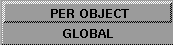
Hidden Line Parms
-
- Determines which set of Hidden Line Rendering Parameters are used during hidden line rendering. The default setting is PER OBJECT.
|
|
|
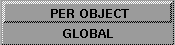
Quality Type
-
- Determines which set of render quality parameters are used during rendering. Render quality parameters control subdivision, anti-aliasing, and raytracing limits. The default setting is PER OBJECT.
|
|
|
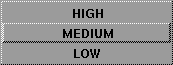
Global Quality Level
-
- Controls the overall quality level of rendered images by automatically setting the Global Quality Parameters, Anti-aliasing Levels, and Raytracing Maximum Limits to preset values. The default setting is MEDIUM.
Animation Output Filename Extensions
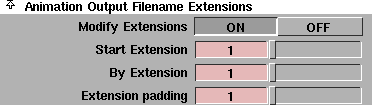
The Animation Output Filename Extensions parameters control the format of the rendered images' file name extensions. These parameters are only available if Animation is ON.
Modify Extensions
-
- Lets you set the starting number (Start Extension) and the amount which the extension is incremented by (By Extension). If Modify Extensions is ON, the Start Extension and By Extension parameters become available. The default setting is OFF.
Start Extension, By Extension
-
- Lets you set the starting number (Start Extension) and the amount which the extension is incremented by (By Extension). These parameters are only available when Modify Extensions is ON. The slider range is 1 to 100. The default value is 1.
Extension padding
-
- The total number of characters in file name extensions. If the frame number is less than the Extension padding value, then leading zeros are added to the extension. For example, if the frame number is 12, and the Extension padding value is 4, the image file will have the extension <pixfile>.0012. The valid range is 0 to ·. The slider range is 1 to 10. The default value is 1.
Global Quality Parameters (low, mid, high)
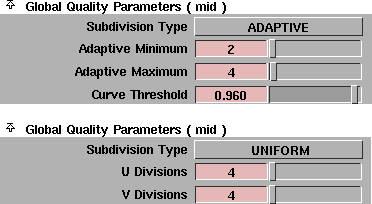
The Global Quality Parameters control how all objects are subdivided during rendering. The parameters are different depending on the Subdivision Type setting. Default values are different depending on the Global Quality Level setting. The default values listed below are for the MEDIUM Global Quality Level.
|
|
|
Subdivision Type
-
- The method used to subdivide surfaces during rendering. The default value is ADAPTIVE.
| ADAPTIVE
| Subdivides surfaces (patches) into triangles based on surface curvature. (Faces cannot be adaptively subdivided.) Surfaces with high curvature are divided into more triangles than flatter surfaces with low curvature. If Subdivision Type is ADAPTIVE, then the Adaptive Minimum, Adaptive Maximum, and Curve Threshold parameters become available. See Adaptive Subdiv on page 423.
|
| UNIFORM
| Subdivides surfaces into uniformly sized triangles (that is, without taking surface curvature into account). Trimmed surfaces must be adaptively subdivided. Only the U Divisions value is used for subdividing faces. When Subdivision Type is UNIFORM, the U Divisions and V Divisions parameters become available. See Uniform Subdiv on page 423.
|
|
|
See Minimum Subdiv,
Maximum Subdiv on
page 423.
|
Adaptive Minimum, Adaptive Maximum
-
- The minimum and maximum number of subdivisions between CVs in both U and V directions. Values must be powers of 2 between 0 and 7 (either 1, 2, 4, 8, 16, 32, 64, or 128). If you enter any other value between 1 and 256, the next highest valid value is used. The default value is 2 for Adaptive Minimum and 4 for Adaptive Maximum.
|
|
See Curvature Threshold on
page 423.
|
Curve Threshold
-
- The threshold for subdivision in both the U and V directions. The higher the Curvature Threshold value, the greater the number of triangles, and the more accurate the curvature. The valid/slider range is 0 to 1. The default value is 0.96.
|
|
See Uniform U, Uniform V on
page 424.
|
U Divisions, V Divisions
-
- The number of subdivisions surfaces will have between CVs in both the U and V directions, regardless of surface curvature. The valid range is 1 to 256. The default value is 4.
Anti-aliasing Levels
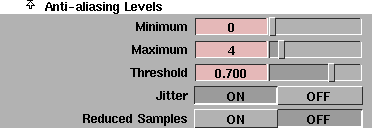
The Anti-aliasing Levels control the quality of anti-aliasing used during rendering. The default values listed are for the MEDIUM Global Quality Level.
If you are rendering a scene with a few small details that can easily be missed, try setting the Minimum value to 0 or 1, the Maximum value from 4 to 8, and the Threshold value from 0.9 to 1.0. This gives very short rendering times and excellent image quality.
Minimum
-
- The minimum number of subdivisions (or super samples) per pixel. The higher the Minimum value, the better the anti-aliasing; however, a large Minimum value can significantly increase rendering times. The valid/slider range is 0 to 32. The default setting is 0.
Maximum
-
- The maximum number of subdivisions (or super samples) per pixel. The higher the Maximum value, the better the anti-aliasing.The valid range is 0 to 32. The default setting is 4.
-
- If the Minimum value is greater than the Maximum value, the Minimum value is automatically reset to the Maximum value.
Threshold
-
- Uses the colors at each corner of a pixel to determine if finer anti-aliasing is required. If the value differences at each pixel corner are greater than the Threshold value, the pixel is subdivided again. The valid/slider range is 0 to 1 (the maximum number of samples are always performed). The default value is 0.7.
Jitter
-
- Rotates the N-Rooks sampling template after each use to avoid moire patterns on repeating pattern textures. Set Jitter ON for higher quality rendering. The default setting is ON.
Reduced Samples
-
- Uses a sampling technique that avoids anti-aliasing every pixel at the most expensive level. An occasional pixel's anti-aliasing is skipped if it will not be very noticeable (speeding up the rendering process). This option, however, may produce artifacts. The default setting is OFF.
Raytracing Maximum Limits
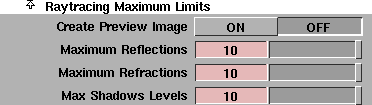
The Raytracing Maximum Limits set limits on the number of reflections, refractions, and shadows possible during raytracing. The default values listed are for the MEDIUM Global Quality Level.
Create Preview Image
-
- Creates a postage-stamp-sized preview of the raytraced image and estimates the rendering time required. The preview image is named <pixfile>.test in the pix directory. If you are rendering from the UNIX command line, the estimate is printed on the standard output stream. If you are rendering from within Alias, the estimate appears in the .out file. The default setting is OFF.
Maximum Reflections
-
- The maximum number of times that a light ray can be reflected. The Maximum Reflections value overrides (that is, lowers) all shaders' Reflect Limit values (see Reflect Limit on page 83). The valid range is 0 to ·. The slider range is 0 to 10. The default value is 10.
Maximum Refractions
-
- The maximum number of times that a light ray can be refracted. The Maximum Refractions value overrides (that is, lowers) all shaders' Refract Limit values (see Refract Limit on page 84). The valid range is 0 to ·. The slider range is 0 to 10. The default value is 10.
Max Shadows Levels
-
- The maximum number of times that a light ray can be reflected and/or refracted and still cause an object to cast a shadow. The Max Shadows Levels value overrides (that is, lowers) all shaders' Shadow Limit values (see Shadow Limit on page 85). The valid range is 0 to ·. The slider range is 0 to 10. The default value is 10.
Composite Rendering Options

The Composite Rendering Options control whether objects are anti-aliased against the background. Composite rendering is used for image compositing and games design.
Composite Rendering
-
- Renders objects so that they are not anti-aliased against the background. For example, a pixel on the edge of an object is not mixed with the background color-only the subsamples actually striking the object are used to compute the color of the pixel. The default setting is OFF.
-
- In TIFF terms, Composite Rendering generates unassociated alpha. The RGB anti-aliased images that result won't look too anti-aliased due to the unassociated alpha.
Coverage Threshold
-
- The number of subsamples required for the pixel as a whole to be considered part of the object and not part of the background. For example, if the Coverage Threshold value is 0.5, then at least half of the subsamples must strike the object or it will be considered as a missed ray, determined by the mask generated by the renderer. This lets you control the bleed around the edges of a sprite. This parameter is only available if Composite Rendering is ON. The valid/slider range is 0 to 1. The default value is 0.5.
|
Tip:
|
For image compositing, set the Coverage Threshold value to
0.
|
Memory Options
The Memory Options include the Raytracing Memory Options and the Texture Caching Memory Options.
Raytracing Memory Options
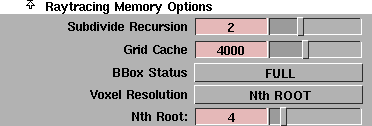
Subdivide Recursion
-
- Limits the number of times spatial subdivision is recursively applied to the scene. Increasing the Subdivide Recursion value requires an exponentially greater amount of memory. In general, keep the Subdivide Recursion value set to 2 or 3. The valid/slider range is 1 to 4. The default value is 2.
|
Note:
|
Only experienced users should adjust the Subdivide
Recursion value.
|
|
|
A voxel is a volume element
(cube) that encloses a certain
amount of 3D space.
|
Grid Cache
-
- The number of voxels to be allocated before caching voxels by reusing old voxels begins. By lowering the Grid Cache value, you can save memory, but you will lose some speed. The valid slider range is 100 to 10000. The default value is 4000.
|
|
|
BBox Status
-
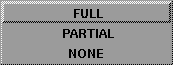
- Controls how bounding boxes are stored in memory. The default setting is FULL.
| FULL
| the bounding box of each triangle is kept in memory to speed up raytracing
|
| PARTIAL
| the bounding box is encoded, saving memory, but sacrificing a small amount of speed
|
| NONE
| no bounding box is stored, saving even more memory, but at a significant loss of speed
|
-
- Reducing memory usage usually increases rendering time. However, if the raytracer starts to swap, reducing memory usage will actually improve performance. See Optimization on page 495.
|
|
|
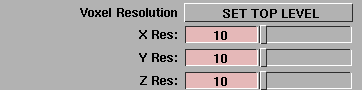
Voxel Resolution
-
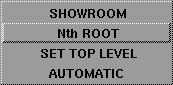
- Controls how voxel resolution is determined. Changing voxel resolutions affects the amount of memory needed. Only experienced users should adjust the Nth Root, X Res, Y Res, or Z Res values. The default setting is Nth ROOT.
| AUTOMATIC
| the resolutions of recursive voxels are automatically determined
|
| SHOWROOM
| a more optimal and automatic determination of voxel resolution for scenes with a large overall environment and a small section of space occupied by very complex geometry (for example, a showroom)
|
| Nth ROOT
| the top level resolution, computed with t ** (1/N), where t = # of triangles, and N = Nth Root (user input). Typical values of N are 0.25 to 0.33.

|
| SET TOP LEVEL
| lets you specify the voxel resolution of the top level in the X, Y, and Z directions (X Res, Y Res, Z Res)
|
Texture Caching Memory Options
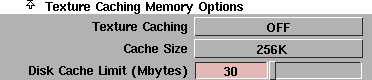
The Texture Caching Memory Options control how File textures are stored in memory. Alias does not read every component of every texture file into memory. The MIPMAPs are tiled, and only the portions of the texture being used in the area the renderer is working on are kept in memory. You can specify a cache size that maintains only what has to be in memory at any time, and load and unload texture tiles (parts of a texture) as need. This can dramatically reduce the amount of memory used.
|
|
|
Texture Caching
-
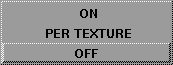
- Controls how File textures are stored in memory. The default setting is OFF.
| OFF
| all File textures are kept in memory at all times
|
| ON
| Creates a cache of texture tiles (parts of a texture), which is kept on disk, retrieved as needed, and deleted from memory as other tiles are needed.
|
| PER TEXTURE
| Creates a cache of texture tiles only for File textures which have Cache ON (see Cache on page 152). All File textures which have Cache OFF are kept in memory at all times.
|
|
|
|
Cache Size
-
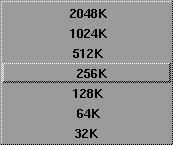
- The maximum memory size needed for all texture files if Texture Caching is turned ON. The default setting is 256K.
Disk Cache Limit (Mbytes)
-
- The maximum amount of disk space that texture caching can use. The valid/slider range is 30 to 5000. The default value is 30.
Blur Effects
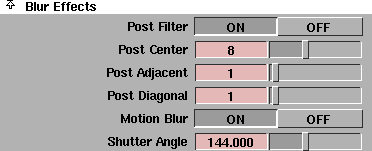
The Blur Effects parameters let you perform post-rendering anti-aliasing and motion blur during animations.
Post Filter
-
- Performs additional anti-aliasing after rendering is complete using a 3 pixel by 3 pixel Bartlet filter for each pixel. This produces softer edges and improved image quality. If Post Filter is ON, the Post Center, Post Adjacent, and Post Diagonal parameters become available. The default setting is OFF.
|
|
|
-
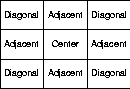
- A Bartlet filter blurs each pixel in an image using a 3 pixel by 3 pixel sample. The filter applies a weight to the color of the center pixel, the adjacent pixels, and the diagonal pixels. The ratio between the weighted center pixel color and the weighted surrounding pixel colors determines how much the center pixel's color is blended with the surrounding pixel colors.
Post Center
-
- The center pixel weight for the 3 pixel by 3 pixel Post Filter (Bartlet filter). The valid range is 0 to 1000. The slider range is 0 to 20. The default value is 8.
Post Adjacent
-
- The edge pixel weights for the 3 pixel by 3 pixel Post Filter (Bartlet filter). The valid range is 0 to 1000. The slider range is 0 to 20. The default value is 1.
Post Diagonal
-
- The corner pixel weights for the 3 pixel by 3 pixel Post Filter (Bartlet filter). The valid range is 0 to 1000. The slider range is 0 to 20. The default value is 1.
Motion Blur
-
- Blurs the motion of objects to produce smoother animations. Motion blur is only calculated for objects which have Motion Blurred on (see Motion Blurred on page 424) and for cameras which have Motion Blur ON (see Motion Blur on page 344). By default, all objects have Motion Blurred turned on, and all cameras have Motion Blur turned off. If Motion Blur is OFF, motion blur is not calculated regardless of individual object settings. If Motion Blur is ON, the Shutter Angle parameter becomes available. The default setting is OFF.
-
- Motion blur is only available during raycasting. World space texture mapping does not work with motion blur (see Worldspace on page 147).
Shutter Angle
-
- The angle (in degrees) that the camera shutter remains open. The greater the angle, the greater the motion blur effect. For example, if the Shutter Angle value is 180, moving objects are blurred over half of the frame step time. The Shutter Angle parameter is only available when Motion Blur is ON. The valid/slider range is 1 to 360. The default value is 144.
Miscellaneous
|
|
|
Geometry Source
-
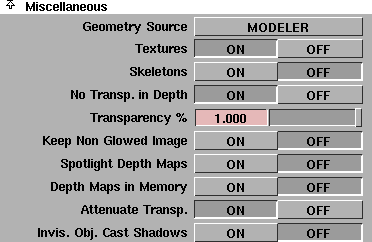
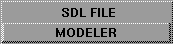
- The source of the scene or geometry information used by the renderer. The default setting is MODELER.
| SDL FILE
| an already-existing SDL file
|
| MODELER
| the geometry loaded in Alias
|
Textures
-
- Determines if textures are rendered. The default setting is ON.
Skeletons
-
- Determines if skeletons are rendered. The default setting is OFF.
No Transp. in Depth
-
- Controls whether transparent objects appear in the camera's depth file (see Depth on page 414). If No Transp. in Depth is OFF, transparent objects appear in the depth file. If No Transp. in Depth is ON, the Transparency % parameter becomes available. The default setting is OFF.
Transparency %
-
- The level of transparency an object needs in order to appear in the camera's depth file (see Depth on page 414). For example, if the Transparency % value is 0.8, objects that are more than 80 percent transparent do not appear in the depth file. This parameter is only available if No Transp. in Depth is ON. The valid/slider range is 0 to 1. The default value is 1.
|
Tip:
|
This feature is ideal for transparency mapped surfaces used
as collision objects in games.
|
|
|
Keep Non Glowed Image
acts the same as the -P
option for the command line
renderer.
|
Keep Non Glowed Image
-
- Creates a separate file with no glow component (for example, from particle, shader or light glow) with the name <pixfile>.ng. The default setting is OFF.
Spotlight Depth Maps
-
- Saves spot light shadow depth maps to disk for spot light's that have Use Depth Map ON (see Use Depth Map on page 263). The default setting is OFF.
|
|
Depth Maps in Memory acts
the same as the -k option for
the command line renderer.
|
Depth Maps in Memory
-
- Keeps spot light shadow depth maps in memory for spot light's that have Use Depth Map ON (see Use Depth Map on page 263). The default setting is OFF.
|
|
Attenuate Transp. acts the
same as the -j option for the
command line renderer.
|
Attenuate Transp. (Attenuate Transparency)
-
- This is only relevant for the raytracer/powertracer. If toggled OFF, all transparent objects will be attenuated according to Beere's law (physically based)-this attenuation will make totally transparent objects somewhat opaque as well. If toggled ON, this attenuation will not occur, and the resultant transparent objects will match raycaster-like affects (and totally transparent objects will appear totally transparent). The default setting is ON.
Invis. Obj. Cast Shadows
-
- Lets invisible objects cast shadows (for example, to create special effects). The default setting is OFF.
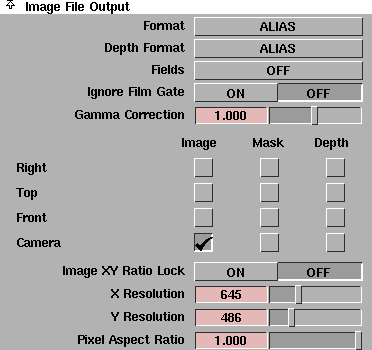
Image File Output
|
|
|
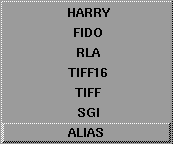
Format
-
- The file format that the rendered image will be output and saved as. The default setting is ALIAS.
| ALIAS
| Alias pix file format (see The Alias Pix File Format in the File Formats and Data Transfer online documentation)
|
| SGI
| Silicon Graphics Image file format
|
| TIFF
| Tagged Image File Format
|
| TIFF16
| Tagged Image File Format with 16 bits per color component
|
| RLA
| Wavefront image file format (an indexed scanline file)
|
| FIDO
| Cineon Fido image file format
|
| HARRY
| Quantel Harry image file format (four fixed resolutions are supported: NTSC frame, NTSC field, PAL frame and PAL field)
|
|
|
|
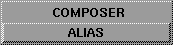
Depth Format
-
- The file format that the camera depth file will be output and saved as (see Depth on page 414). The default setting is ALIAS.
| ALIAS
| Alias camera depth file format (see Alias Camera Depth File Format in the File Formats and Data Transfer online documentation)
|
| COMPOSER
| Composer depth file format
|
|
|
|
Fields
-
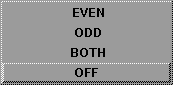
- Controls whether rendering produces frames or fields. A frame consists of two fields, odd and even. The odd field contains every second line starting at the first line. The even field contains every second line starting at the second line. The default setting is OFF.
| OFF
| frames
|
| BOTH
| both odd and even fields
|
| ODD
| odd fields only
|
| EVEN
| even fields only
|
-
- If Fields is either BOTH, ODD, or EVEN, an additional parameter becomes available.

-
- This parameter defines the order that the fields are rendered. The default setting is ODD FIRST.
| ODD FIRST
| odd fields first
|
| EVEN FIRST
| even fields first
|
-
- You can use field-rendered Pix Backdrops when rendering Fields. If you render fields, the renderer will use pixbackdrop.*e during the even field rendering and pixbackdrop.*o during the odd field rendering. The field-rendered Pix Backdrop files will only be used if the frame-rendered files (pixbackdrop.1, pixbackdrop.2, etc.) do not exist. See Pix File Backdrop on page 55.
Ignore Film Gate
-
- Does not render the region outside the filmback. The default setting is OFF (the region outside the filmback is rendered).
Gamma Correction
-
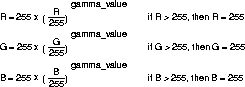
- A color correction factor applied to the rendered image. The valid range is 0 to ·. The slider range is 0 to 2. The default setting is 1.
-
- The Gamma Correction value (gamma_value) is applied to each color channel (RGB), according to the following formulas:
Camera Toggles
-
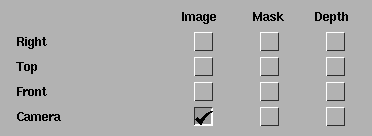
- Determines whether a camera produces an image file, a mask file, and/or a depth file.
-
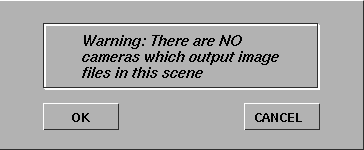
- If all camera toggles are OFF when you perform a render (Render > Render) or save an SDL file (File > Export > SDL), the following confirm box is displayed.
Image
-
- The renderer produces an RGB image (see Format on page 411). The default setting is ON for the perspective camera, and OFF (no image produced) for the orthographic cameras.
Mask
-
- The renderer produces an 8-bit mask or matte file for use with compositing or paint software. If Mask is ON and the image file output Format is TIFF, TIFF16, RLA, or SGI, the renderer will not produce a separate mask file, but will produce a four channel Image file (RGBA). The forth channel (A) represents the mask information. The default setting is OFF (no mask file produced) for all cameras.
Depth
-
- The renderer produces a camera depth file (see Depth Format on page 412). The default setting is OFF for all cameras.
Image XY Ratio Lock
-
- Maintains the ratio between the X Resolution and Y Resolution values (that is, if you double one value, the other value doubles automatically). If Image XY Ratio Lock is OFF, you can set the X Resolution and Y Resolution values independently. The default setting is OFF.
X Resolution, Y Resolution
-
- The X and Y resolution of the rendered image. The valid range is 0 to ·. The slider range is 0 to 2048. The default setting is 645 for X Resolution and 486 for Y Resolution.
-
- If Image XY Ratio Lock is ON, then you cannot set the X Resolution and Y Resolution values independently. You can also set image resolution using several predefined values (see Predefined Resolutions on page 416).
Pixel Aspect Ratio
-
- The ratio of each individual pixel's width to its height for a display or recording device. Most devices, including the monitor screen, use square pixels, so the pixel aspect ratio is 1/1 = 1. Some devices, however, use non-square pixels.
-
- If you are rendering an animation that you plan to display on or record to one of these devices, you must set the Pixel Aspect Ratio value to the device's pixel aspect ratio value. The rendered animation will then look squashed or stretched when you view it on the monitor screen, but will have the proper proportions when you view it from the device. You can also set the Pixel Aspect Ratio by selecting a predefined value (see Predefined Resolutions on page 416). The valid range is 0 to ·. The slider range is 0 to 1. The default value is 1.
|
Device
|
Pixel Aspect Ratio
|
|---|
| IRIS NTSC
| 1.0
|
| IRIS PAL
| 1.0
|
| Raster Tek's Hidef Frame Buffer
| 1.0
|
| Abekas Internal Frame Buffer
| 1.33
|
| Raster Tek's NTSC Frame Buffer
| 1.125
|
| Quantel's Harry Interface
| 1.33
|
| Full Frame 1K width
| 1.11
|
| Motion Picture 1K with sound track
| 1.0
|
| Motion Picture, no sound track
| 1.0
|
Predefined Resolutions
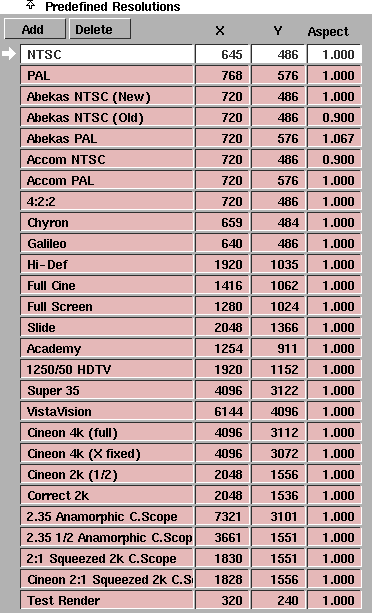
The Predefined Resolutions section of the Render Globals window contains a list of common screen resolutions. You can select a predefined resolution by clicking on it. The corresponding Image File Output parameters (X Resolution, Y Resolution, and Pixel Aspect Ratio) are automatically set.
You can change the X Resolution, Y Resolution, or Pixel Aspect Ratio values of a predefined resolution by double-clicking in the appropriate field in the Predefined Resolutions list, and entering a new value. You can also add a predefined resolution to the list by clicking the Add button, or delete a predefined resolution from the list by selecting the predefined resolution and then clicking the Delete button.
If you change a predefined resolution, the change is automatically written to your misc_data directory in a file called resolutions. The predefined file is located within the active project. If no file exists, the system creates the Alias default.
Add
-
- Adds a new (blank) predefined resolution to the list which you can then edit.
Delete
-
- Deletes the selected predefined resolution from the list.
Hidden Line Rendering Parameters
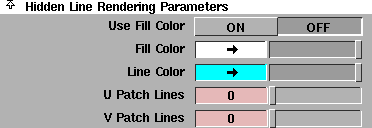
The Hidden Line Rendering Parameters control the appearance of surfaces during hidden line rendering when Hidden Line Params is GLOBAL (see Hidden Line Parms on page 398).
Use Fill Color
-
- The renderer colors all surfaces in the scene with the Fill Color. If Use Fill Color is OFF, all surfaces in the scene are colored with the background color (as though they were transparent). The default setting is OFF.
Fill Color
-
- The color of filled regions for all surfaces in the scene.
Line Color
-
- The color of lines for all surfaces in the scene.
U Patch Lines, V Patch Lines
-
- The number of lines shown in the U and V directions for each surface in the scene. The valid range is 0 to ·. The slider range is 0 to 8. The default setting is 0 (no lines drawn on the surface other than edges).
Particle Rendering Parameters
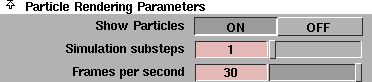
Show Particles
-
- Determines whether particles are rendered. The default setting is ON (particles will be rendered).
Simulation substeps
-
- Controls the accuracy of the particle simulation, most notably when particle collisions are being calculated. If the Simulation substeps value is small, particles may fail to detect collisions with moving objects, or appear to bounce off objects at the wrong time. Increasing the Simulation substeps value produces more accurate animations, but also increases rendering times. The valid range is 1 to ·. The slider range is 1 to 8. The default setting is 1.
Frames per second
-
- The speed (frames per second) at which the rendered images will be displayed in the final animation. Because certain particle parameters are defined in terms of seconds not frames (for example, Particles/Sec), the Frames per second value is required to convert these parameter values in terms of frames.
-
- The Frames per second value also influences the amount of force (for example, gravity) applied to particles during a dynamic simulation. The valid range is 1 to ·. The slider range is 1 to 30. The default value is 30.
|


