|
|
13
|
Light Types
|
|
In This Section:
|
Objects palette >
Lights
|
Light Types
|
|
|
|
|
There are seven different types of lights. There is also a tool for creating default lighting for a scene.
|
|

|
Point Light
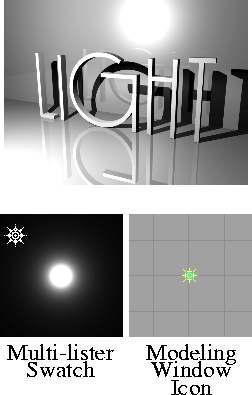
Point lights are like incandescent light bulbs-they cast light in all directions. See Point Light on page 258.
|
|

|
Spot Light
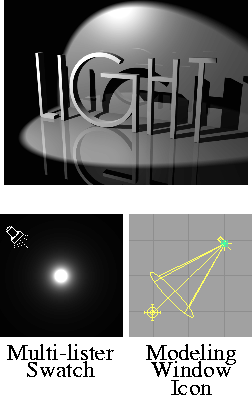
Spot lights cast light in one direction only, emanating from a point in a cone. See Spot Light on page 259.
|
|

|
Directional Light
Directional lights are directional source lights that have color, intensity, and direction, but no obvious source in the scene. See Directional Light on page 267.
|
|

|
Ambient Light
Ambient lights are similar to point lights except that only a portion of the illumination emanates from the point. The remainder of the illumination comes from all directions and lights everything uniformly. See Ambient Light on page 268.
|
|

|
Area Light
Area lights are two-dimensional rectangular light sources. See Area Light on page 269.
|
|

|
Volume Light
Volume lights define a closed volume in which objects will be illuminated, and nothing outside the volume is directly illuminated by the light. See Volume Light on page 270.
|
|

|
Linear Light
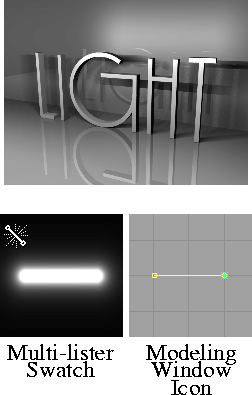
Linear lights are one dimensional line-like lights (similar to fluorescent tubes). See Linear Light on page 277.
|
|

|
Default Lighting
The Create defaults tool sets the default lighting for a scene. When you select Lights > Create defaults, an ambient light and a directional light are automatically created. Their orientation and position are pre-defined and their values are based on each light's default options.
Point Light
|
|
|
|
| |
|
|
Point lights are like incandescent light bulbs - they throw light evenly in all directions.
Point Light Options
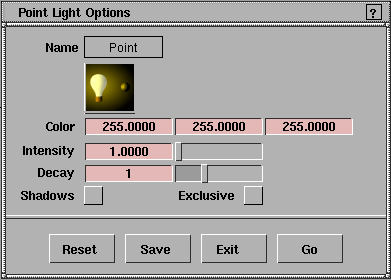
Color, Intensity, Decay, Exclusive
-
- See Light Parameters on page 238.
Shadows
-
- See Shadows on page 238.
Point Parameters

Decay
-
- See Decay on page 244.
Spot Light
|
|
|
|
| |
|
|
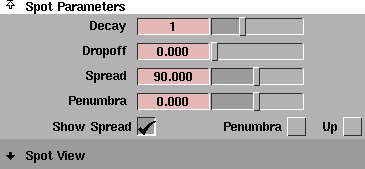
Spot lights cast light in one direction only, emanating from a point in an expanding cone.
Spot Light Options
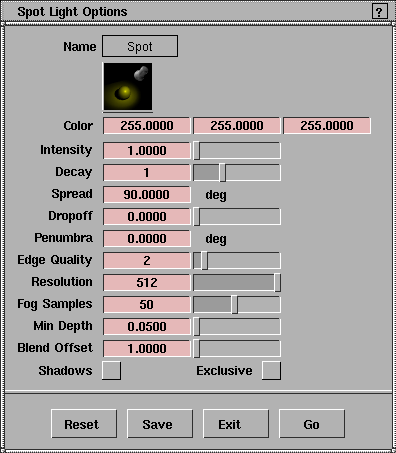
Color, Intensity, Decay, Exclusive
-
- See Light Parameters on page 238.
Spread, Dropoff, Penumbra, Fog Samples, Min Depth, Blend Offset
-
- See Spot Parameters on page 260.
Shadows
-
- See Shadows on page 238.
Edge Quality, Resolution
-
- See Shadow Casting on page 262.
Spot Parameters
|
|
|
Dropoff
-
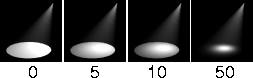
- Controls the rate at which light intensity decreases from the center to the edge of the spot light beam. The valid range is 0 to ·. The slider range is 0 to 255.
-
- Typical values are between 0 and 50. Values of 1 and less produce almost identical results (no discernible intensity decrease along the radius of the beam). The default value is 0 (no dropoff).
|
Tip:
|
The Penumbra parameter produces an effect somewhat
similar to the Dropoff parameter.
|
|
|
|
Spread
-
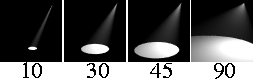
- The angle (in degrees) from edge to edge of the spot light's beam. Resolution problems may occur when the Spread value is greater than 170; small objects may not cast shadows. The valid/slider range is 2 to 179. The default value is 90.
|
|
|
Penumbra
-
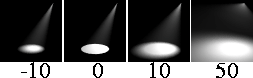
- The angle (in degrees) over which the intensity of the spot light falls off linearly to zero.
-
- For example, if the Spread value is 50 and the Penumbra value is 10, then the spot light has an effective spread of 60 (50 + 10) degrees; however, the spot light intensity decreases to 0 between the angles of 50 and 60 degrees. If the Spread value is 50 and the Penumbra value is -10, then the spot light has an effective spread of 50 degrees and the spot light intensity decreases to 0 between the angles of 40 and 50 degrees.
-
- The valid range is -90 to 90. The slider range is -10 to 10. The default value is 0.
Show Spread
-
- Displays a circle representing the Spread value of the spot light in the Spot View window. The default setting is OFF.
Show Penumbra
-
- Displays a circle representing the Penumbra value of the spot light in the Spot View window. The default setting is OFF.
Up
-
- Displays the up vector of the spot light in the Spot View window. The default setting is OFF.
Spot View
The Spot View window displays a perspective view from the spot light and lets you interactively position the spot light. Any changes you make to the Spot Parameters are automatically updated in the Spot View window.
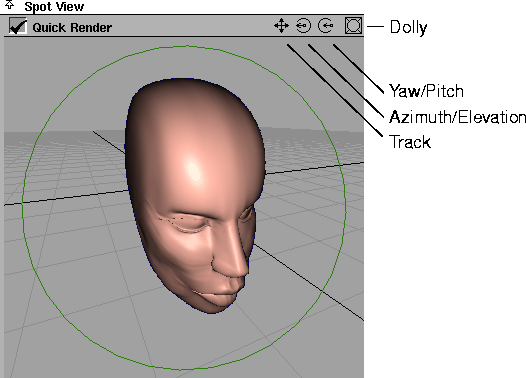
The Track, Azimuth/Elevation and Yaw/Pitch tools change the spot light's actual position and/or orientation. The Dolly tool only changes the view in the Spot View window, and does not alter the spot light's position or orientation.
It may be difficult to use the Spot View window if the Spread value is greater than 170.
Quick Render
-
- Displays a quick render of your scene in the Spot View window. If you change the spot light's attributes or position when Quick Render is ON, objects in the Spot View window will re-render automatically. The default setting is OFF.
Shadow Casting
|
|
|
Resolution
-
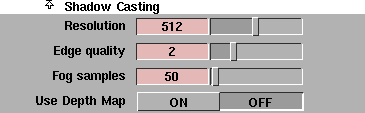
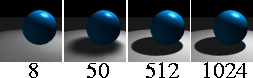
- The size of the shadow depth map used during raycasting, which determines the softness/sharpness of shadows. (The Spread and Edge Quality values also affect the general softness/sharpness of shadows.)
-
- High Resolution values produce sharp edged shadows but also use more memory and slow down rendering. Low Resolution values use little memory and speed up rendering. Use a Resolution value of 50 to produce very soft and smooth shadows. The valid range is 2 to 4096. The slider range is 8 to 1024. The default value is 512.
-
- A spot light with a low Spread value produces sharper shadows than a spot light with a high Spread value, if their Resolution values are the same. For example, a spot light with a Spread value of 90 requires a Resolution value twice that of a spot light with a Spread value of 45 in order to have the same shadow sharpness.
|
|
|
Edge Quality
-
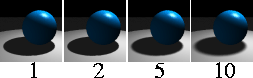
- The size of the blur filter used on the shadow depth map. The valid range is 1 to 10. The slider range is 1 to 5. The default value is 2.
-
- A low Edge Quality value (1 or 2) may produce slight aliasing (staircasing) around shadow edges. Increasing the Edge Quality value will eliminate this aliasing, but will increase rendering time. This will also cause the edges to become softer, requiring a larger shadow Resolution value to maintain sharp edges.
-
- Adjust the Resolution value (not the Edge Quality value) to control the general level of blur.
|
|
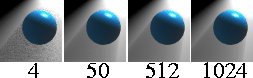
|
Fog samples
-
- Controls the quality of light fog shadows. A high Fog samples value produces better quality fog shadows, but also increases rendering time. The valid range is 4 to 4096. The slider range is 4 to 1024. The default value is 50.
-
- The default value (50) is usually good enough; however, small details may be missed or may appear jittery. In this case, increase the Fog samples value up to the Resolution value.
Use Depth Map
-
- Creates a spot light shadow depth map file the first time the scene is rendered for re-use during subsequent renders. This eliminates the need for the renderer to re-calculate the shadow depth map for each render, and decreases overall rendering time. However, Use Depth Map is only useful if objects do not move within the spot light's field of view (for example, during a camera fly-by).
-
- The file created by Use Depth Map has the same name as the spot light. The default setting is OFF.
Self Shadow Correction

The Self Shadow Correction parameters let you correct self-shadowing problems that can occur with shadow casting spot lights during raycasting. A spot light uses a shadow map (or depth map) to calculate the shadows cast by surfaces. If a surface is illuminated by a spot light, then the shadow map will begin at the illuminated surface and extend away from the light. Any surface that lies within this shadow map will be in shadow.
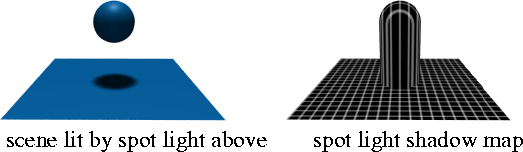
A problem may occur on illuminated, shadow casting surfaces. Because the shadow map has a fixed resolution, it may not be smooth enough to describe a surface. The shadow map may actually intersect the surface. This means that the illuminated surface will be partially within its own shadow. The result is a dark moire pattern on the surface.
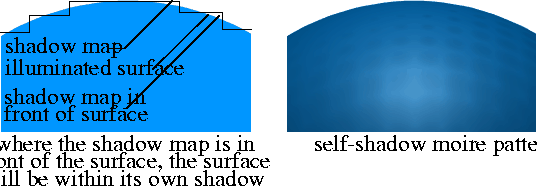
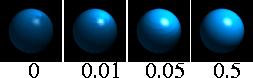
To solve this problem you can set the Min Depth parameter to a small value. The renderer will then temporarily move the shadow casting surface toward the light, before calculating the shadow map, so the surface will no longer be within its own shadow.
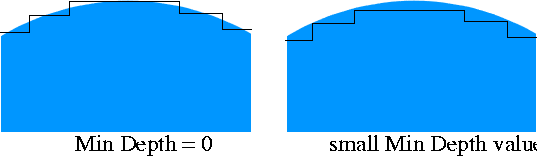
The problem with using Min Depth is that it may be difficult to know what is too small a value and what is too large a value. If the Min Depth value is too small, the surface will still be partially within its own shadow. If the Min Depth value is too large, other surfaces which should be in shadow may no longer be in shadow. Another problem is that the Min Depth value is in world space units, so the magnitude of the value will depend on the scale of your scene. Using Min Depth can also interfere with motion blur.
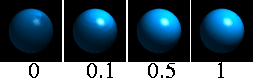
Using Blend Offset is a better method of solving self-shadowing problems. Whereas Min Depth moves the entire shadow casting surface an equal amount, Blend Offset moves different surface points different amounts, based on the probability that the original point on the shadow map was correct.
Self-shadowing can be even more of a problem with motion-blurred objects. The renderer calculates motion blur by simulating the shutter and exposure time of a real camera. The motion blurred object is rendered several times between the shutter's open and close times for each frame. The shadow map, however, is only calculated at the shutter mid-point. If the object is moving very fast away from the spot light, then it may appear to be entirely within its own shadow for part of the motion blur.
To solve this problem, use the new, experimental shadow map algorithm by including the following line in your SDL file for each shadow casting spot light:
use_old_shadow_map_algorithm=FALSE
This new shadow map algorithm is disabled by default because it has problems shadowing particles and light fog. If a motion-blurred object is moving very fast, then even this new shadow map algorithm may be unable to solve self-shadowing problems. In this case, increase the Min Depth or Blend Offset values in addition to using the new shadow map algorithm.
|
|
|
Min Depth
-
- The world space distance that points on shadow casting objects are moved toward the spot light before the shadow map is calculated (during raycasting). Adjust the Min Depth value to correct self-shadowing problems. The valid range is 0 to ·. The slider range is 0 to 10. The default value is 0.05.
-
- If the Min Depth value is 0, then an object will shadow itself by 50% (if it casts shadows) when the light is at an inclined angle to the surface. A relatively small Min Depth value can bring the surface out of its own shadow, especially when combined with a small Blend Offset value. If the Min Depth value is too high, the object may not cast shadows onto surfaces that are very close.
-
- Also, if the surface does not have to cast shadows but only receive them, set Shadows off for the object (see Shadows on page 423). A Min Depth value of 0 is then fine. A typical example of this is a ground plane.
|
|
|
Blend Offset
-
- Proportionally scales the distance that points on shadow casting objects are moved toward the spot light before the shadow map is calculated (during raycasting). Adjust the Blend Offset value to correct self-shadowing problems. The valid range is 0 to ·. The slider range is 0 to 10. The default value is 1.
Directional Light
|
|
|
|
| |
|
|
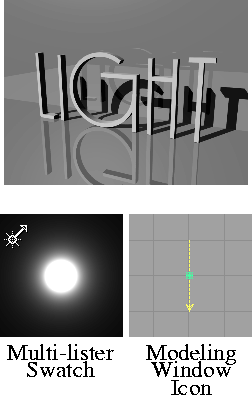
Directional lights have color, intensity, and direction, but no obvious source in the scene. Use directional lights to simulate very distant light sources. For example, the sun can be considered a directional light since it is far enough away that light rays reaching the earth are effectively parallel. Directional lights do not decay with distance.
Because directional lights only have a direction, their location in a scene is unimportant. This also means that during raytracing they can cast shadows on objects behind their apparent location in a scene.
Directional Light Options
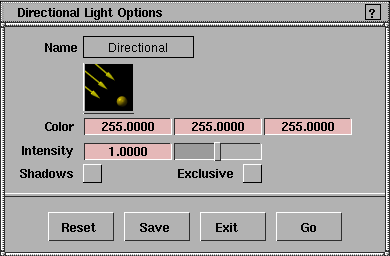
Color, Intensity, Exclusive
-
- See Light Parameters on page 238.
Shadows
-
- See Shadows on page 258.
Ambient Light
|
|
|
|
| |
|
|
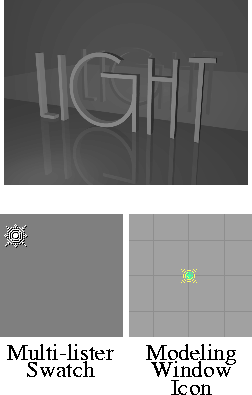
Ambient lights are similar to point lights except that only a portion of the illumination emanates from the point. The remainder of the illumination comes from all directions and lights all objects uniformly.
Ambient Light Options
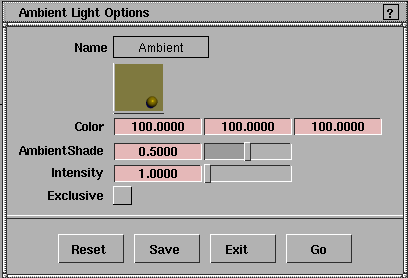
Color, Intensity, Exclusive
-
- See Light Parameters on page 238.
AmbientShade
-
- See Ambient Shade below.
Ambient Parameters

|
|
|
Ambient Shade
-
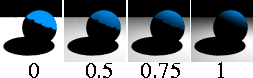
- The proportion of directional light to omnidirectional (ambient) light. The slider range is 0 (light comes from all directions) to 1 (light comes only from the position of the light). The default value is 0.5.
Area Light
|
|
|
|
| |
|
|
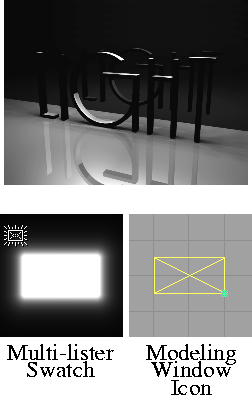
Area lights are two-dimensional rectangular light sources. They are particularly useful for simulating the rectangular reflections of windows on surfaces. An area light is initially two units long and one unit wide. Use Xform > Scale and Xform > Non-p scale to re-size an area light.
The diffuse component of area lights is very small. To increase diffusion, move the light further from the object it is illuminating and increase its Intensity value. Area light shadows are much more costly than point light shadows. The increase in cost is proportional to the complexity of the scene and the size of the area light.
Area Light Options
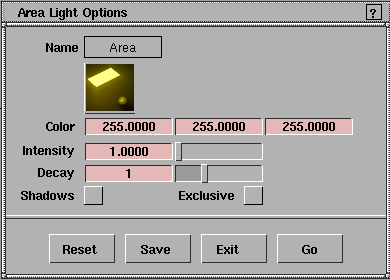
Color, Intensity, Decay, Exclusive
-
- See Light Parameters on page 238.
Shadows
-
- See Shadows on page 238.
Area Parameters

Decay
-
- See Decay on page 244.
Volume Light
|
|
|
|
| |
|
|
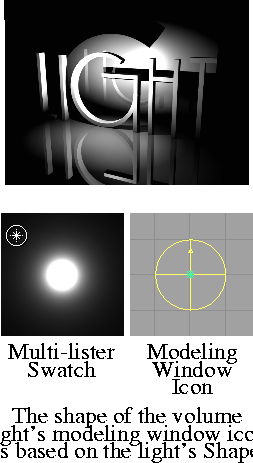
Volume lights define a closed volume within which objects are illuminated; nothing outside the volume is illuminated by the volume light.
Within the volume, the direction and intensity can vary in many different parameters. A volume light is a convenient way to "link" a light spatially, instead of by object. One main use of the volume light is as a force and/or particle emitter. Volume lights are also useful for removing hot spots or glare by using a negative Intensity value.
Volume Light Options
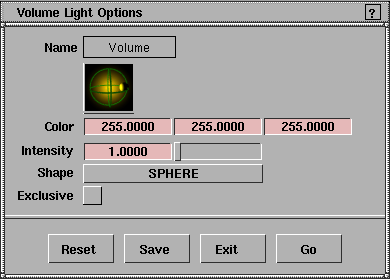
Color, Intensity, Exclusive
-
- See Light Parameters on page 238.
Shape
-
- See Shape on page 271.
Volume Parameters
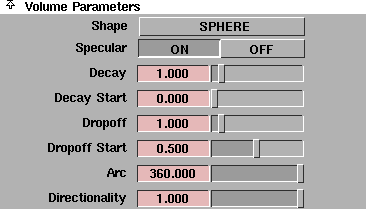
Volume lights have many parameters which define the shape of the volume and the direction of the light/force in the volume.
|
|
|
Shape
-
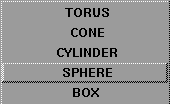
- Defines the shape of the volume light as either a BOX, SPHERE, CYLINDER, CONE, or TORUS. The default setting is SPHERE.
-
- You can also use the Xform tools to position or reshape a volume light. Apply the Xform to the light icon in the modeling window or to the DAG node above the light in the SDB or ASDB window.
Specular
-
- Makes the light contribute to the specular component. (If the Intensity value is negative, set Specular OFF.) The default setting is ON.
Decay
-
- Controls how quickly the light intensity decreases with distance within the light's volume. (The volume light Decay parameter differs slightly from the Decay parameter for other light types.) The slider range is 0 to 10. The default value is 1.
| 0
| No decay (light reaches everything within the volume and nothing outside).
|
| > 0
| Light intensity decreases from the center to the edges of the volume. For example, a value of 0.5 produces a linear dropoff from the center to the edges. With a value close to 1, intensity drops off very fast from the middle. With a value close to 0, intensity drops off slowly in the middle and fast near the edges.
|
| < 0
| Light intensity decreases from the edges to the center of the volume.
|
-
- The direction that light decays depends on the volume light's Shape setting.
|
Shape
|
Decay Direction
|
|---|
| BOX and SPHERE
| all directions from the center
|
| CYLINDER and CONE
| in the direction of the principal axis
|
| TORUS
| perpendicular to the principal axis
|
-
- If Emit Particles is ON under Active Effects, the Decay value controls where within the volume the particles are emitted. For large positive values of Decay, particle emission is concentrated in the center of the volume. For large negative values, particle emission is entirely on the surface of the volume.
-
- If Force is set (that is, not OFF) under Active Effects, the Decay value controls how quickly the force intensity decreases with distance within the light's volume.
Decay Start
-
- Defines how far out from the center of the volume the light intensity begins to decay. The slider range is 0 to 1. The default value is 0.
Dropoff
-
- Controls the rate at which light intensity decreases from the principal axis to the edge of the light for CONE and CYLINDER volume lights only. The slider range is 0 to 10. Typical values are between 0 and 50. Values of 1 and less produce almost identical results (no discernible intensity decrease along the radius of the volume). The default value is 0 (no dropoff). The volume light Dropoff parameter is similar to the spot light Dropoff parameter (see Dropoff on page 260).
Dropoff Start
-
- Defines how far out from the principal axis of the volume the dropoff starts. The slider range is 0 to 1. The default value is 0.5.
Torus Radius
-
- The ratio of the minor radius to the major radius for TORUS volume lights only. The slider range is 0 to 0.5. The default value is 0.5 (a typical bagel, where the "hole" is reduced to a single point).
Cone End Radius
-
- The radius of the end of the cone for CONE volume lights only. If the Cone End Radius value is negative, the direction of the cone is reversed. The slider range is 0 (a true cone) to 1 (a cylinder). The default value is 0.1.
Arc
-
- The portion (in degrees) of the swept volume for CONE, SPHERE, TORUS, and CYLINDER volume lights only. The slider range is 0 to 360. The default value is 360 (the entire volume).
Directionality
-
- The proportion of directional light to omnidirectional (ambient) light. The slider range is 0 (light comes from all directions, like an ambient light) to 1 (light comes from one direction only, like a directional light). The default value is 1.
Direction Vectors
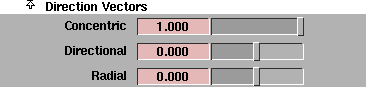
The Direction Vectors define the direction of the directional component of the light. If the Directionality value is 0, the Direction Vectors have no effect.
If Emit Particles is ON under Active Effects, the Direction Vectors determine the initial direction of the particles. If Force is set (that is, not OFF) under Active Effects, the Direction Vectors control the direction of the force within the light's volume.
Concentric
-
- The direction of the directional component of the light toward or away from the volume's axis. The slider range is -1 (toward axis) to 1 (away from axis). The default value is 1.
Directional
-
- The direction of the directional component of the light up or down the volume's axis. The slider range is -1 (down axis) to 1 (up axis). The default value is 0.
Radial
-
- The angle of the directional component of the light relative to the volume's axis. The slider range is -1 (at a negative angle to axis) to 1 (at a positive angle to axis). The default value is 0 (perpendicular to axis).
Turbulence(noise)
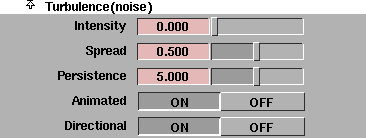
The Turbulence(noise) parameters define irregularities in light emission, force fields, and/or particle emission (for example, to create a flickering light, or a random wind field). These parameters are similar to the environment Turbulence(noise) parameters (see Turbulence (noise) on page 66).
Intensity
-
- The strength of the turbulence. The slider range is 0 (no turbulence) to 1. The default value is 0.
Spread
-
- Scales the turbulence in space so that the given amount of turbulence covers a smaller or larger volume. The slider range is 0 to 1. The default value is 0.5.
Persistence
-
- Scales the turbulence in time so that it changes faster or more slowly. The slider range is 0 to 10. The default value is 5.
Animated
-
- Makes the turbulence either static (OFF) or animated (ON). Static turbulence does not change over time (for example, dappled lighting). In a static turbulent wind field, the eddies are always in the same place; a stream of particles moving through static turbulence always follows the same path.
-
- Animated turbulence changes over time (for example, flickering light). Particles moving through animated turbulence follow different paths. The default setting is ON.
Directional
-
- In the lighting calculation, the difference between the light direction and the turbulence is used to avoid accidentally illuminating the backs of objects. The default setting is ON.
Turbulence Table
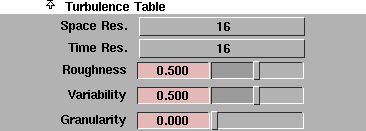
Turbulence is defined by its turbulence table. The Turbulence Table parameters define the turbulence table for a light's turbulence.
The turbulence table can be very large. A turbulence table with a Space Resolution of 16 and a Time Resolution of 16 (that is, a 16 x 16 table) takes up over 4Mb. A 32 x 32 table takes up about 36Mb.
If the Turbulence Table parameters are the same for different lights, the lights can share a single turbulence table, reducing rendering time.
Space Resolution
-
- Defines how large the turbulence table is in X, Y, Z. If the table is smaller than the light's volume, the turbulence pattern repeats seamlessly within the volume. The valid settings are 1, 2, 4, 8, and 16. The default setting is 16.
Time Resolution
-
- Defines the resolution in time for animated turbulence. The value of Time Resolution is the number of 3D tables created. The valid settings are 1, 2, 4, 8, 16, and 32. The default setting is 16.
Roughness
-
- Determines how smooth or rough the turbulence is. The slider range is 0 to 1. The default value is 0.5.
Variability
-
- Determines how smoothly or roughly the turbulence changes over time. The slider range is 0 to 1. The default value is 0.5.
Granularity
-
- Determines how fine grained the turbulence is. The slider range is 0 to 1. The default value is 0.
Linear Light
|
|
|
|
| |
|
|
Linear lights are one-dimensional lines of light like fluorescent tubes. A linear light is initially two units long. Use Xform > Scale to re-size a linear light.
Linear light shadows are much more costly than point light shadows. The increase in cost is proportional to the complexity of the scene and the length of the linear light.
Linear Light Options
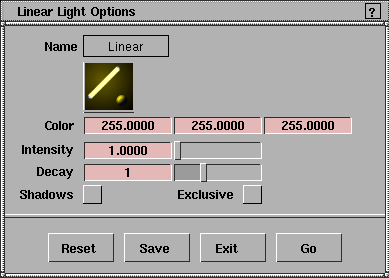
Color, Intensity, Decay, Exclusive
-
- See Light Parameters on page 238.
Shadows
-
- See Shadows on page 238.
Linear Parameters

Decay
-
- See Decay on page 244.
|


