|
Surface Texture Types
|
|
|
|
|
There are thirteen different types of surface textures.
|
|

|
File Texture
The File texture lets you use an image file as a surface texture. See File Texture on page 151.
|
|

|
Bulge Texture
The Bulge texture represents a grid of white squares which fade to grey toward their edges. See Bulge Texture on page 155.
|
|

|
Checker Texture
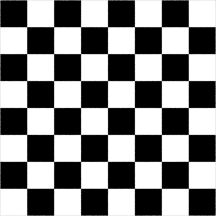
The Checker texture represents a checkerboard pattern. See Checker Texture on page 156.
|
|

|
Cloth Texture
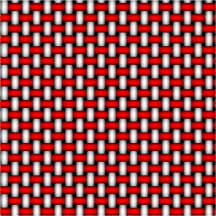
The Cloth texture simulates fabric or other woven materials. See Cloth Texture on page 157.
|
|

|
Curvature Texture
The Curvature texture is a specialized version of the ramp texture used by the Surf curvature and Surf curv params tools. See Showing Surface Curvature in the Modeling in Alias book.
|
|

|
Fractal Texture
The Fractal texture represents a random function with a particular frequency distribution (a fractal). See Fractal Texture on page 160.
|
|

|
Grid Texture
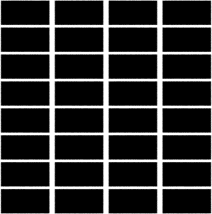
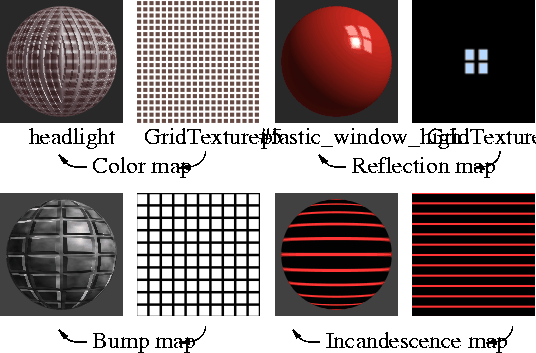
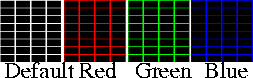
The Grid texture represents a scalar grid pattern. See Grid Texture on page 162.
|
|

|
Highlight Texture
The Highlight texture is a specialized version of the ramp texture used by the Highlight and Highlight params tools. See Showing Surface Features with Highlights in the Modeling in Alias book.
|
|

|
Mountain Texture
The Mountain texture simulates rocky terrain using a two-dimensional fractal pattern. See Mountain Texture on page 164.
|
|

|
Noise Texture
The Noise texture represents a random pattern of two colors. See Noise Texture on page 167.
|
|

|
Ramp Texture
The Ramp texture represents a gradation through a series of colors. See Ramp Texture on page 168.
|
|

|
Stencil Texture
The Stencil texture lets you use an image file as a surface texture and lets you selectively mask the image file. See Stencil Texture on page 174.
|
|
|
Water Texture
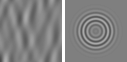
The Water texture simulates linear water waves, concentric water ripples (for example, caused by an object falling into water), or a combination of waves and ripples. See Water Texture on page 177.
File Texture
|
|
|
|
| |
|

|
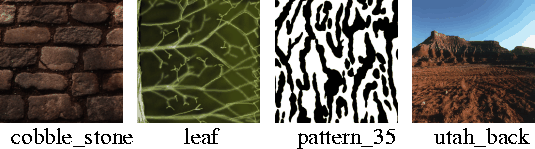
The File texture lets you use an image file as a surface texture. You can create an image file using a paint package (for example, VizPaint2D or StudioPaint3D), using a scanner to scan in a photograph, or by rendering a scene.
File Texture Parameters
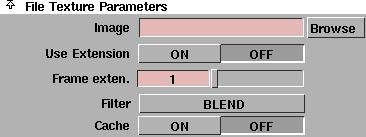
The File Texture Parameters let you set an image to be used as a texture map (or a sequence of images to create an animation), and lets you control the image quality.
Image
-
- The image file used by the File texture. If you type only the file name, the system looks for the image file in the pix directory of your current working project, unless the applicable .AliasPrefs has been set to direct all searches to a common pix directory (see System Directories in the Basic Tools in Alias book). If the file is not found there, the system looks in ALIAS_INPUT_PIX_DIR. If the file is found, the full path is displayed in the Image field.
Use Extension
-
- Appends the frame extension number (Frame exten.) to the Image file name and to any images in the Per Object Images list. To use a sequence of image files to create an animation, set Use Extension ON and then animate the Frame exten. value. The default setting is OFF.
Frame exten. (Frame Extension)
-
- The frame extension number that will be appended to the Image file name and to any images in the Per Object Images list. To use a sequence of image files to create an animation, set Use Extension ON and then animate the Frame exten. value. If Use Extension is OFF, the Frame exten. value has no effect.
|
|
|
Filter
-
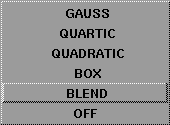
- The anti-aliasing technique applied to the image file during rendering. The higher order filters (QUADRATIC, QUARTIC, and GAUSS) only work when the File texture is mapped directly to a shader. The default setting is BLEND.
| OFF
| No anti-aliasing. This is useful for game designers who want to see pixels of a texture without any interpolation by the renderer.
|
| BLEND
| Standard anti-aliasing (as in previous versions). This is the default setting.
|
| BOX
| Higher quality anti-aliasing, but slower performance.
|
| QUADRATIC
| Higher quality anti-aliasing, but slower performance.
|
| QUARTIC
| Higher quality anti-aliasing, but slower performance. Use only if QUADRATIC is inadequate (extremely rare).
|
| GAUSS
| Higher quality anti-aliasing, but slower performance.
|
Cache
-
- Caches the file texture. If Texture Caching is OFF in the Global Rendering Parameters window, the Cache setting has no effect (see Texture Caching on page 406). The default setting is OFF.
Per Object Images
|
|
A File texture that uses Per
Object Images is sometimes
referred to as a supertexture.
|
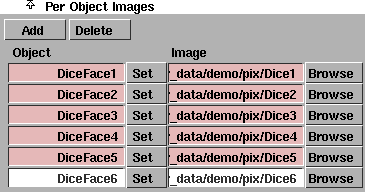
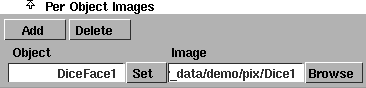
The Per Object Images section lets you create a list linking image files to objects so that different objects can use the same shader and File texture, but different image files. During rendering this list is examined. If the object is on the list, the corresponding image file is used. If the object is not on the list, the default Image (under the File Texture Parameters) is used.
If the default Image field is blank, then only the objects in the Per Object Images list will be textured. Conversely, you could turn off the file textures for specific objects by putting them in the Per Object Images list and leaving their Image fields blank. You must still assign the shader to the objects in the Per Object Images list.
Two notable uses for this feature are StudioPaint3D and Convert Solid Texture. In both cases you want to create the appearance of a single texture that spans several patches. Separate image files must be used; however, by using the Per Object Images list you only need one shader. Image files in the Per Object Images list are not displayed in the Multi-lister.
Add
-
- Adds a blank line to the Per Object Images list.
Delete
-
- Deletes the active (highlighted white) line in the Per Object Images list. To make a line active, click once on it.
To link an image file to an object:
-
1
-
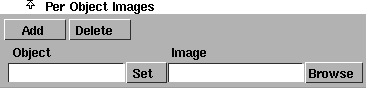
Click the Add button in the Per Object Images list. A blank line is added to the list.
-
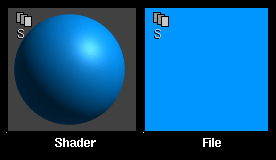
An "S" (supertexture) icon appears in the File texture's
Multi-lister swatch and in the shader's Multi-lister swatch.
-
2
-
Either:
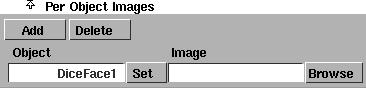
- double-click in the Object field and type the name of the object, or
- click on the object in the modeling window so that it is the only active object, and then click the Set button in the Per Object Images list. The object name appears in the Object list.
-
3
-
Either:
- double click in the Image field (beside the object name in the Object list) and type the image file name, or
- click the Browse button beside the Image field and select the image file using the File Requestor. The image file name appears in the Image list beside the object name in the Object list.
-
The image file will be applied only to that object.
Bulge Texture
|
|
|
|
| |
|
|
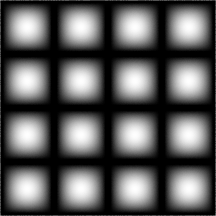
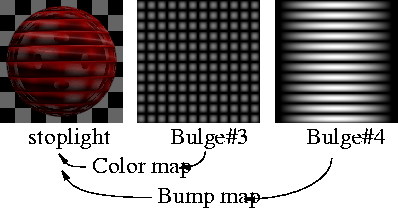
The Bulge texture represents a grid of white squares which fade to grey toward their edges. Use the Bulge texture as a bump or displacement map to create surface bulges, as a transparency map to simulate windows that are dirty around the edges, or as a color map to simulate tiles.
Bulge Texture Parameters

|
|
|
Uwidth, Vwidth
-
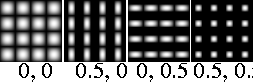
- The width of the texture squares in the U and V parametric directions. The valid range is 0 to 1. The slider range is 0 to 0.5. The default value is 0.1.
Checker Texture
|
|
|
|
| |
|
|
The Checker texture represents a checkerboard pattern.
Checker Texture Parameters
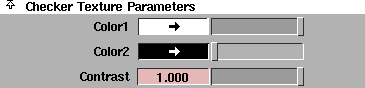
Color1, Color2
-
- The two colors of the checkerboard squares.
|
|

|
Contrast
-
- The contrast between the two texture colors. The valid/slider range is 0 (the two colors are averaged over the entire texture) to 1. The default value is 1.
Cloth Texture
|
|
|
|
| |
|
|
The Cloth texture simulates fabric or other woven materials.
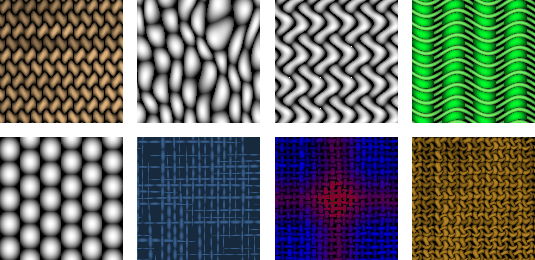
Note the following when using the cloth texture:
- Rendering will be faster if all three randomizing parameters (Randomness, Width Spread, and Bright. Spread) are set to 0.
- Very fine cloth textures may produce aliasing or moiré patterns, especially when viewed from a distance. If this occurs, set the Randomness value to a small non-zero value, or use Convert Solid Tex to convert the cloth texture into an image file. See Convert Solid Tex on page 26.
- If you apply the cloth texture as a bump or displacement map, set the U Thread Color and V Thread Color to white, and the Gap Color to black, and use the Intensity parameters (Amult and Aoffset) to control the intensity of the bump/displacement effect. Decrease the Blurmult value to provide greater definition in the bump/displacement effect. Generally, the Amult and Blurmult values should be very low (less than 0.1).
Cloth Texture Parameters
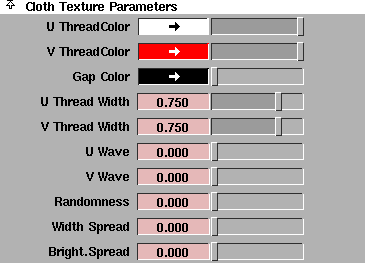
U ThreadColor, V ThreadColor
-
- The colors of the warp (U direction) and weft (V direction) threads of the cloth.
Gap Color
-
- The color of the area between the warp and weft threads. The threads' colors blend into the Gap Color at their edges, so a lighter Gap Color tends to simulate a cloth with softer, more translucent threads.
|
|
|
U Thread Width, V Thread Width
-
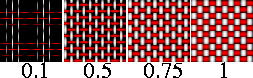
- The width of the warp and weft threads. If the thread width is 1, then the threads will fully touch with no gap between them. If the thread width is 0, the thread will disappear. (You can randomize thread width by setting the Width Spread parameter.) The valid/slider range is 0 to 1. The default value is 0.75.
|
|
|
U Wave, V Wave
-
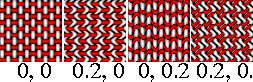
- Controls the waviness of the warp and weft threads to create special weave effects such as herringbone. The slider range is 0 to 0.5. The default value is 0.
|
|
|
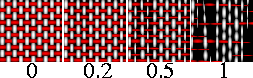
Randomness
-
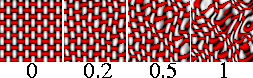
- Smears the texture randomly in the U and V directions. Adjust the Randomness value to create natural-looking cloth with irregular threads, or to prevent aliasing and moiré patterns on very fine cloth textures. The valid range is 0 to ·. The slider range is 0 to 1. The default value is 0.
|
|
|
Width Spread
-
- Randomizes the width of each thread along its length by subtracting a random amount (between 0 and the Width Spread value) from the U Thread Width and V Thread Width values. For example, if the thread widths are 1 and the Width Spread value is 0.75, the actual thread widths with vary between 0.25 and 1. If the Width Spread value is greater than or equal to the Thread Width value, then some threads will disappear entirely at certain points along their length. The valid/slider range is 0 to 1. The default value is 0.
|
|

|
Bright. Spread
-
- Randomizes the brightness of each thread along its length by subtracting a random amount (between 0 and the Bright. Spread value) from U Thread Color and V Thread Color (similar to Width Spread). The valid/slider range is 0 to 1. The default value is 0.
Fractal Texture
|
|
|
|
| |
|
|
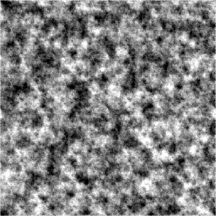
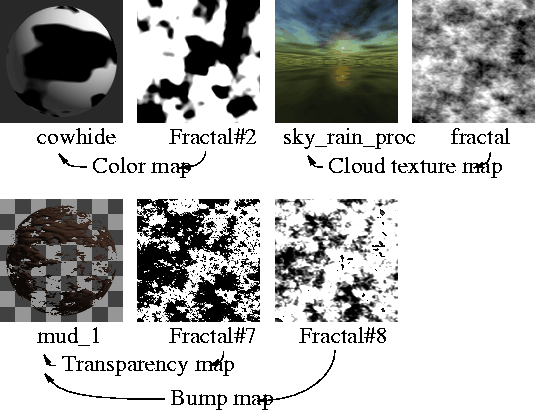
The Fractal texture represents a random function with a particular frequency distribution (a fractal) and can be used to create many different types of effects. Use the Fractal texture as a bump or displacement map to simulate rock or mountains, or as a transparency map to simulate clouds or flames. The Fractal texture has the same level of roughness at different levels of magnification (that is, at different distances from the camera).
Fractal Texture Parameters
|
|
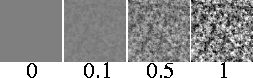
|
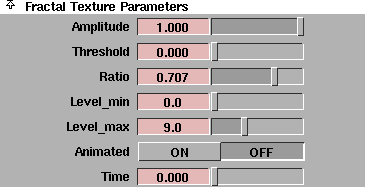
Amplitude
-
- A scaling factor applied to all values in the texture about the texture's average value. The valid range is 0 to ·. The slider range is 0 to 1. The default value is 1.
|
|
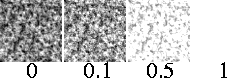
|
Threshold
-
- An offset factor applied to all values in the texture. The valid range is 0 to ·. The slider range is 0 to 1. The default value is 0.
|
|
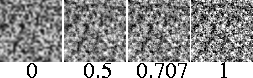
|
Ratio
-
- Controls the frequency of the fractal pattern. The valid/slider range is 0 (low frequency) to 1 (high frequency). The default value is 0.707.
|
|
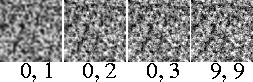
|
Level_min, Level_max
-
- The minimum and maximum number of iterations used to calculate the fractal pattern. These parameters control how fine grained the fractal pattern is. The valid range is 0 to 100. The slider range is 0 to 25. The default value is 0 for Level_min and 9 for Level_max.
|
Tip:
|
If both Level_min and Level_max are high (close to 100)
rendering will take a long time. If you want to make the
fractal pattern more finely grained, lower the Blurmult or
Amult value instead.
|
Animated
-
- Allows you to animate the fractal pattern by setting Animated ON and animating the Time value. The Fractal texture will take longer to calculate when Animated is ON. The default setting is OFF.
|
Tip:
|
Use an animated Fractal texture to create billowing cloud or
flame effects.
|
Time
-
- Allows you to animate the fractal pattern by setting Animated ON and animating the Time value. If Animated is OFF, the Time value has no effect. The slider range is 0 to 1. The default setting is 0.
Grid Texture
|
|
|
|
| |
|
|
The Grid texture represents a scalar grid pattern.
Grid Texture Parameters
|
|
|
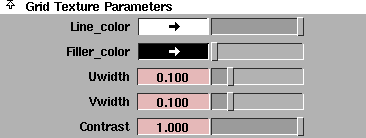
Line_color
-
- The color of the grid lines. The default color is white.
|
|

|
Filler_color
-
- The color of the spaces between the grid lines. The default color is black.
|
|
|
Uwidth, Vwidth
-
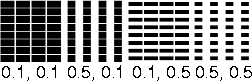
- The width of the grid lines in the U and V parametric directions. The valid range is 0 to 1. The slider range is 0 to 0.5. The default value is 0.1.
|
|
|
Contrast
-
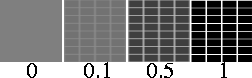
- The contrast between the Line Color and the Filler Color. The valid/slider range is 0 (the two colors are averaged over the entire texture) to 1. The default value is 1.
Mountain Texture
|
|
|
|
| |
|
|
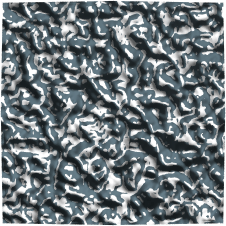
The Mountain texture simulates rocky terrain using a two-dimensional fractal pattern. Use the Mountain texture as both a color map and a bump or displacement map (on a flat surface) to simulate snow capped mountains.
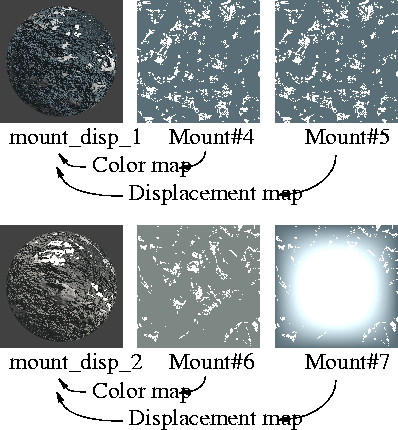
If you do apply the Mountain texture as both a color map and a bump or displacement map, note the following:
- The texture calculates the color map based on the bump/displacement map, so, for example, the location of snow is based on the surface's displacement.
- The color parameters (Snow_color and Rock_color) of the Mountain texture relate only to the color map, and have no effect on the bump/displacement map. Similarly, all non-color parameters of the Mountain texture relate only to the bump/displacement map, and have no effect on the color map.
- The values of the Boundary parameter, the Snow Levels parameters, and the Recursion Depth parameter (Level_max) of the bump/displacement map will override those of the color map. For example, the Boundary value of the bump/displacement map will control the raggedness of the snow/rock boundary of the color map.
Mountain Texture Parameters
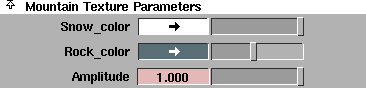
Snow_color
-
- The color of the snow element of the texture.
Rock_color
-
- The color of the rock element of the texture.
|
|
|
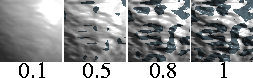
Amplitude
-
- A scaling factor applied to all values in the texture about the texture's average value. The valid range is 0 to ·. The slider range is 0 to 1. The default value is 1.
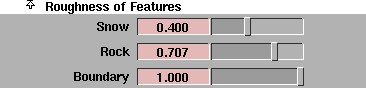
Roughness of Features
|
|
|
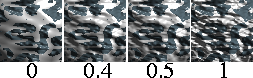
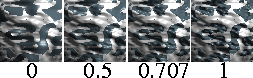
Snow
-
- The roughness of the snow element of the texture. The valid/slider range is 0 (perfectly smooth snow) to 1 (extremely rough snow). The default value is 0.4.
|
|
|
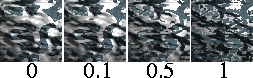
Rock
-
- The roughness of the rock element of the texture. The valid/slider range is 0 (perfectly smooth rock) to 1 (extremely rough rock). The default value is 0.707.
|
|
|
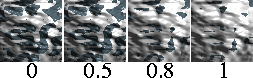
Boundary
-
- The raggedness of the rock/snow boundary. The valid/slider range is 0 (perfectly smooth rock/snow boundary) to 1 (extremely rough rock/snow boundary). The default value is 1.
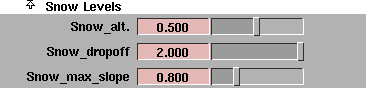
Snow Levels
|
|
|
Snow_alt.
-
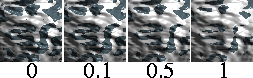
- The level (altitude) of the transition between rock and snow. The valid range is 0 to ·. The slider range is 0 to 1. The default value is 0.5.
|
|
|
Snow_dropoff
-
- The suddenness with which snow no longer sticks to the mountain. The valid range is 0 to ·. The slider range is 0 to 1. The default value is 2.
|
|
|
Snow_max_slope
-
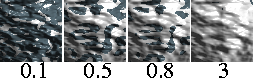
- The maximum angle (expressed as a decimal value) over which snow will not stick to the mountain. For example, where the slope exceeds the Snow_max_slope value, it would be bare rock. The valid range is 0 to ·. The slider range is 0 to 3. The default value is 0.8.
Recursion Depth

|
|
|
Level_max
-
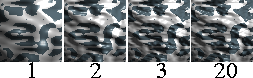
- The maximum number of iterations used to calculate the fractal pattern, which controls how fine grained the fractal pattern is. The valid/slider range is 0 to 40. The default value is 20.
Noise Texture
|
|
|
|
| |
|
|
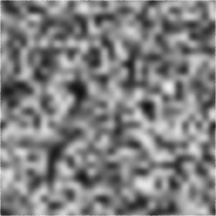
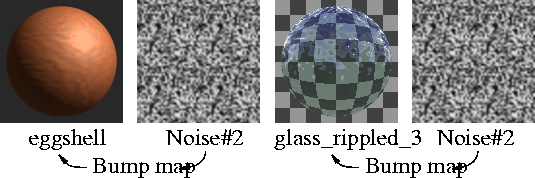
The Noise texture represents a random pattern of two colors. The Noise texture will appear smoother the closer it is to the camera.
Noise Texture Parameters
|
|
|
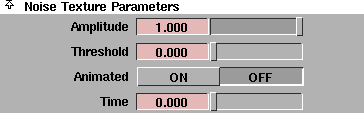
Amplitude
-
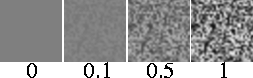
- A scaling factor applied to all values in the texture about the texture's average value. The valid range is 0 to ·. The slider range is 0 to 1. The default value is 1.
|
|
|
Threshold
-
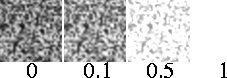
- An offset factor applied to all values in the texture. The valid range is 0 to ·. The slider range is 0 to 1. The default value is 0.
Animated
-
- Allows you to animate the noise pattern by setting Animated ON and animating the Time value. The Noise texture will take longer to calculate when Animated is ON. The default setting is OFF.
Time
-
- Allows you to animate the noise pattern by setting Animated ON and animating the Time value. If Animated is OFF, the Time value has no effect. The slider range is 0 to 1. The default setting is 0.
Ramp Texture
|
|
|
|
| |
|

|
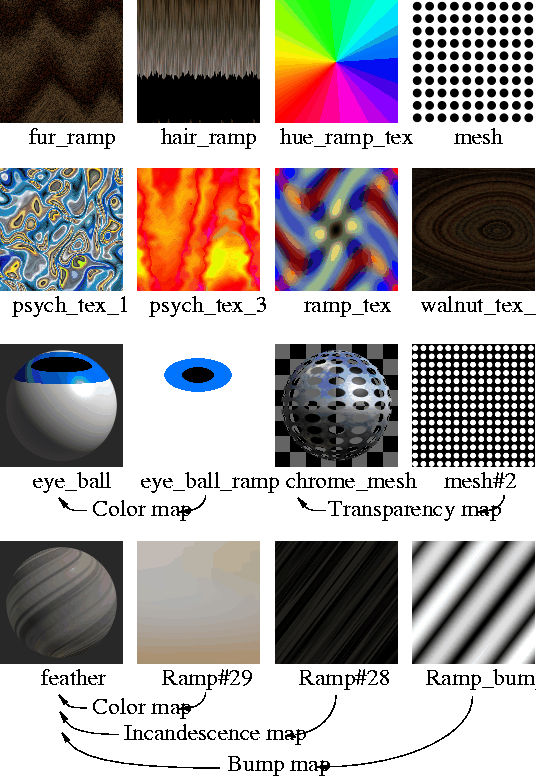
The Ramp texture represents a gradation through a series of colors. The ramp texture can be used to create many different types of effects (stripes, geometric patterns, mottled surfaces).
The default ramp texture is blue/red/black unless the texture is mapped to certain single-channel parameters (for example, Reflectivity, Bump, Displacement). In these cases the ramp is black/white/black.
Use a ramp texture:
- as a two-dimensional environment background
- as the source file for an environmental sphere texture to simulate a sky and horizon
- as the source file for a projection texture to simulate wood grain, marble, or rock.
Very complex ramp textures may experience aliasing during an animation. If this occurs, use Convert Solid Tex to convert the ramp texture into an image file (see Convert Solid Tex on page 26).
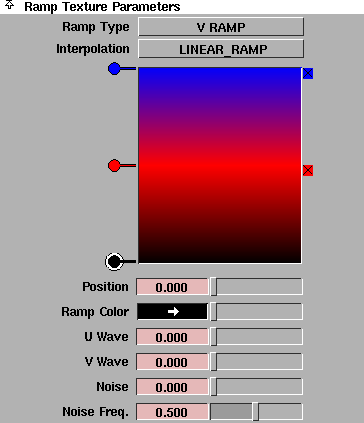
Ramp Texture Parameters
|
|
|
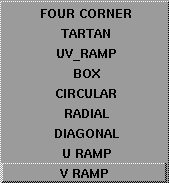
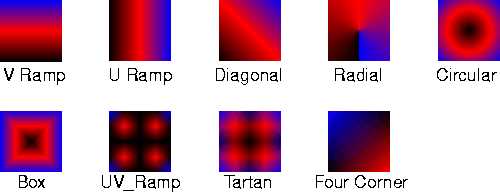
Ramp Type
-
- Controls the direction of the color ramp. The default setting is V RAMP.
|
|
|
Interpolation
-
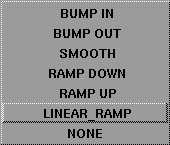
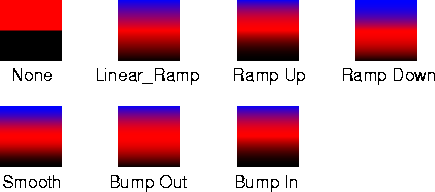
- Controls the way colors in the ramp are blended. The default setting is LINEAR_RAMP.
Ramp
-
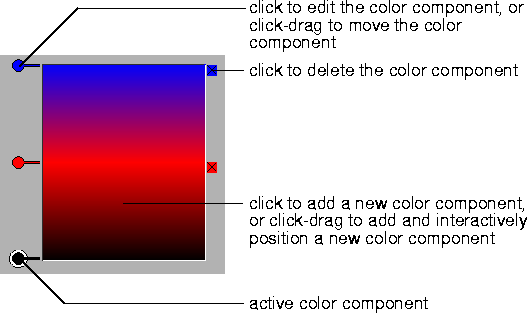
- Each color component in the ramp has a circular color handle on the left side of the ramp, and a square color icon on the right side of the ramp (except for the bottom color in the ramp). The active color has a white border around its color handle. The Position and Ramp Color parameters apply to the active color only. That is, to edit a color component's Position value or Ramp Color, you must first click its color handle to make it the active color component.
-
- Only changes in Ramp Type, Interpolation, Position, and Ramp Color are actually displayed in the ramp. Changes in all parameters are displayed in the Multi-lister swatch.
Position
-
- The position of the active color component in the ramp. The valid/slider range is 0 (bottom of ramp) to 1 (top of ramp).
Ramp Color, Intensity
-
- The color or intensity of the active color component. Only one of these parameters (Ramp Color or Intensity) is available for a particular ramp texture. If the Ramp texture is mapped to a three-channel parameter (for example, Color), then the Ramp Color parameter is available. If the Ramp texture is mapped to a single-channel parameter (for example, Bump), then the Intensity parameter is available. The slider range for Intensity is 0 to 1.
|
|
|
Uwave, Vwave
-
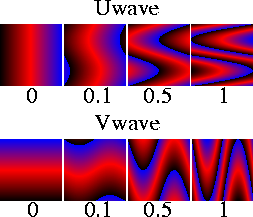
- Controls the amplitude of a sine wave offset of the texture in the U and V directions. Increasing the Uwave or Vwave value makes the texture appear increasingly wavy. The slider range is 0 (no wave) to 1. The default value is 0.
|
Tip:
|
To increase the number of waves in the texture, increase the
Urepeat and/or Vrepeat values.
|
|
|
|
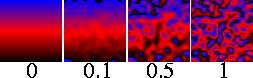
Noise
-
- The amount that the texture is offset in the U and V directions by two-dimensional noise. If the texture repeats (the Urepeat value and/or Vrepeat value are greater than 1), the noise will not repeat. That is, each instance of the texture will be unique. The slider range is 0 (no noise) to 1. The default value is 0.
|
|
|
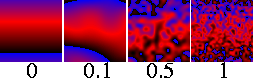
Noise Freq.
-
- Controls how fine-grained the noise is (if the Noise value is non-zero). The slider range is 0 to 1. The default value is 0.5.
HSV Color Noise, Value Noise
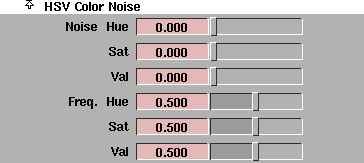
The HSV Color Noise parameters allow you to modulate the texture color using three separate two-dimensional noises which affect the color's hue, saturation, and value. If the Ramp texture is mapped to a single-channel parameter (for example, Bump), then the Value Noise parameters (Val Noise and Noise Freq.) replace the HSV Color Noise parameters.
|
|
|
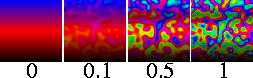
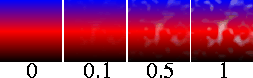
Noise Hue
-
- Offsets the color hue (mottles the color). The slider range is 0 to 1. The default value is 0.
|
|
|
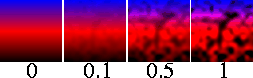
Sat (Saturation)
-
- Offsets the color saturation or "whiteness" (creates a weathered look). The slider range is 0 to 1. The default value is 0.
|
|
|
Val (Value)
-
- Offsets the color value or "blackness." The slider range is 0 to 1. The default value is 0.
|
|

|
Freq. Hue, Sat (Saturation), Val (Value)
-
- Controls the graininess of hue, saturation, and value noise. For each non-zero Freq. value, additional calculations are involved that slow down rendering. The slider range is 0 to 1. The default value is 0.5.
Stencil Texture
|
|
|
|
| |
|

|
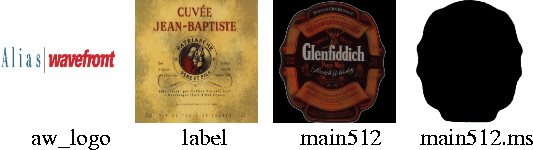
The Stencil texture is similar to the File texture. It lets you use an image file as a surface texture; however, it also lets you mask the image file to control how it covers a surface. Use the Stencil texture to overlay different textures (and control which parts of the textures are visible), or for label mapping. See Label Mapping on page 128.
Stencil Texture Parameters
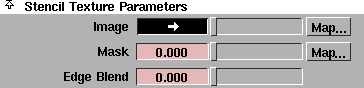
Image
-
- The texture used by the Stencil texture. To use an image file, you must map a File texture to this parameter.
|
|
|
Mask
-
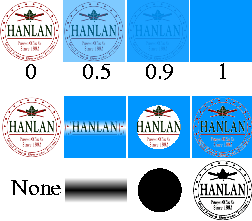
- The transparency of the Stencil texture. You can use the Mask parameter either to control the overall transparency of the entire texture (by using the numeric field or slider), or to control the transparency of select regions of the texture (by mapping a texture to Mask). To use an image file, you must first map a File texture to this parameter.
-
- For example, if the Stencil texture is mapped to a shader's color, and the Mask value is 0.5, the resulting surface will be an even mix of the shader color and the Stencil texture color. If Mask is mapped with an image of a black circle on white, the Stencil texture color will appear inside the circle, and the shader color will appear outside the circle.
-
- If you are using the Stencil texture an Overlay map, the Mask setting determines the degree to which the texture it was applied to can be seen through the Stencil texture. See Overlay on page 103.
-
- The slider range is 0 (opaque) to 1 (transparent). The default value is 0.
|
|
|
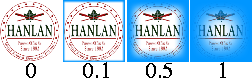
Edge Blend
-
- Controls the sharpness/softness of the edges of the texture. The valid range is 0 to ·. The slider range is 0 to 1. The default value is 0.
HSV Color Key
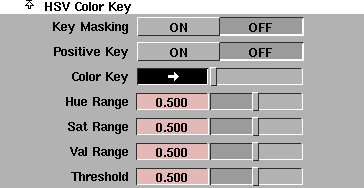
The HSV Color Key parameters control the chroma key masking of the Stencil texture.
Key Masking
-
- Enables chroma key masking. The default setting is OFF. If Key Masking is OFF, all other HSV Color Key parameters have no effect.
Positive Key
-
- Inverts the chroma key mask (only the colors specified in the Color Key and HSV Range are displayed). The default setting is OFF (the colors specified in the Color Key and HSV Range are masked).
Color Key
-
- The color to be masked in the texture. The default setting is black. To mask a range of colors, you must also set the Hue/Sat/Val Range parameters.
Hue Range
-
- The range of hues (H) centered on the Color Key color which will also be masked. The valid range is 0 to ·. The slider range is 0 to 1. The default value is 0.5.
Sat Range
-
- The range of saturations (S) centered on the Color Key color which will also be masked. The valid range is 0 to ·. The slider range is 0 to 1. The default value is 0.5.
Val Range
-
- The range of values (V) centered on the Color Key color which will also be masked. The valid range is 0 to ·. The slider range is 0 to 1. The default value is 0.5.
Threshold
-
- The point at which the color state changes. The valid range is 0 to ·. The slider range is 0 to 1. The default value is 0.5.
Water Texture
|
|
|
|
| |
|
|
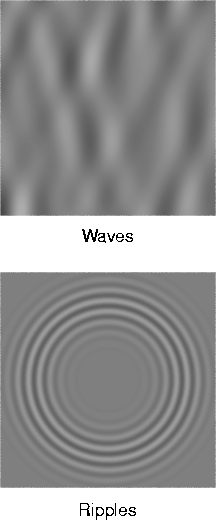
The Water texture simulates linear water waves, concentric water ripples (for example, caused by an object falling into water), or a combination of waves and ripples. Use the Water texture as a bump or displacement map to simulate water, or as a color map to simulate light reflections or refractions from a water surface.
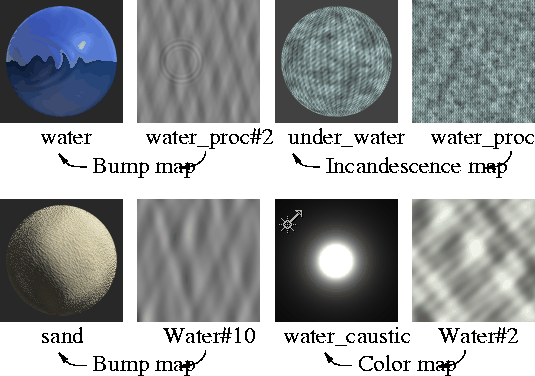
Water Texture Parameters
The Water Texture Parameters include the Linear Wave Parameters which control the appearance of linear water waves, and the Concentric Ripple Parameters, which control the appearance of concentric water ripples.
Linear Wave Parameters
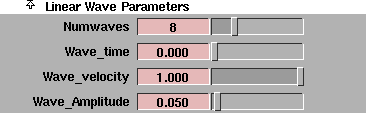
The Linear Wave Parameters control the appearance of linear water waves. The Linear Wave Parameters do not affect the concentric ripple component of the texture.
|
|
|
Numwaves
-
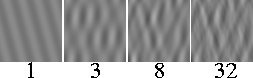
- The number of linear waves in the texture. To create water ripples with no linear waves, set the Numwaves value to 0. To combine linear waves with concentric ripples, set the Numwaves value to a low number (1 to 3). The valid range is 0 to 100. The slider range is 0 to 32. The default value is 8.
|
|
|
Wave_time
-
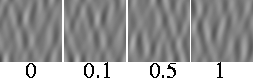
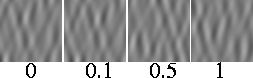
- Controls the appearance of the waves over time. If you relate the wave effect to the wake from a boat, the waves start off at some point with a certain velocity and amplitude. This is time zero. As time increases, the waves travel to shore and their appearance changes (their velocity and amplitude decrease). The slider range is 0 to 1. The default value is 0.
-
- To simulate moving water waves, animate the Wave_time value. The waves will move as this value increases. The actual speed of the waves is determined by the Wave_velocity value and the rate at which you animate the Wave_time value.
|
|
|
Wave_velocity
-
- The speed of the waves. The valid range is 0 to ·. The slider range is 0 to 1. The default value is 1.
|
|
|
Wave_Amplitude
-
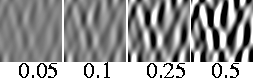
- Scales the height of the waves. The valid range is 0 to ·. The slider range is 0 to 1. The default value is 0.05.
Wave Frequencies
|
|
|
Frequency
-
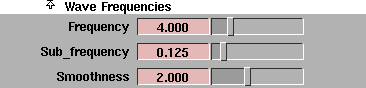
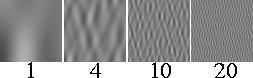
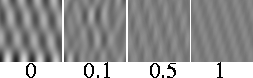
- Controls the distance between primary waves. The higher the Frequency value, the shorter the distance. The valid range is 0 to ·. The slider range is 0 to 20. The default value is 4.
|
|
|
Sub_frequency
-
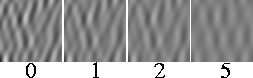
- Controls the distance between any secondary waves that ride on top of the primary waves (for example, white caps). The valid range is 0 to ·. The slider range is 0 to 1. The default value is 0.125.
|
|
|
Smoothness
-
- Controls the intensity of any secondary waves. The valid range is 0 to ·. The slider range is 0 to 5. The default value is 2.
Wind Direction

|
|
|
Wind_u, Wind_v
-
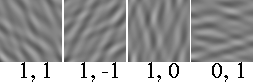
- The strength of wind in the U and V directions (which determines the overall direction of the linear wave pattern). The slider range is -1 to 1. The default value for Wind_u is 1. The default value for Wind_v is 0.
Concentric Ripple Parameters
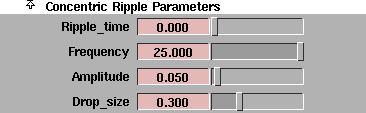
The Concentric Ripple Parameters control the appearance of concentric water ripples. The Concentric Ripple Parameters do not affect the linear wave component of the texture.
|
|
|
Ripple_time
-
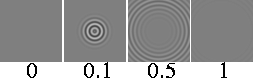
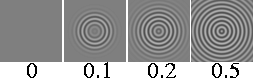
- Controls the appearance of ripples over time. For example, if you relate the ripple effect to that of a water droplet falling into a glass of still water, at time 0 there is no ripple; the droplet has not touched the surface of the water yet. As the time parameter increases to a value greater than 0, the droplet has fallen onto the water surface and the ripple wave effect simulates the effect on the water in the glass at that point in time. When time has reached a value of 1, the effect of the droplet on the water surface is nearly complete and the water in the glass becomes still again.
-
- The slider range is 0 to 1. The default value is 0.
-
- To simulate moving water ripples, animate the Ripple_time value. The ripples will move as this value increases. The actual speed of the ripples is determined by the Group_velocity value and the rate at which you animate the Ripple_time value.
|
|
|
Frequency
-
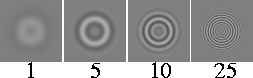
- Controls the distance between individual ripples. The higher the Frequency value, the shorter the distance. The valid range is 0 to ·. The slider range is 0 to 20. The default value is 25.
|
|
|
Amplitude
-
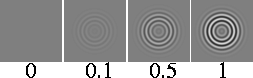
- Scales the height of the ripples. The valid range is 0 to ·. The slider range is 0 to 1. The default value is 0.05.
|
|
|
Drop_size
-
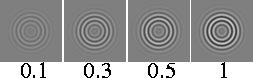
- The mass of the droplet that starts the water ripples. (Imagine a water droplet falling into a glass of still water.) A Drop_size value of 0, produces no ripple effect because the droplet has no mass. As the Drop_size value increases, the mass of the drop increases, causing a greater ripple effect on the water surface. The valid range is 0 to ·. The slider range is 0 to 1. The default value is 0.3.
Ripple Center

|
|
|
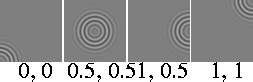
U_origin, V_origin
-
- The location of the center of the ripples along the U and V parametric directions. The slider range is 0 to 1. The default value is 0.5.
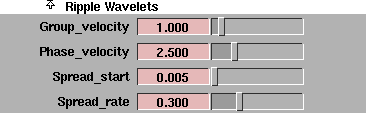
Ripple Wavelets
|
|
|
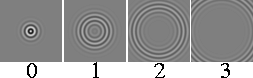
Group_velocity
-
- The speed of the primary ripple. The valid range is 0 to ·. The slider range is 0 to 10. The default value is 1.
|
|
|
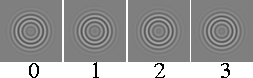
Phase_velocity
-
- The speed of sub-ripples. The valid range is 0 to ·. The slider range is 0 to 10. The default value is 2.5.
|
|
|
Spread_start
-
- Determines the degree of effect that a droplet will have on a still water surface at time 0. A concentric ripple starts as a point of disturbance in parameter space (defined by the U_origin and V_origin values) when the Ripple_time value is 0. The size of the disturbance at time 0 is determined by the Spread_start value. The greater the Spread_start value, the greater the effect of the disturbance at time 0. The valid range is 0 to ·. The slider range is 0 to 1. The default value is 0.005.
|
|
|
Spread_rate
-
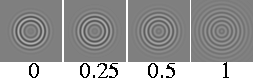
- The rate at which the primary ripple breaks up into sub-ripples. (As a ripple expands outward, it breaks up into sub-ripples.) The valid range is 0 to ·. The slider range is 0 to 1. The default value is 0.3.
Ripple Reflections
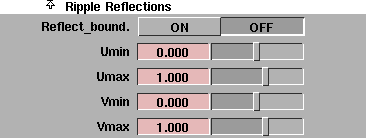
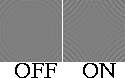
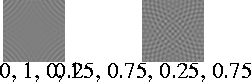
The Ripple Reflections parameters define an imaginary bounding box that ripples can reflect off. This effect, however, is nine times slower than if there is no reflecting bounding box.
|
|
|
Reflect_bound.
-
- Activates an imaginary reflective bounding box. The default setting is OFF.
|
|
|
Umin, Umax, Vmin, Vmax
-
- Defines the bounding box in the U and V parametric directions. If Reflect_bound. is OFF, these parameters have no effect. The slider range is 0 to 1. The default value for Umax and Vmax is 1; the default value for Umin and Vmin is 0.
|


